Introduction
The Global Search is a unified tool in Twozo CRM that helps you quickly access and manage to your records across the module. This feature saves your time and ensures a streamline workflow by providing accurate data.
- Access the Global Search across the CRM to retrieve the data easily.
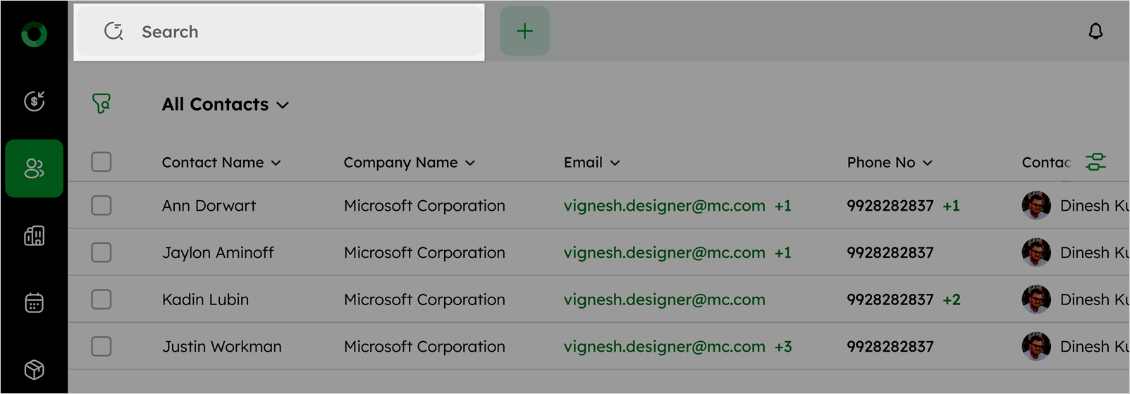
- View search results organized by modules like Deals, Contacts, Companies, Activities, Products, Files, and Notes for clarity and quick navigation.
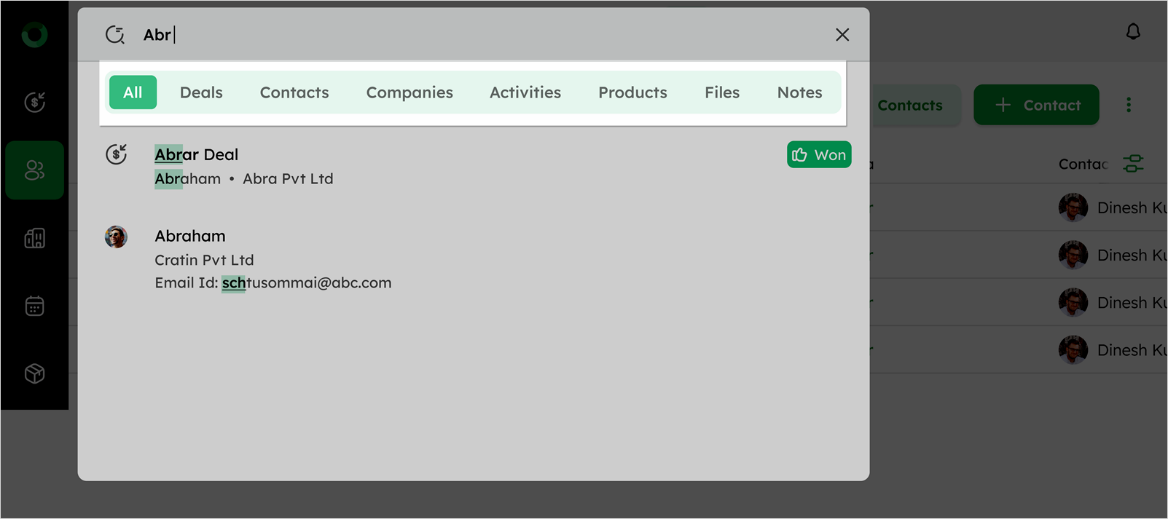
- Use the search bar to view real-time suggestions and find records with partial keywords.
Here’s the information displayed in search results for each module, summarized in a table:
| Module | Displayed Information |
|---|---|
| Contacts | Name of the individual and linked organization |
| Companies | Organization’s name |
| Deals | Deal title, primary associated contact, related company, and deal status. |
| Activities | Activity name, scheduled start date and time, associated contact, company, and deal information. Option to mark the activity as completed. |
| Products | Product name and unique identifier (product code). |
| Files | File name and linked entities such as contacts, companies, and deals. |
| Notes | Content of the note, related contact, company, or deal information. |
View Search Results by Module
You can search the records using the following data fields:
| Module | Searchable Fields |
|---|---|
| Deal | Deal Title, Contact Name, Company Name, Contact Email, Contact Phone, Notes, Contact and Company Address |
| Contact | Contact Name, Email ID, Phone, Company, Notes, Contact and Company Address |
| Company | Company Name, Contact Person, Notes, Company Address, and Website |
| Activity | Activity Subject, Activity Type, and Activity Notes |
| Product | Product Name and Product Code |
| Notes | Contact Name, Deal Title, Company, and Notes |
| Files | File Name |
Any custom fields added to the respective modules will also be included in the search functionality.
Search Functionalities
- Search for Linked Items: If the record you're searching for, is associated with other modules (e.g., a contact linked to a deal), the system will display the related records for quick access.
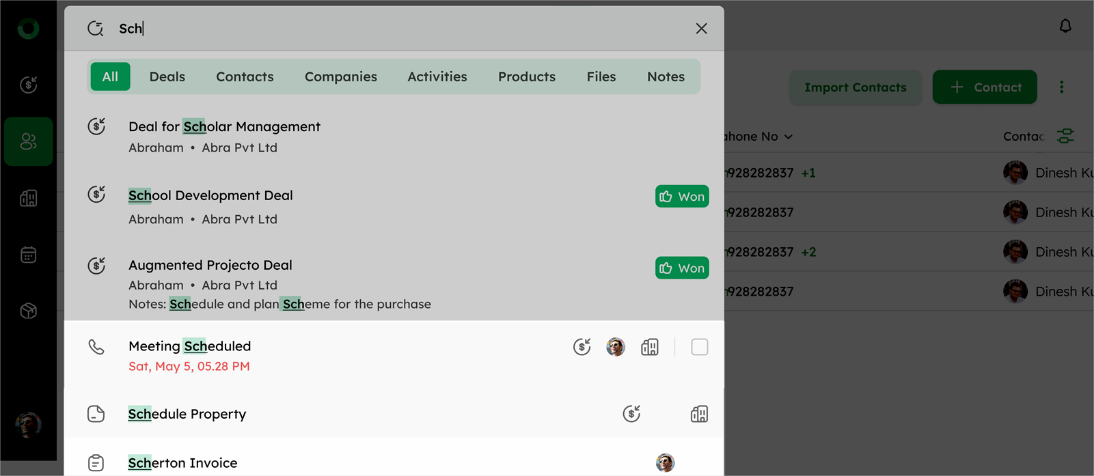
-
Search by Custom Fields: You can search using values from custom fields like Text, Large Text, Number, Monetary values, or Address. If a record matches the value you're searching for, it will appear in the results.
-
Search by Notes: If you have written notes under deals, contacts, companies, or activities, you can search with the keywords from the notes, and the relevant records will appear in the search results.
-
The search bar maintains the history of your Recently Searched terms, by allowing you to revisit previous queries with a single click.
-
The Recently Viewed section displays the frequent referred records to ensure the quick access.
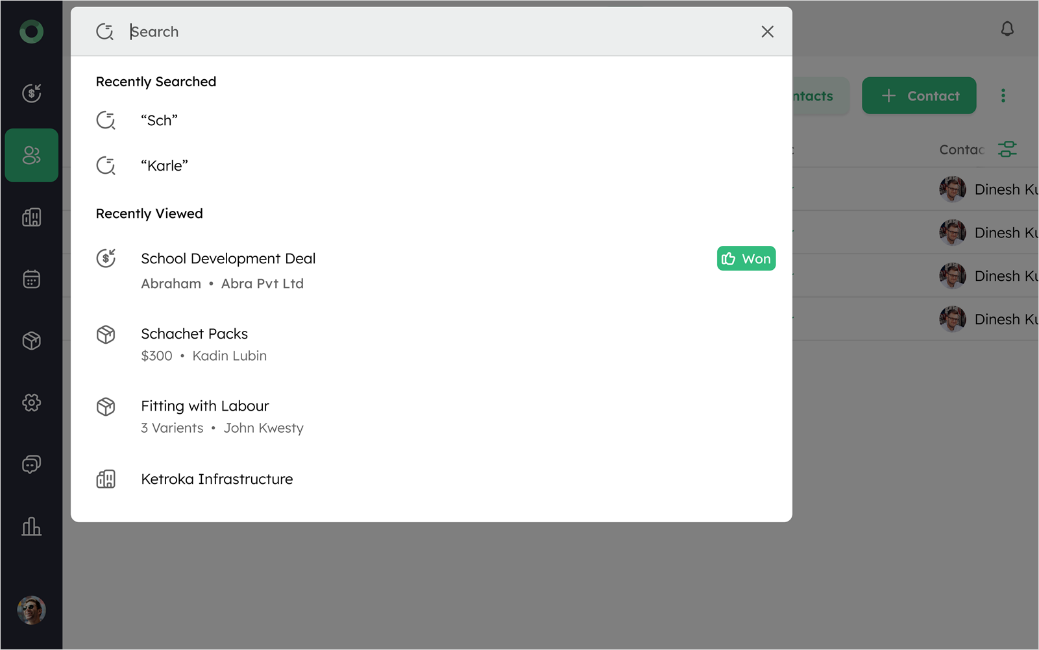
- Global Search offers quick-create options, if no matches are found, this allows you to add new records for your search query.
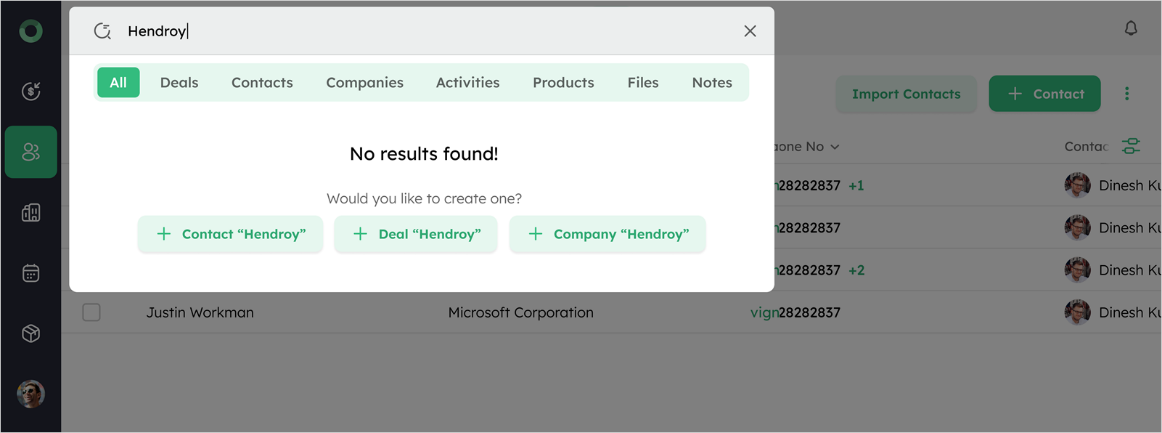
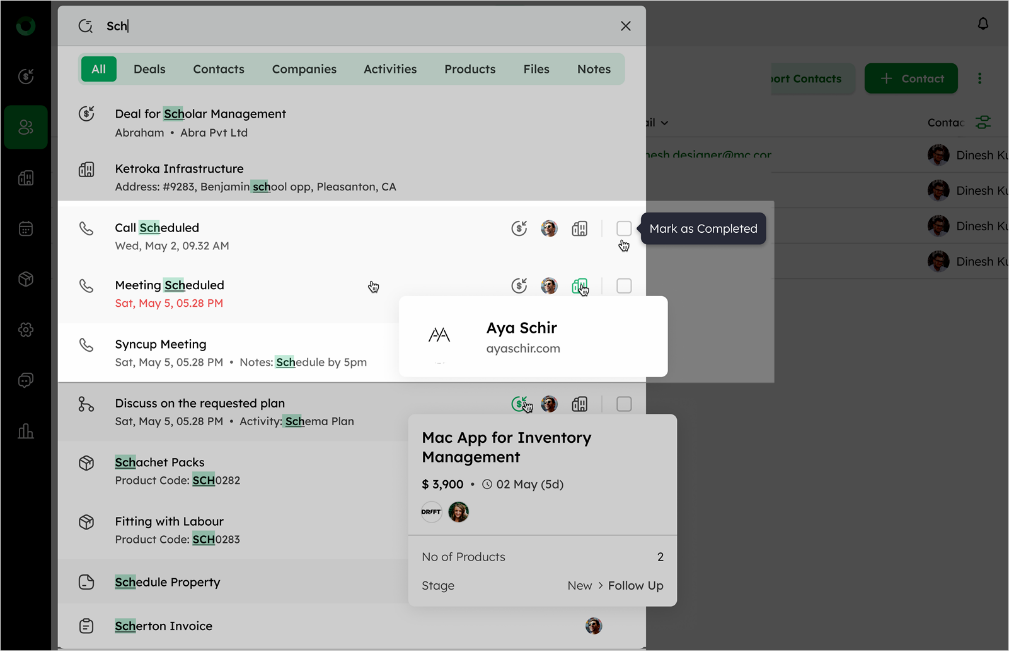
- In the Global Search bar, you can directly access the search results such as mark the activity as completed, creating new records, opening associated records, or hovering over details to view the detail card.
View Details in Detail Card:
-
For Deals: Deal Title, Deal Value, No. of Products, Contact Name, Company, Expected Close Date, Stage, Pipeline, and Won / Lost.
-
For Contacts: Contact Name, Email Id, Phone Number, and Company Name.
-
For Companies: Company Name and Website.
- If the recorded is deleted, it will no longer appear in your search results. Deleted records will be removed from the last 14 search results.
