Personalize Your Preferred Alerts in Twozo
Tired of missing crucial updates or losing track of important tasks CRM?
With Twozo CRM smart notifications, you’ll always be in the loop! Stay informed, act fast, and keep your workflow smooth whether you’re on the go or at your desk.
Access your notifications across the CRM platform to stay updated on key activities.
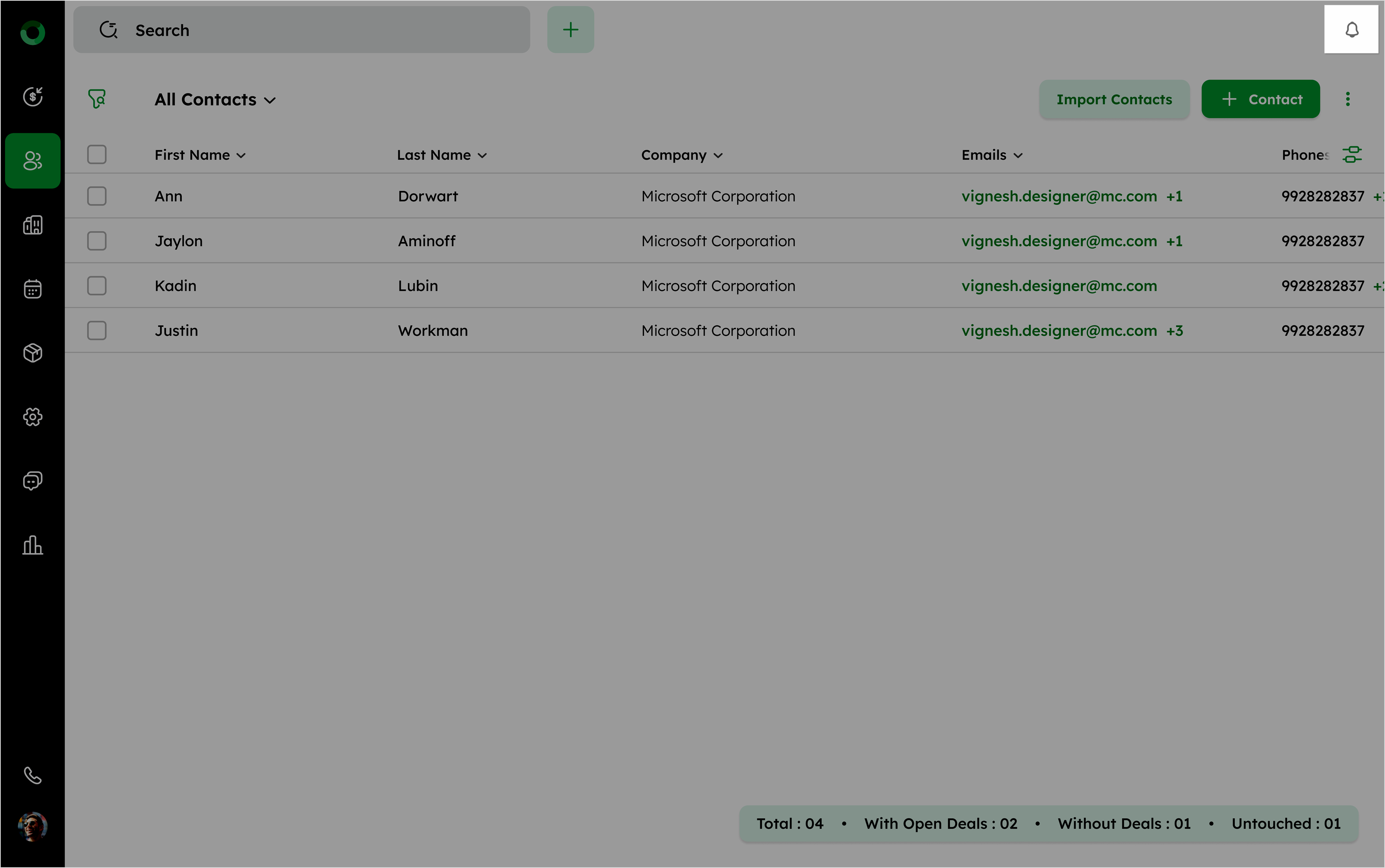
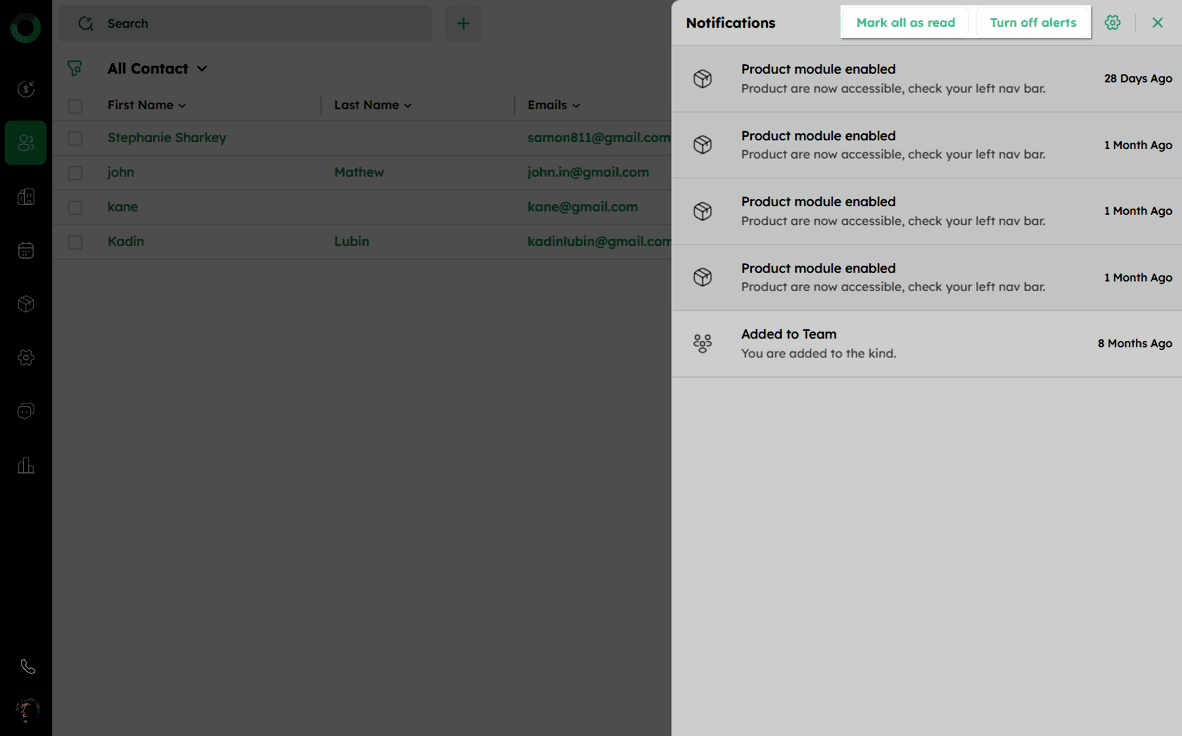
- Click the bell icon at the top-right to open the notifications panel. Notifications appear in chronological order, with the latest ones appearing at the top.
-
Click Mark all as read to change all unread messages to read.
-
Click Turn off alerts to disable the pop-up reminders for unread messages.
-
Click Turn on alerts to restore pop-up reminders and display the three latest unread messages.
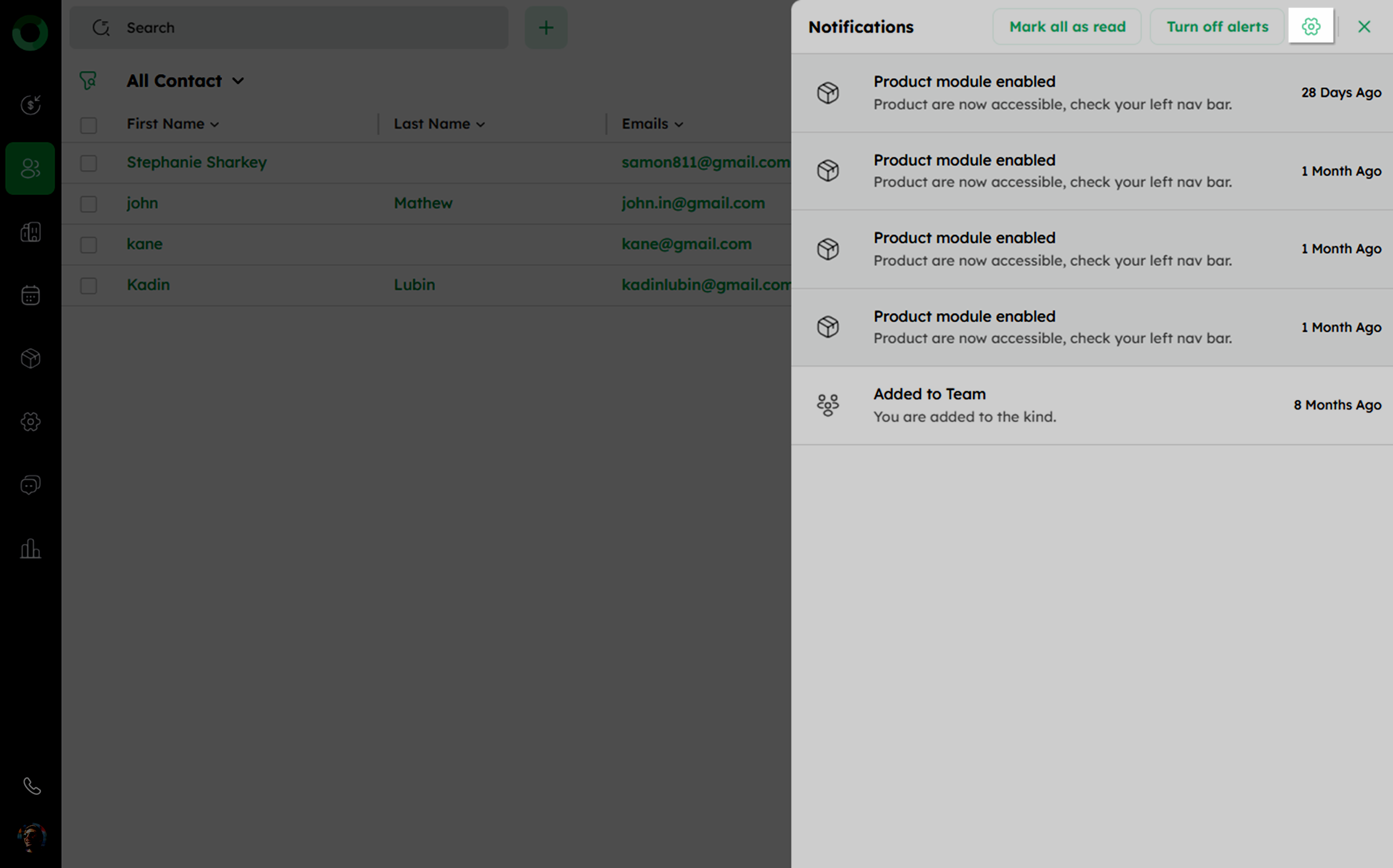
- Click the settings icon to manage the notification preferences you want to receive.
Which Specific Alerts Can You Customize?
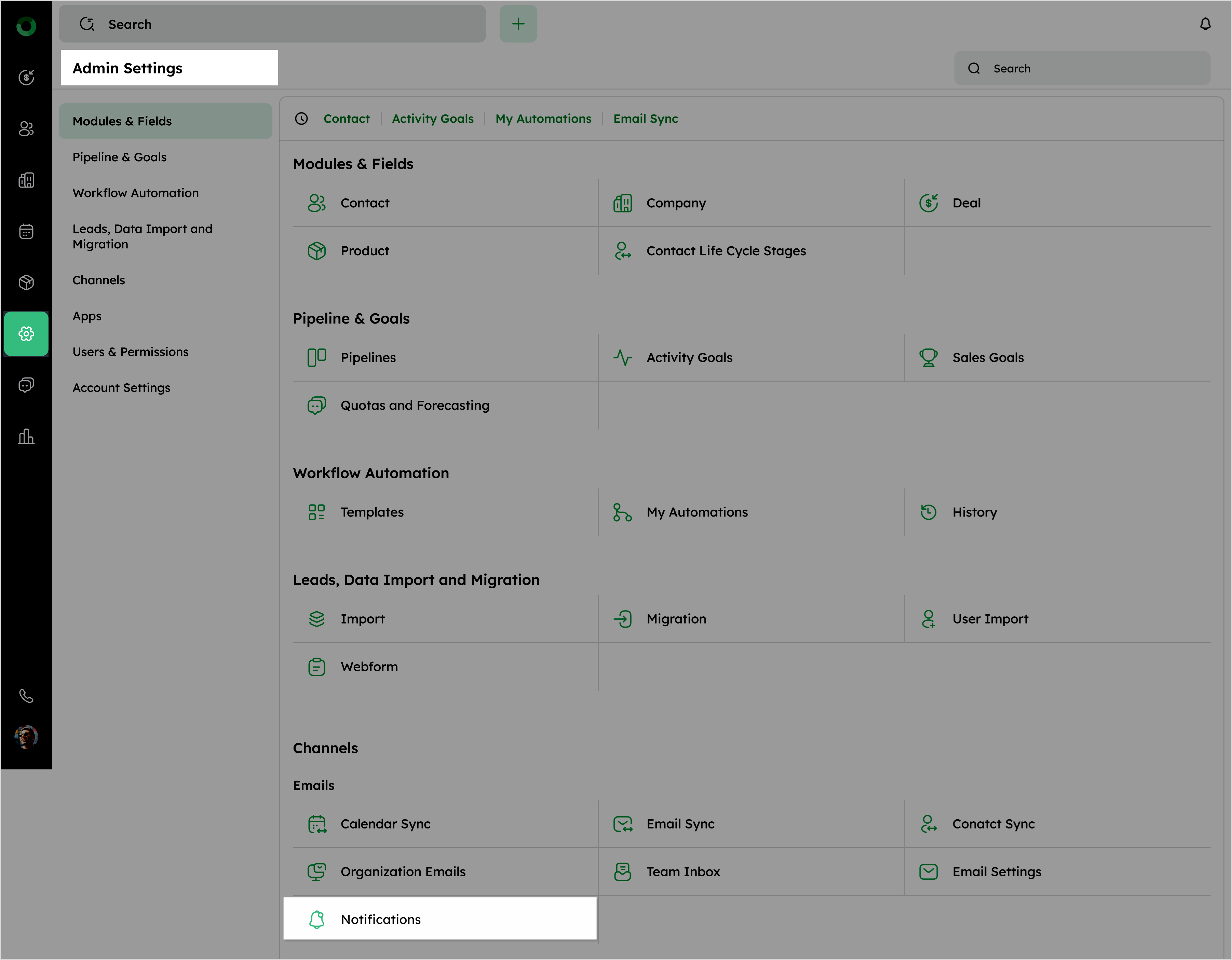
Personalize your notifications by navigating to Admin Settings > Notifications or clicking the settings icon within the notification panel to adjust the alert according to your preferences. This allows you to:
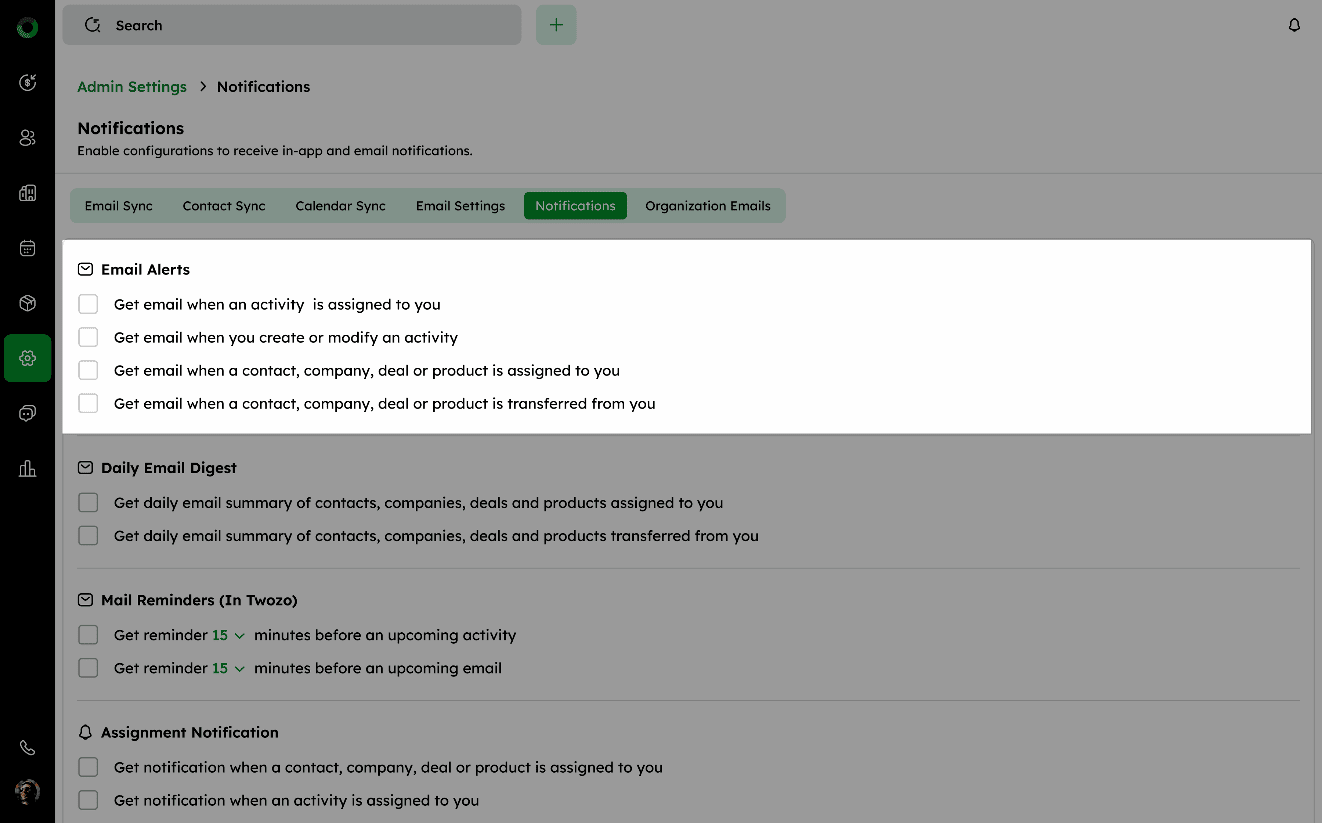
Email Alerts: Configuring Automated Notifications Sent to Your Inbox
The list of settings enables you to choose on receiving email notifications of the fields that include, activities, contacts, companies, deals, and products.
Daily Email Digest: Receiving a Consolidated Summary of Key Activities
Daily Email Digest sends you to the email summary of assigned and transferred and entities regularly.
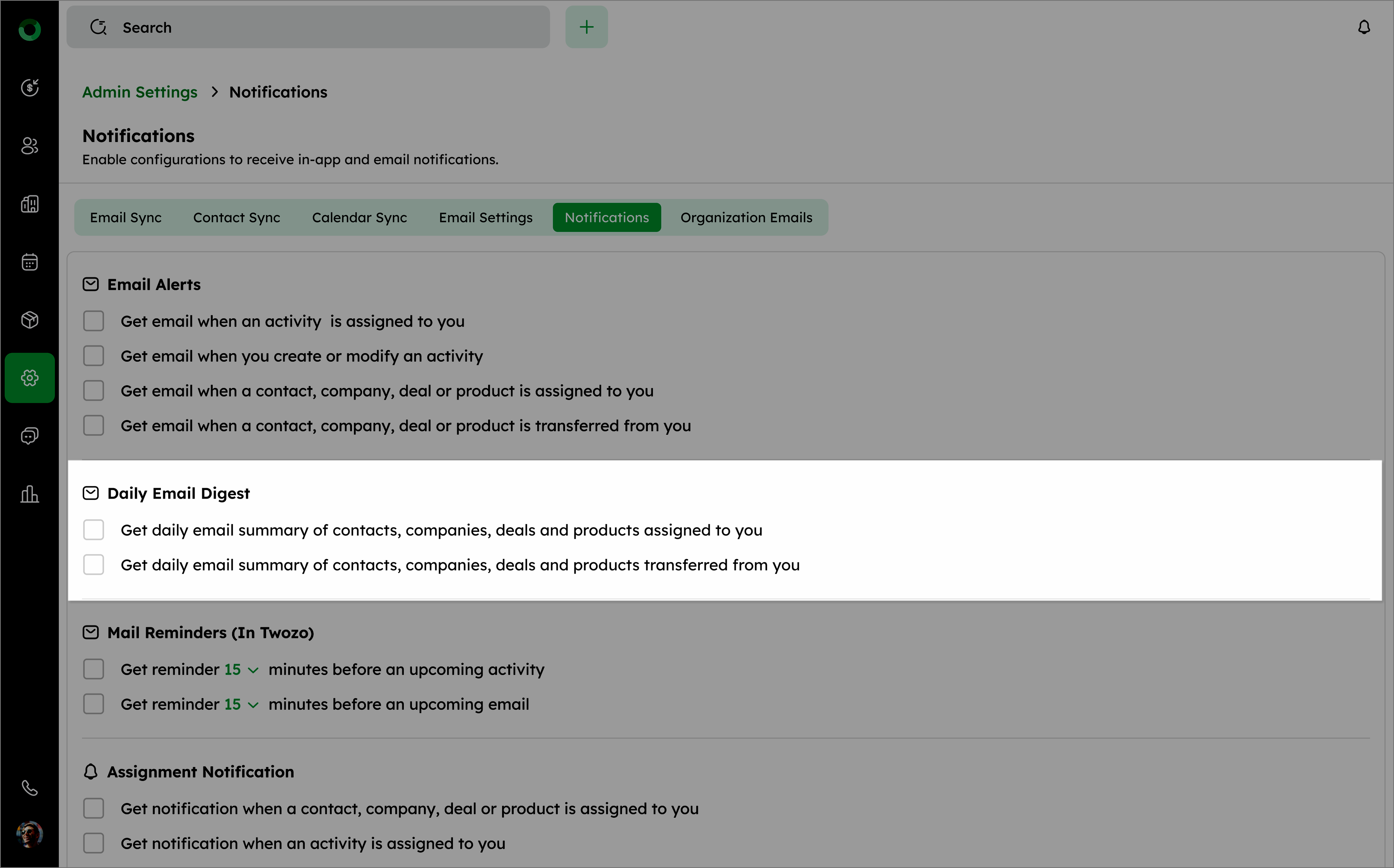
The daily summary is sent at exactly 12:00 AM, summarizing activities for the previous day.
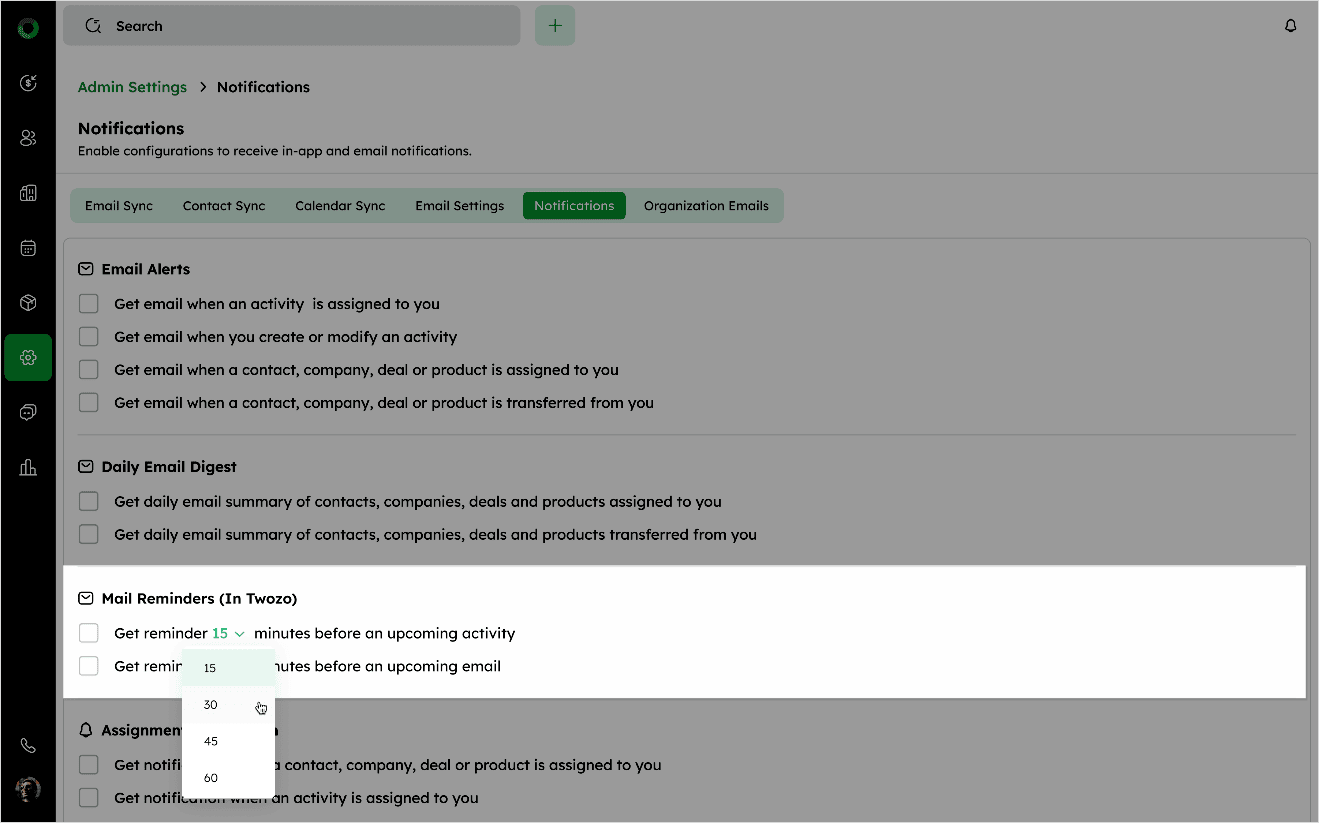
Mail Reminders (In Twozo): Setting Up Alerts for Upcoming Tasks and Communications
Mail Reminders ensure you stay organized and prepared for your upcoming activities and emails.
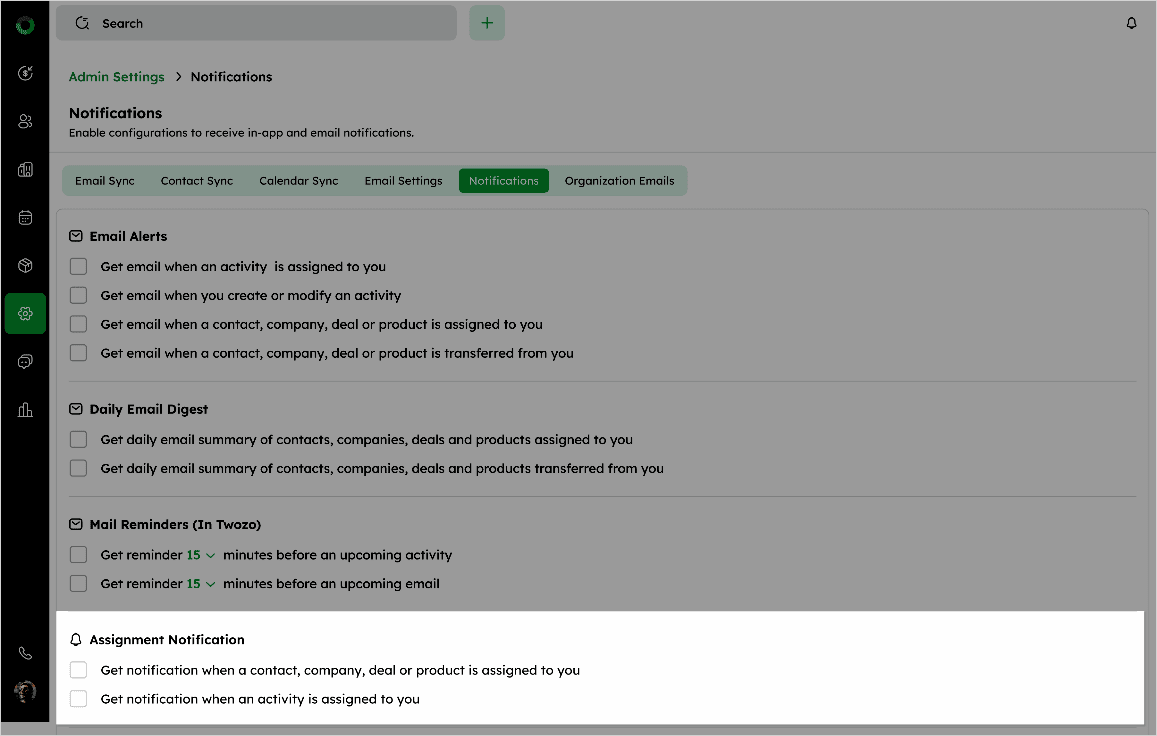
Assignment Notifications: Getting Immediate Alerts When Entities Are Allocated to You
These notifications alert you whenever a contact, company, deal, or product is assigned or transferred to you.
Email Tracking Notifications: Staying Informed About Recipient Engagement with Your Messages
Twozo efficiently helps you to stay informed about email engagement and recipient actions. These notifications monitor the status of the emails and informs you about the recipient’s engagement with your messages.
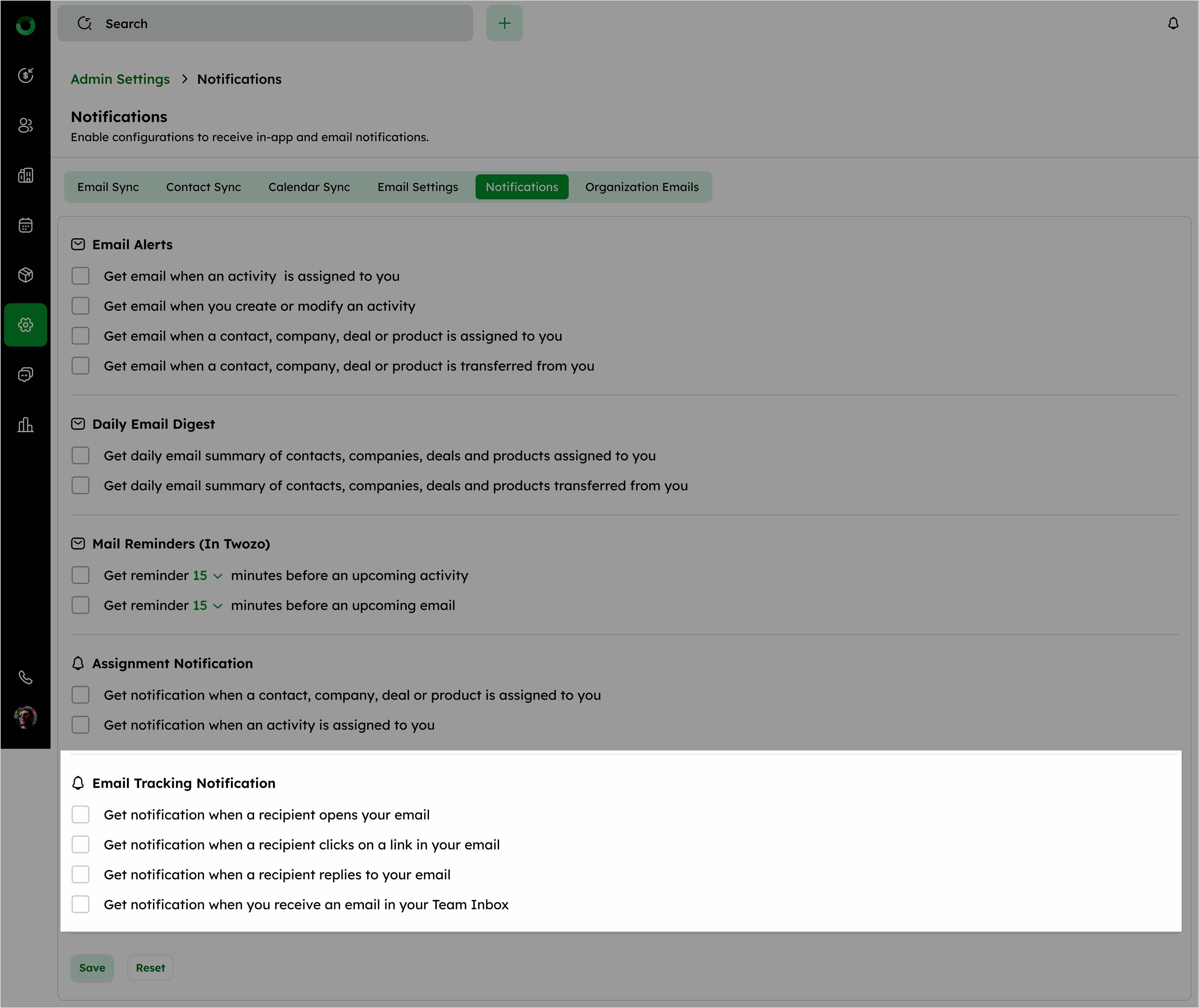
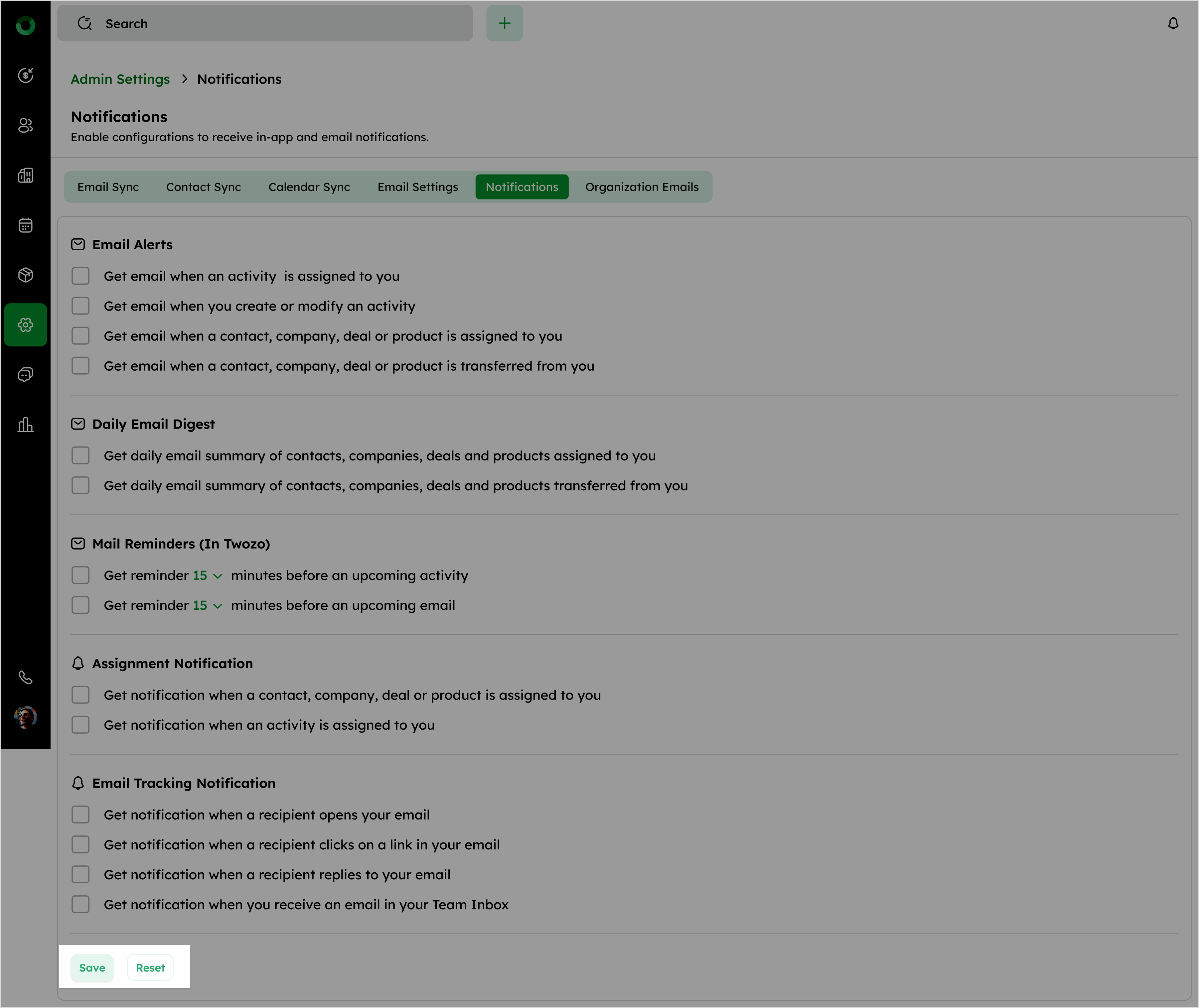
After the changes are updated, click Save to apply the new settings or Reset to revert to the previous configuration.
Key Triggers: What System Events Generate Notifications in Twozo?
Twozo CRM delivers notifications for key moments in your workflow that require your attention:
-
When a contact, company, deal, or product is assigned to you.
-
When an activity is assigned to you.
-
When a recipient opens your email.
-
When a recipient clicks a link in the mail you have sent.
-
When a recipient replies to your email.
-
When you receive an email in your Team Inbox.
-
When you're added as a collaborator in a sales activity.
-
When you sync your Google or Outlook contacts with the CRM.
-
When you sync your Google or Outlook calendars with the CRM.
-
When you are added to a team.
-
When your role changes (e.g., from sales user to administrator).
-
When a new email is received in your Team Inbox.
-
When the Products module is enabled.
-
When an activity reminder is triggered.
-
When an email is received in your inbox.
Understanding Reminder Pop-Up Notifications
The reminder pop-up notifications in Twozo CRM are designed to alert users for key activities and updates.
Popup Behavior: The reminder pop-ups are triggered only for unread notifications. This ensures that users are not overwhelmed with repeated reminders for actions they have already acknowledged.
Redirection: For easy navigation, the pop-up will include a direct link to the corresponding detail page (Contact, Company, Deal, etc.) and activity types (e.g., activity reminders, contact assignments).
Customization and Flexibility: System-generated content changes automatically based on the selected language. User-entered content does not change, ensuring it stays consistent across all languages.
