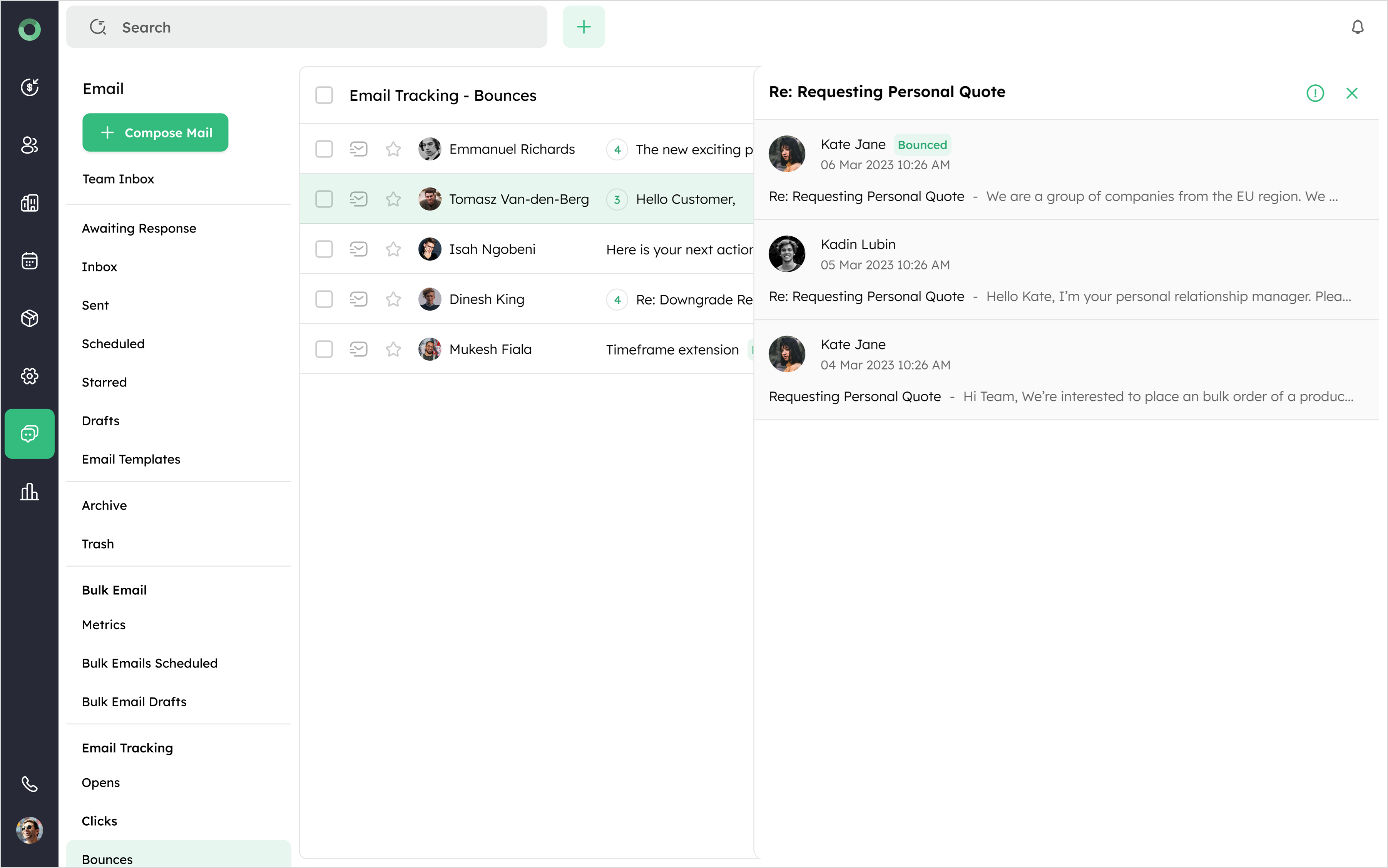
Bulk email management
What features are available for bulk email management?
Bulk email management allows you to compose and send a single email to multiple recipients at once. Under this Bulk Email section, you will find three key areas to organize your emails: Metrics, Bulk Email Scheduled, and Bulk Email Drafts.
Metrics: This section provides in-depth performance data for each bulk email campaign, enabling you to monitor and analyze engagement levels. Specific metrics available include:
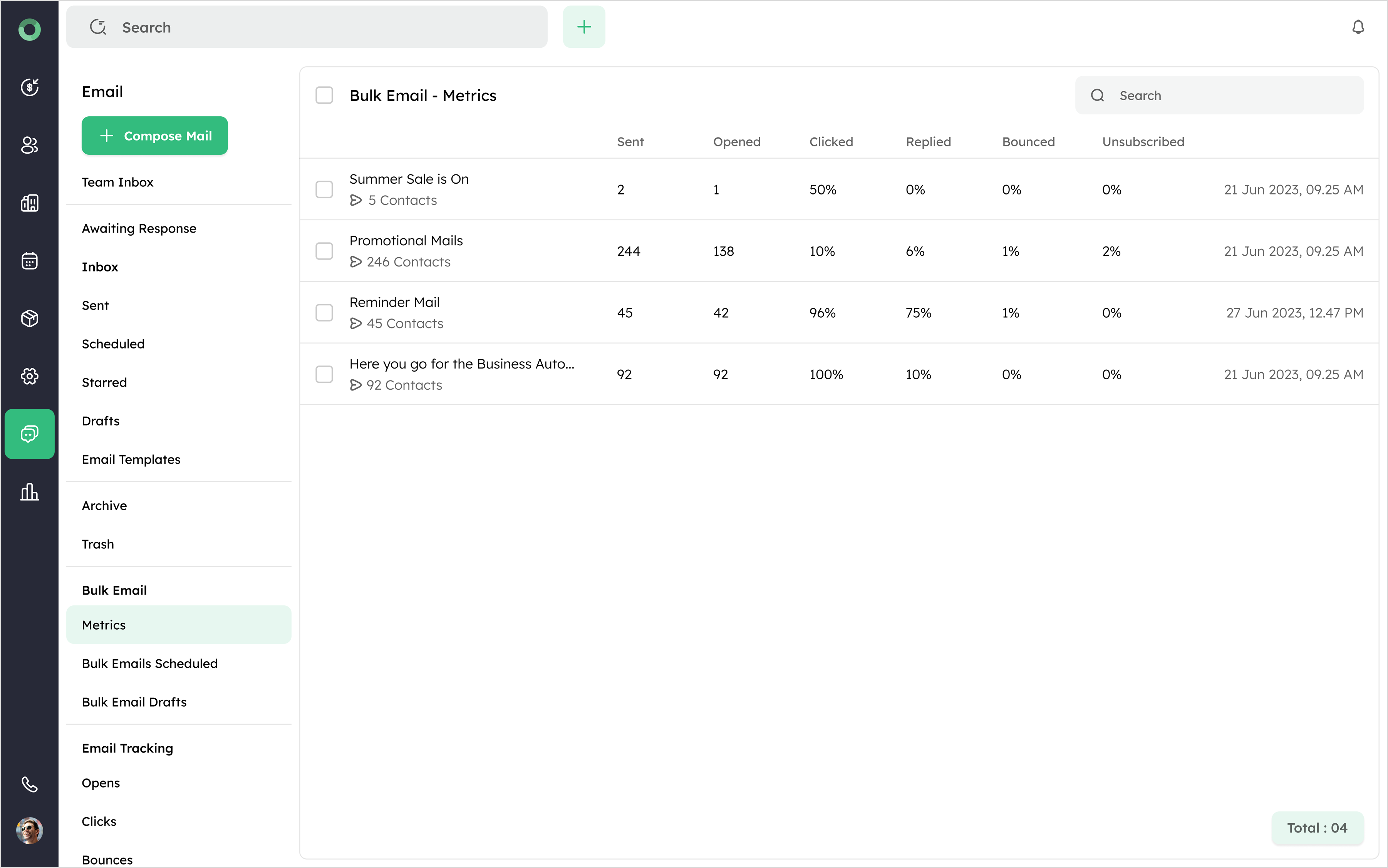
| Metric | Description |
|---|---|
| Sent | Total emails successfully delivered to recipients |
| Opened | Number of recipients who opened the email |
| Clicked | Count of recipients who clicked on links within the email |
| Replied | Tracks direct responses from recipients |
| Bounced | Number of emails that failed to deliver |
| Unsubscribed | Count of recipients who opted out of future emails |
Bulk Emails Scheduled: This feature enables you to plan and automate your emails by scheduling them for specific dates and times. It helps ensure emails reach recipients at optimal moments, supports advance email planning, and allows coordination with other marketing efforts.
The following steps outline how to schedule and manage bulk emails:
- Compose your email and choose the Schedule Mail option from the dropdown next to the Send button.
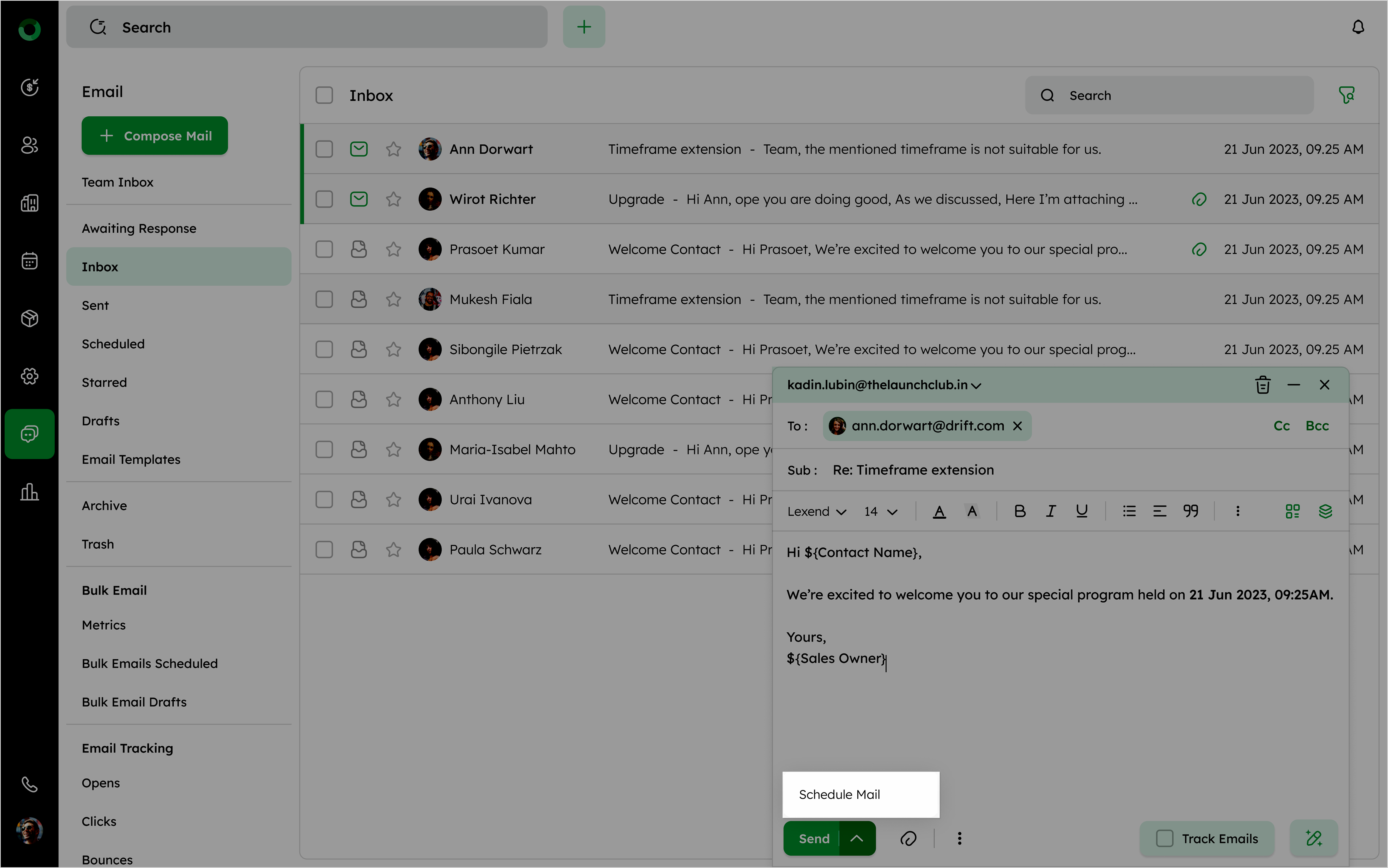
- Choose the desired date, time, and time zone for sending the email.
For individual emails, will be stored in the Scheduled folder until sent.
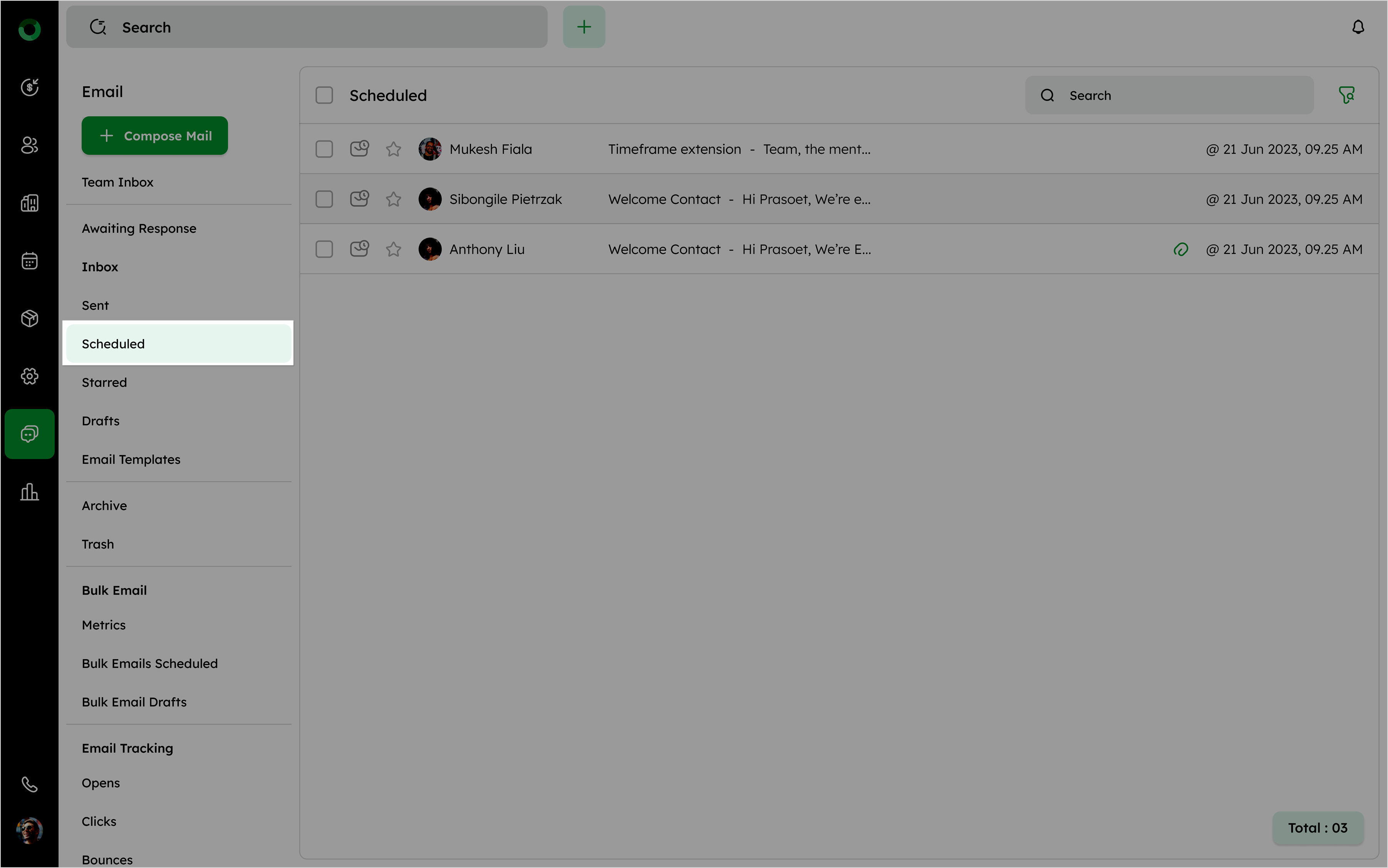
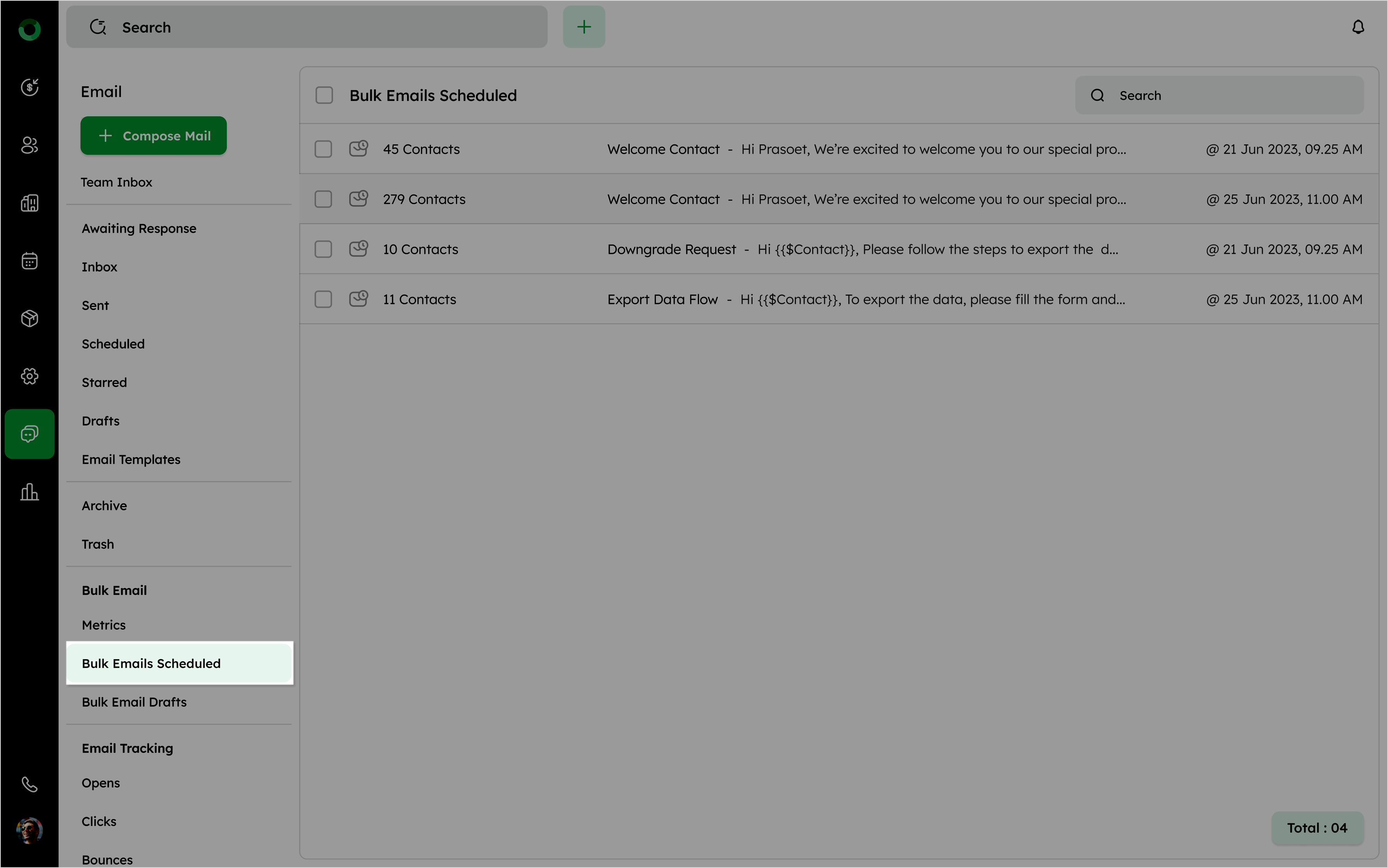
For bulk emails, select contacts or deals from the list view, schedule the email, and they will be saved in the Bulk Emails Scheduled folder.
-
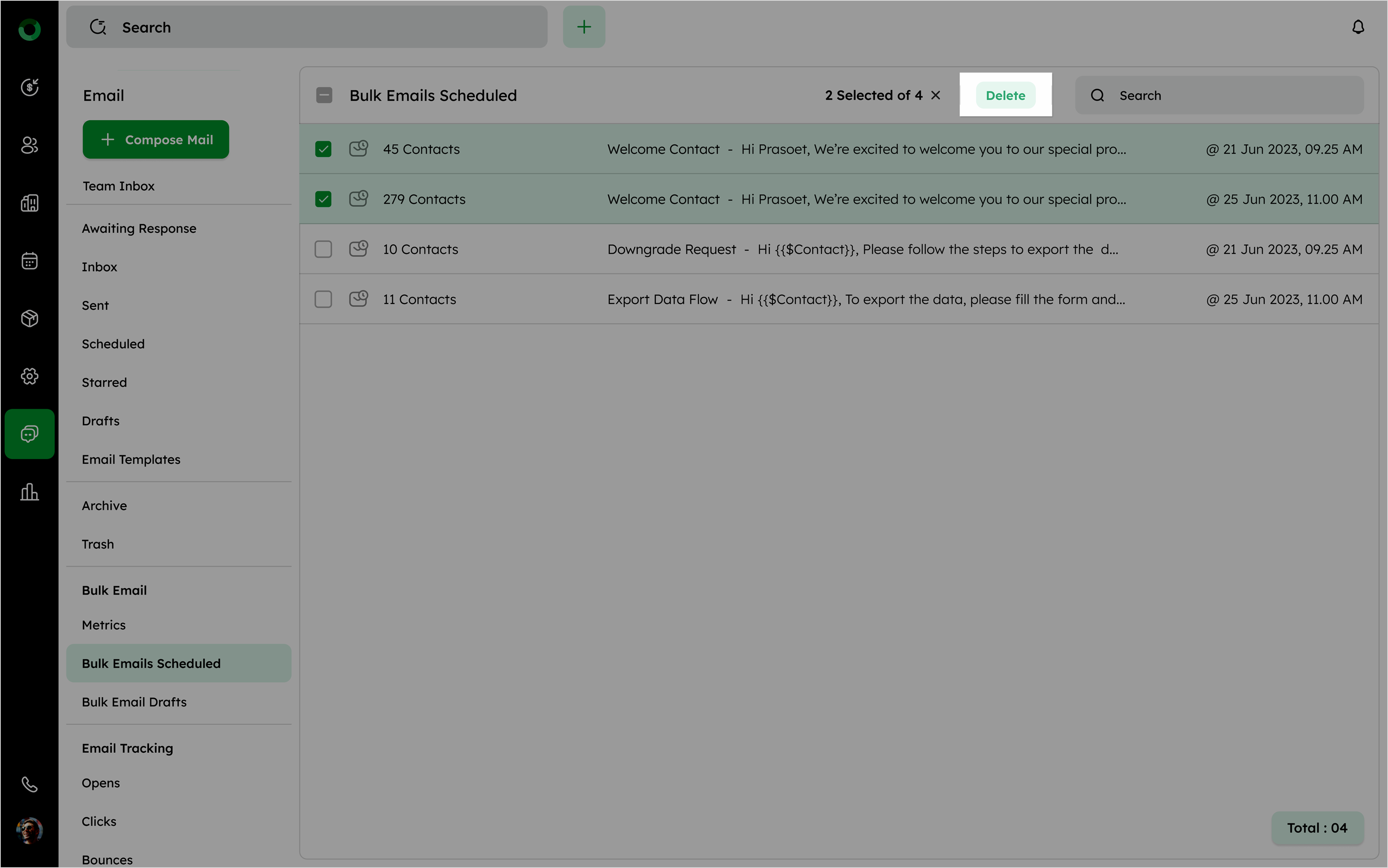
Open the Bulk Emails Scheduled folder and select the checkbox for the scheduled email.
-
Select the Delete option from the bulk action tray. The email will not move to the trash folder or be stored elsewhere and will be removed permanently.
Bulk Email Drafts
The Drafts section stores any unfinished or pending email messages, giving you the flexibility to return and refine emails before they are sent. This feature is particularly helpful for creating complex or multi-step emails that require careful review, enabling teams to collaborate on messaging and make updates as needed before finalizing.
Here are the steps for managing bulk email drafts:
-
Compose a bulk email and save it as a draft without sending it.
-
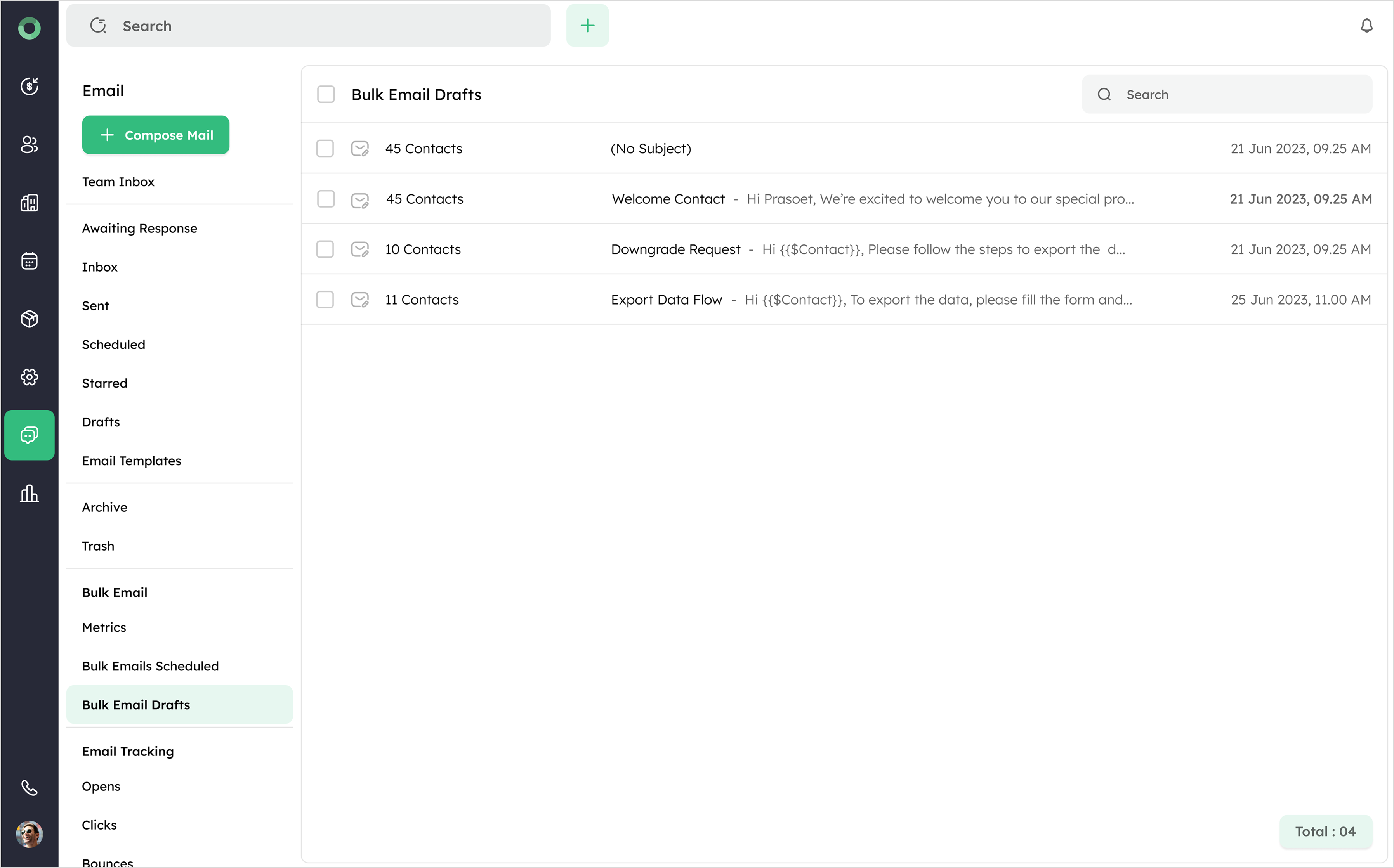
The draft will appear in the Bulk Email Drafts folder with the total number of contacts, subject, content, and draft timestamp.
-
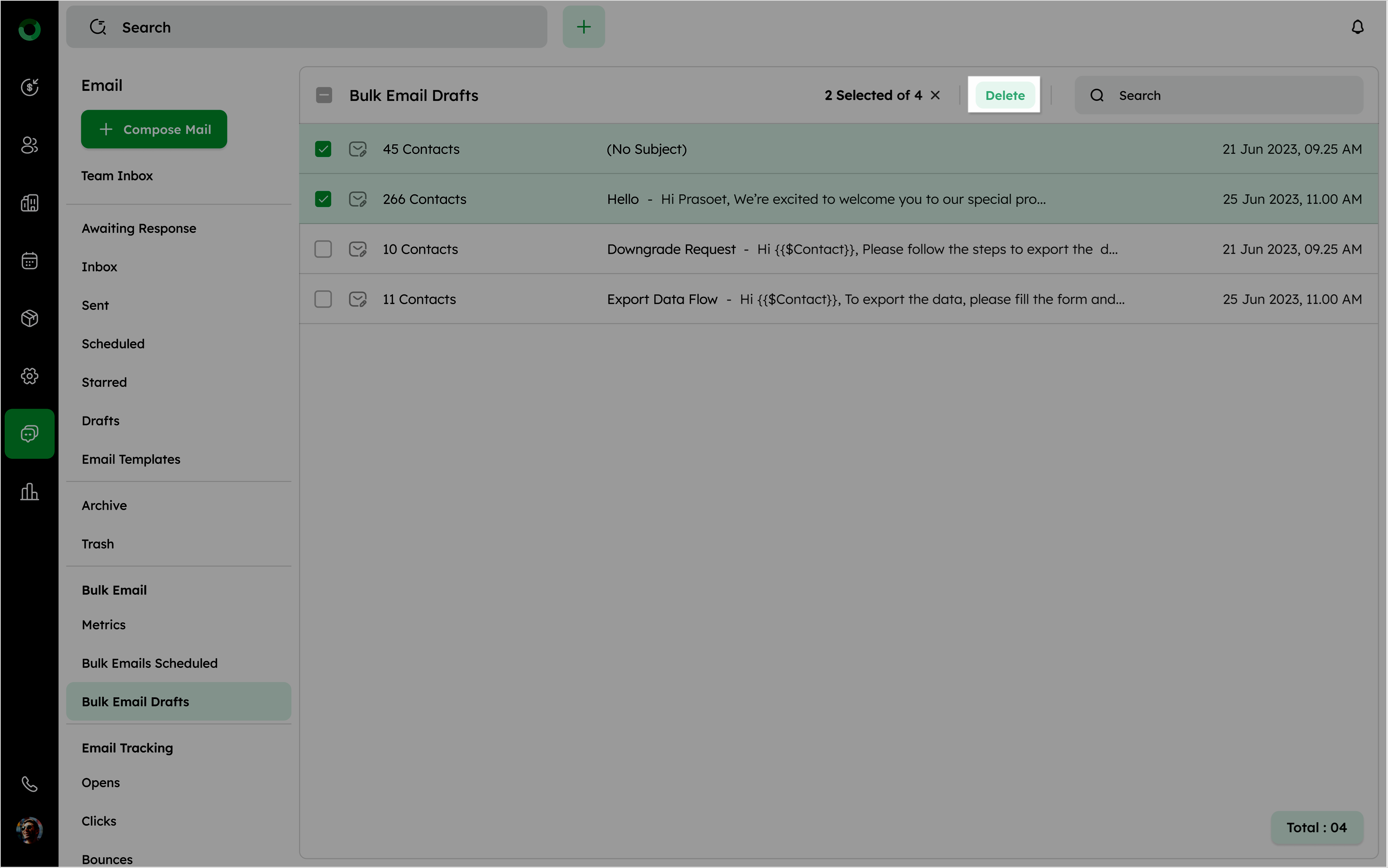
To permanently delete a draft, select the checkbox and choose the delete option in the bulk action tray.
-
To edit a draft, click on the subject or content to open the email compose page.
-
Once sent, the email will no longer appear in the draft folder.
Personalization will expire after 24 hours if the email is not sent.
Which tracking metrics are used for email interactions?
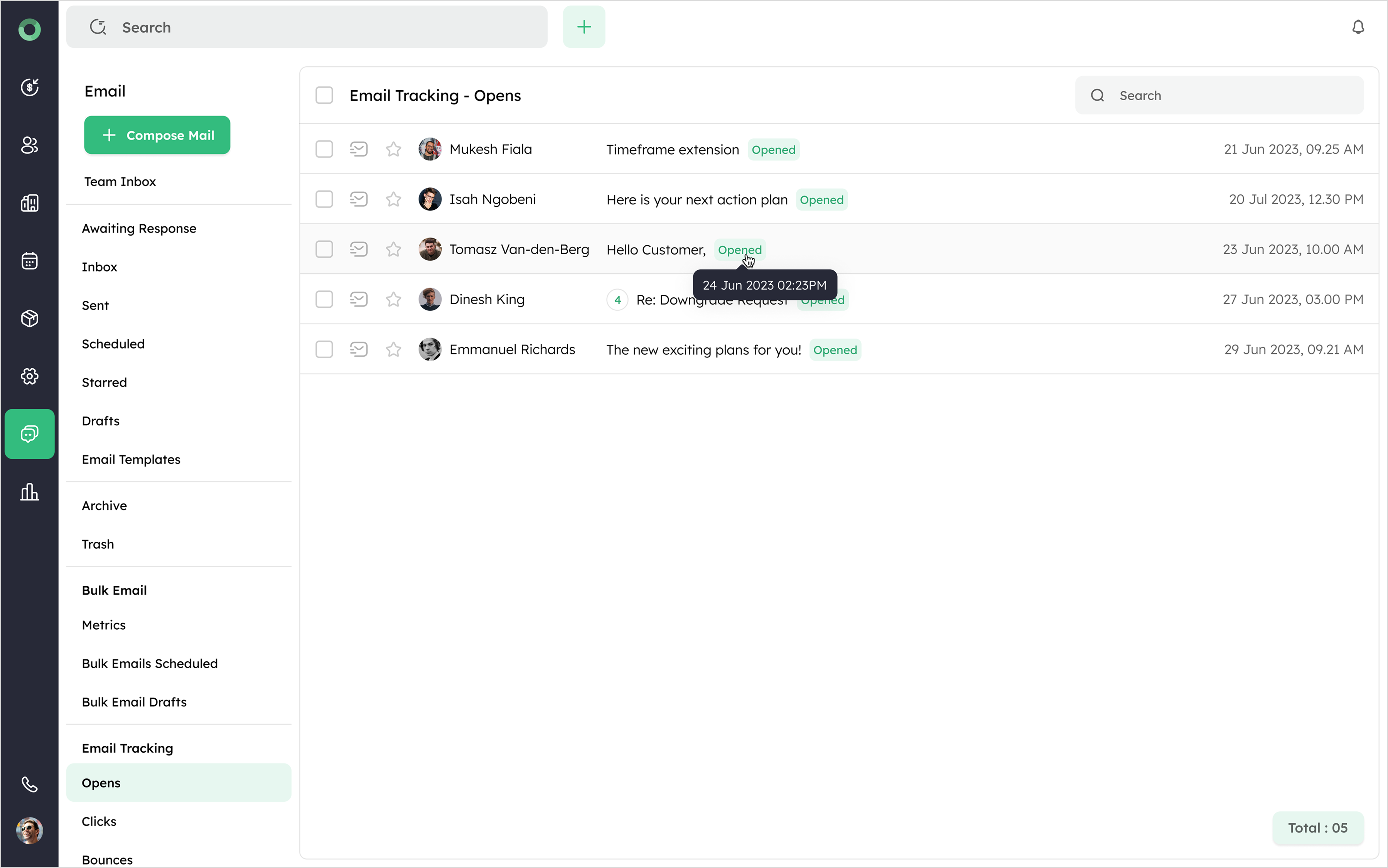
Opens: Open rate refers to tracking which specific emails were opened by recipients. It allows marketers to see exactly which email messages were viewed, providing insights into recipient engagement with individual emails. Hovering over the Opened option reveals the exact date and time when the recipient first opened the email.
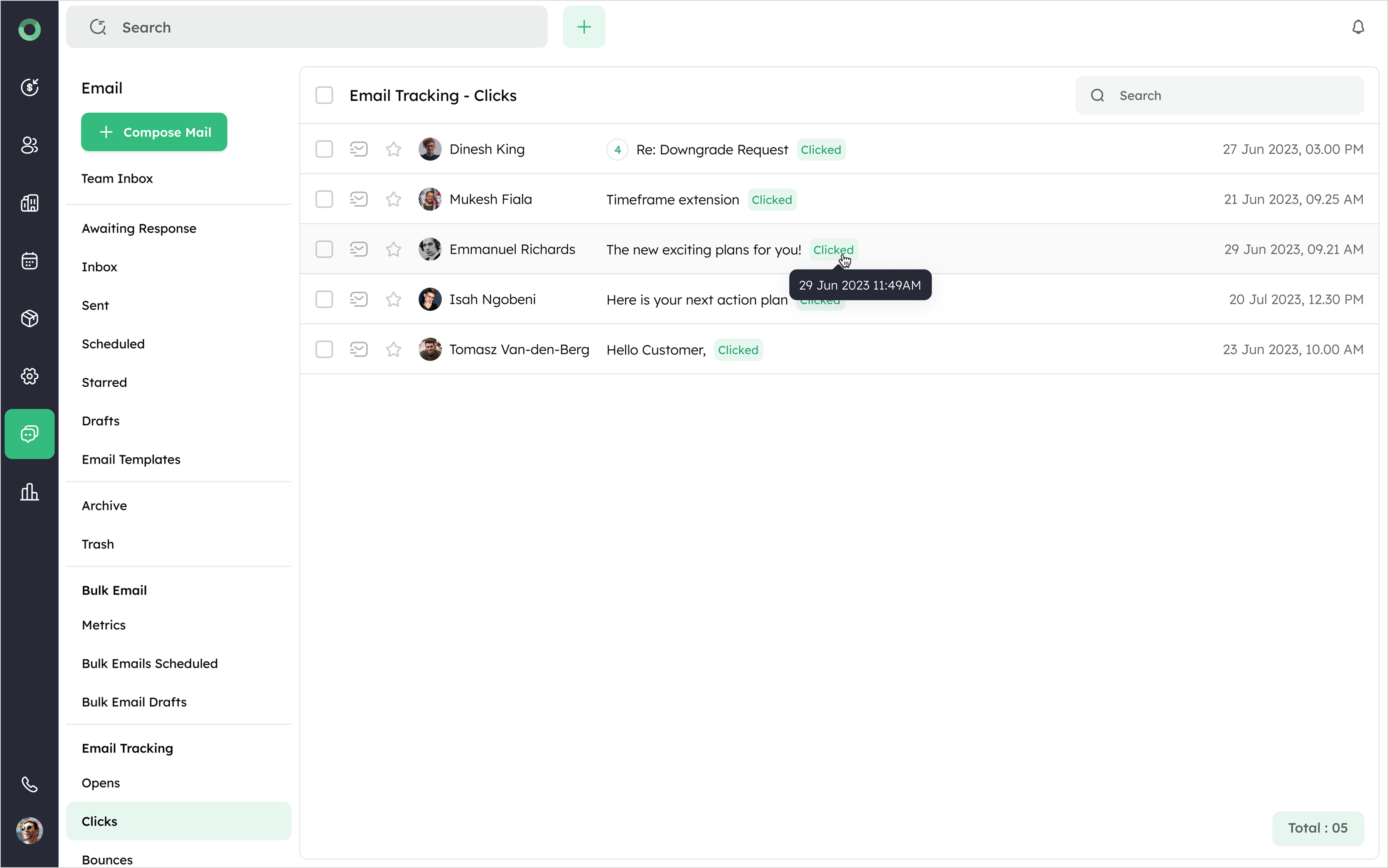
Clicks: Click tracking monitors which recipients engaged further by clicking links within the email. This provides marketers with insights into the specific content that resonated with recipients and drove them to take action. Hovering over the Clicked option reveals the exact date and time of the first click recorded for each recipient.
Bounces: Bounce tracking identifies emails that couldn’t be delivered successfully. This helps maintain list quality by indicating whether an email failed to reach the recipient due to a temporary issue (soft bounce) or a permanent one (hard bounce). Hovering over the Bounced option provides additional details, such as the exact date and time the bounce occurred, helping manage and improve deliverability.