Sync Your Calendar to Stay on Top of Every Schedule
Calendar Sync enables seamless integration between your calendar and Twozo, ensuring all scheduled events, meetings, and reminders from your calendar provider, such as Gmail and Outlook are reflected in Twozo. This integration streamlines scheduling by keeping your CRM and calendar aligned automatically.
Setting Up Calendar Synchronization for Seamless Scheduling
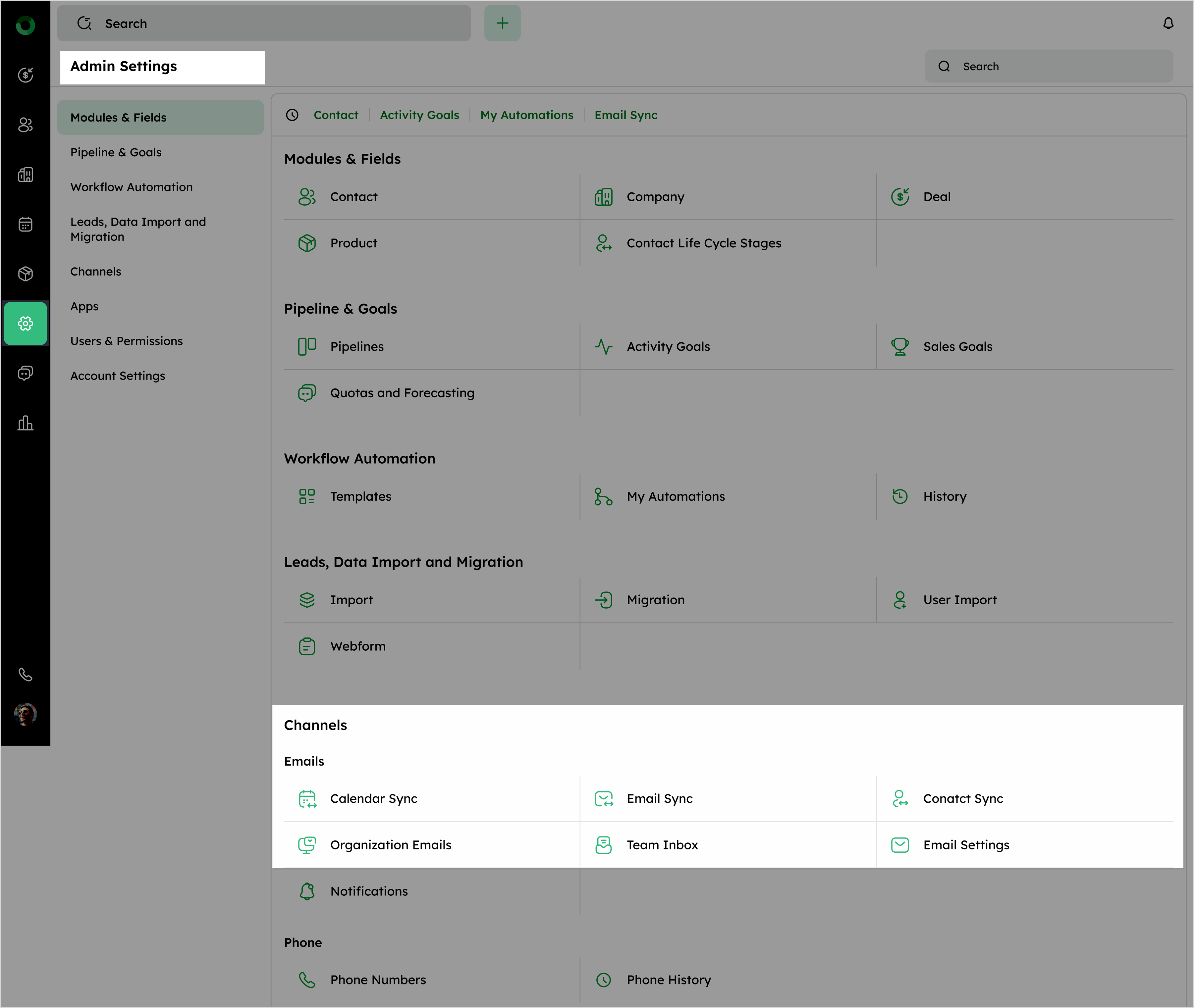
- Navigate to Admin Settings and select Calendar Sync from the Email section.
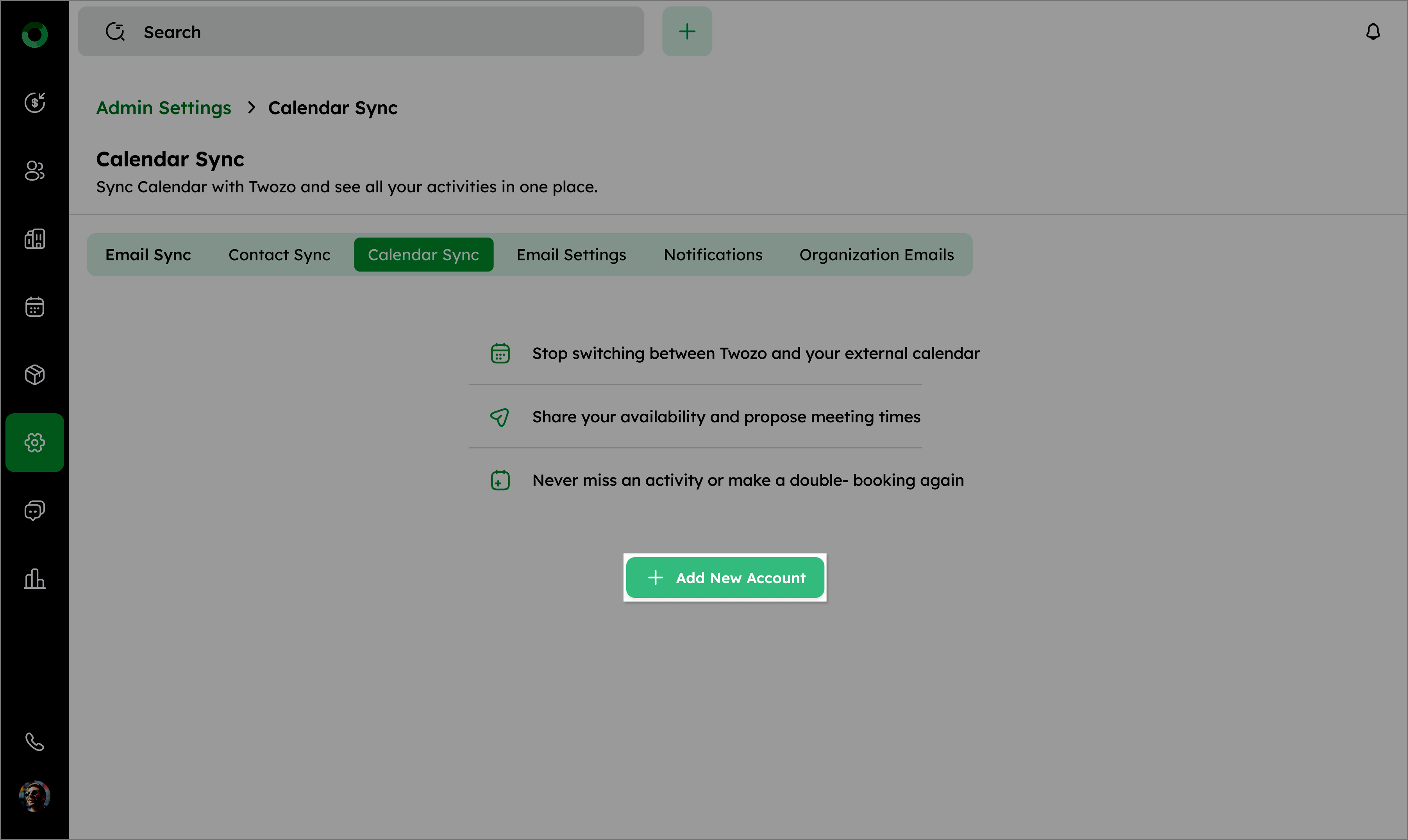
- Click Add New Account on the Calendar Sync page.
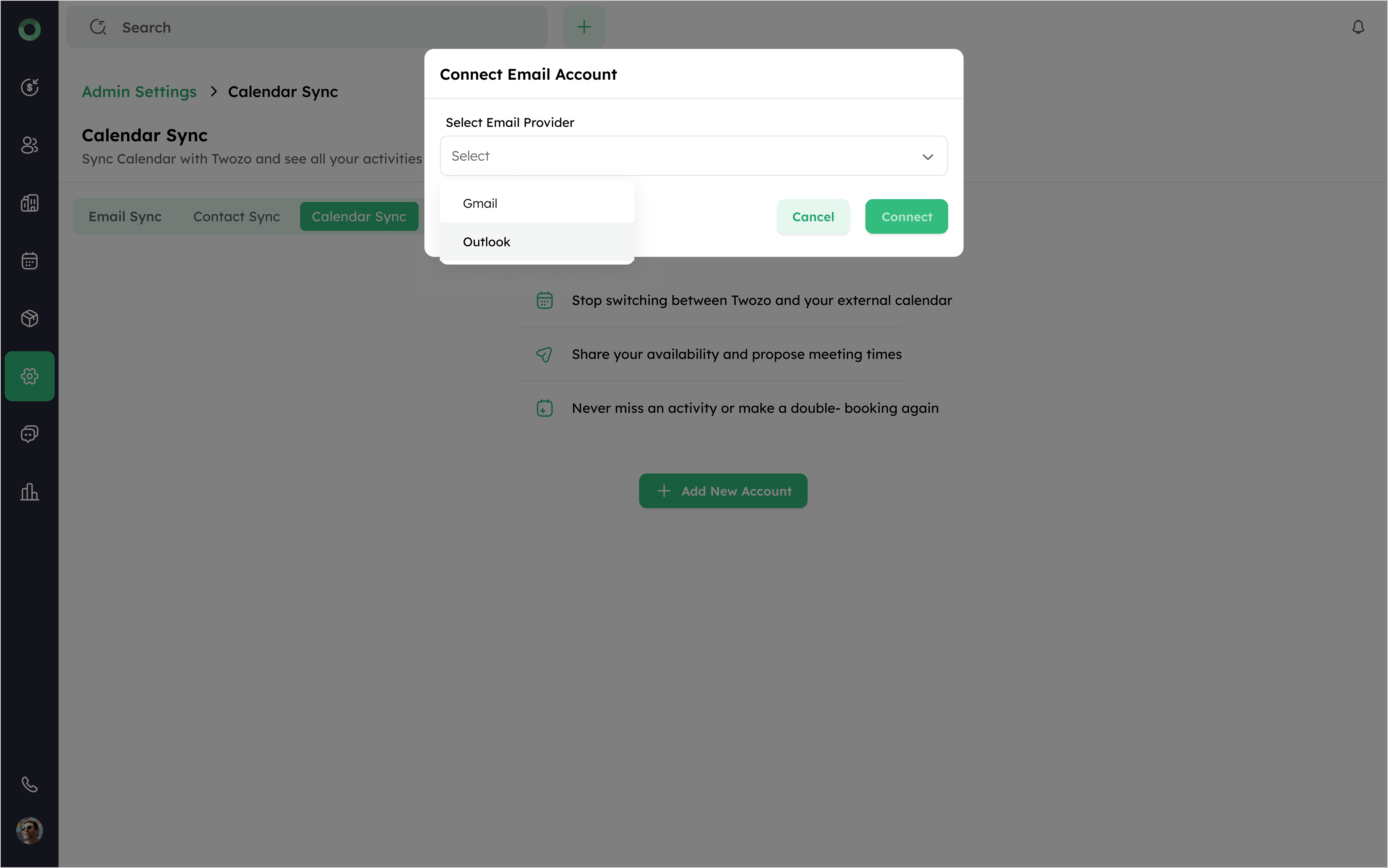
- Choose a calendar provider, such as Google Calendar or Microsoft Outlook, and click Connect.
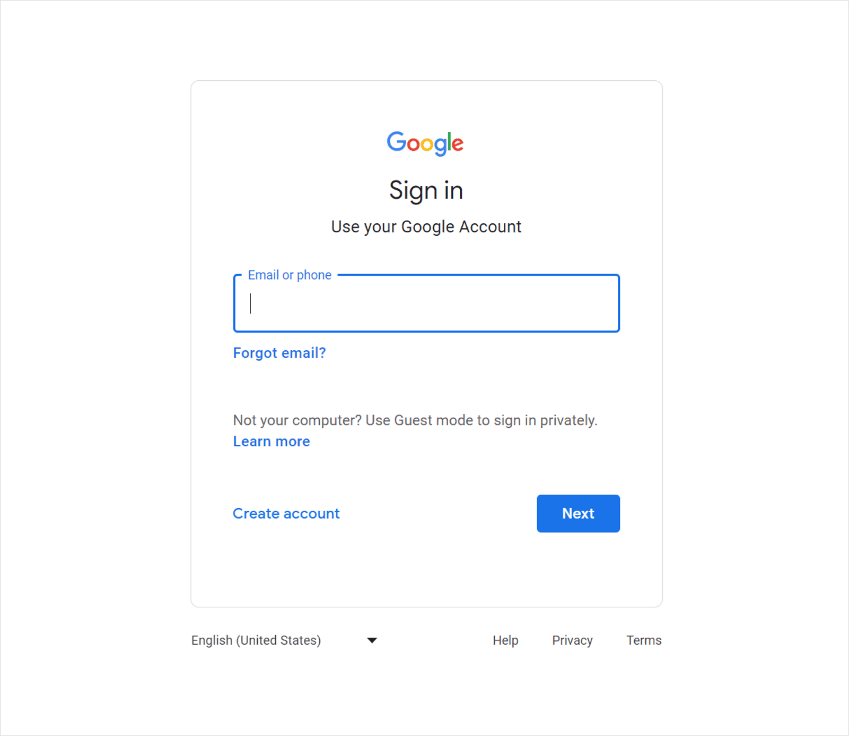
- Enter your credentials on the provider’s login page to complete the authentication process.
- Verify the permissions and check the box to allow the calendar access, then click Continue.
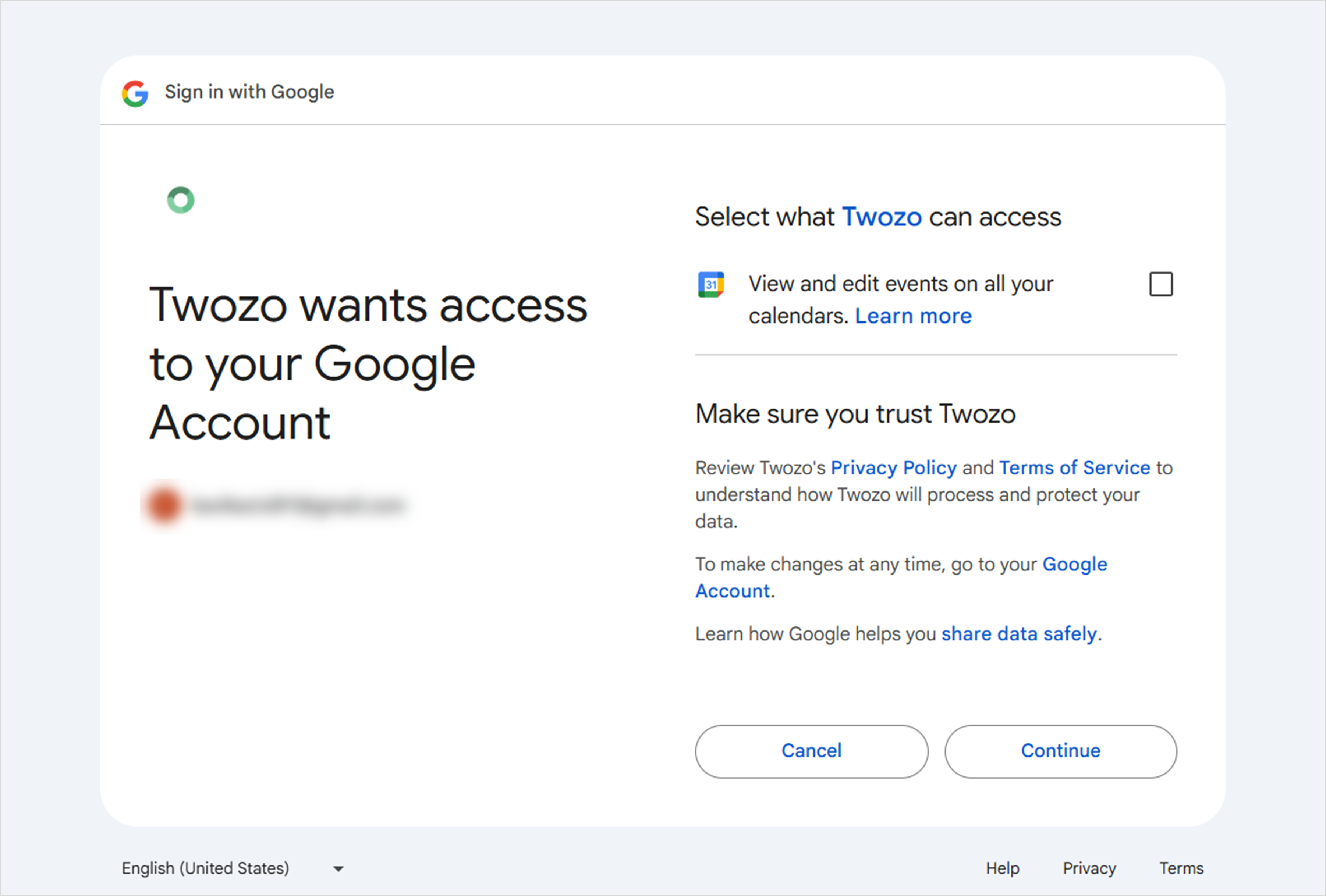
Make sure the calendar access permission is enabled; otherwise, the sync process will not take place.
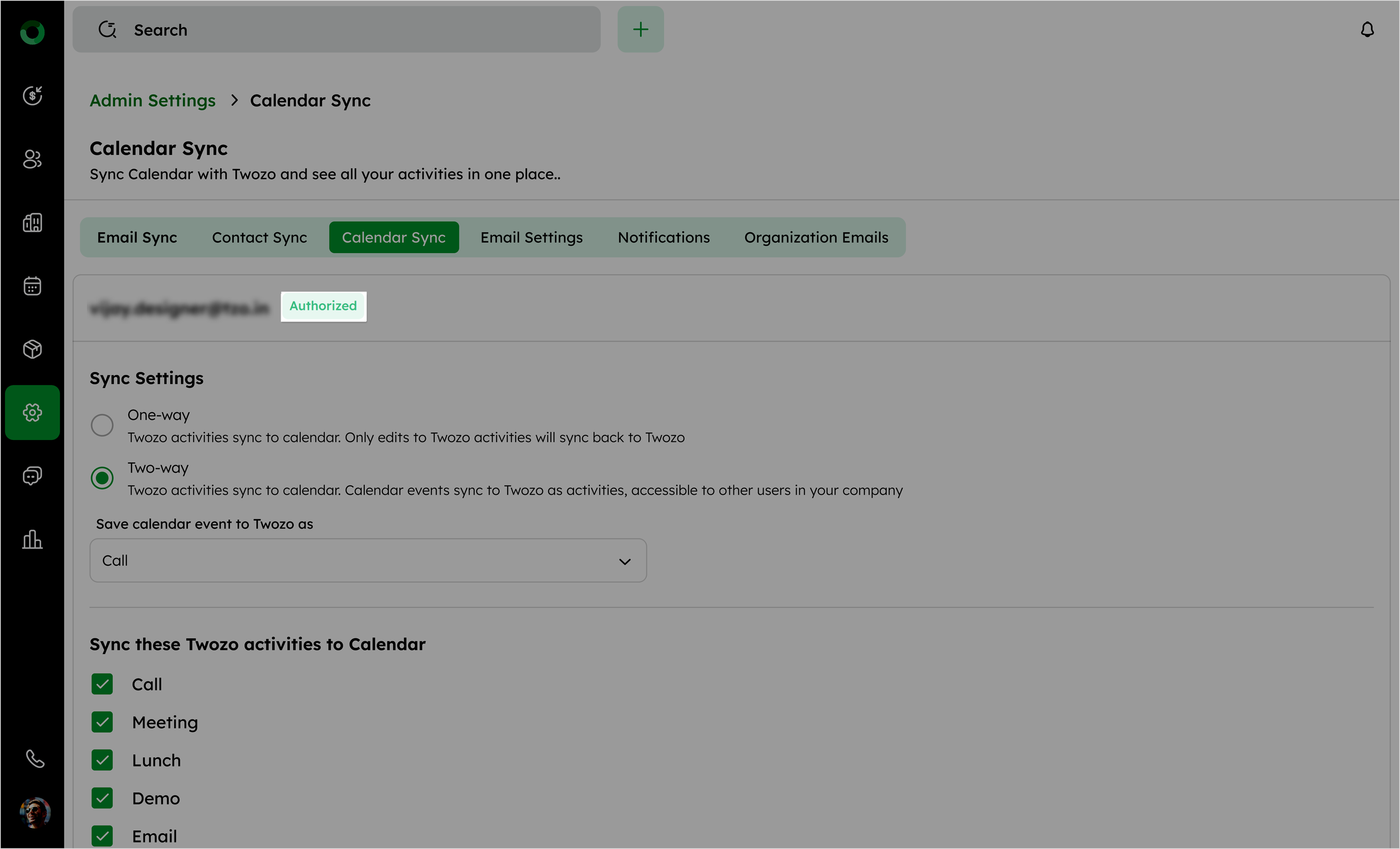
After connecting, the status will show as Authorized.
How Do I Set Up Activity Sync with My Calendar?
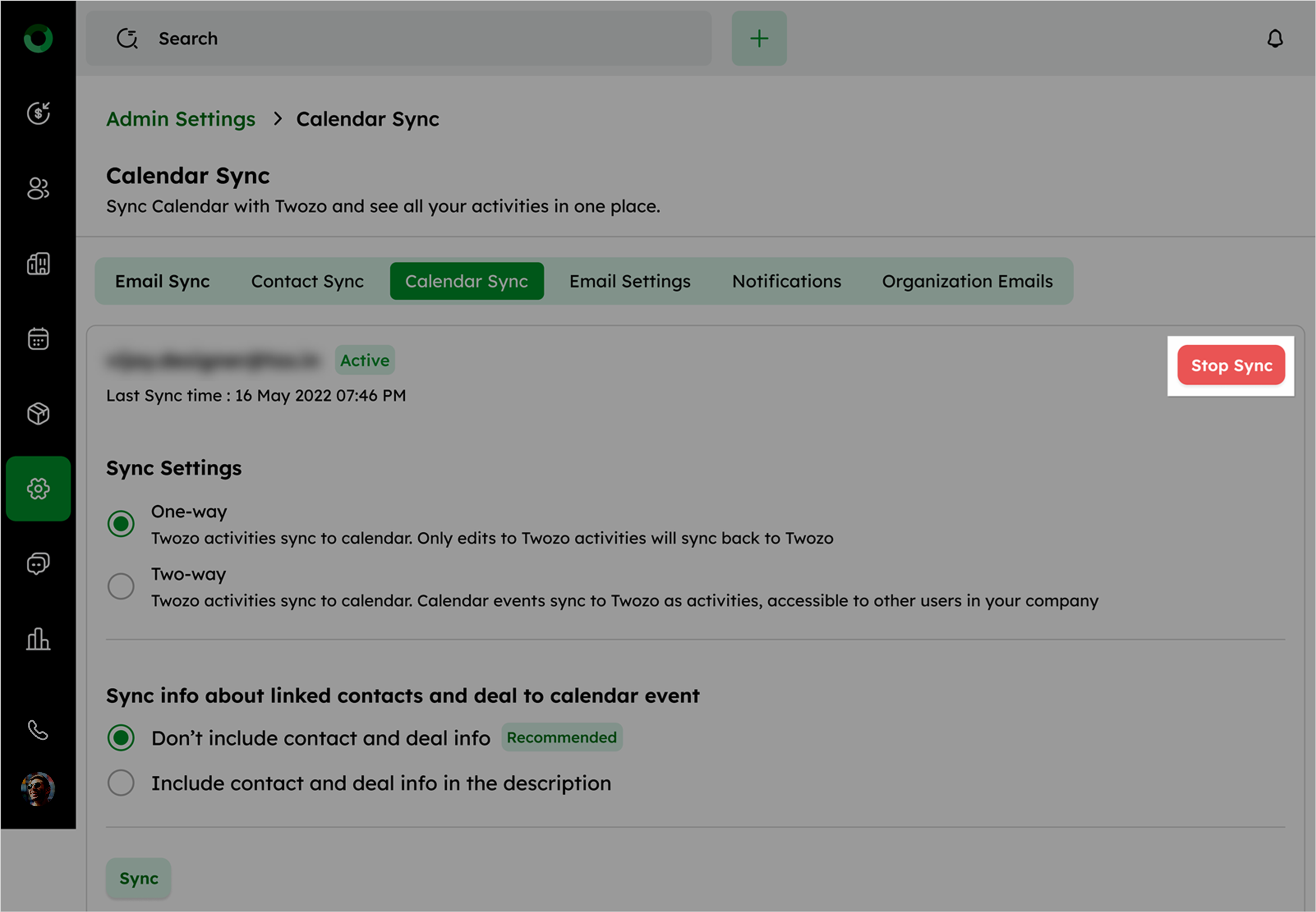
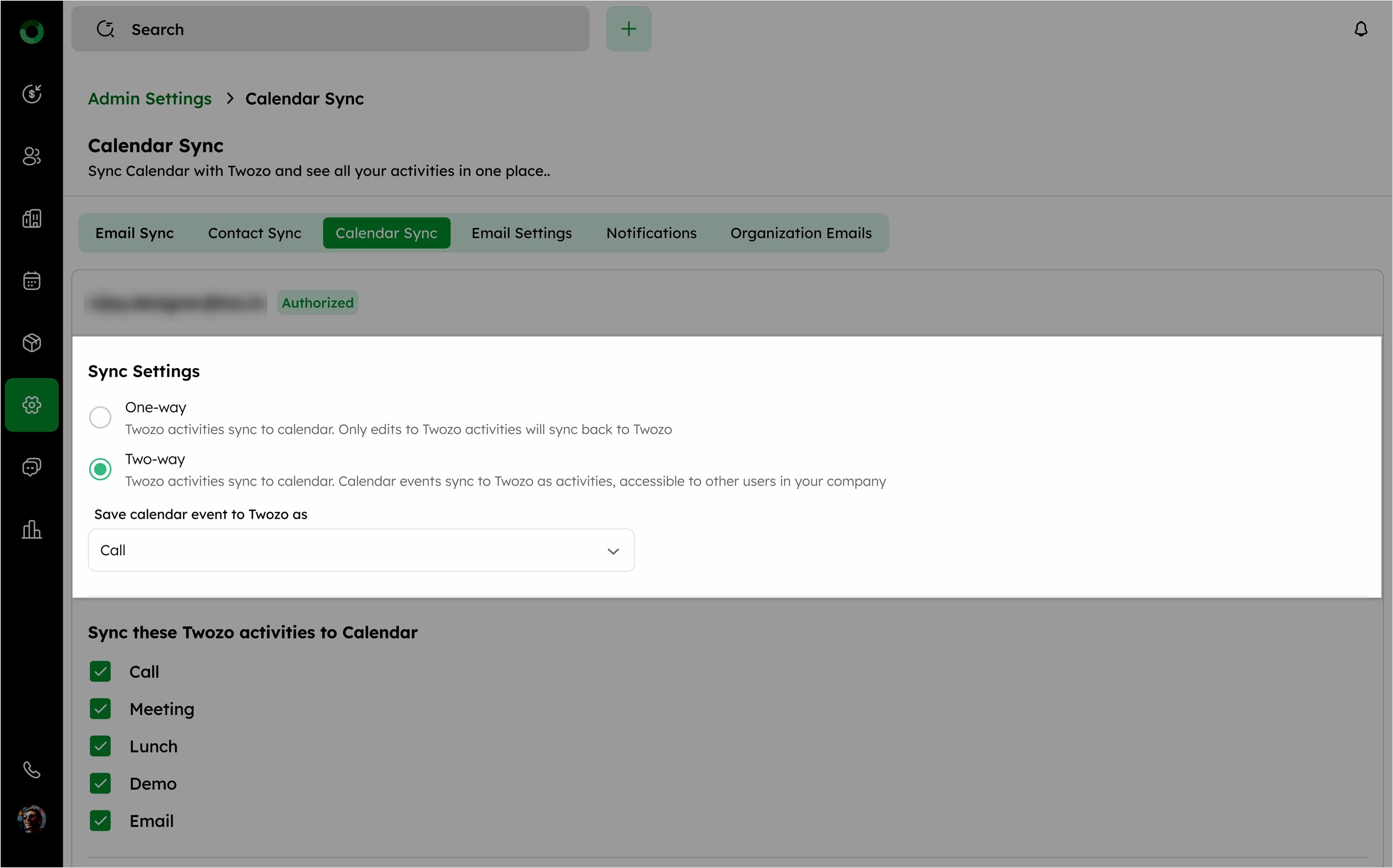
- Once connected the account, select the option in Sync Settings:
-
One-Way Sync: Activities created in CRM sync to the linked calendar, but calendar events won't sync back to CRM. Changes made to synced calendar events will be reflected in CRM. However, existing CRM activities won't appear in the linked calendar during the initial sync.
-
Two-Way Sync: Both CRM activities and calendar events are synced bidirectionally. Changes made in either system are updated in the other, ensuring data consistency.
Deleting an activity in either CRM or the external calendar will delete it in both systems (if created via CRM).
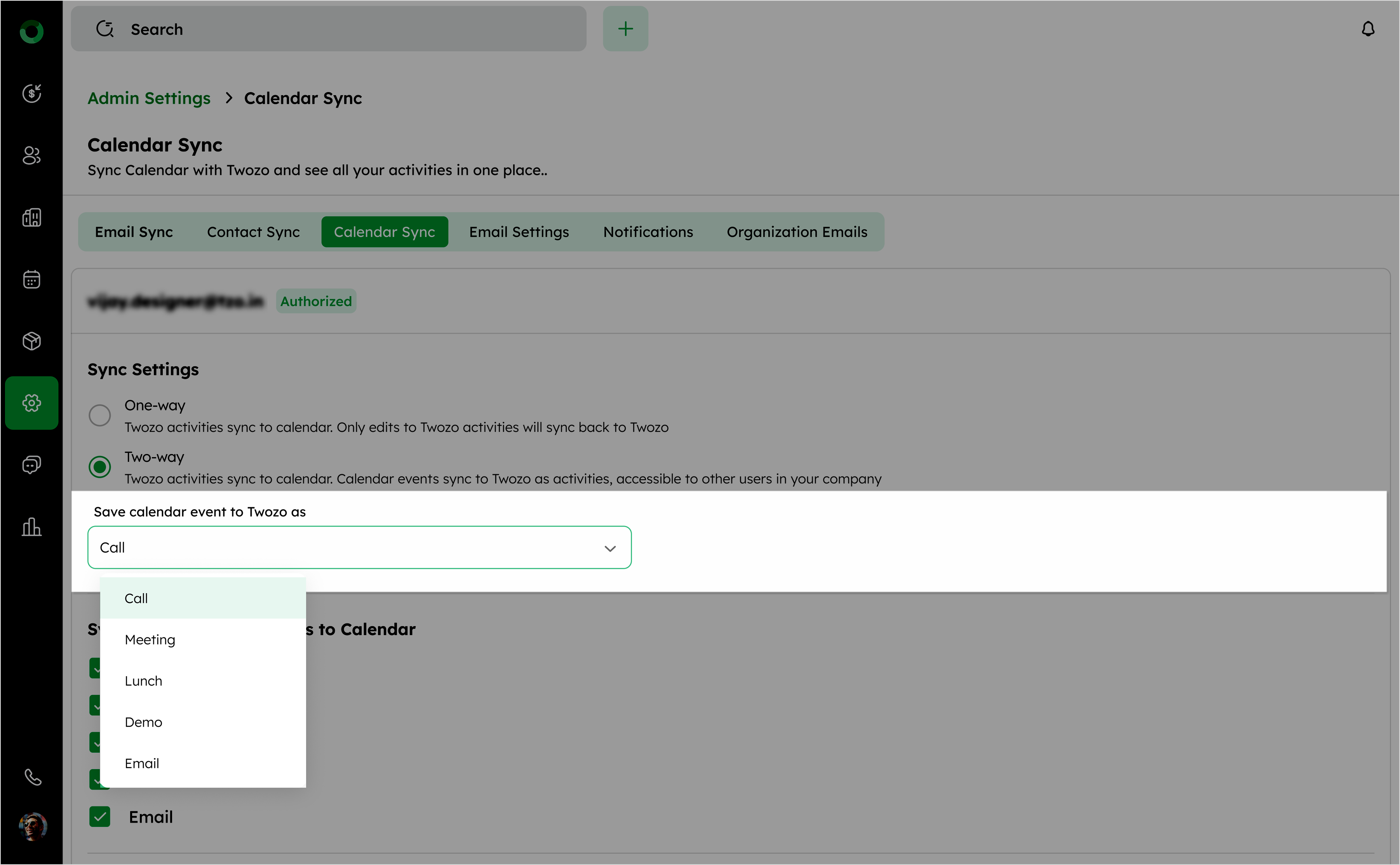
- The Save calendar event to Twozo as option allows categorizing synced calendar events in Twozo as specific activity types, such as Call, Meeting, Lunch, Demo, or Email.
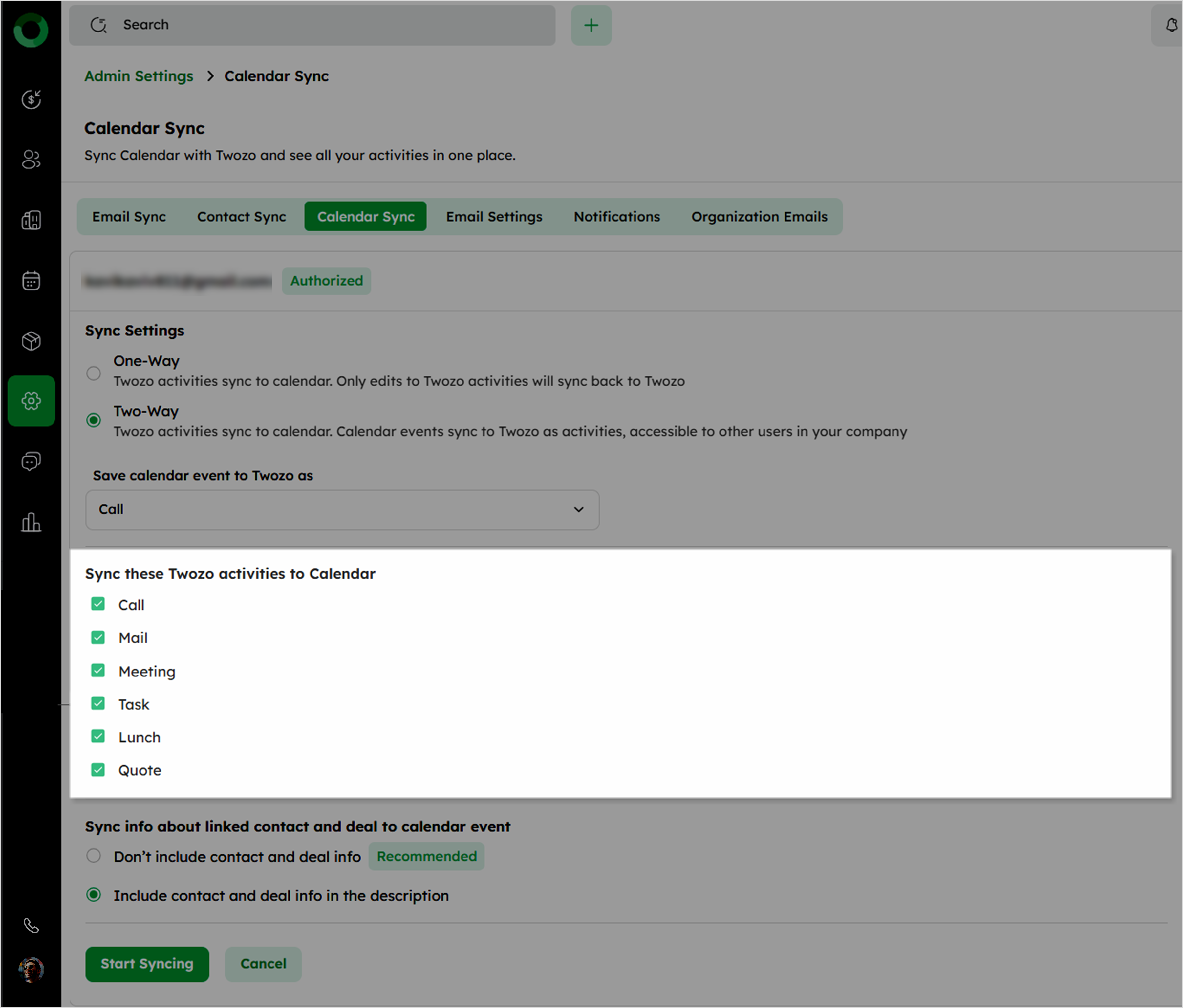
- The Sync these Twozo activities to Calendar section allows selecting which Twozo activity types such as Call, Meeting, Lunch, Demo, and Email will sync with your connected calendar. Activities with checkmarks will automatically appear in the calendar.
Which Twozo Activities and Information Can Be Synced to My Calendar?
Configure whether to include linked contact and deal information in the calendar event:
-
Don't Include Contact and Deal Info (Recommended): Sync activities without including contact or deal information in the event description.
-
Include Contact and Deal Info: Add contact and deal information to the event description.
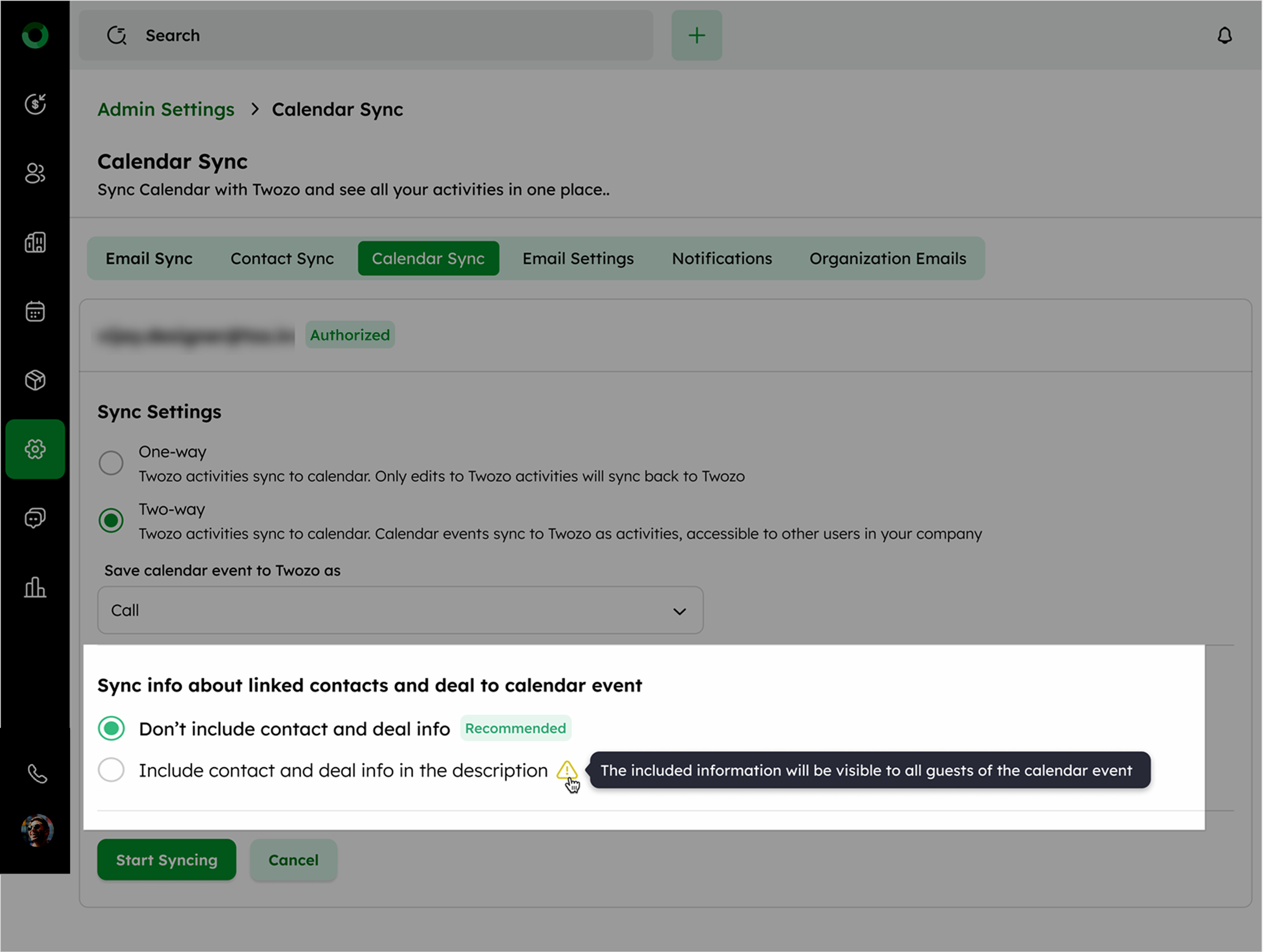
The included information will be visible to all guests of the calendar event.
- Click Start Syncing to begin synchronization or Cancel to exit the process.
The sync applies to upcoming activities only, ensuring future events are aligned across platforms. If old events in Google Calendar or Outlook are updated, those changes will be reflected in the CRM after syncing.
- Syncing Email:
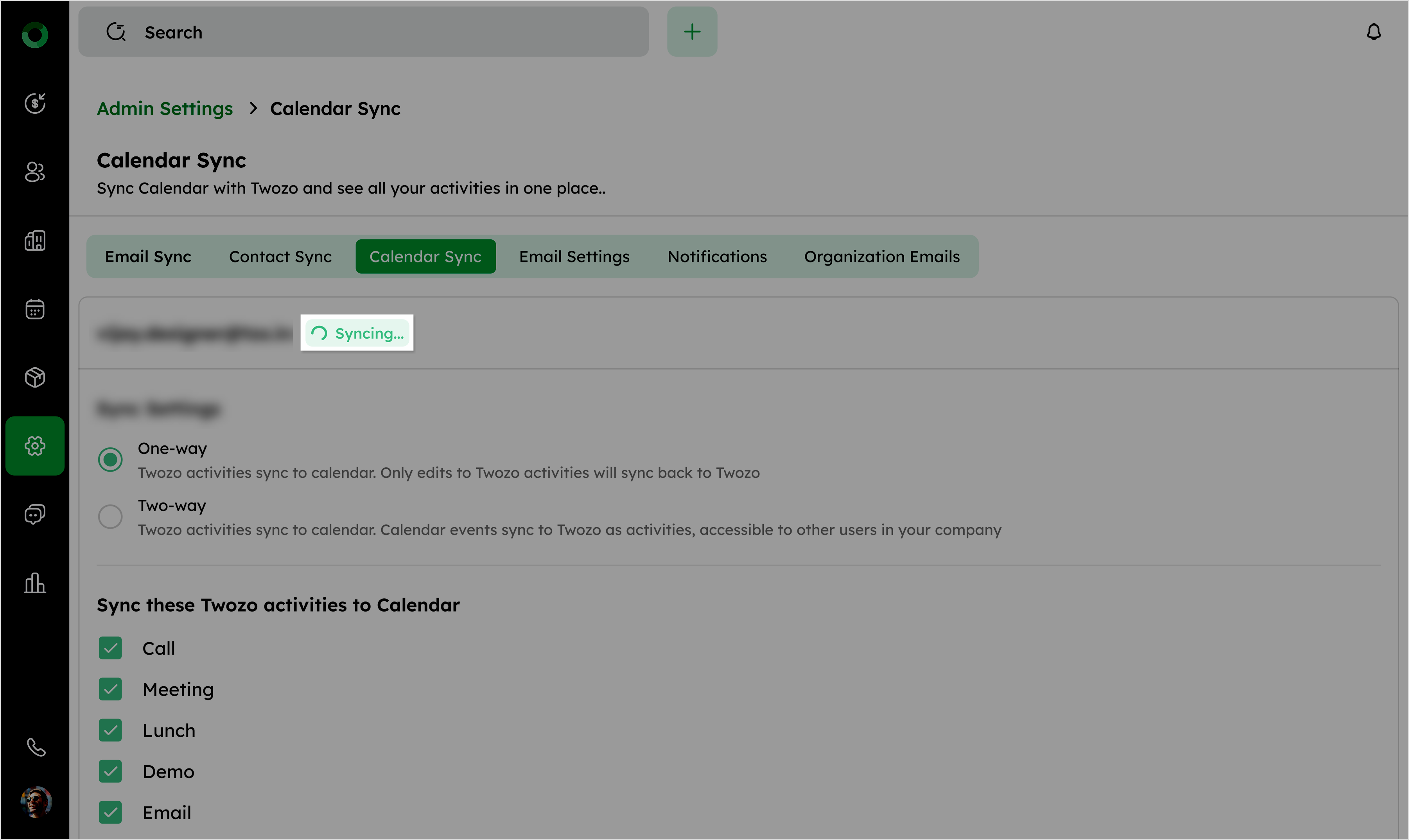
- Click Sync to begin syncing. The status will change to Syncing... while processing.
- Once synced, the status will show as Active with a timestamp for the last sync.
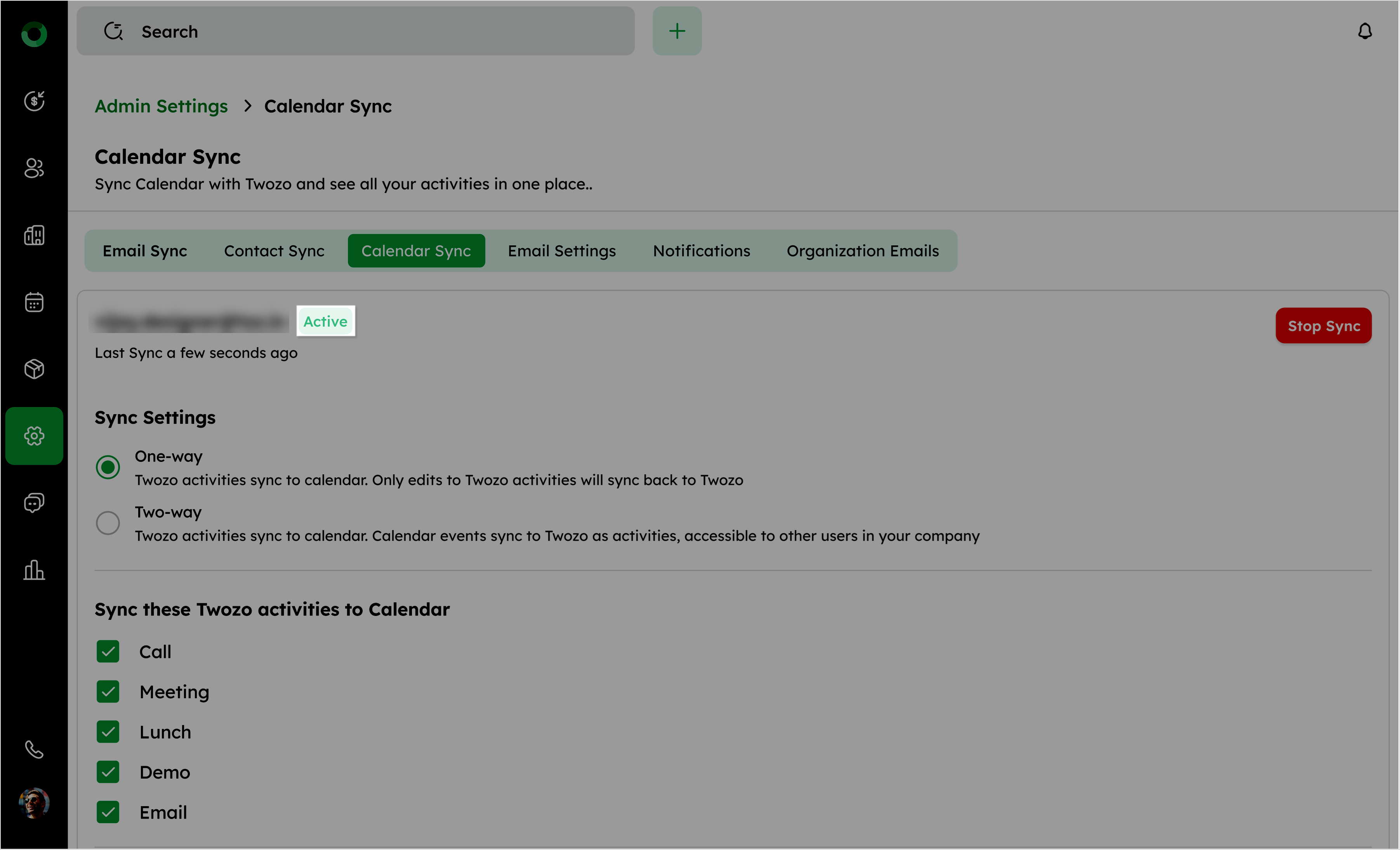
- Click Stop Sync to disable synchronization. You will be redirected to the initial Calendar Sync page.