Email Synchronization: Connecting Your Inbox with CRM
Setting Up Email Sync with Your Account in Twozo
Email sync allows you to connect your email account with Twozo, enabling seamless sending and receiving of emails directly from the CRM. It automatically logs emails under relevant contacts, deals, and companies for a centralized communication view.
-
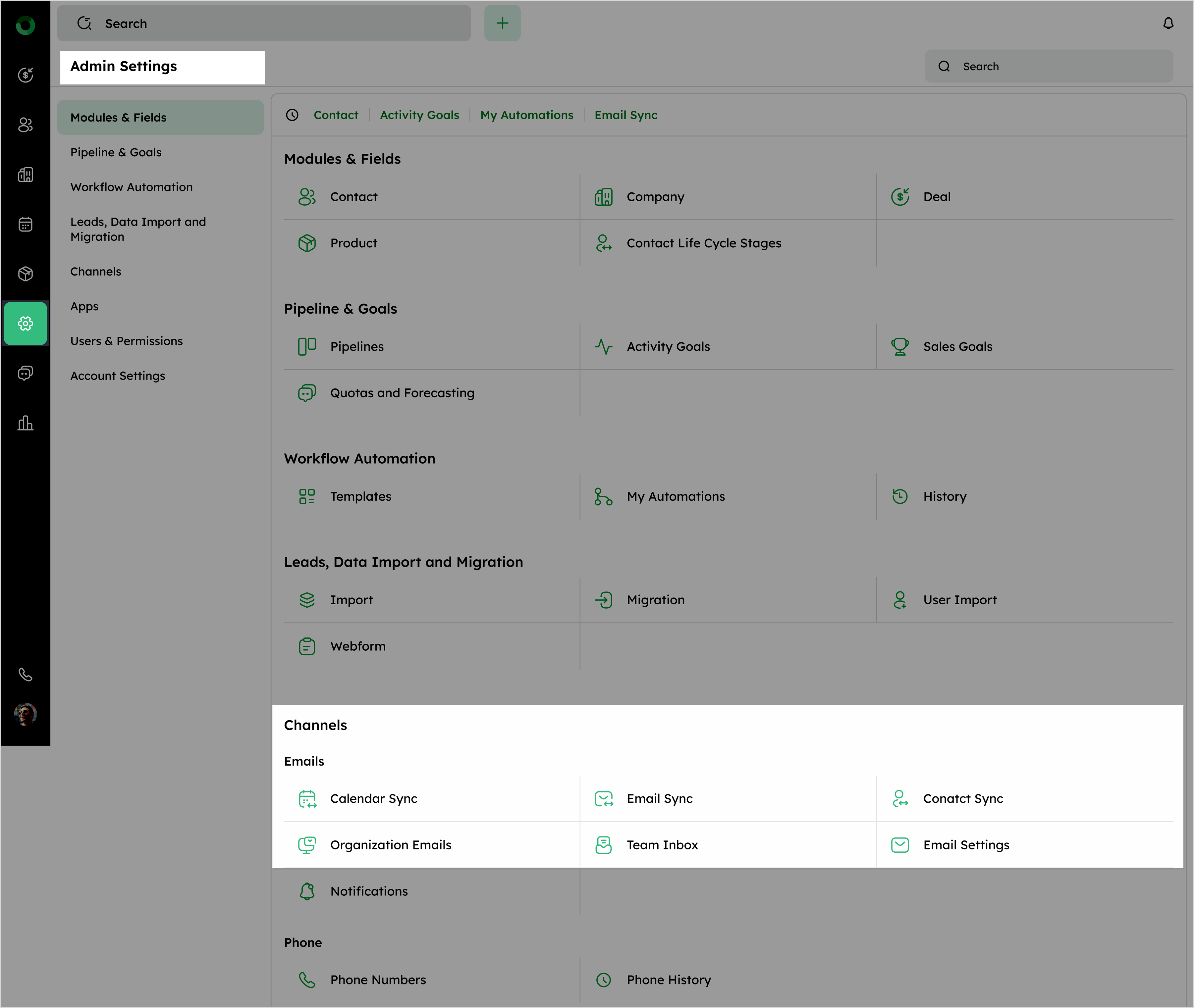
Navigate to the Admin Settings by clicking the Settings icon in the main menu.
-
In the admin settings, locate the Email section and click Email Sync to open the email sync page.
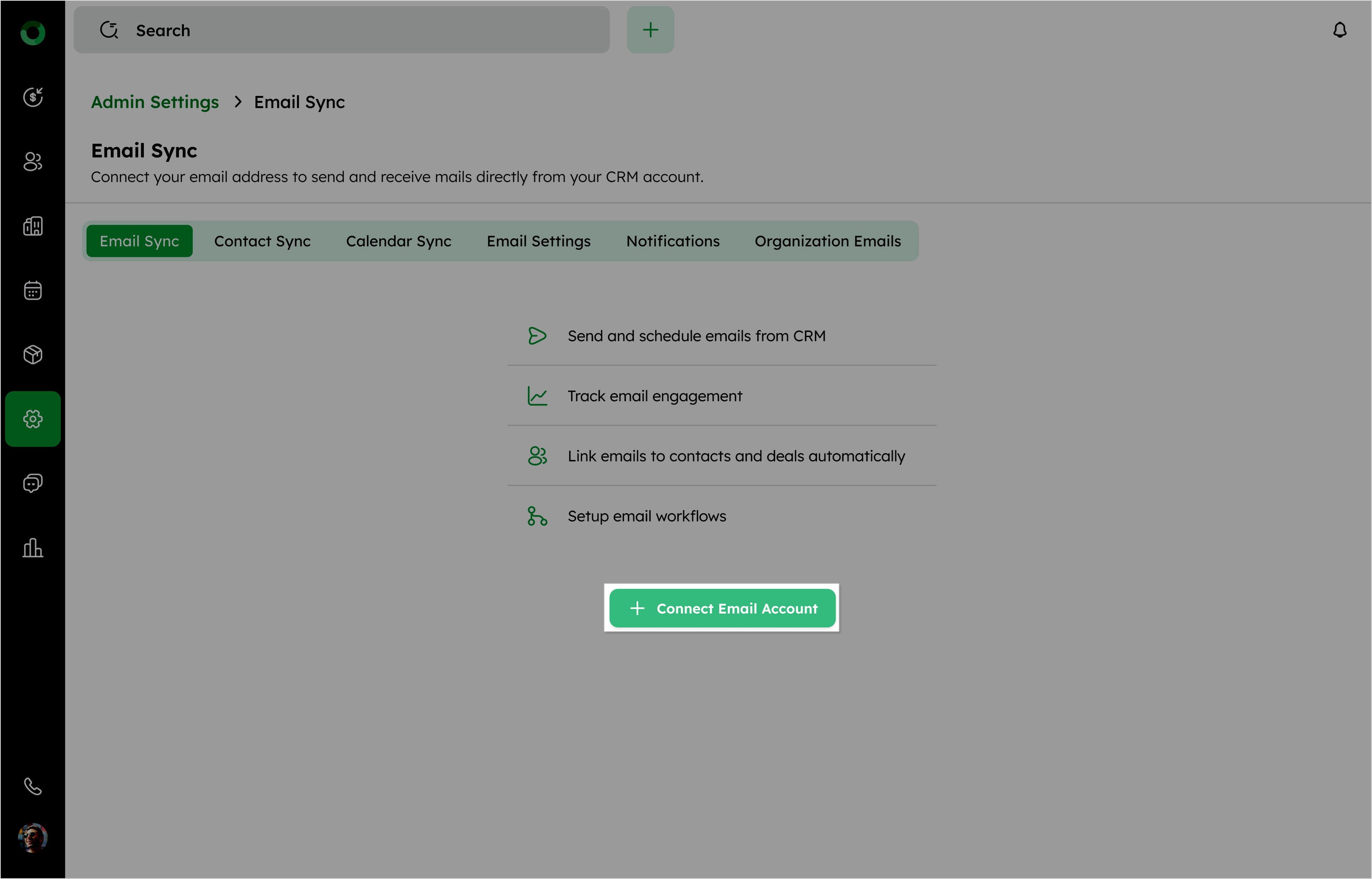
- Click the + Connect Email Account button to begin connecting your email.
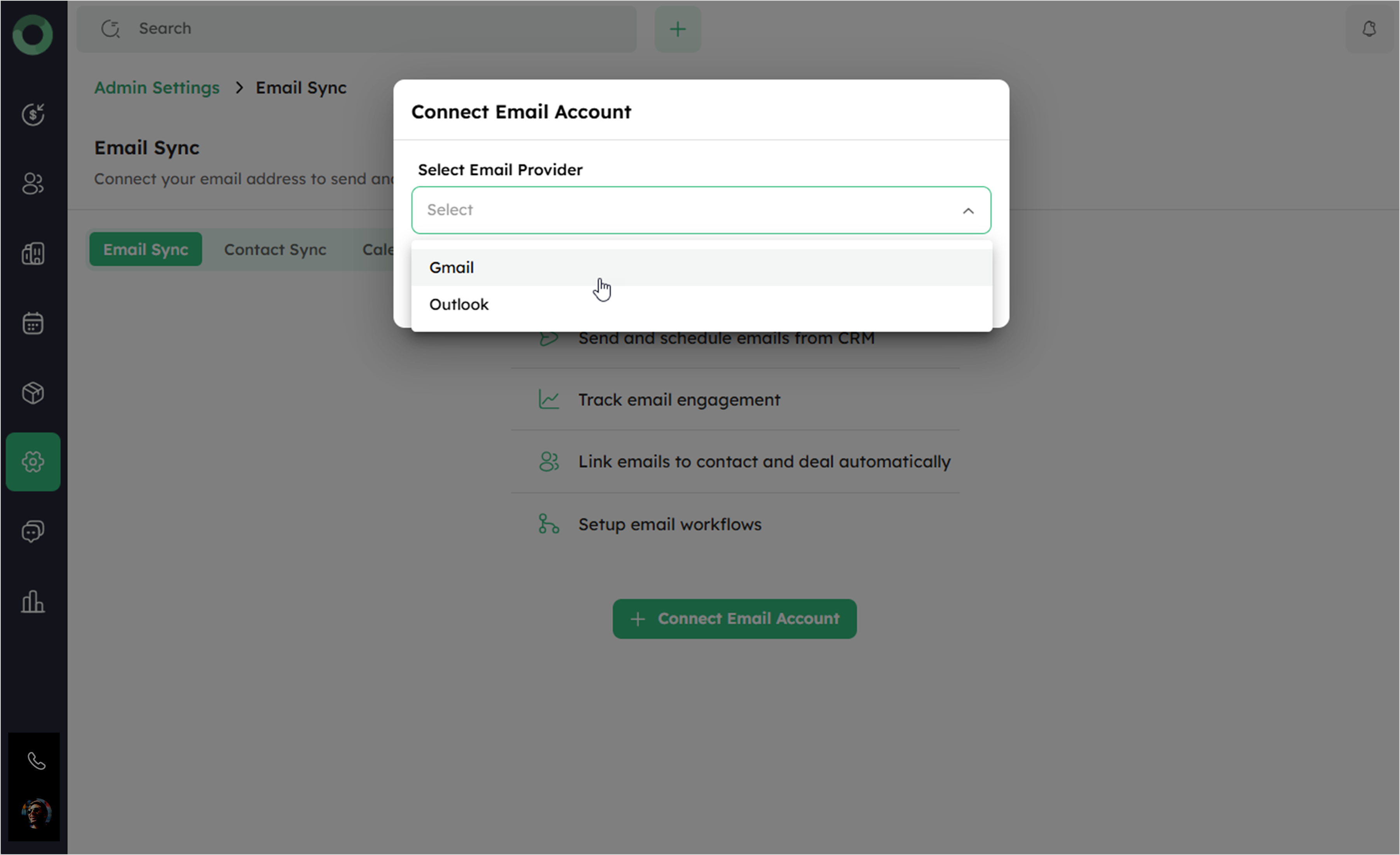
- Select your email provider either Gmail or Outlook from the dropdown menu and click Connect.
- You will be redirected to the provider's verification page. Enter your email address to authenticate the connection.
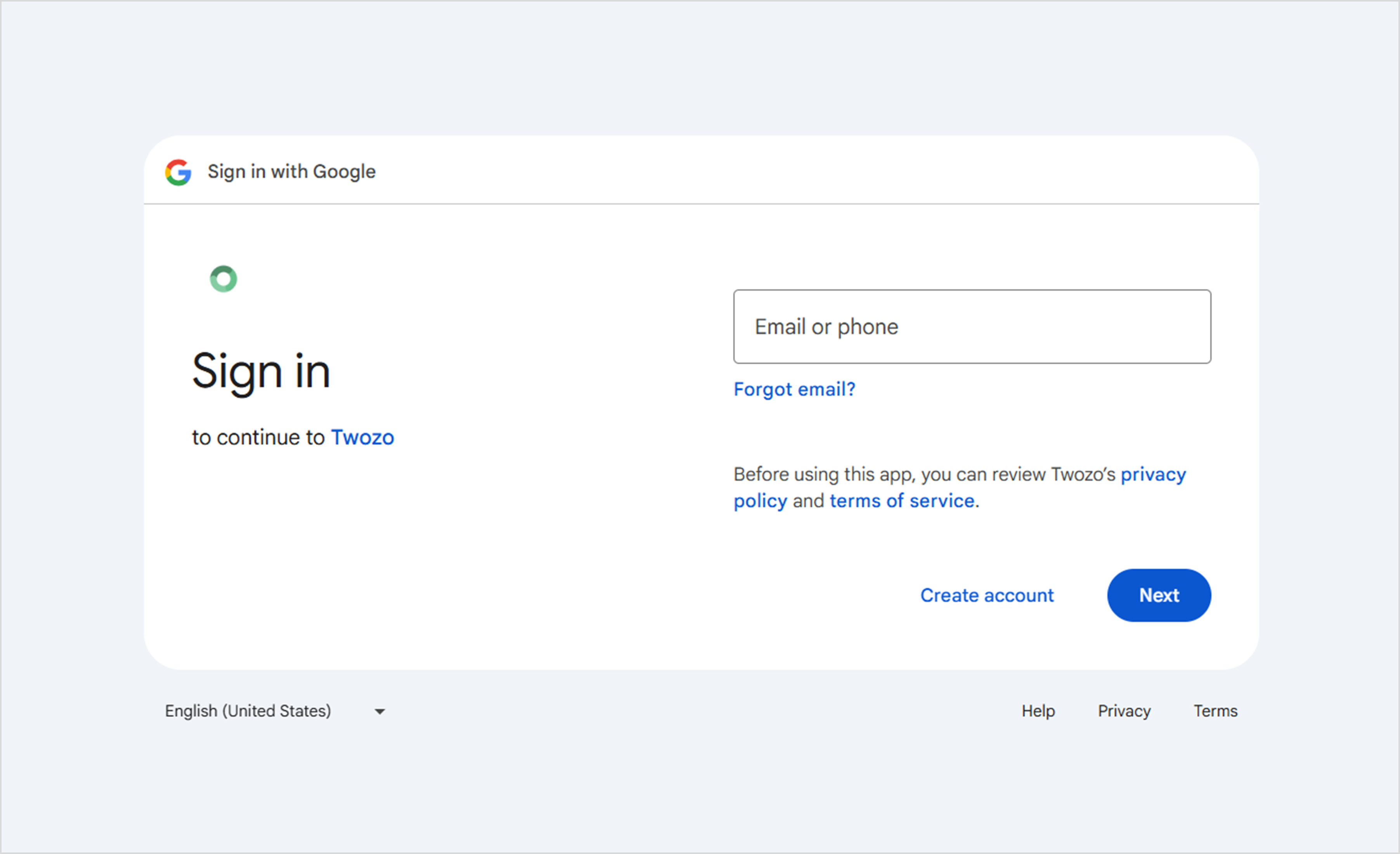
- Follow the prompts to authorize the email connection and click Continue to grant access to your Gmail data.
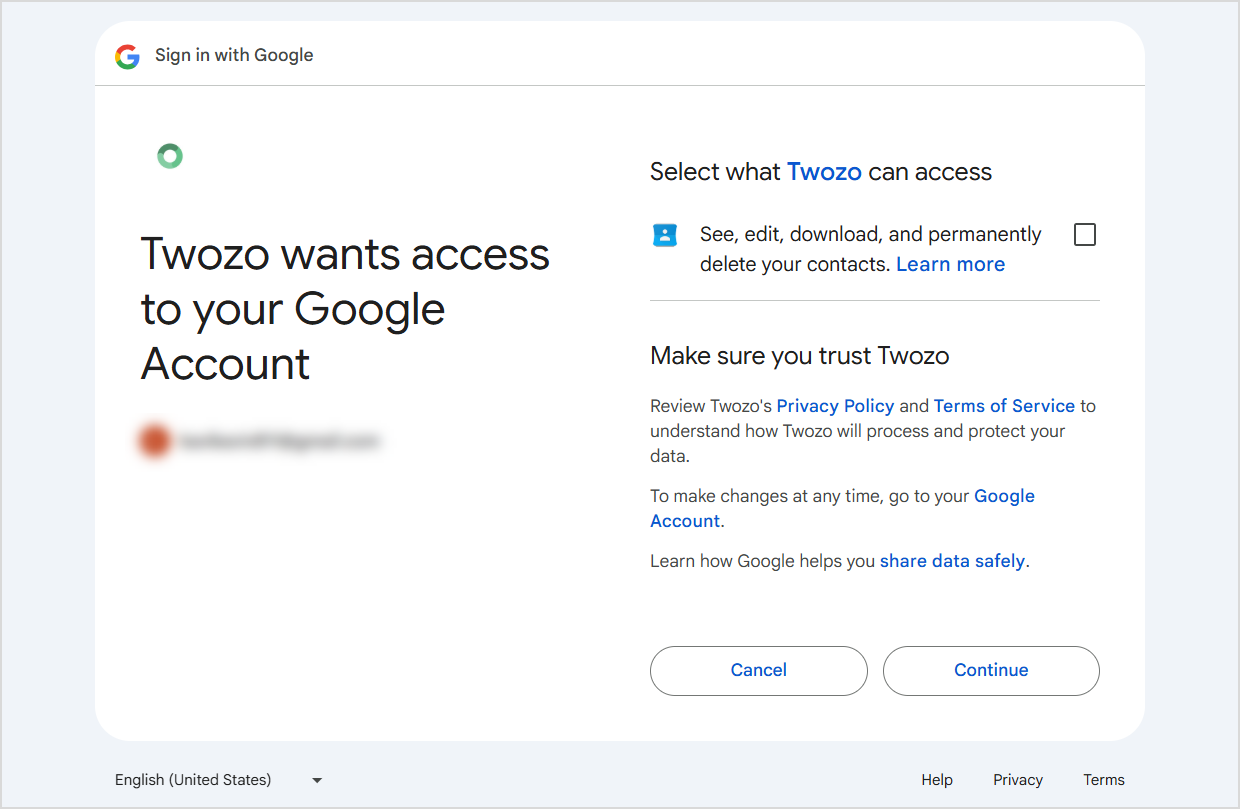
Twozo’s email permissions must be checked to enable the sync process. If not selected, the connection will not take place.
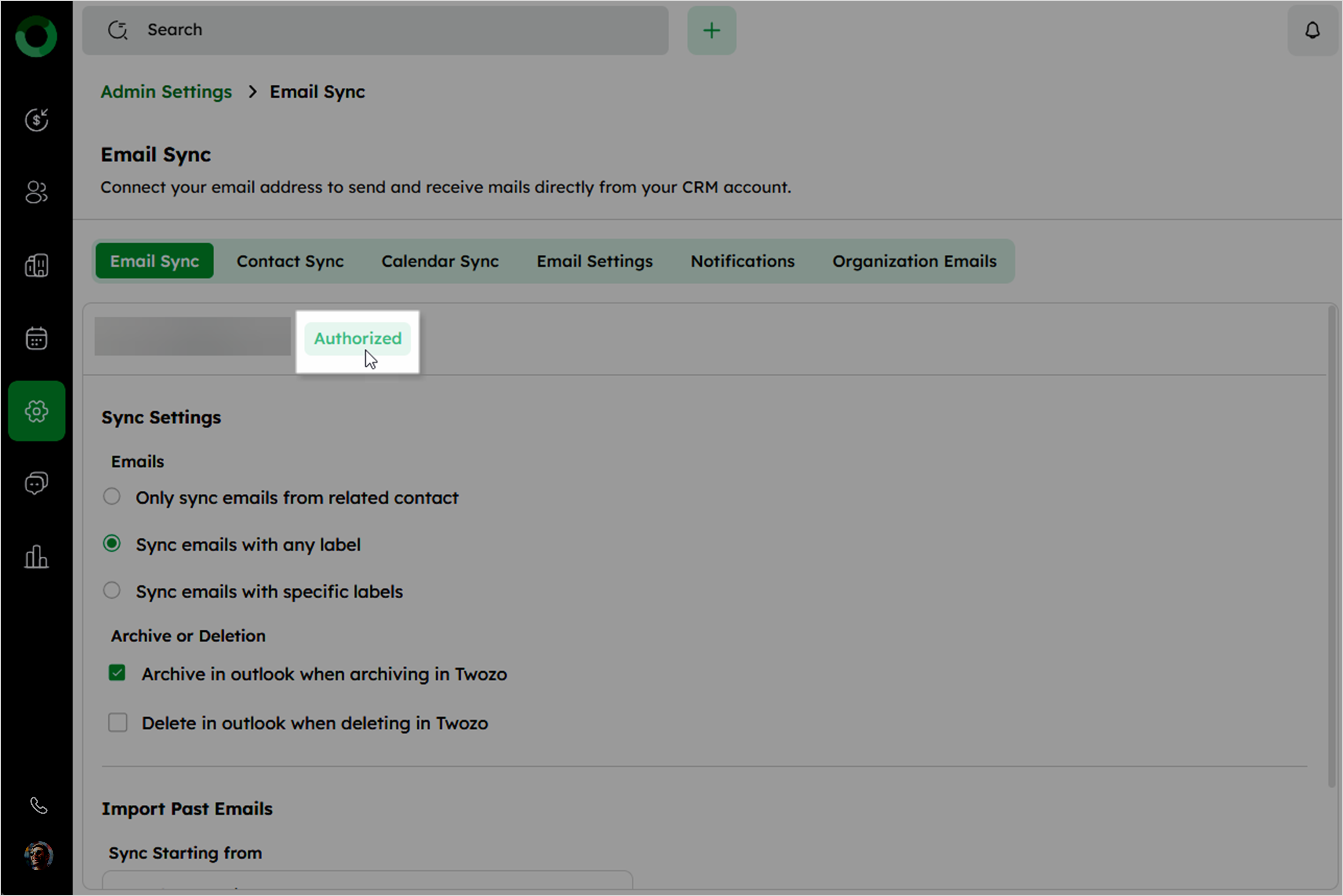
- Once verified, the status next to Gmail changes to Authorized.
-
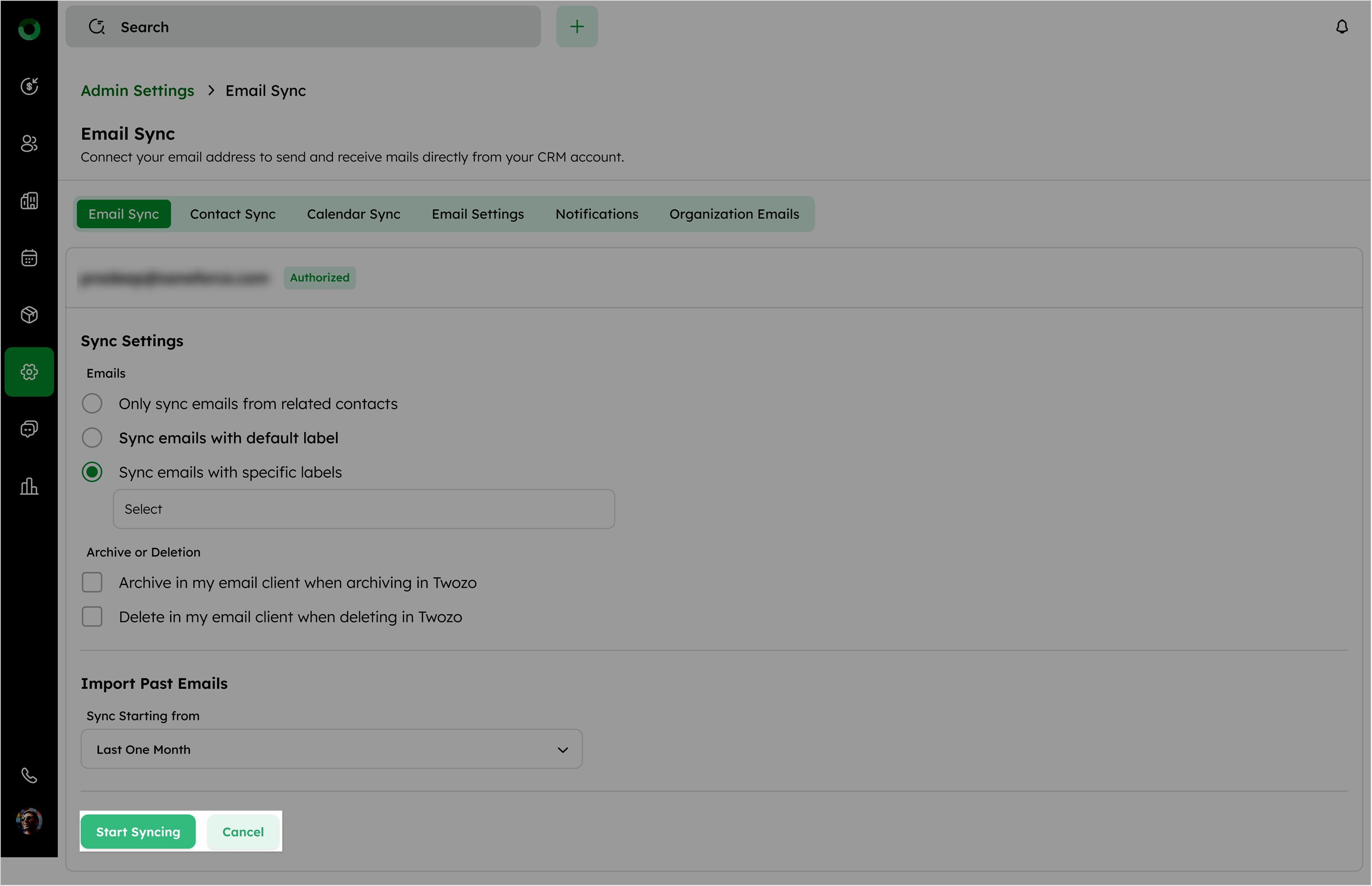
Configure your sync preferences and click Start Syncing to begin syncing emails.
-
Clicking Cancel redirects you back to the initial Email Sync page.
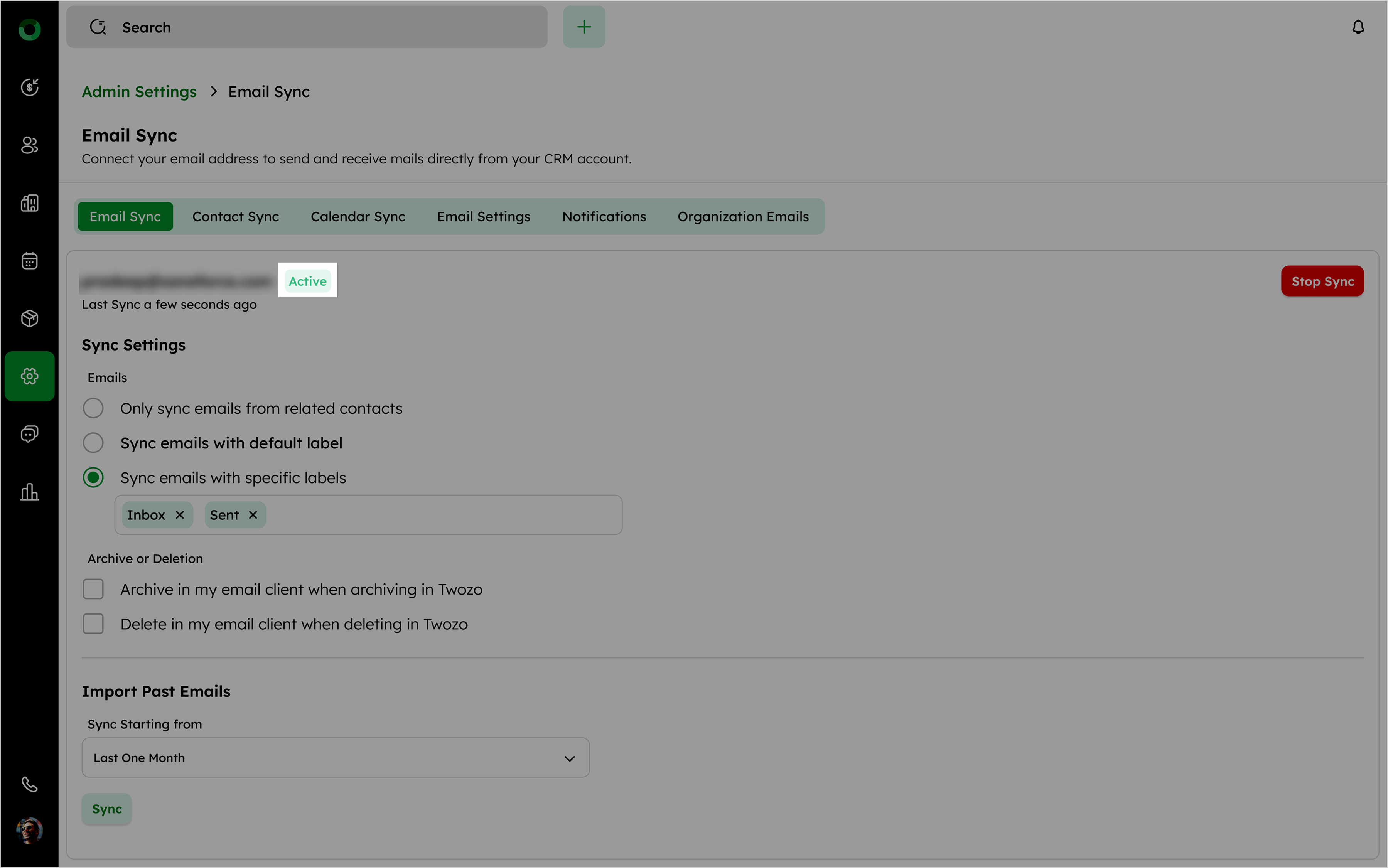
Once the sync is completed, the status will show Active with the sync time.
-
To stop syncing, click Stop Sync from the right side of the screen. A confirmation will ask Are you sure you want to stop syncing emails from [email]?.
-
Click Stop Sync to confirm, or Cancel to retain the sync.
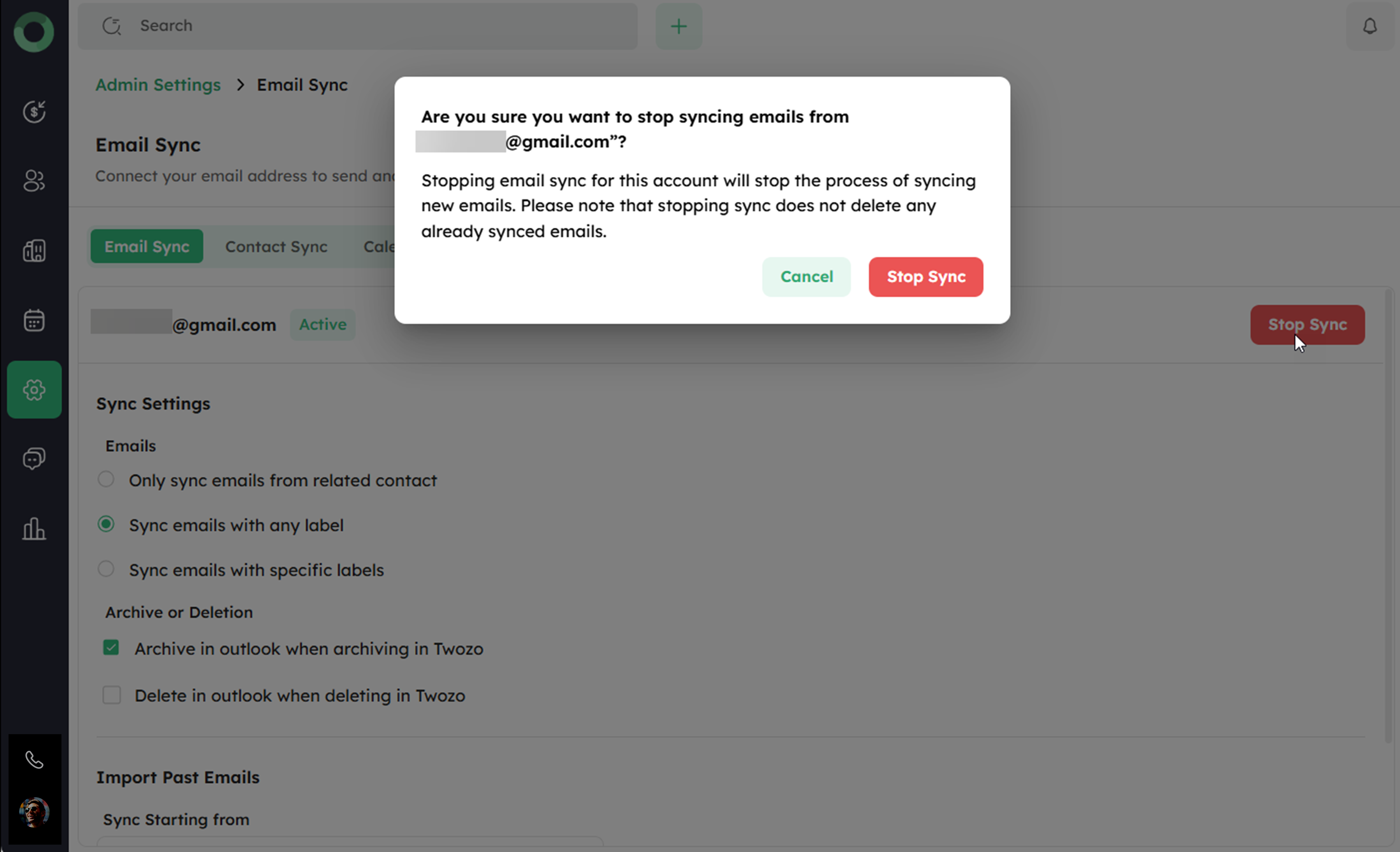
Stopping sync will not delete previously synced emails.
Customize and Control Email Synchronization
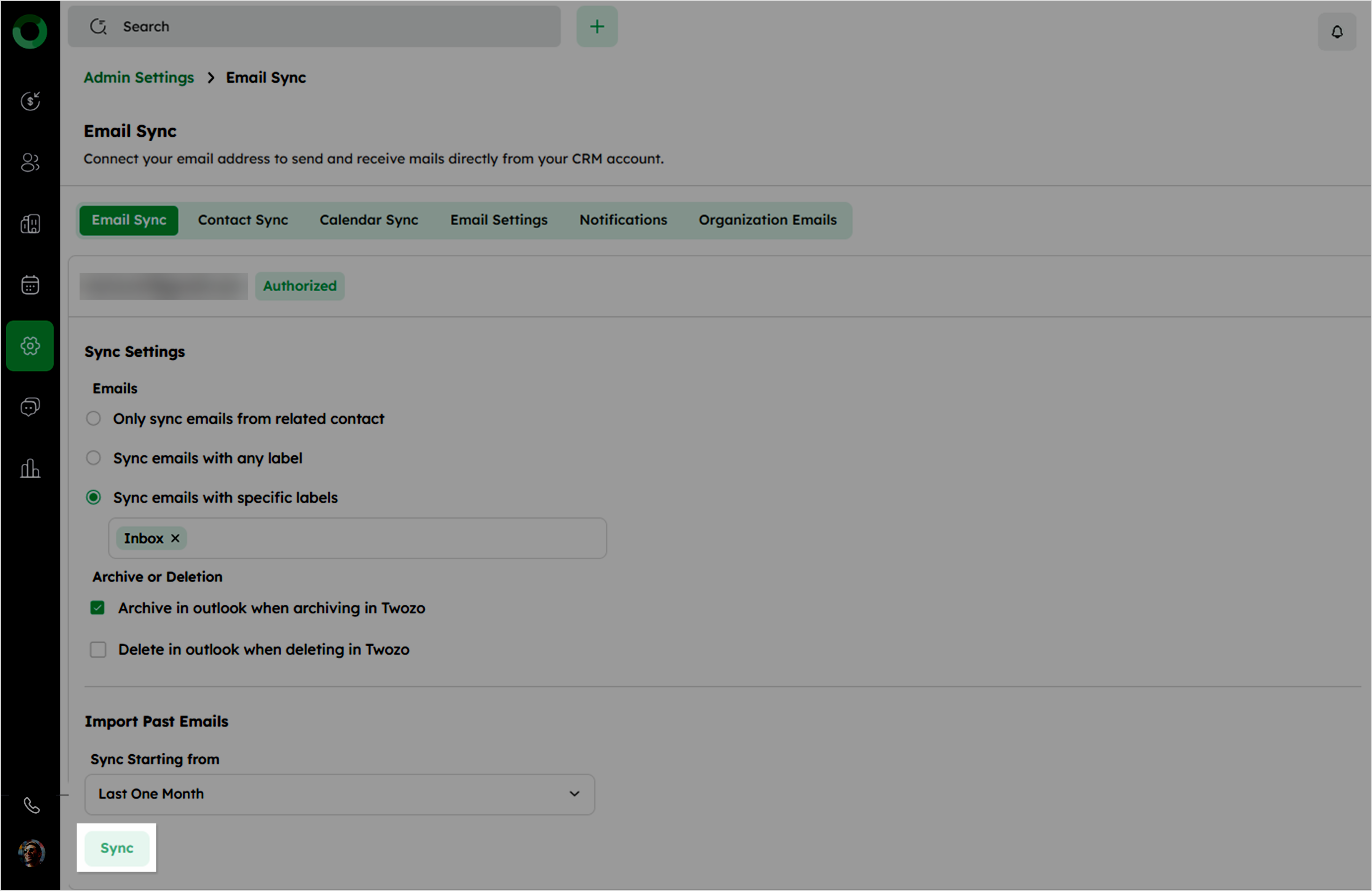
The Sync Settings in Twozo CRM for emails allow you to customize how your email interactions are handled, ensuring seamless integration between your email provider and the CRM. You can also modify the Sync Settings after clicking Start Sync to adjust how your emails are synced. Here's a breakdown of the available options:
How Do I Manage My Email Synchronization Preferences?
-
Only sync emails from related contact: Sync only emails linked to contacts in Twozo.
-
Sync emails with any label: Sync all emails with the default label. (Inbox and Sent are default).
-
Sync emails with specific labels: Choose labels like Inbox, Sent, Archive, or Draft.
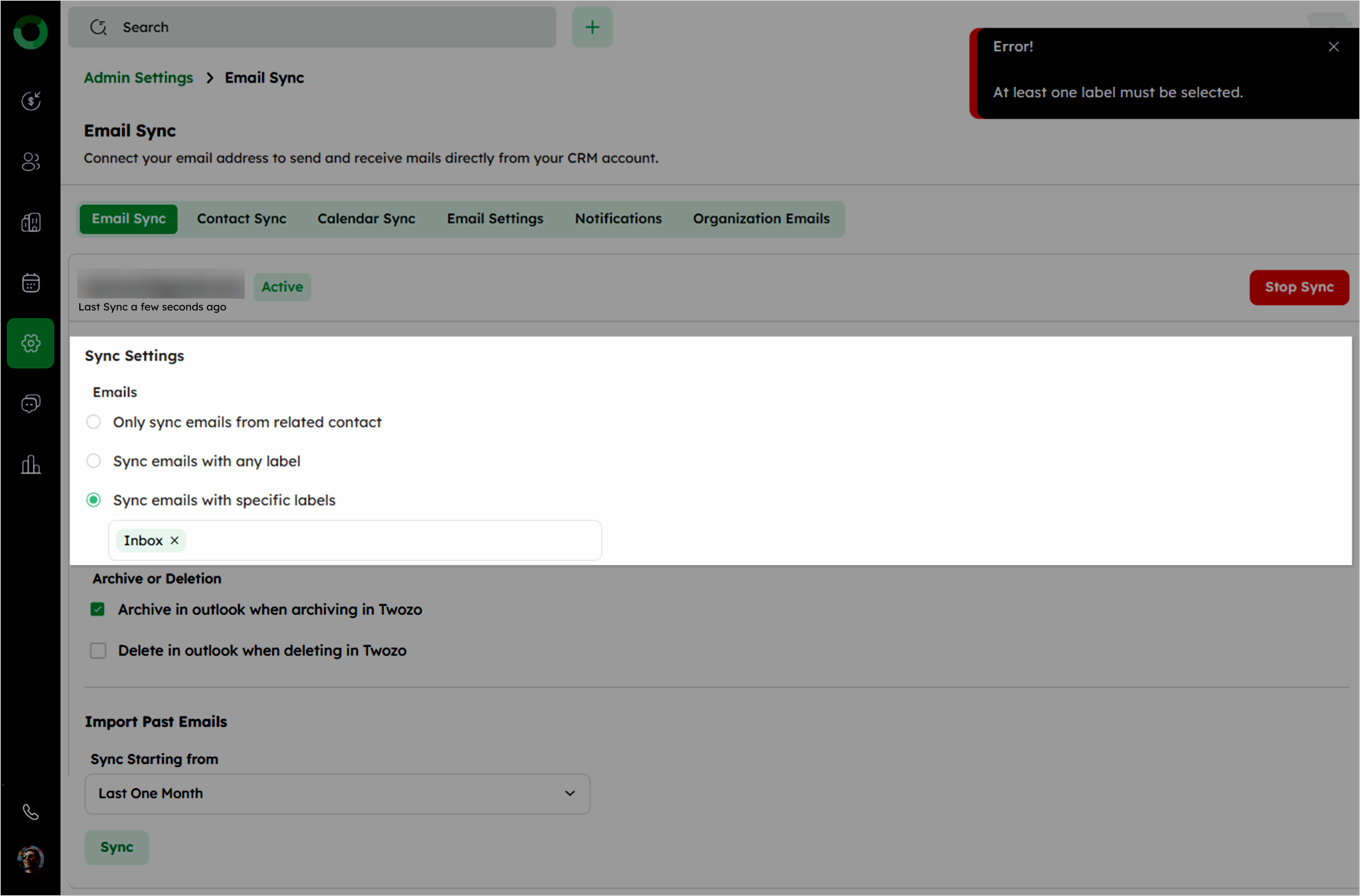
At least one label must be selected. You cannot remove all labels in this field.
How Do I Archive or Delete Synced Emails?
-
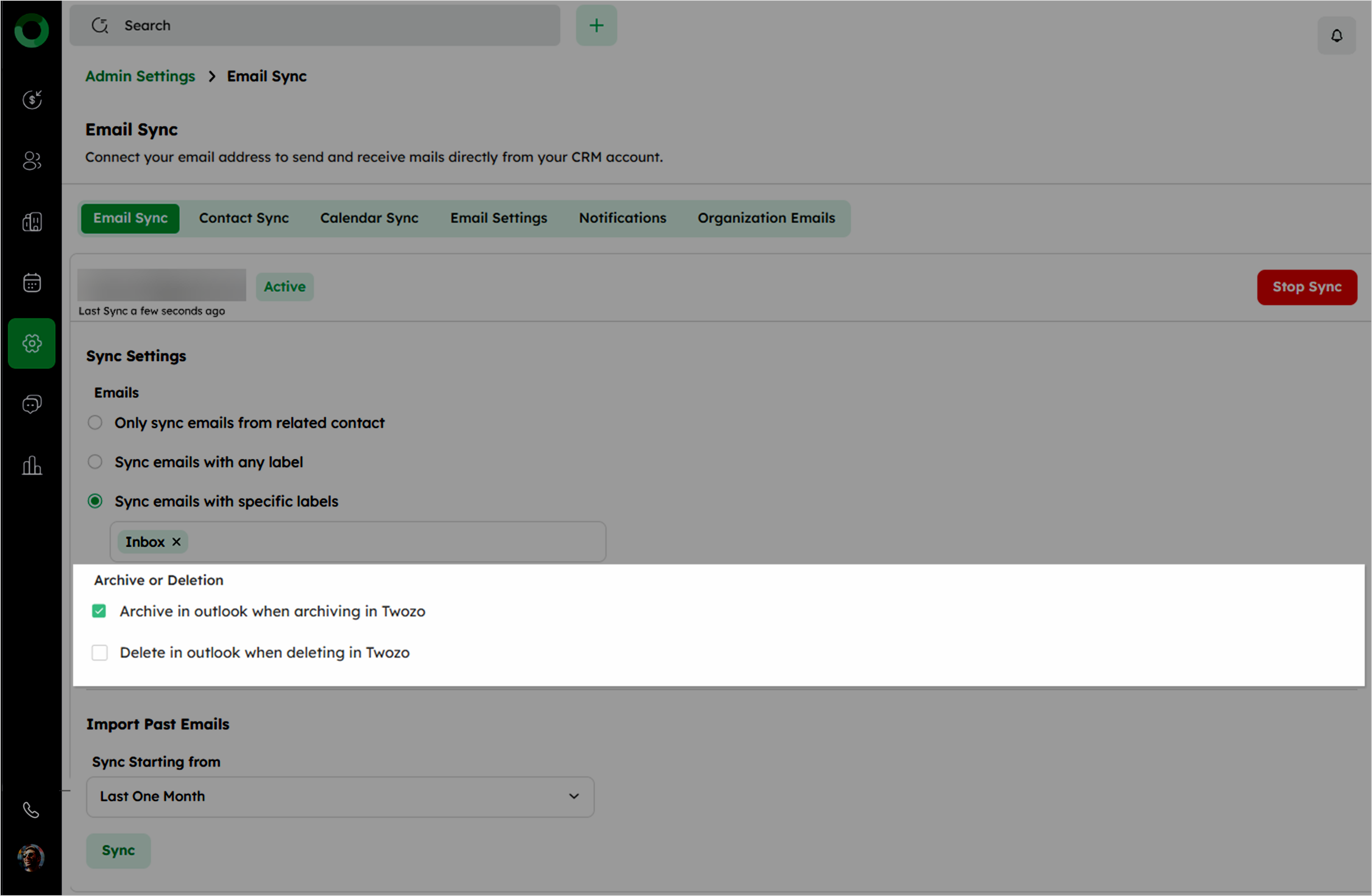
Archive in outlook when archiving in Twozo: Archiving emails in Twozo will also archive them in your outlook provider.
-
Delete in outlook when deleting in Twozo: Deleting emails in Twozo will also delete them from your outlook provider.
The options automatically update based on the connected email provider.
How Do I Import Past Emails into the CRM?
This option allows you to select a timeframe to sync past emails:
-
Last One Month: Sync emails from the last month.
-
Last Three Months: Sync emails from the last three months.
-
Last Six Months: Sync emails from the last six months.
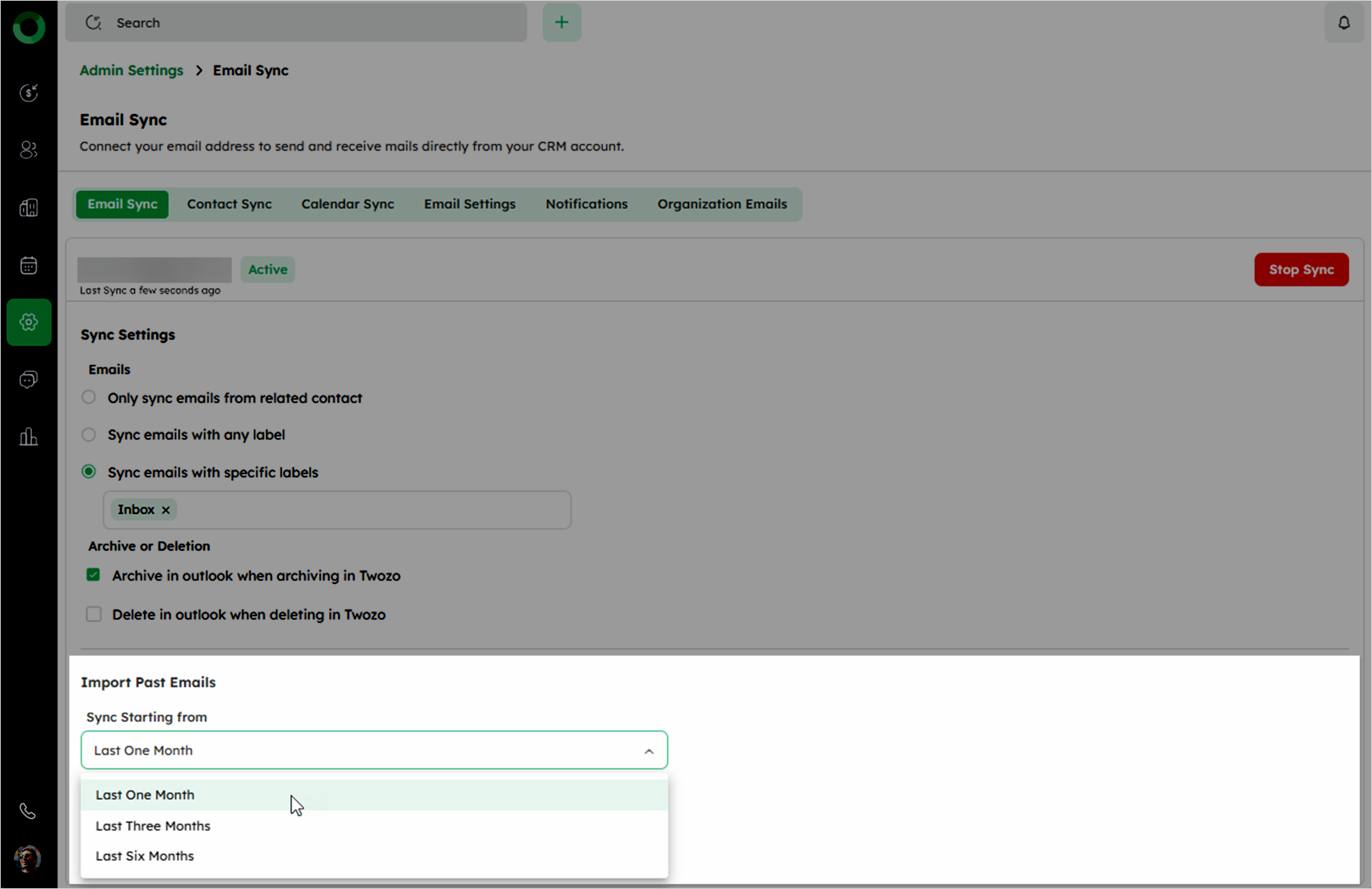
After selecting the desired timeframe, click Sync to update the Sync Settings and begin the import process.