Teams in User Management
Use the Teams feature to group sales personnel for better collaboration. Teams help organize users based on roles and responsibilities, enabling for better territory assignment and view sharing.
Create Teams
-
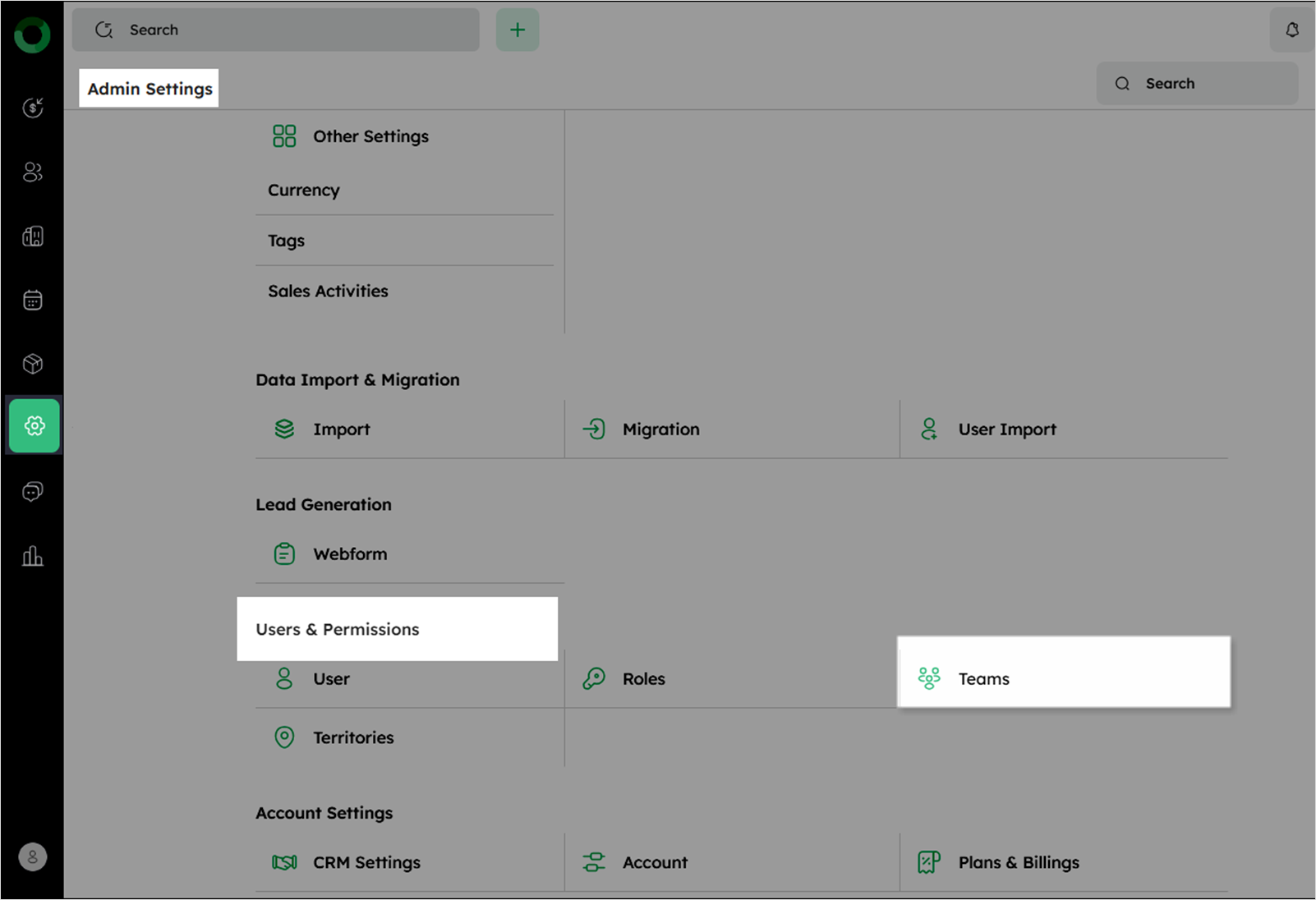
Click the Settings icon in the left sidebar to open Admin Settings.
-
Navigate to Users & Permissions and select Teams to view the list of teams.
-
To create a Team:
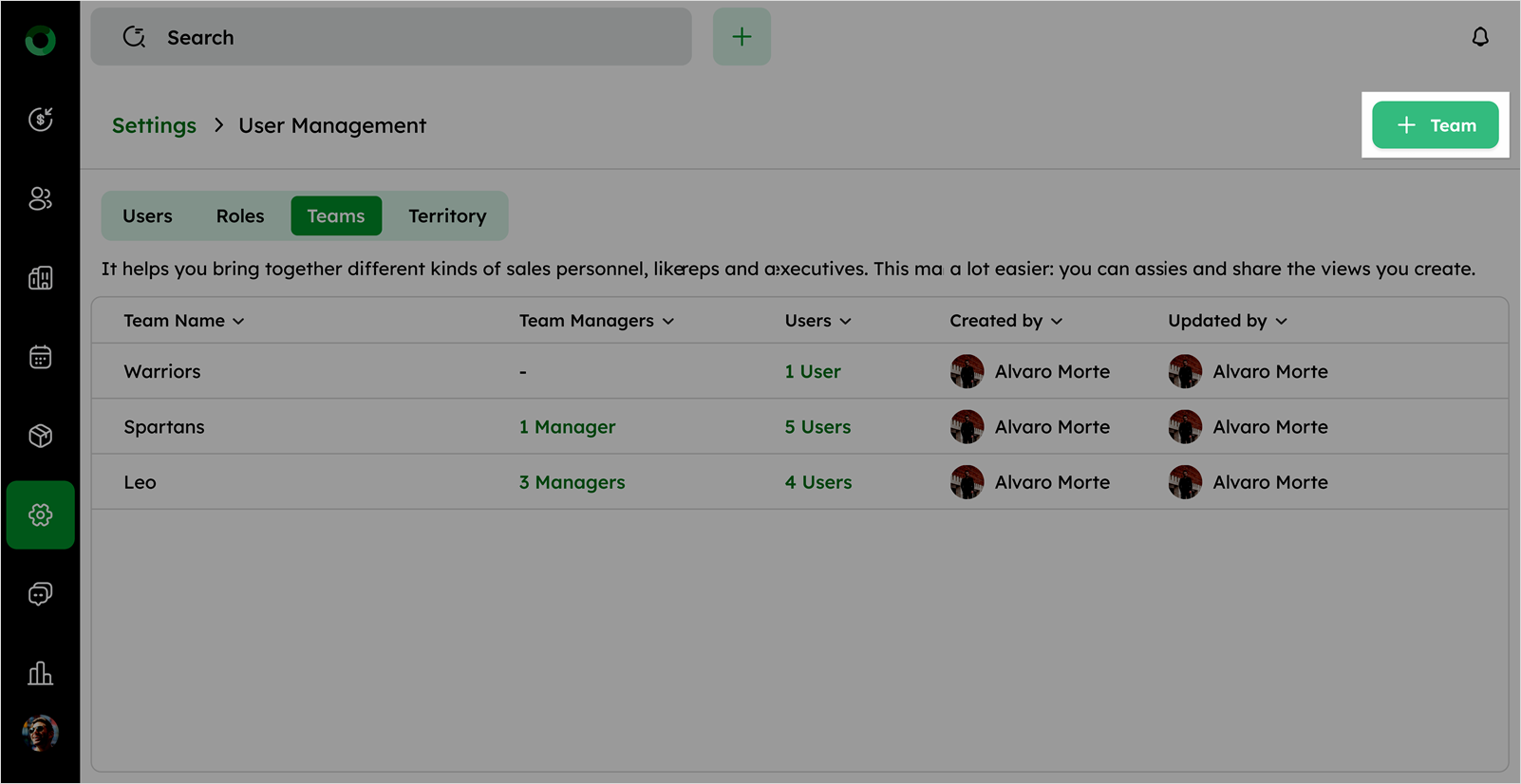
a) Click +Team in the top-right to open the Create Team drawer.
b) Enter the Team Name in the provided field.
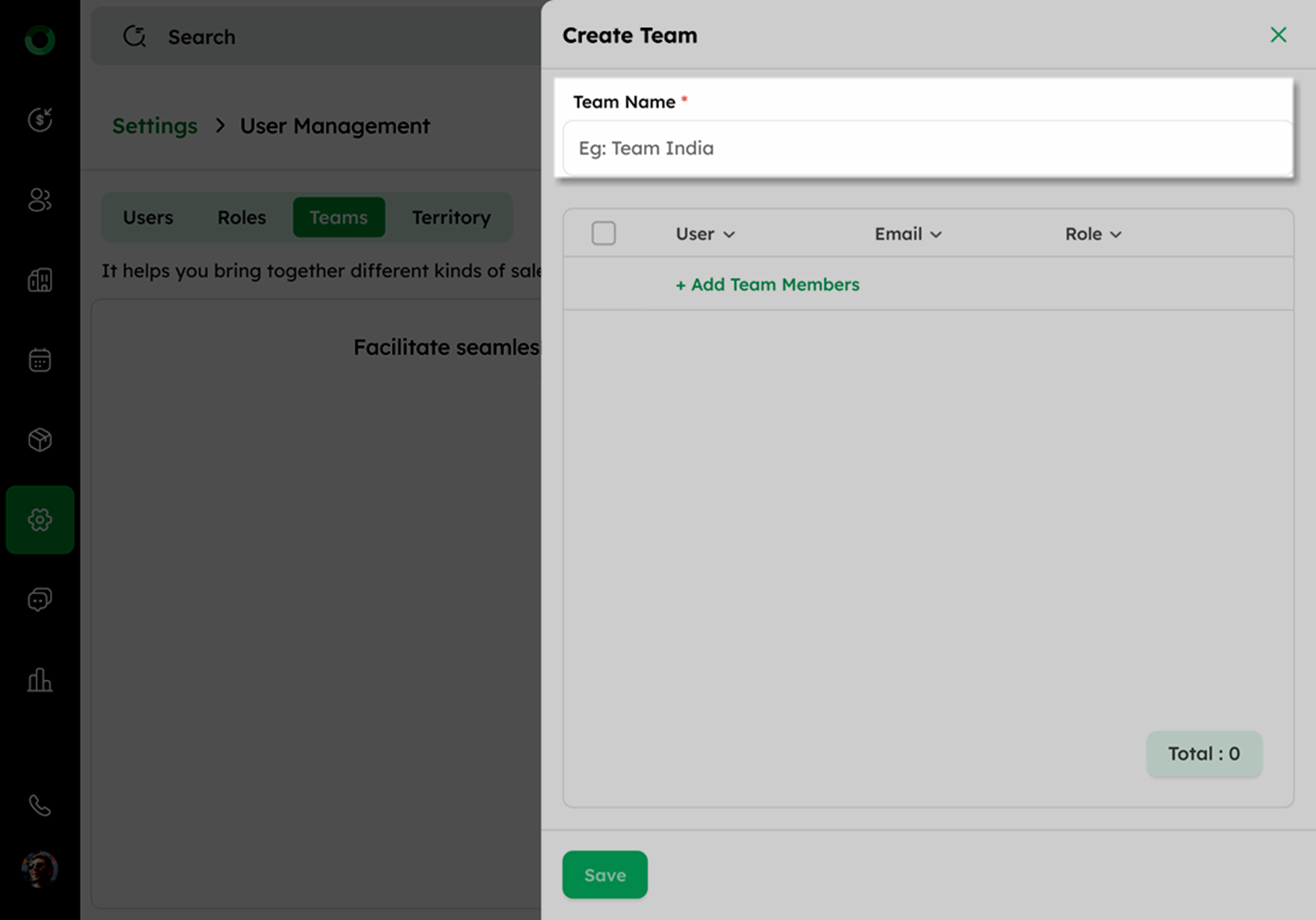
c) Click +Add Team Member to select the users.
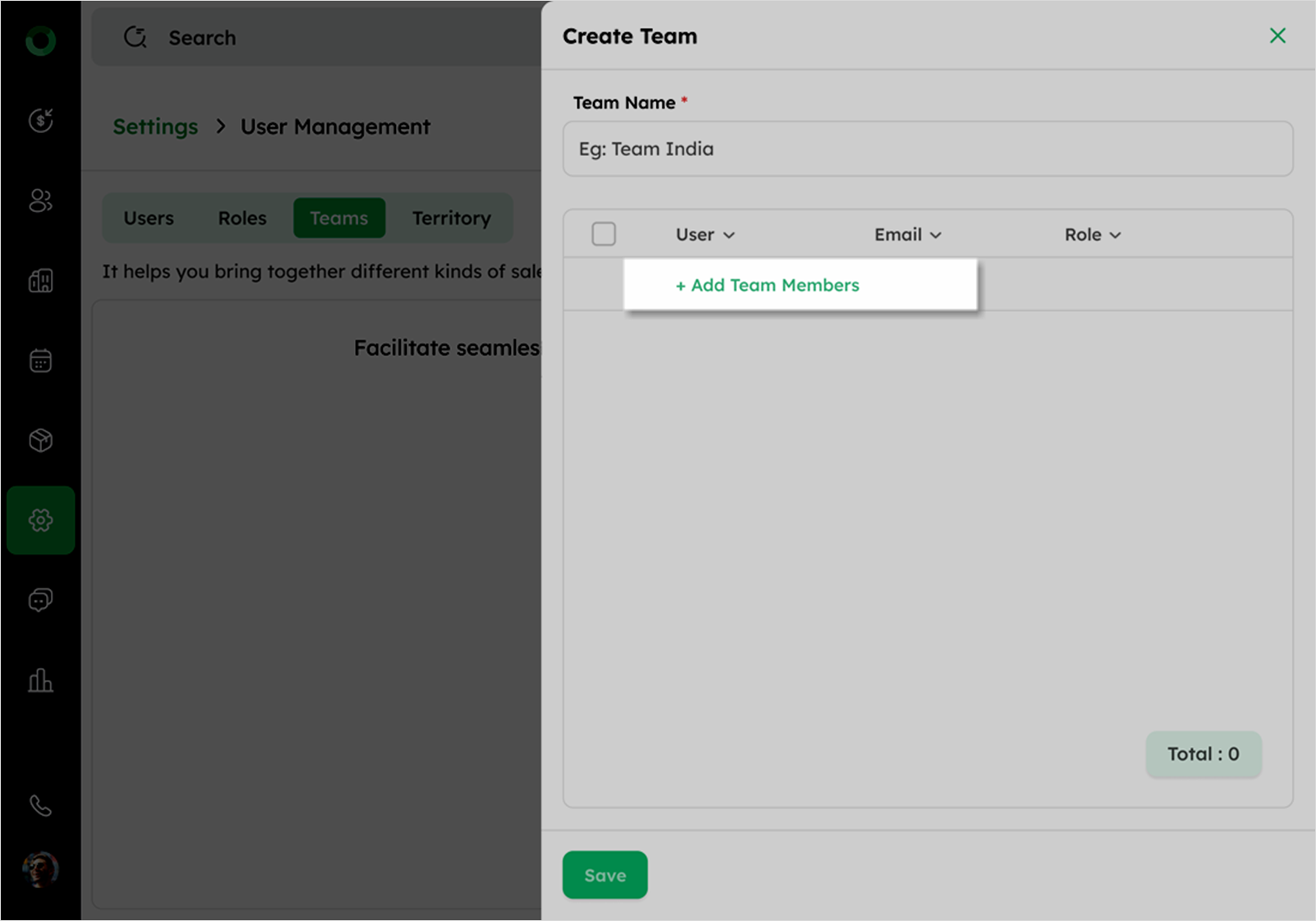
d) Choose a User from the drop-down list, the Email and Role fields will auto-fill.
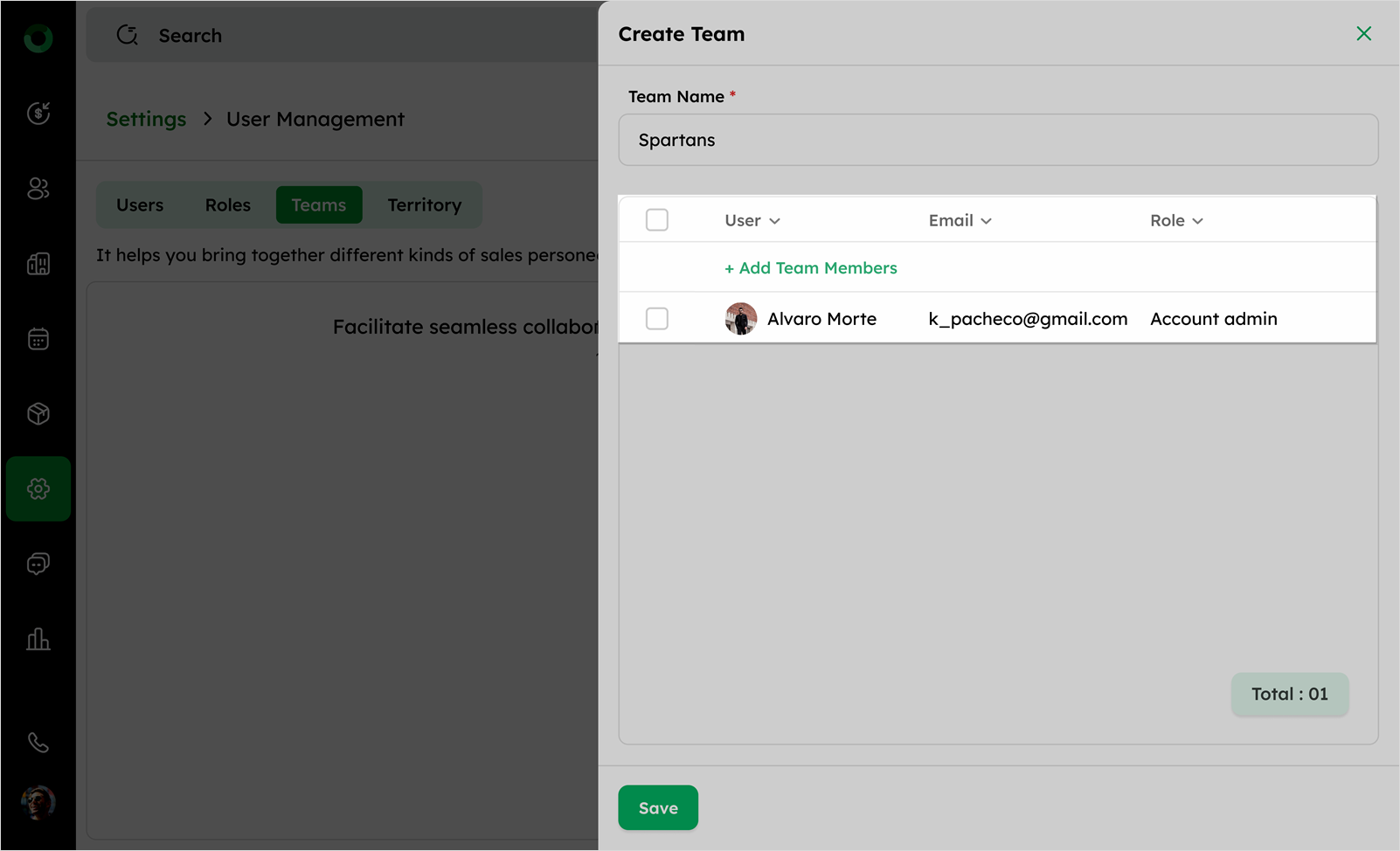
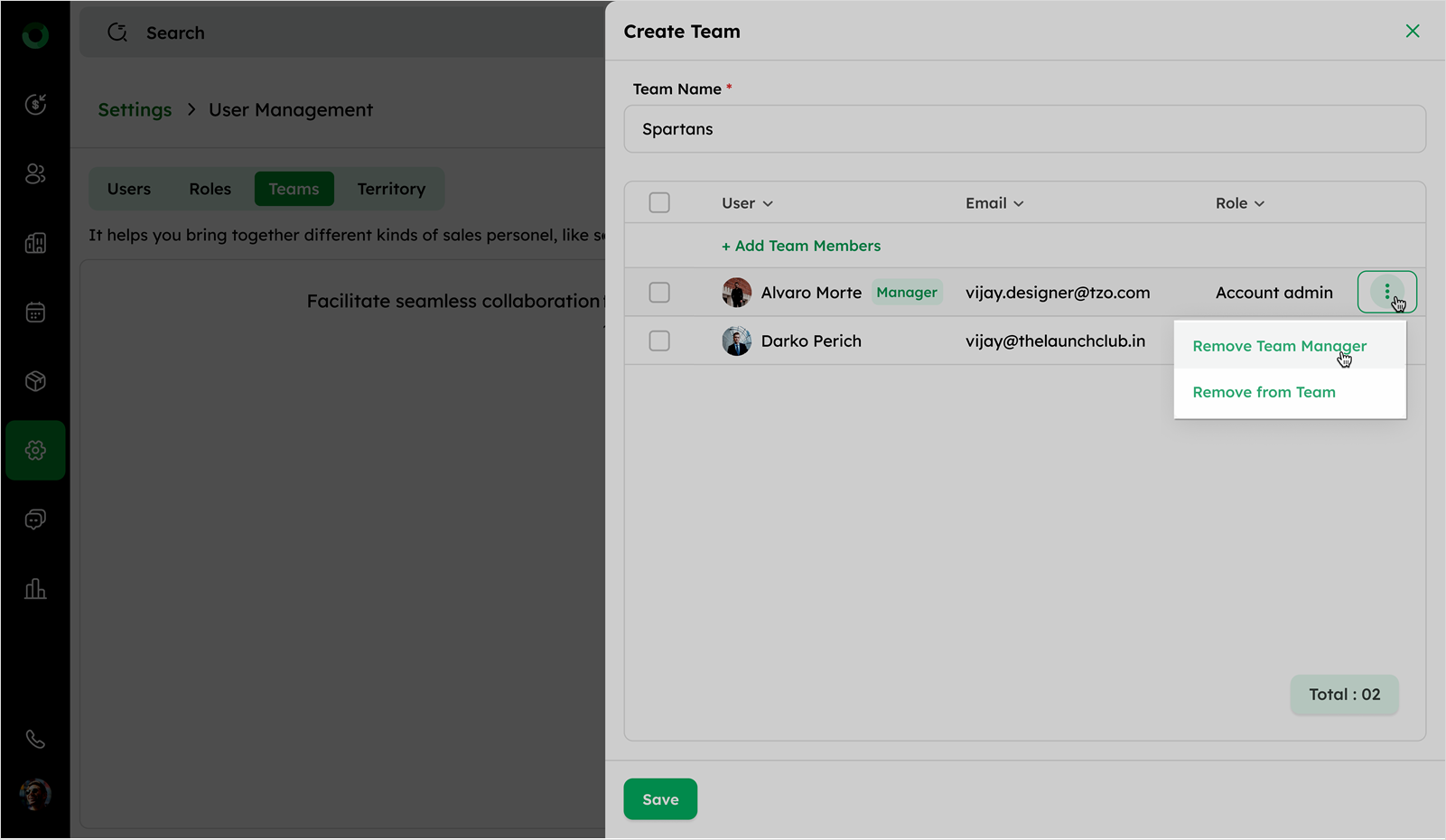
e) Click the ellipsis icon menu next to a team member to assign a managerial role or remove the user.
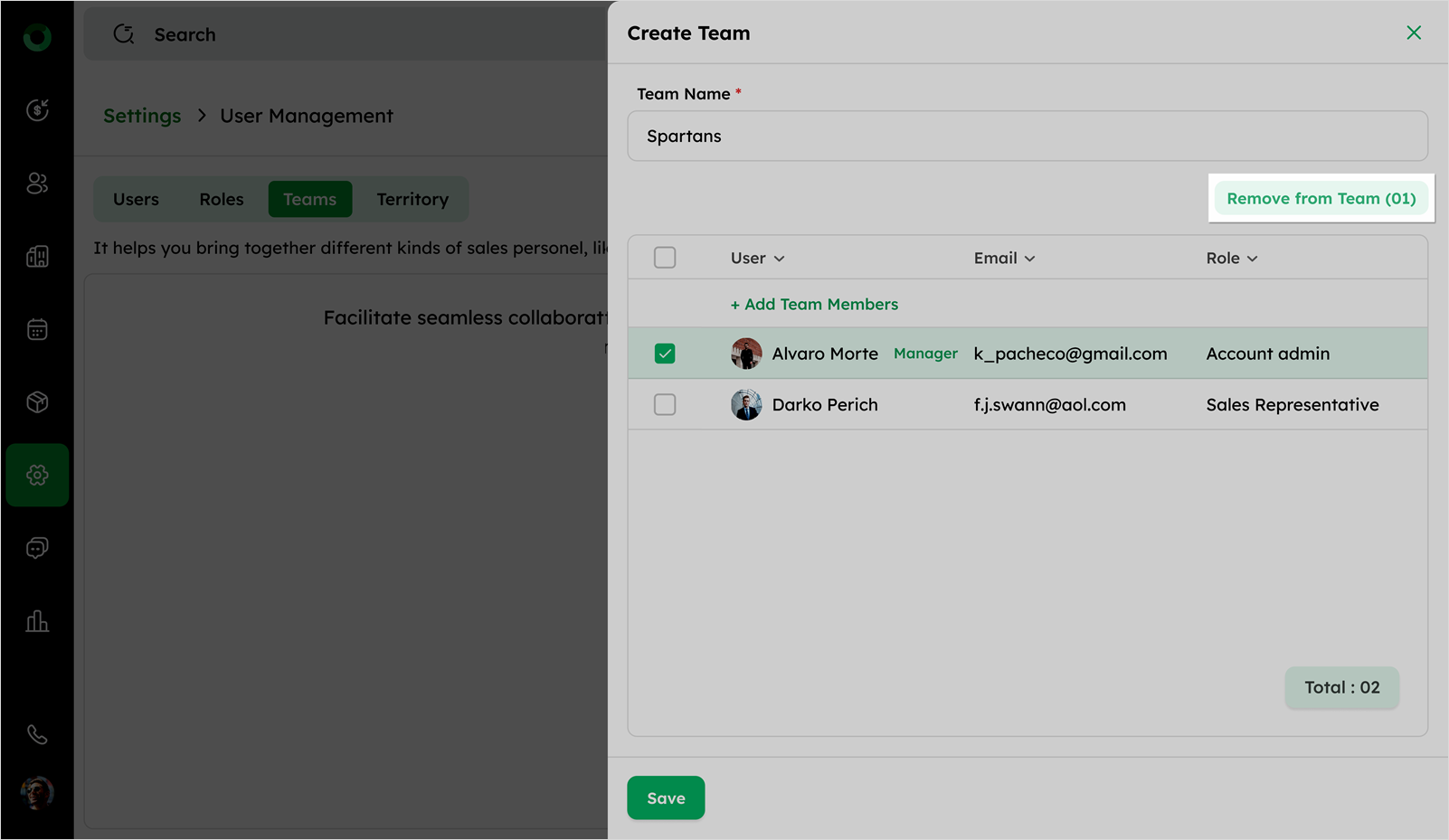
f) Use bulk actions to remove multiple team members by selecting checkboxes next to their names.
g) Click Save to create the team.
-
The Teams List View displays all created teams in a structured format with the following columns:
| Column | Description |
|---|---|
| Team Name | Displays the name of the team |
| Team Managers | Shows the assigned managers of the team (if any) |
| Users | Indicates the number of users in the team |
| Created By | Displays the user who created the team |
| Updated By | Displays the user who last modified the team |
Edit and Delete Teams
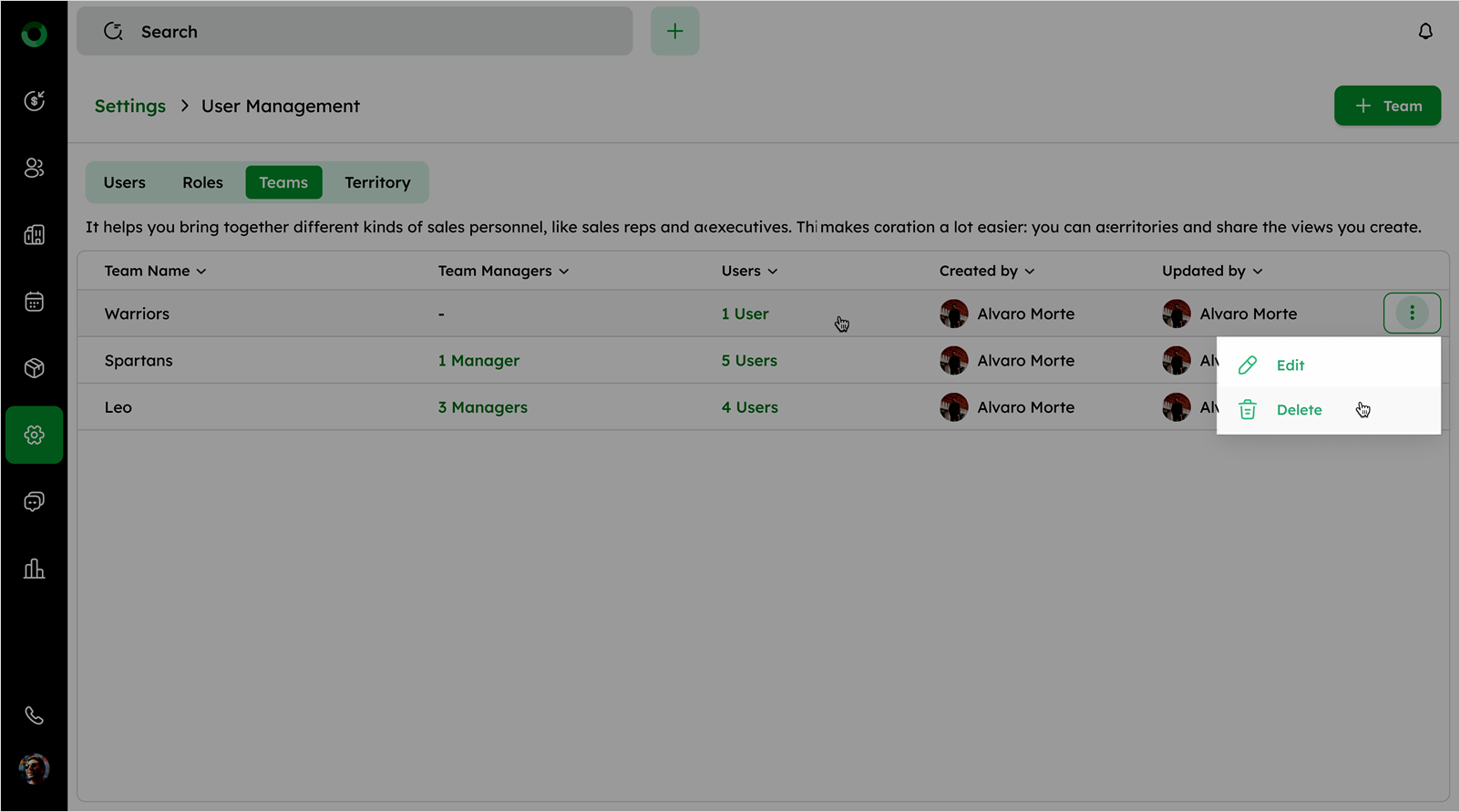
a) Hover over a team in the list to display the ellipsis icon.
b) Click the ellipsis icon to open the menu.
c) Select Edit to modify team details.
d) Select Delete to remove the team permanently.