Managing Territories
Twozo CRM’s Territory feature ensures that assigned team or users manage all customers within a specific territory, enhancing organization and accountability.
-
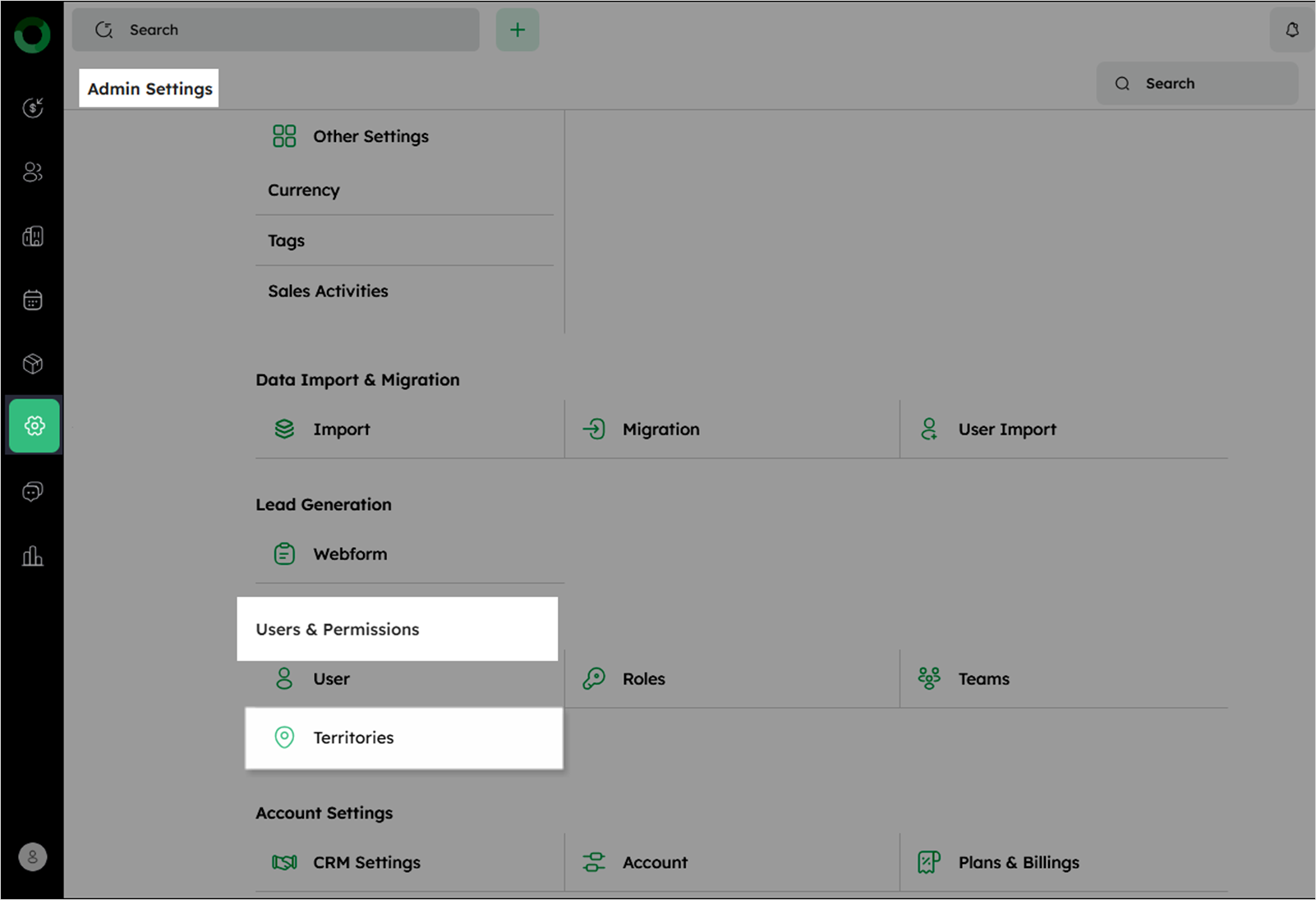
Click the Settings icon in the left sidebar to open Admin Settings.
-
Click Territories under Users & Permissions to view the list of territories.
-
Creating a Territory:
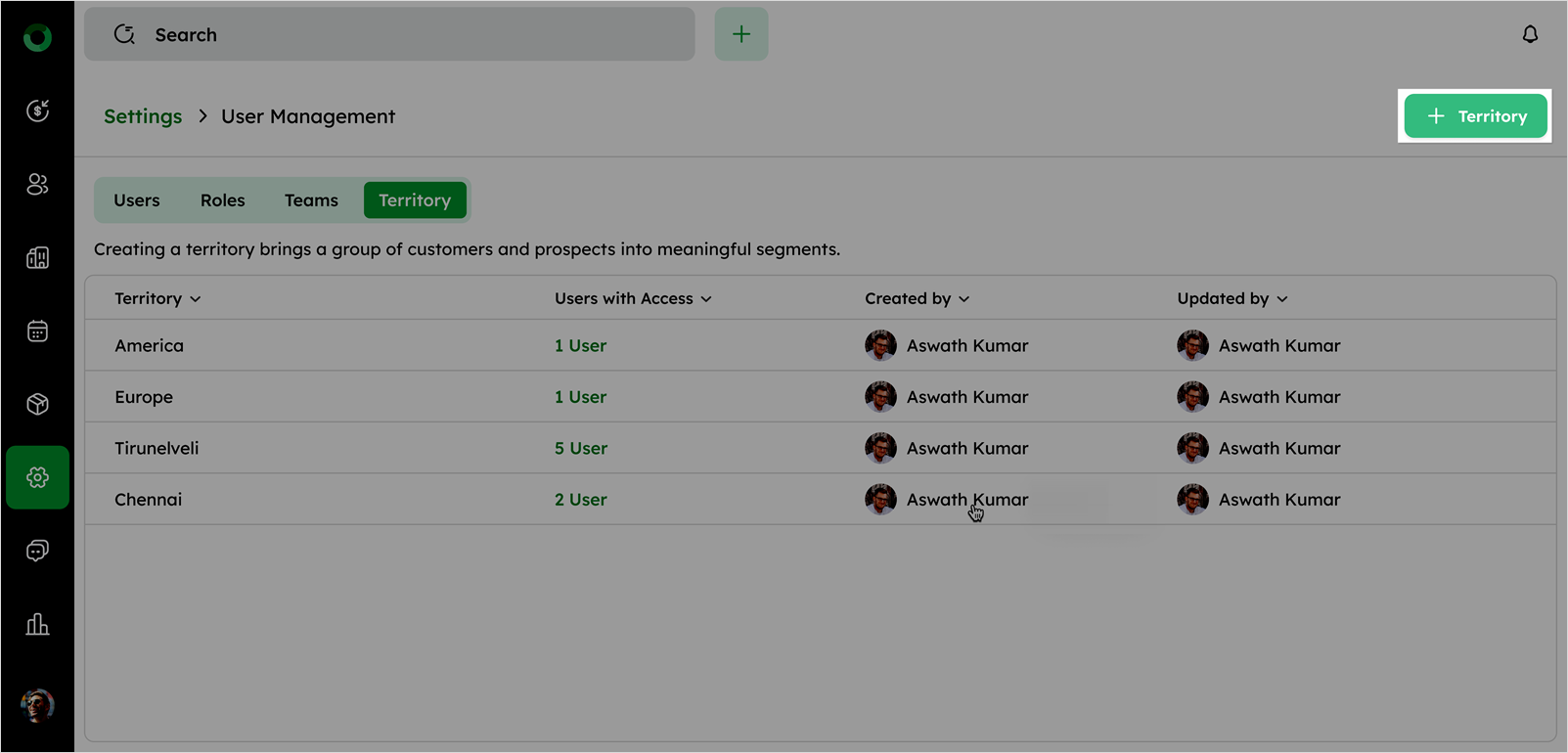
a) Click +Add Territory to open the Create Territory drawer.
b) Enter the Territory Name in the provided field.
c) Add a description for reference, including details such as location and business scope.
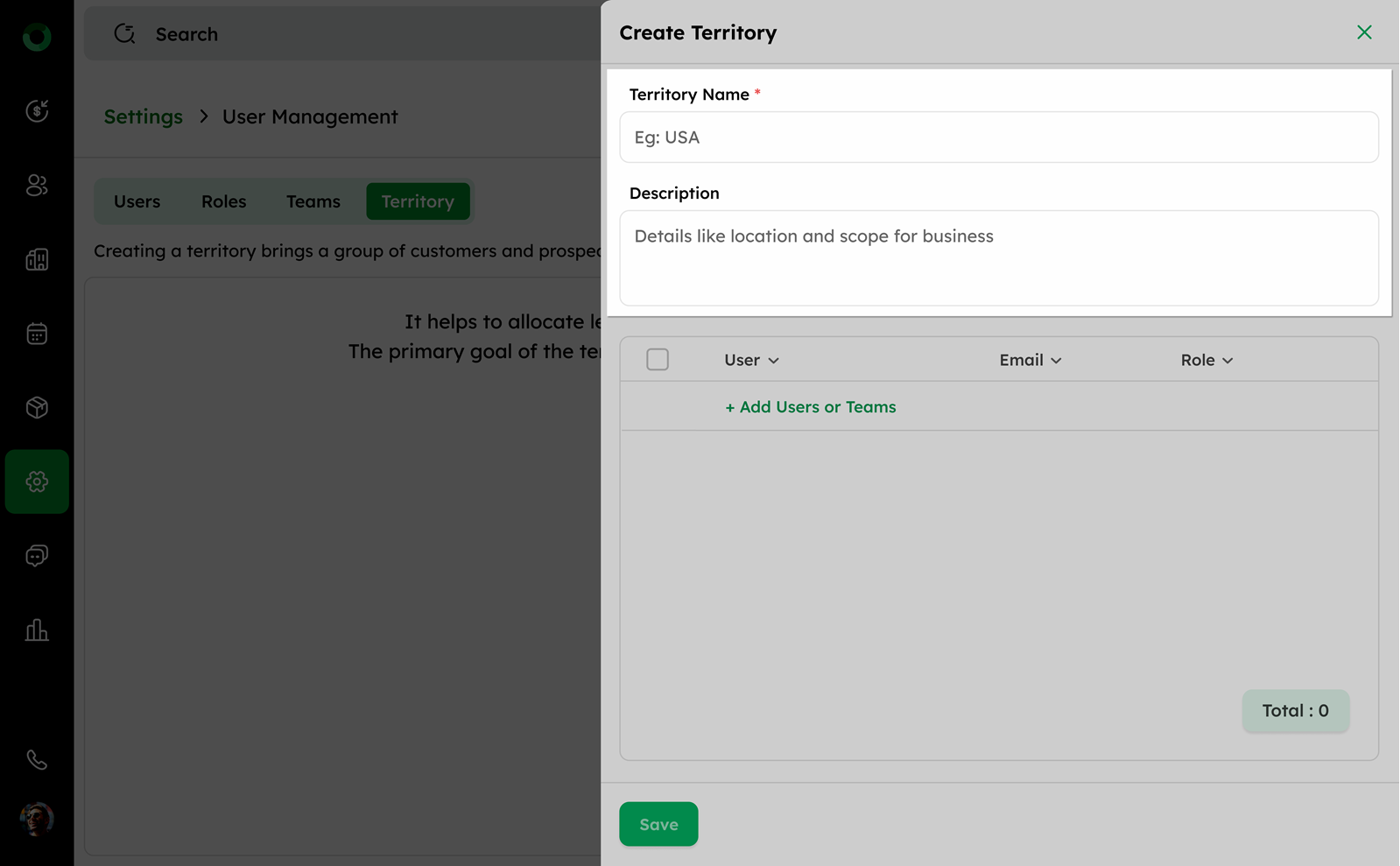
d) Click +Add Users or Teams to select users or teams to assign to the territory.
e) Add a team to automatically list all users within that team, including their email addresses and roles.
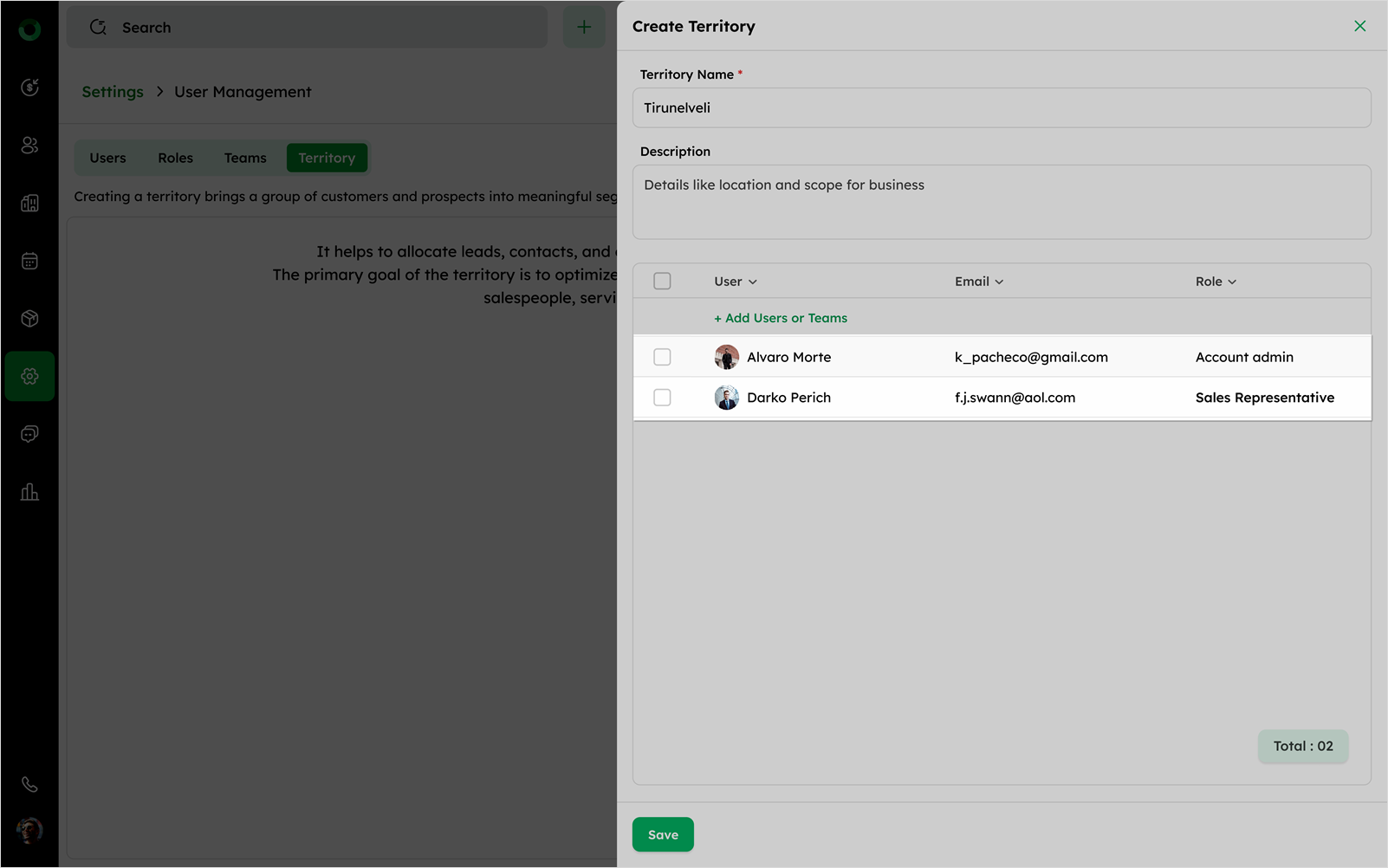
f) In bulk action, select multiple users using the checkbox beside the user names.
g) Click Remove from Territory to remove selected users in bulk.
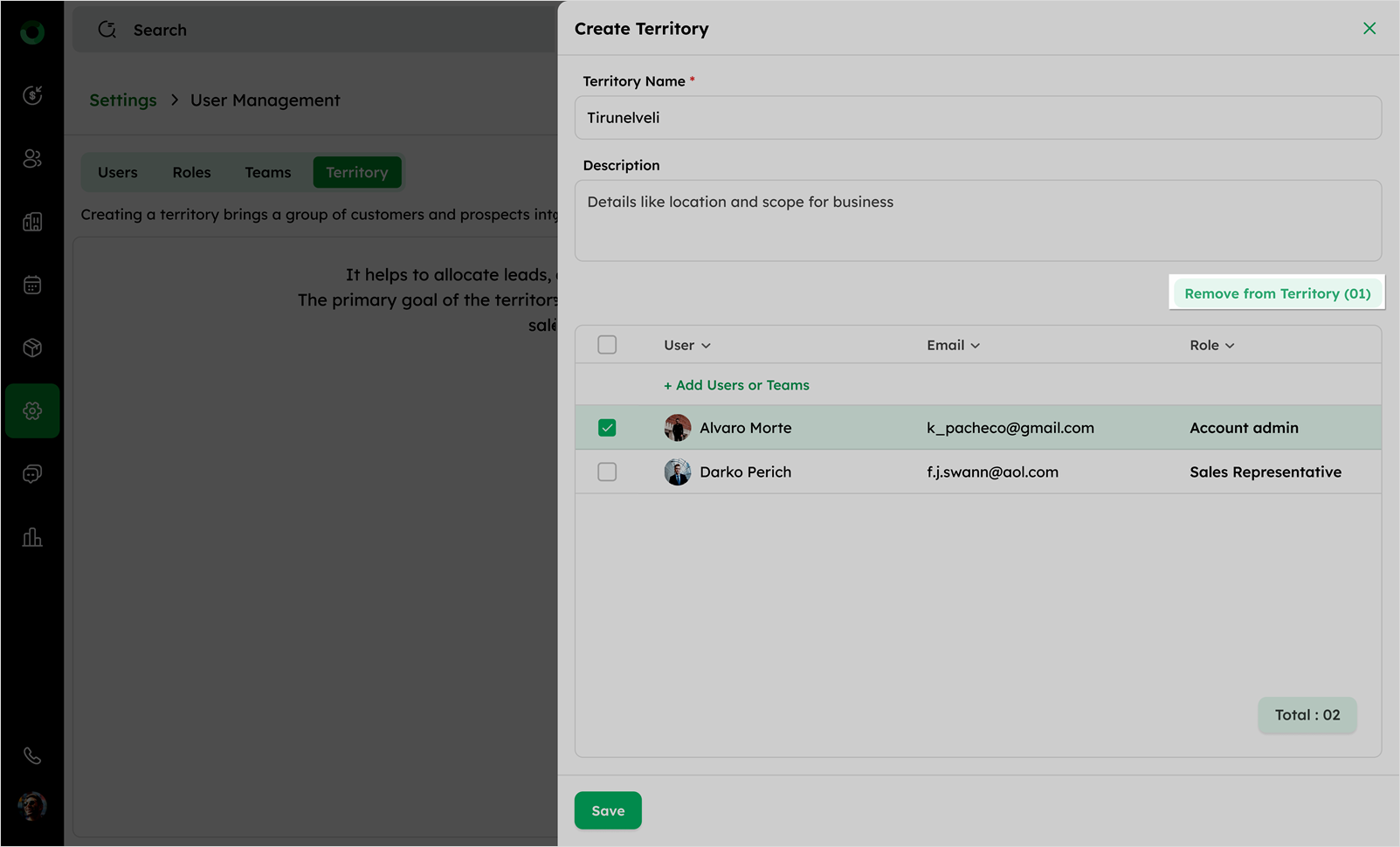
h) Click Save to create the territory.
-
Editing or Deleting a Territory:
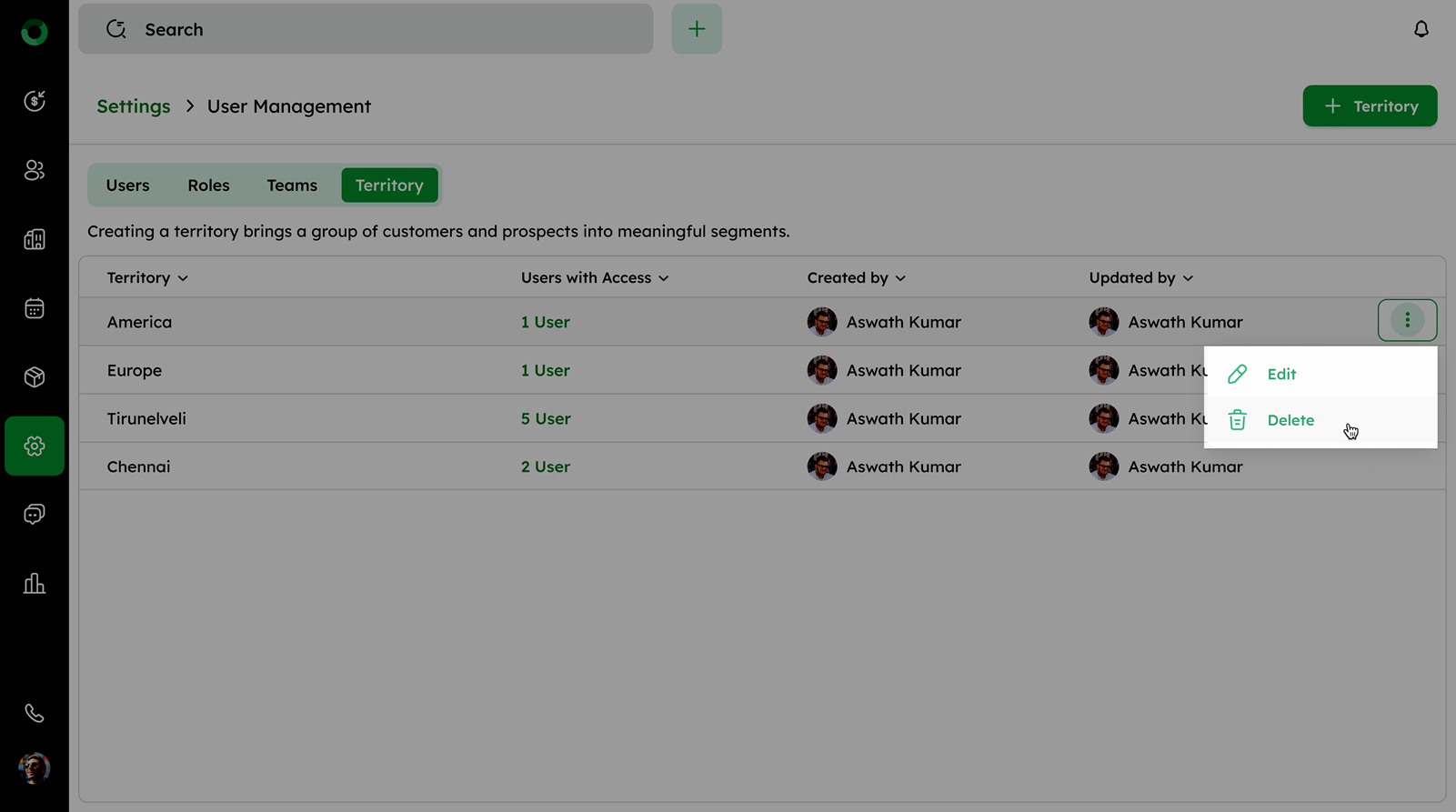
a) Hover over any territory in the list to display the ellipsis icon.
b) Click the ellipsis icon to open the menu.
c) Select Edit to modify territory details.
d) Select Delete to remove the territory permanently.