Tags
Tags are implemented at an organizational level, allowing you to access and utilize tags created by any individual in the organization. Tags help simplify the sorting and categorization of records and templates.
Record Tags
Tags are used to label and organize records for Contacts, Companies, and Deals. Each record can have up to 10 tags, but repeated tags cannot be added to the same record.
Create and Manage Record Tags
-
Open Admin Settings by clicking the settings icon.
-
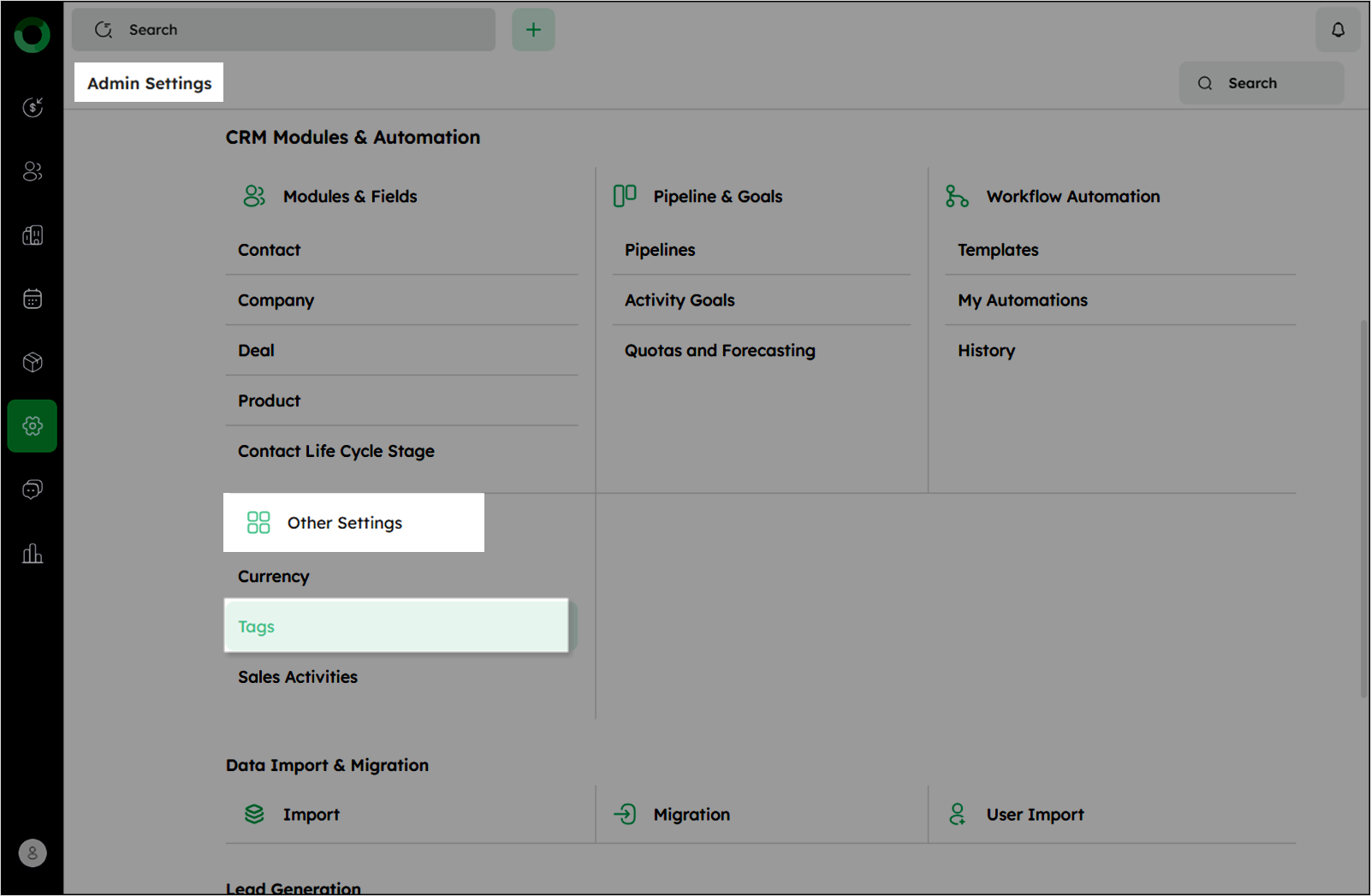
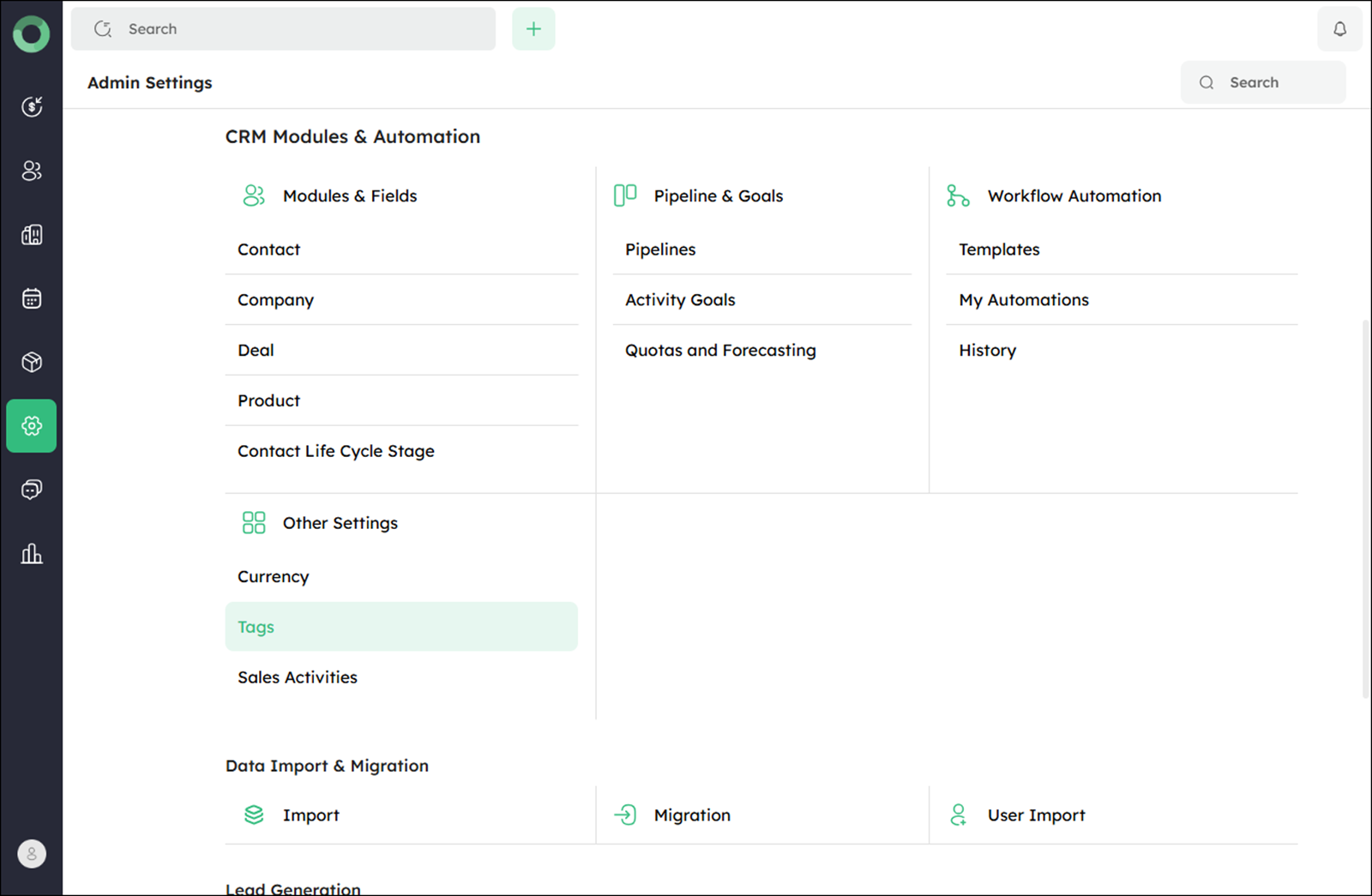
In the Admin Settings page, click Tags under Other Settings to open the Tags page.
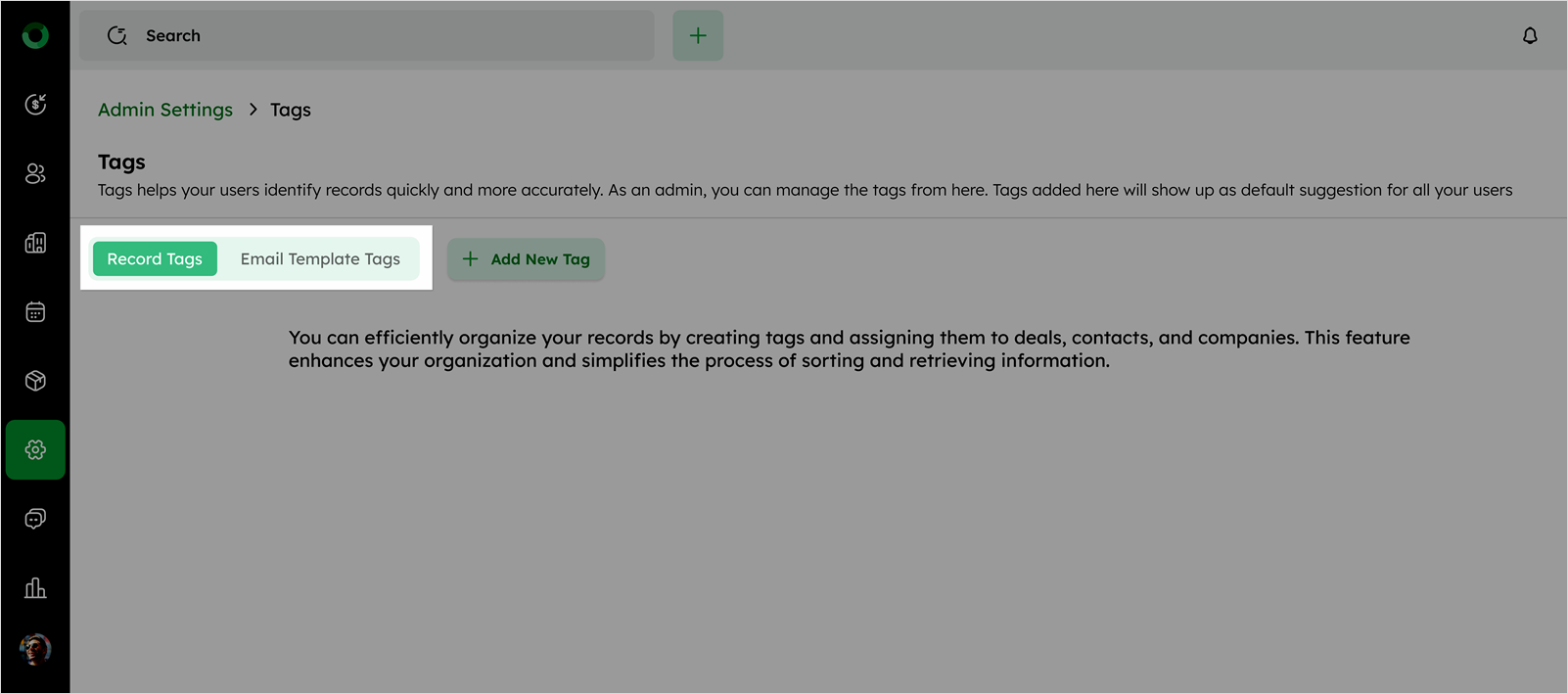
- In the Tags List View, select the Record Tags tab at the top of the screen.
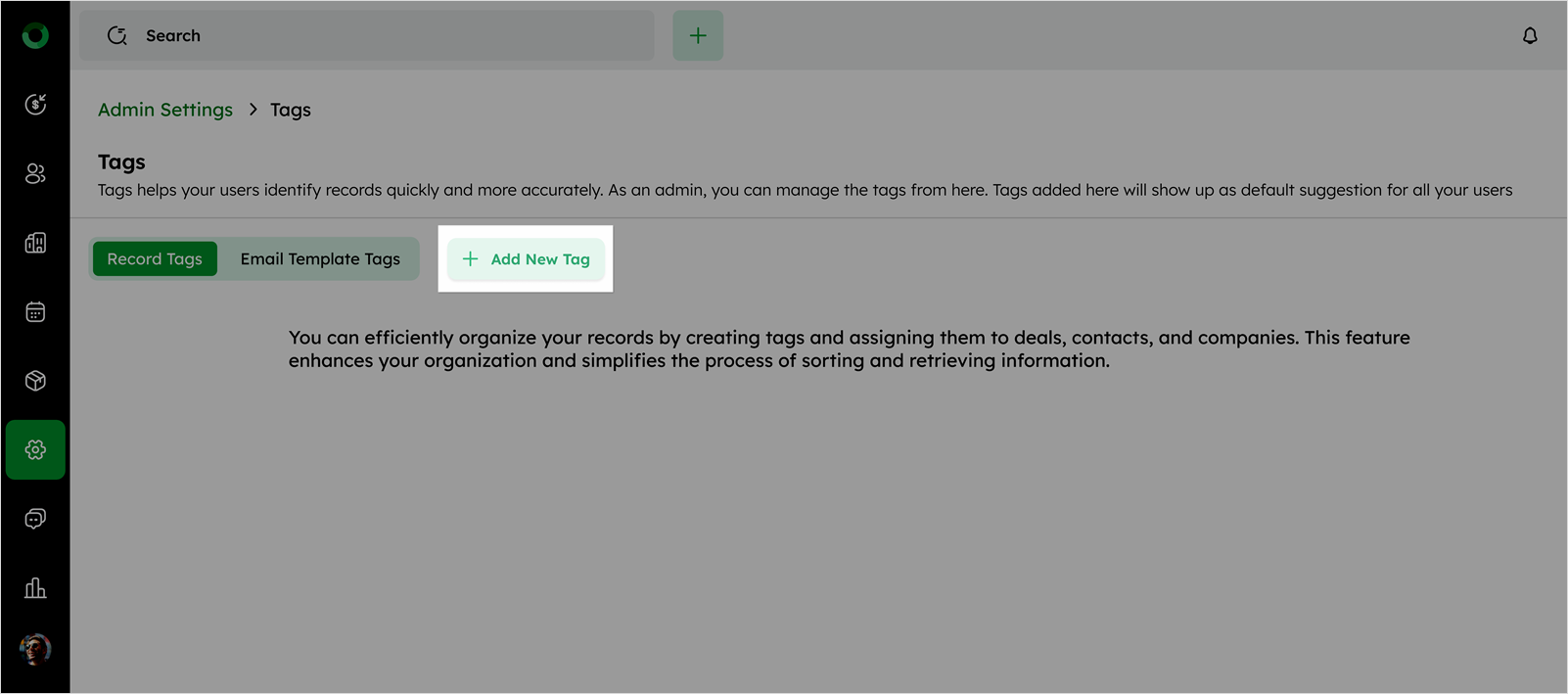
- Click +Add New Tag to create a new tag.
- Enter the desired tag name and click Add to save it.
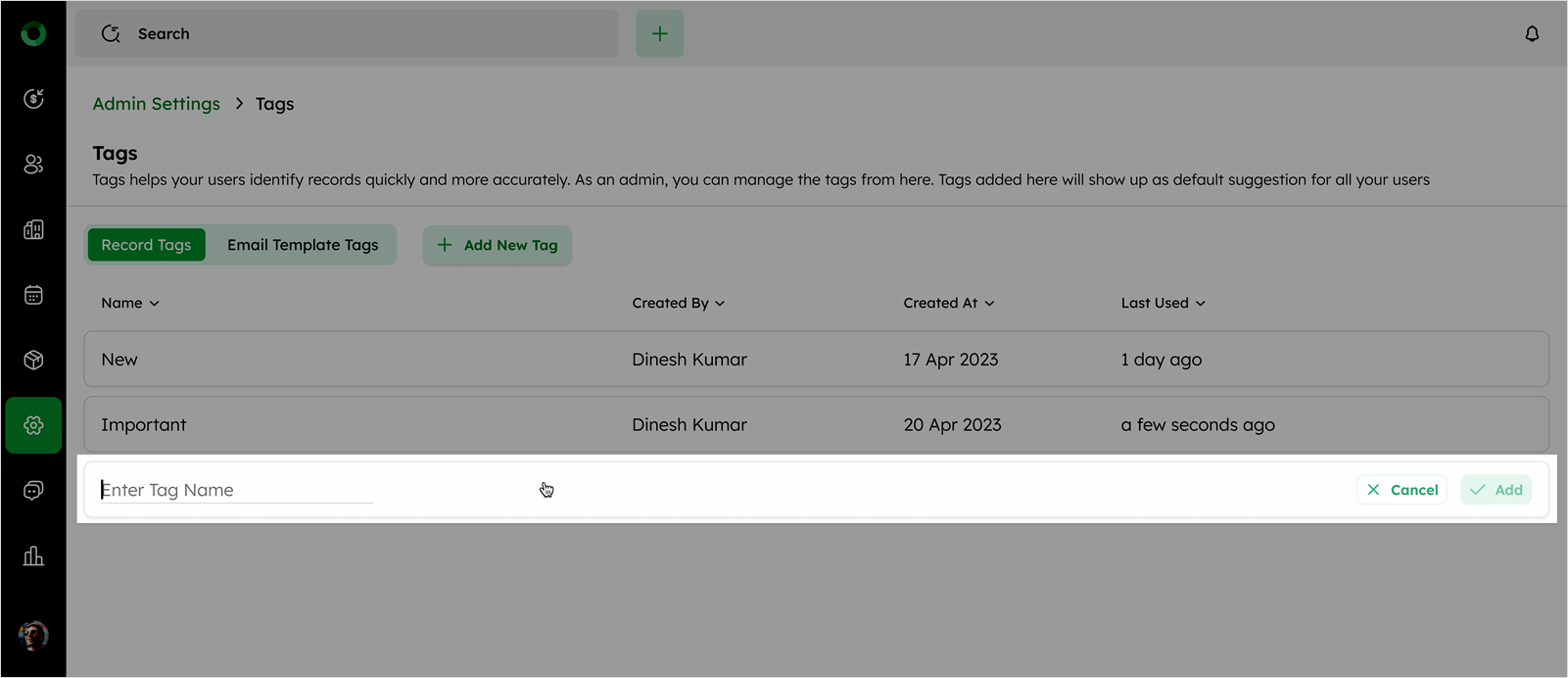
- The fields displayed in the list view are described as follows:
| Field | Description |
|---|---|
| Name | The name of the tag |
| Created By | The user who created the tag |
| Created At | The date when the tag was created |
| Last Used | Last time the tag was used. If never used, it will display as NA |
-
Hover over a tag in the list view to display the edit and delete options.
-
Click the edit icon to modify the tag details.
-
Click the delete icon to remove the tag.
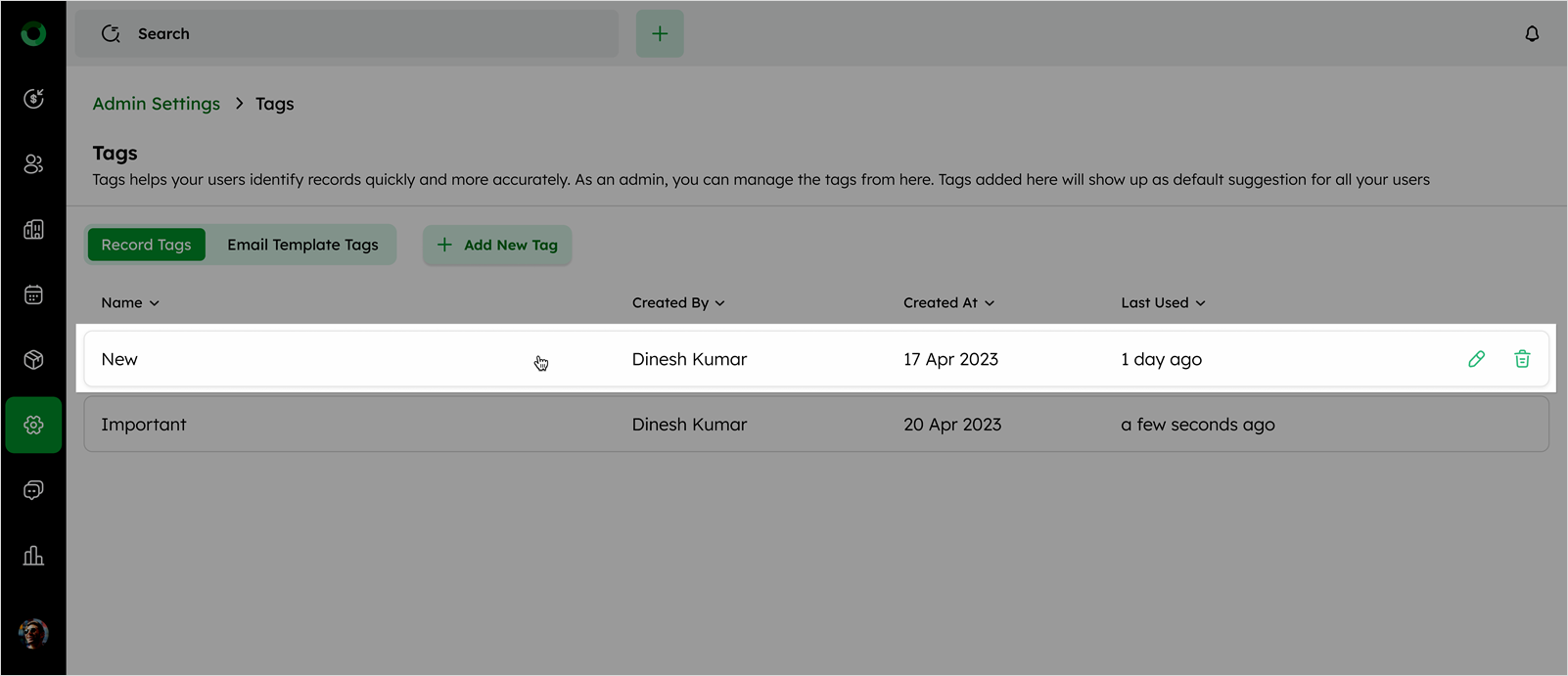
Deleting a tag will remove it from all associated records.
Template Tags
Template tags help categorize and sort email templates efficiently. Each template can have up to 5 tags, and duplicate tag names are not allowed.
Create and Manage Template Tags
-
Go to the Admin Settings page by clicking the settings icon.
-
In the Admin Settings page, click Tags under Other Settings to open the Tags page.
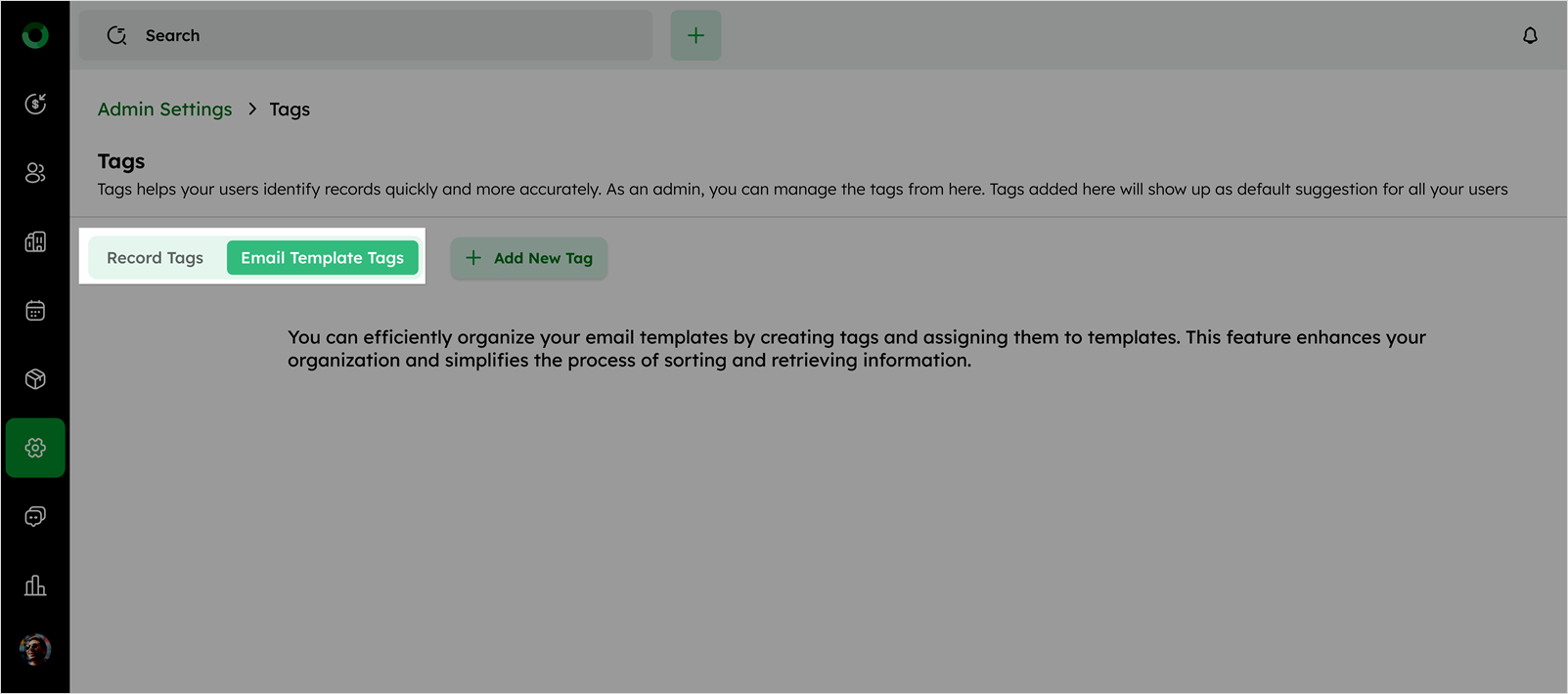
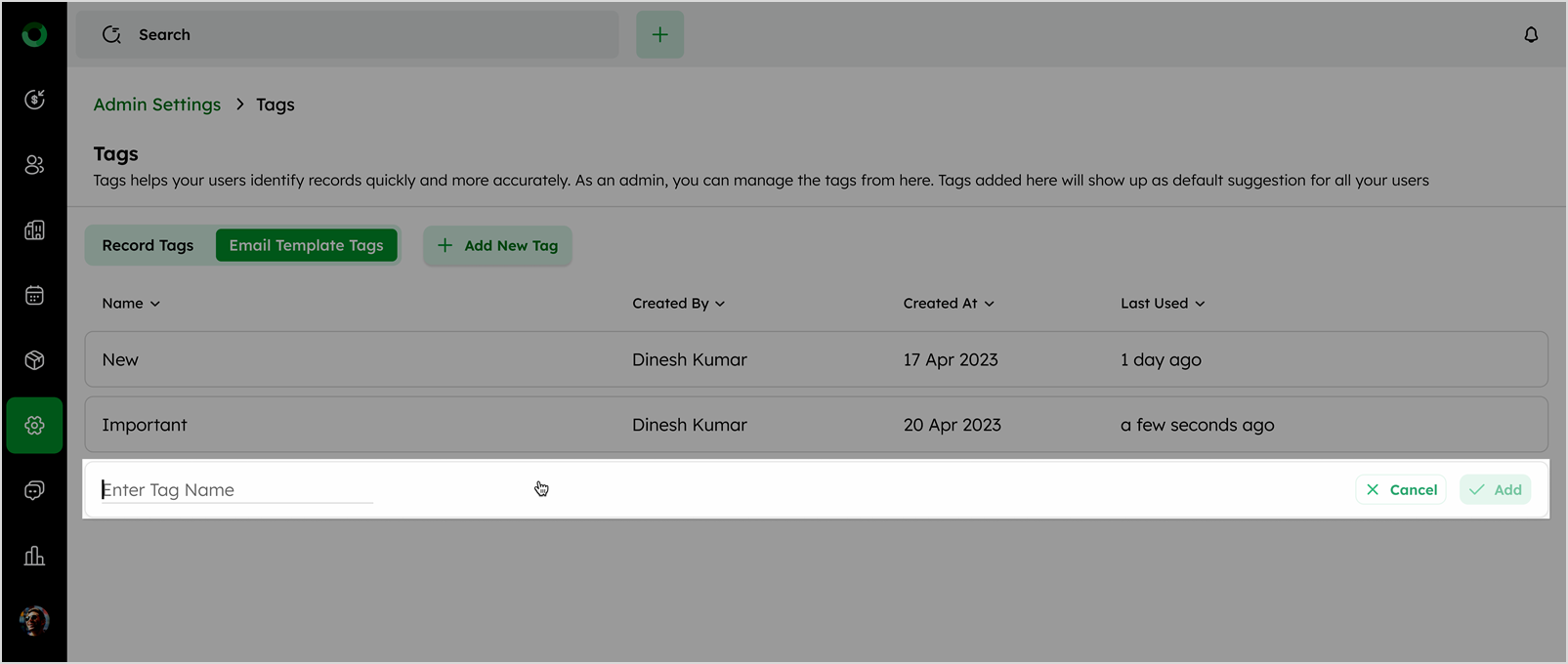
- Select the Email Template Tags tab at the top of the screen.
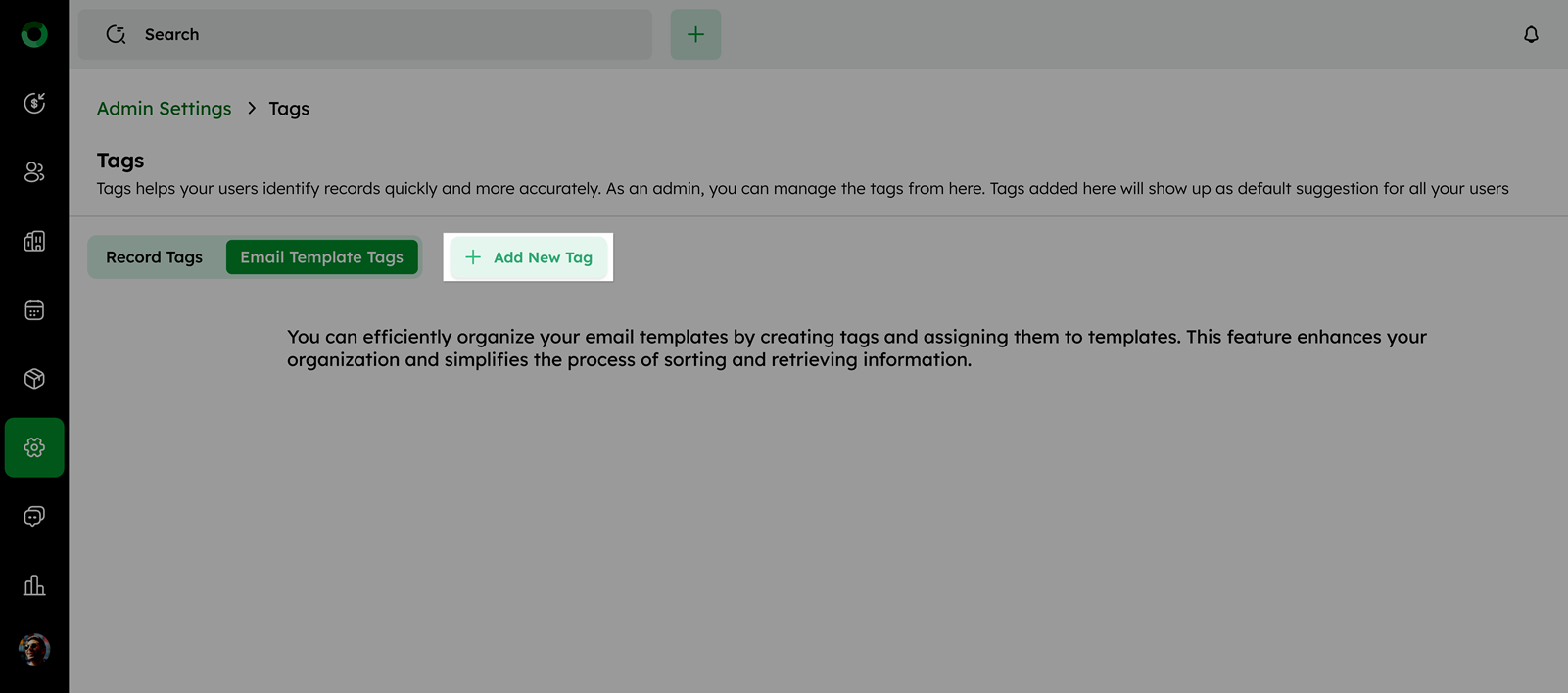
- Click +Add New Tag in the List view page.
- Enter the desired tag name and click Add to save the tag.
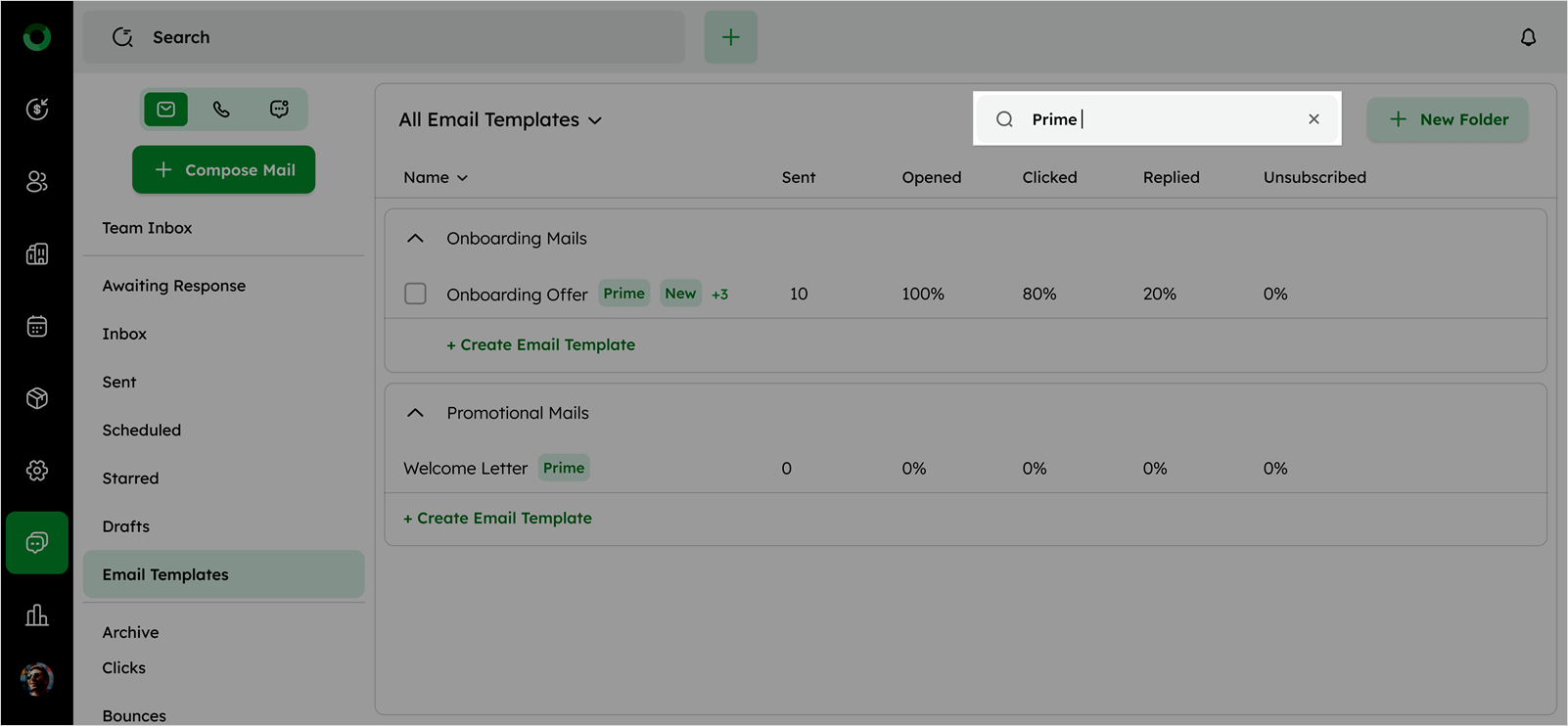
- In the email templates list view, enter a specific tag in the search bar to filter templates associated with that tag.
- Create a new tag directly if it doesn’t exist.
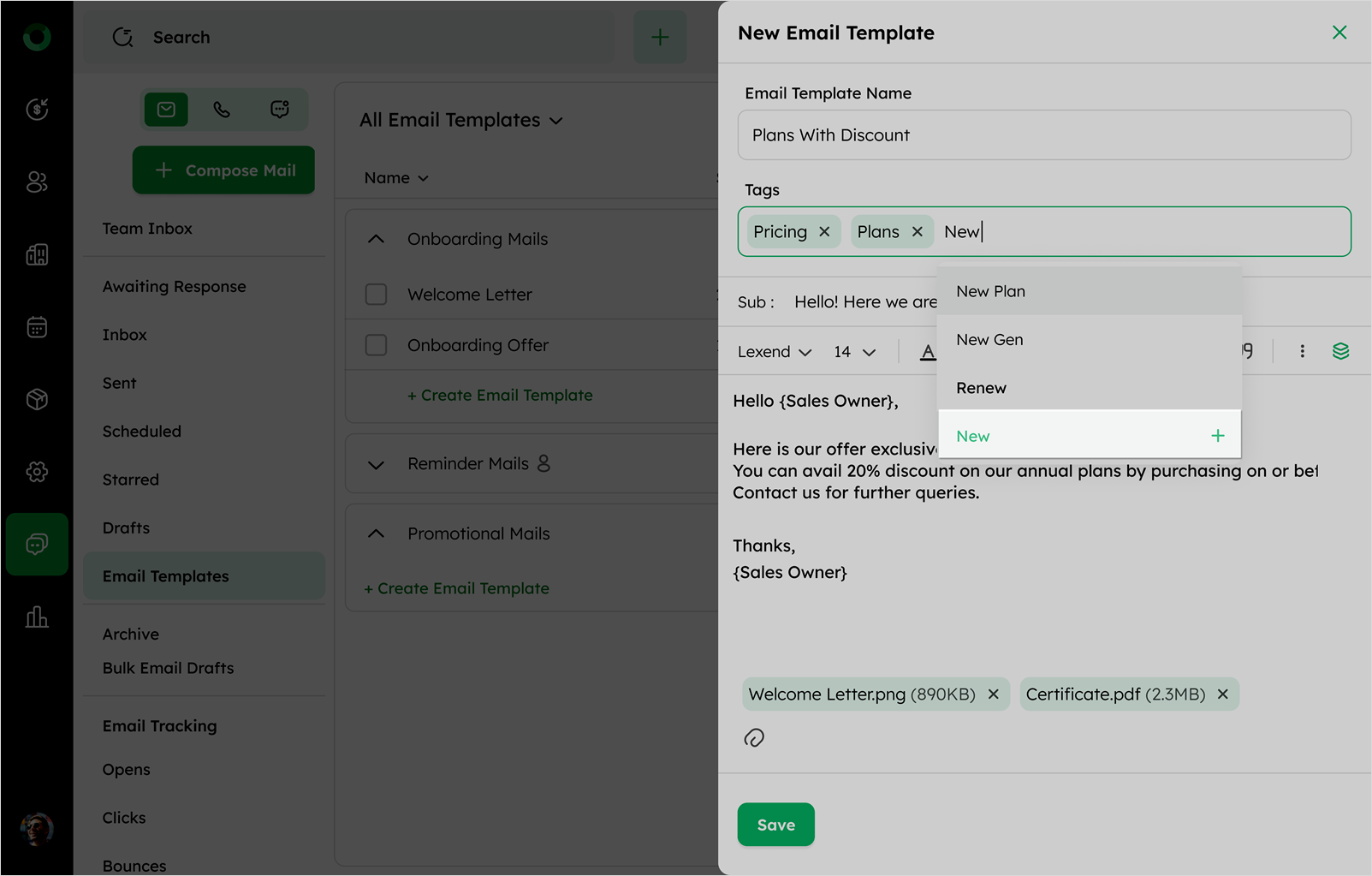
- Edit tags (use an existing tag, create a new tag, or remove a tag) while editing templates.
Tags can be deleted, even if linked to records or templates.
