Updating Multiple Company Records
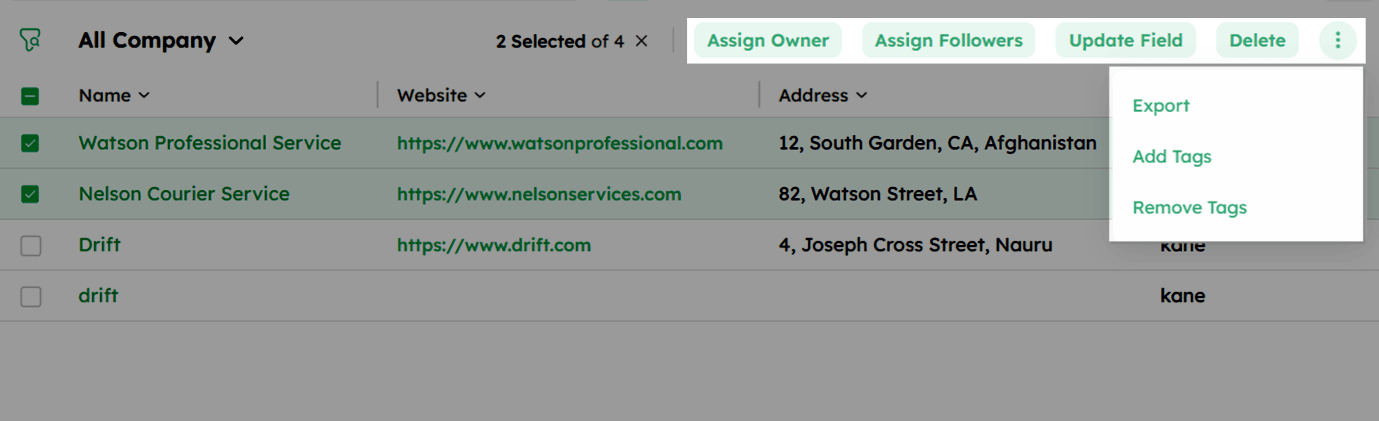
Twozo's bulk action feature lets you manage multiple records at once using options like Assign Owner, Update Field, Delete, Export, Add Tag, and Remove Tag, helping reduce repetitive work in CRM management.
Bulk Action: Assigning a New Owner
Reassign ownership of multiple companies at once to ensure the right team members are responsible for managing their accounts.
-
Go to the Company List View from the Company Module.
-
Select the checkboxes next to the companies you want to reassign.
-
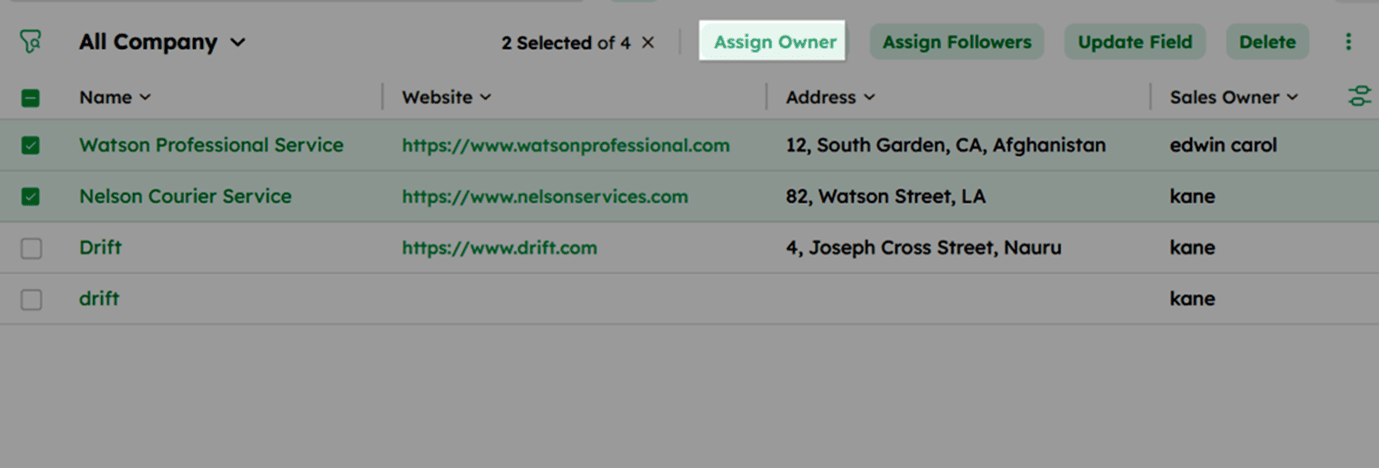
Select Assign Owner from the bulk action tray to open the Assign Owner drawer.
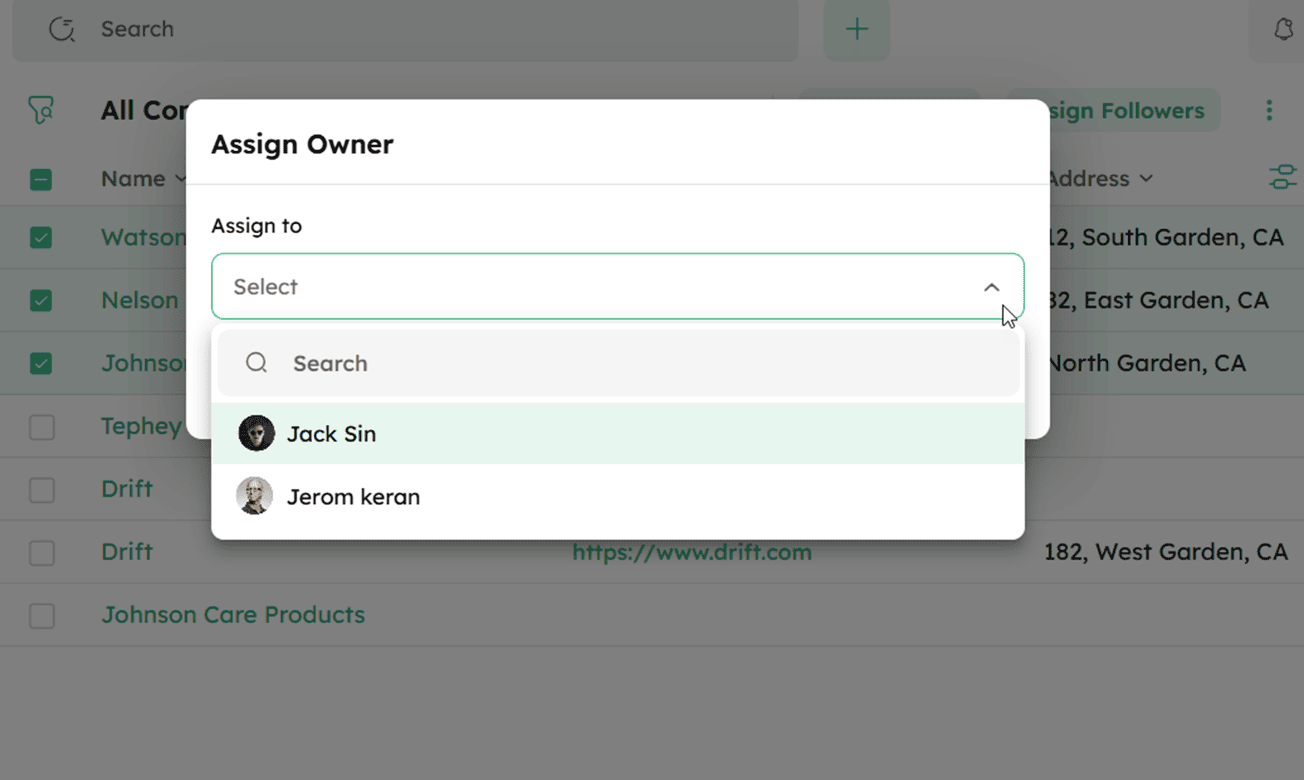
- Choose a new owner from the dropdown and click Save.
Bulk Action: Assigning a New Followers
Bulk Assign Followers lets you add followers to multiple companies at once, so relevant team members can stay updated on company activities and interactions.
-
Open the Company List View and select the required companies.
-
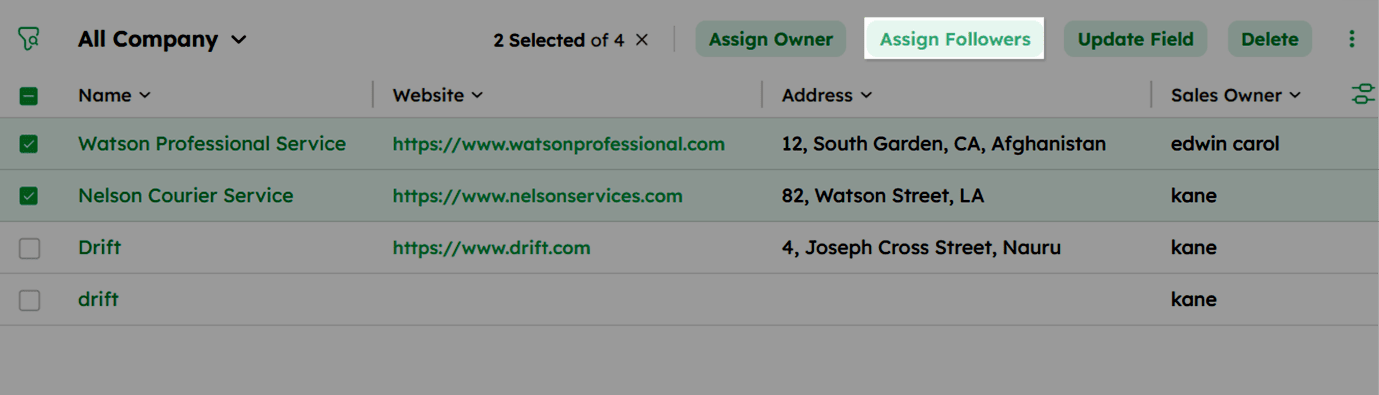
Click Assign Followers in the bulk action tray to open the Assign Followers drawer.
- Select the followers from the dropdown list.
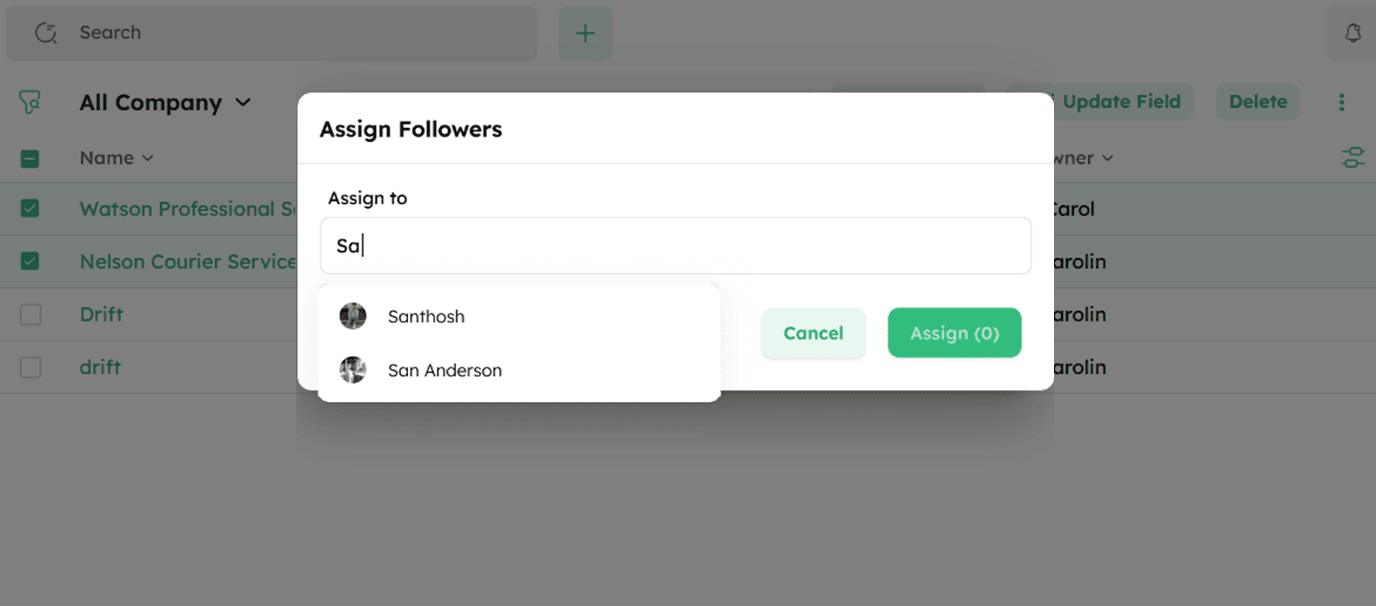
- Click Assign to add them to the selected companies.
Bulk Action: Updating Specific Field Values
Update specific fields for multiple company records at the same time to keep data consistent across selected companies.
-
Open the Company List View and select the companies to update.
-
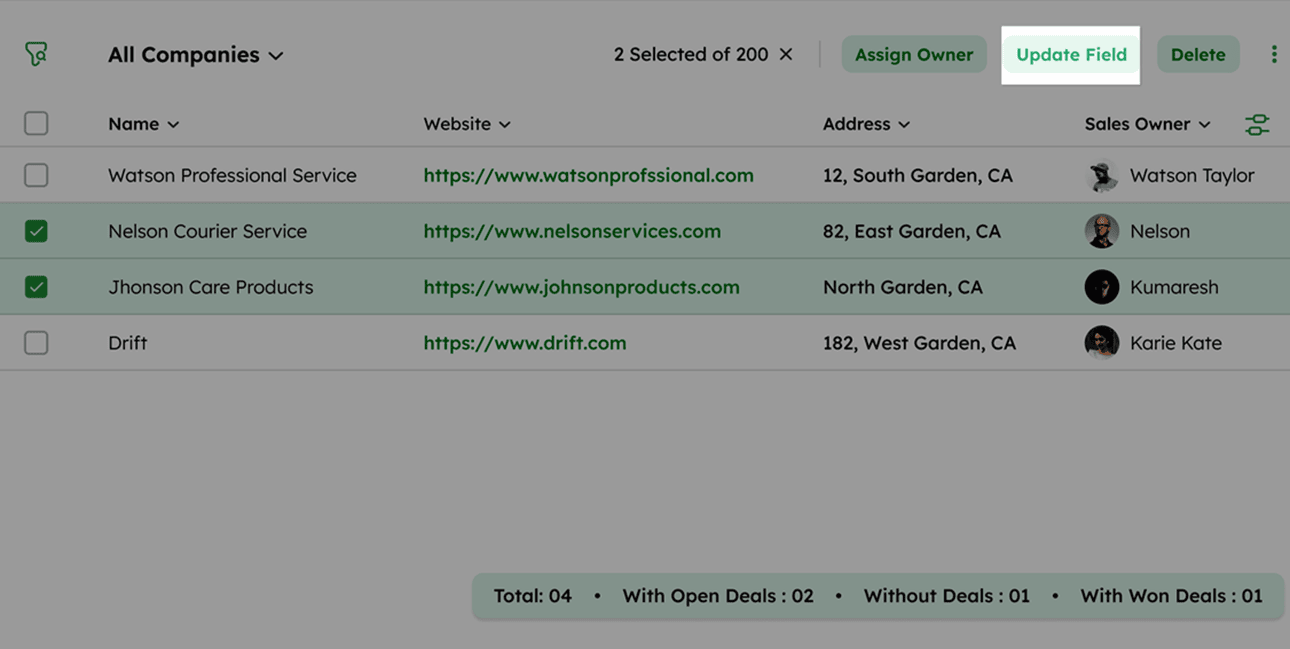
Click Update Field in the bulk action tray.
- Choose the fields to modify and enter the new values.
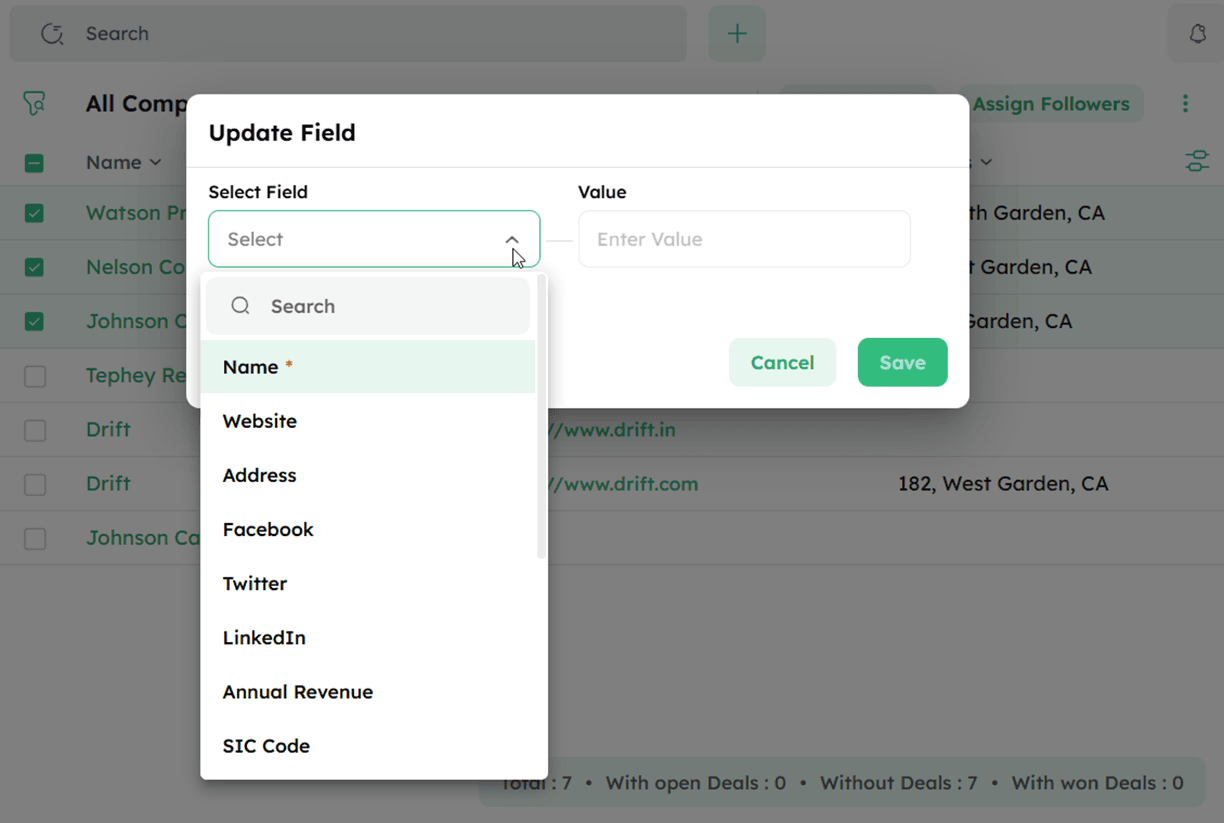
- Click +Add More Fields to include additional field updates as needed.
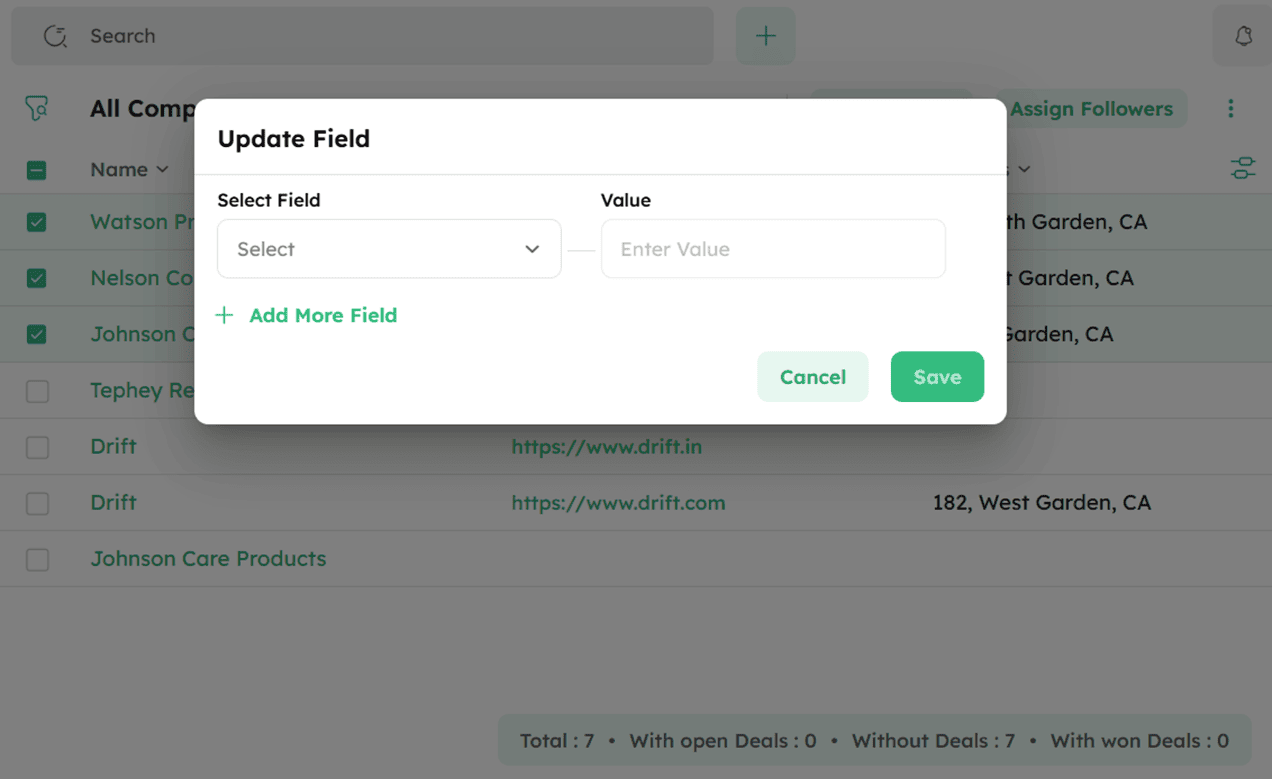
- Click Save to apply the changes.
How to Delete Company Records in Bulk?
Remove multiple company records at once by moving them to the Recycle Bin. Deleted companies remain there for 90 days and can be restored if needed.
-
Go to the Company List View.
-
Select the companies to delete by checking their boxes.
-
Click the Delete option from the bulk action tray.
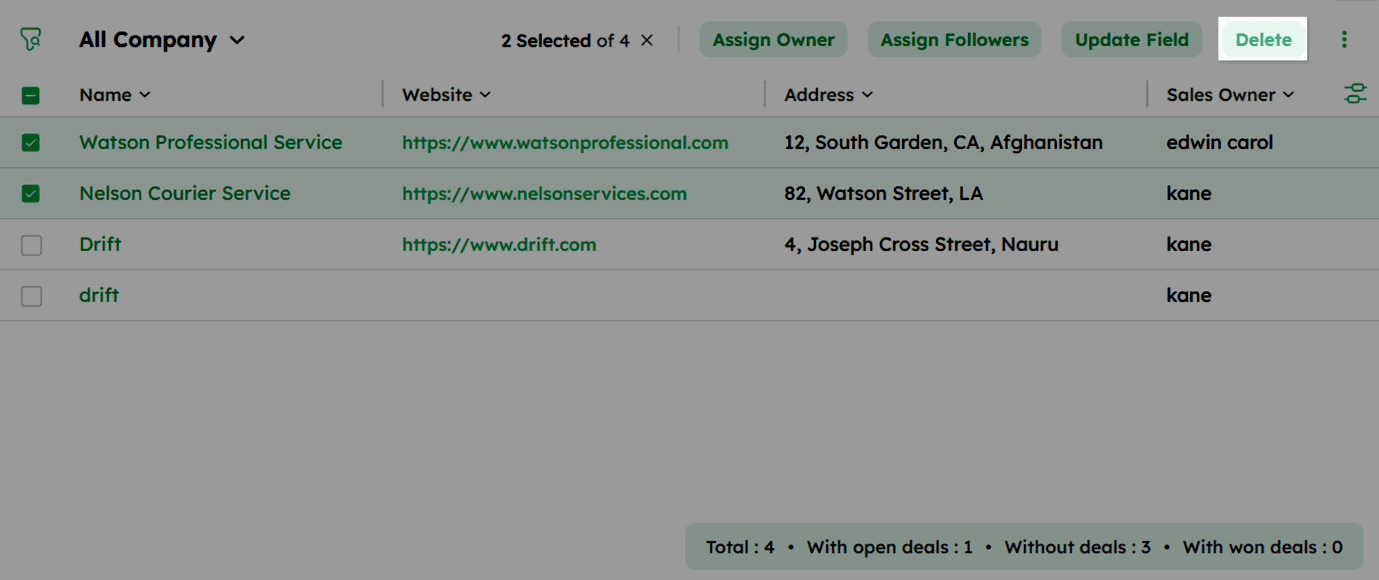
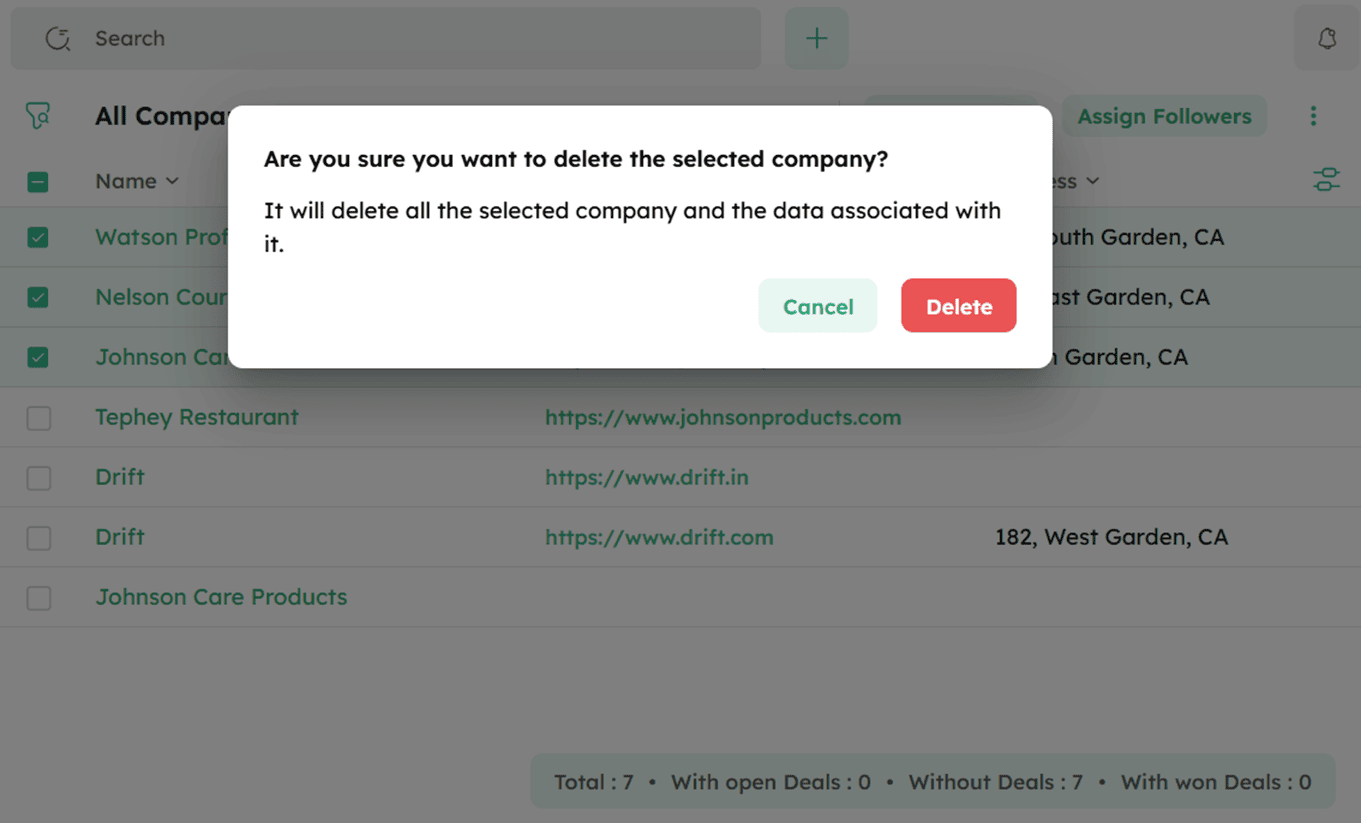
- Click Delete in the confirmation dialog to move the selected companies to the Recycle Bin .
How to Export Company Records in Bulk?
-
Go to the Company List View.
-
Select the companies to export by checking their checkboxes.
-
Click the ellipsis (⋮) icon at the top-right and select Export.
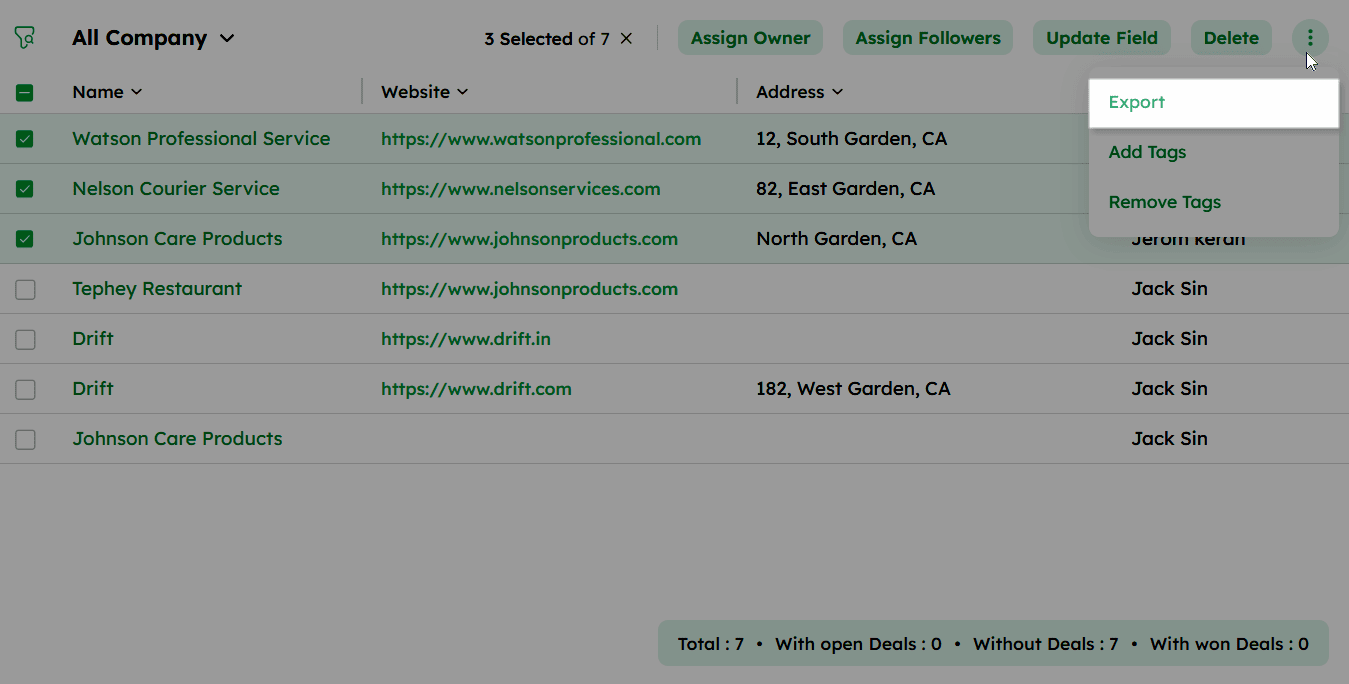
- Choose your preferred file format, such as XLSX, XLS, or CSV.
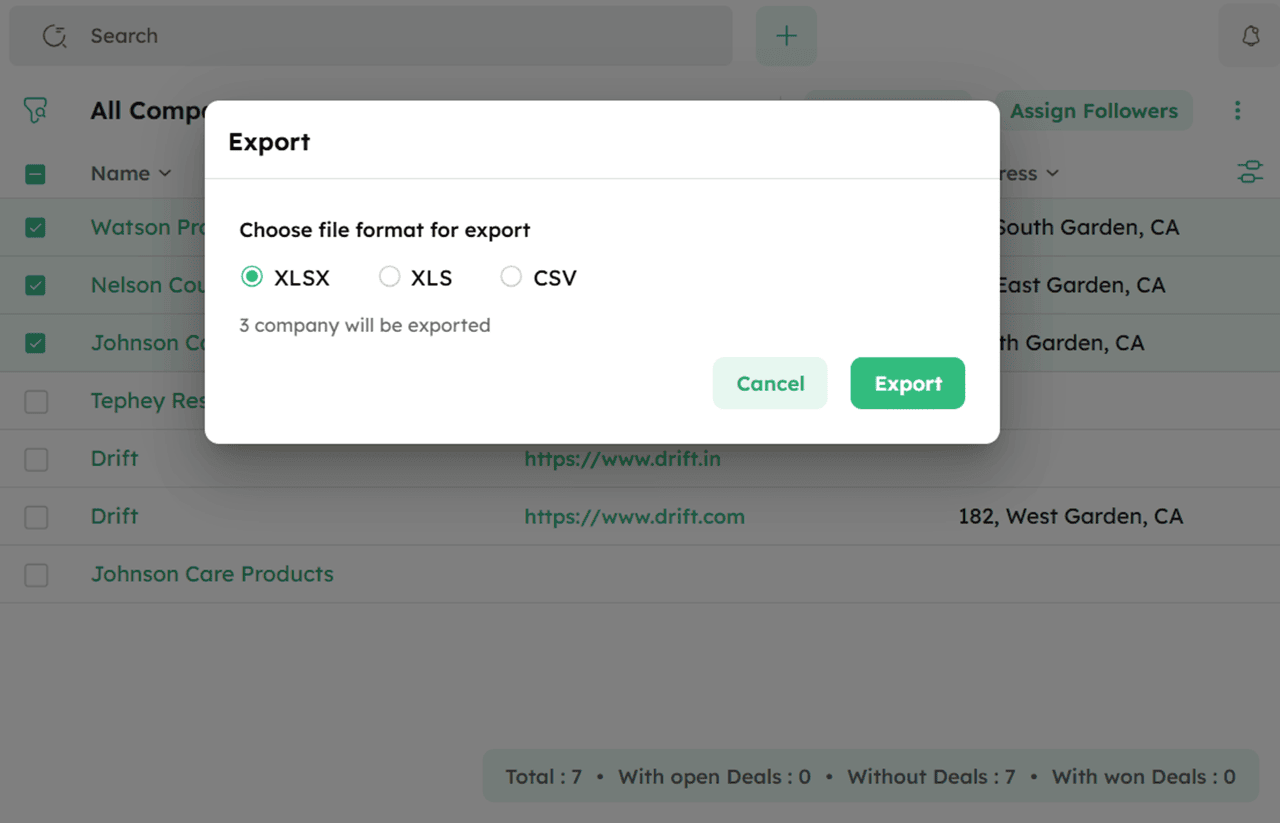
- Click Export to initiate the export process.
Once the export is complete, a download option will appear.
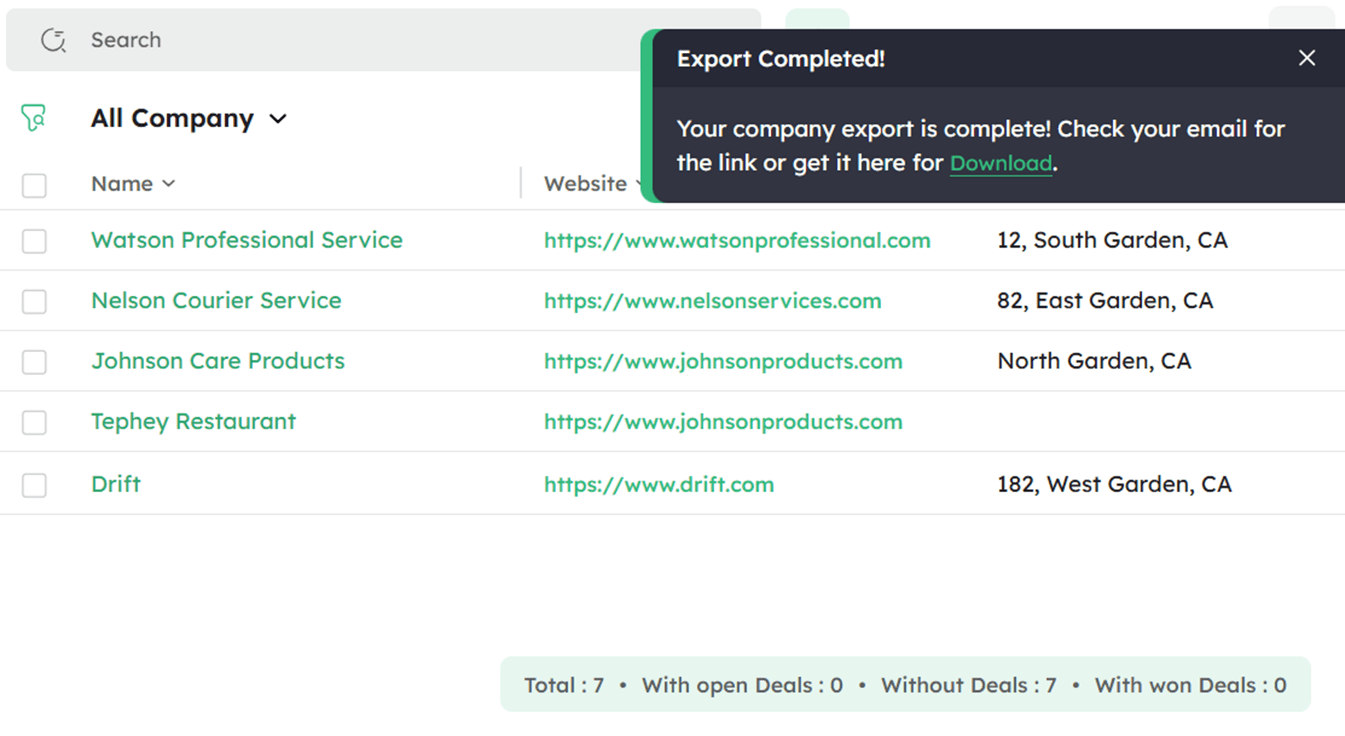
- Click Download to save the exported file to your device or check your email for the download link.
How to Add Tags to Companies in Bulk?
Tags help you group and categorize company records for easier filtering and organization.
-
Go to the Company List View.
-
Select the companies you want to tag by checking their boxes next to their names.
-
Click the ellipsis (⋮) icon at the top-right and select Add Tags.
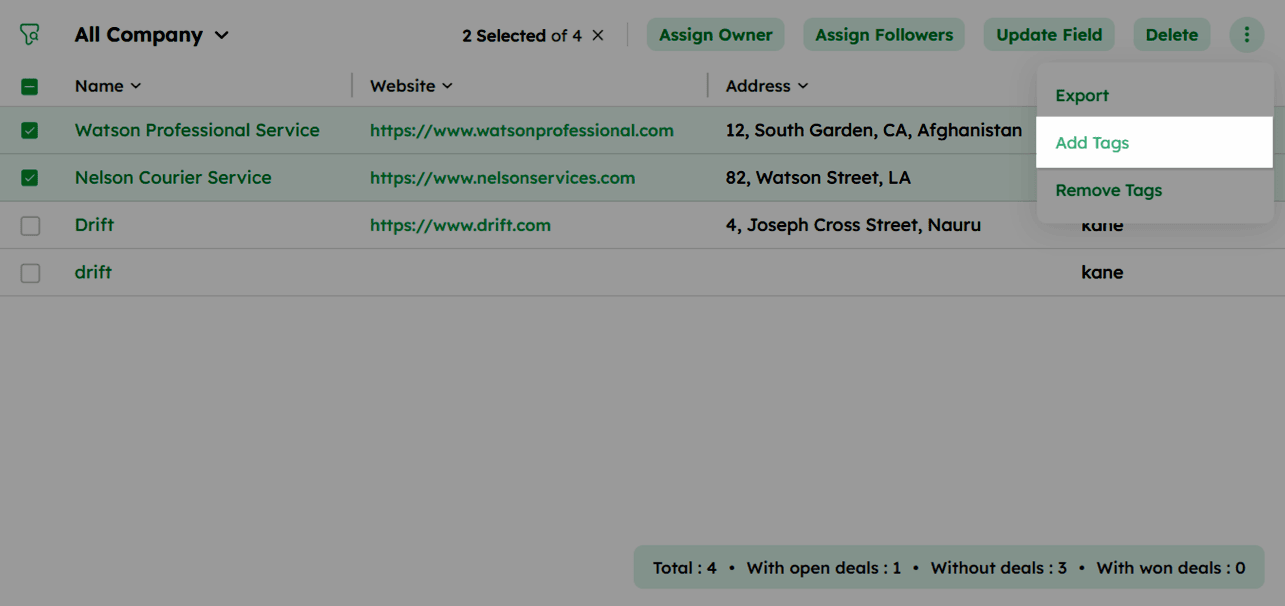
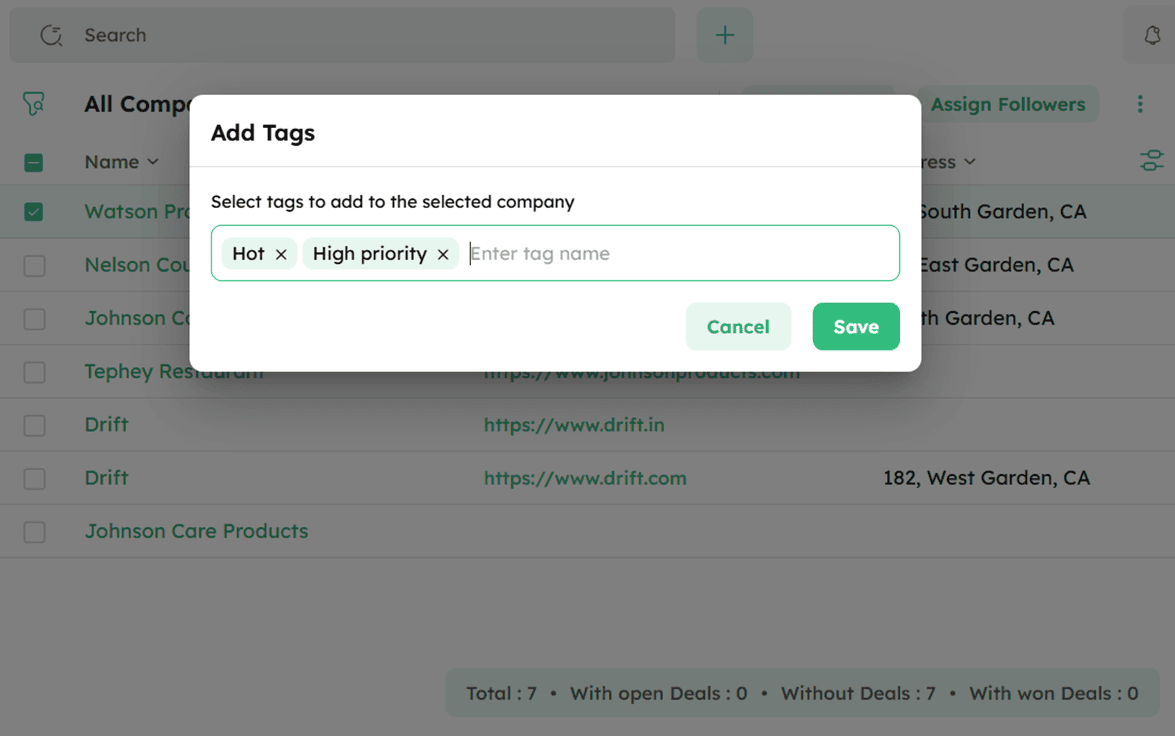
- Enter the tag name in the input field and click Save to apply the tags to the selected companies.
How to Remove Tags from Company Records in Bulk?
Remove unwanted tags from multiple company records while keeping relevant tags intact.
-
Go to the Company List View.
-
Select the companies to remove tags from by checking their checkboxes.
-
Click the ellipsis (⋮) icon at the top-right and select Remove Tags.
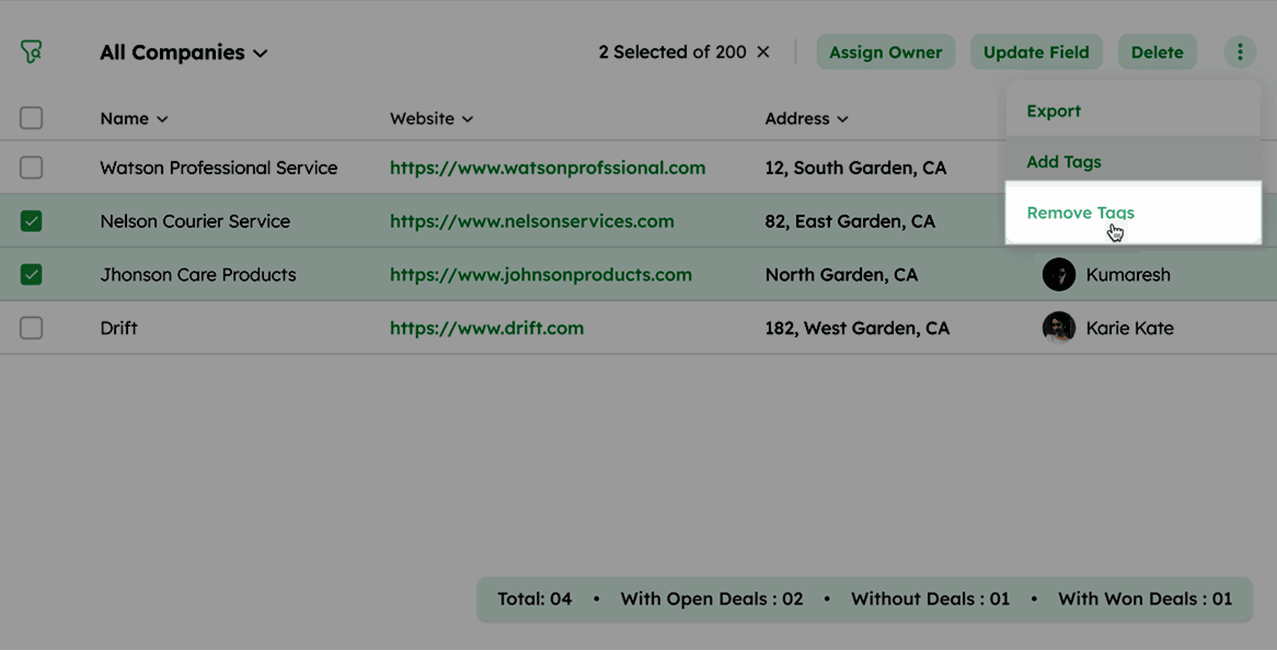
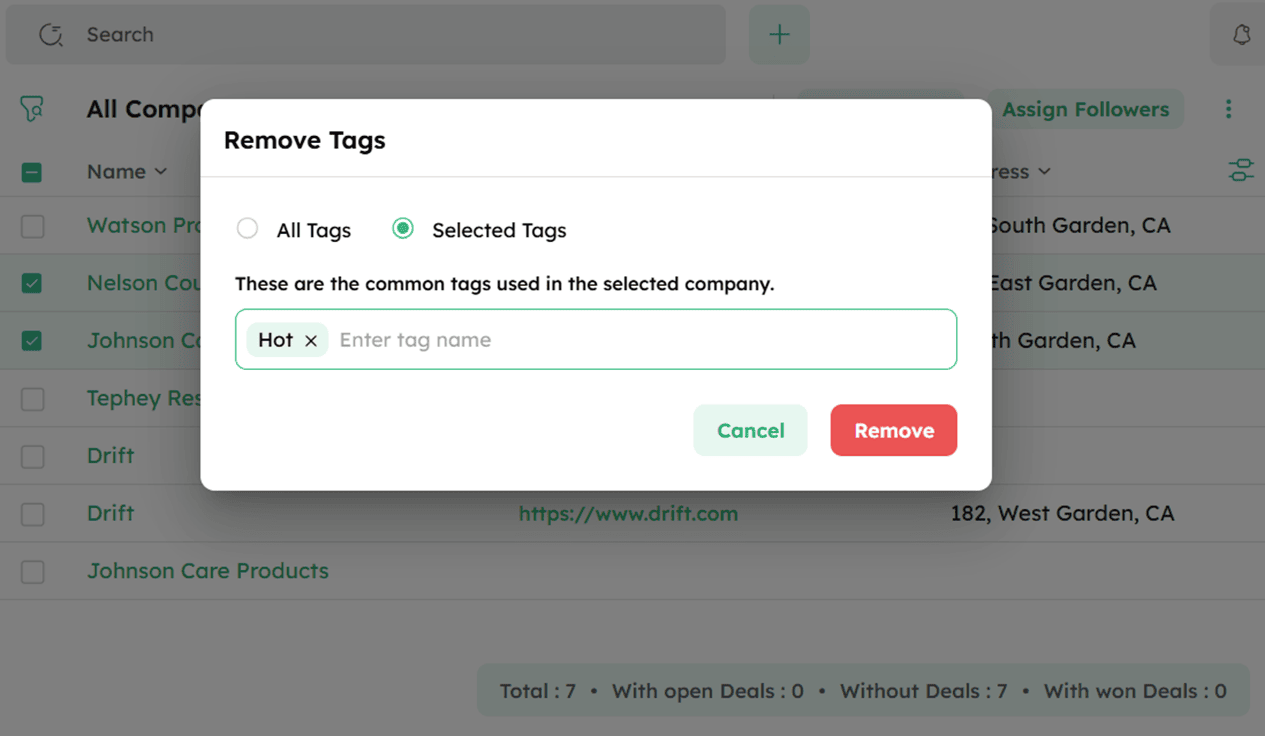
- In the Remove Tags dialog, choose one of the following options:
-
All Tags - removes all tags from the selected companies .
-
Selected Tags - enter the tag name in the input field to remove a specific tag.