Advanced and Custom Fields
Summary Fields: How is Related Data Aggregated?
Summary fields provide a quick view of key information in a record's summary. You can adjust the visibility of custom or system fields but required fields cannot be hidden.
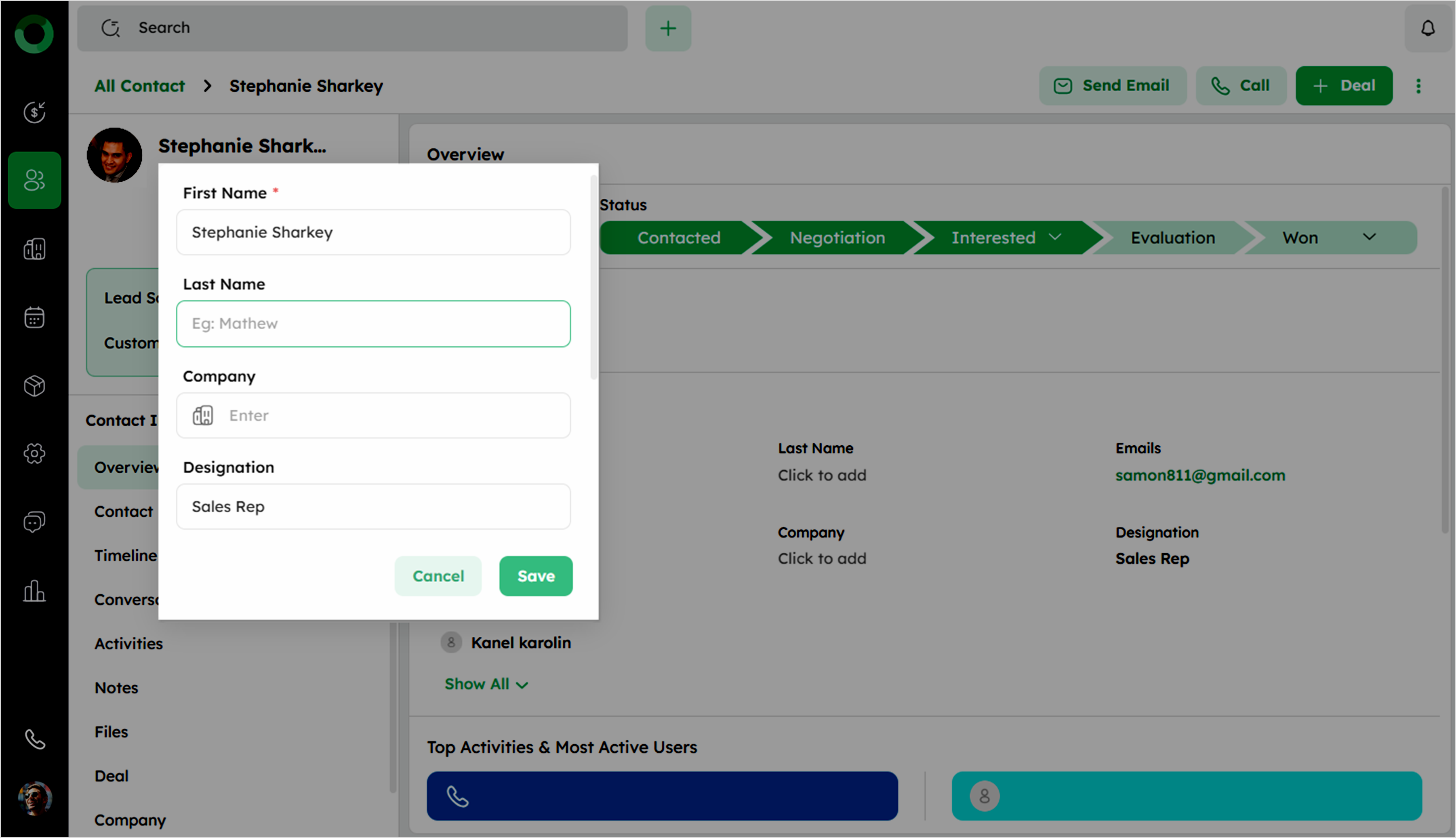
- Default Profile & Summary Fields:
| Module | Summary Fields | Profile Fields |
|---|---|---|
| Deal | Sales Owner | Deal value |
| Product Quantity | Title | |
| Pipeline | Primary contact | |
| Stage | Company | |
| Won Reason | Status | |
| Lost reason | ||
| Deal Closed On | ||
| Contact | First Name | |
| Phone | Last Name | |
| Sales owner | Designation | |
| Company | ||
| Profile | ||
| Company | Sales owner | Name |
| Website | ||
| Product | Sales owner | Name |
| Product code | ||
| Unit price | ||
| Category |
-
Ensure the above fields are displayed in both the Summary and Add Form.
-
Add or remove custom or system fields as needed.
-
Do not remove or hide required fields.
Dependable Fields: Setting Up Dynamic Field Logic
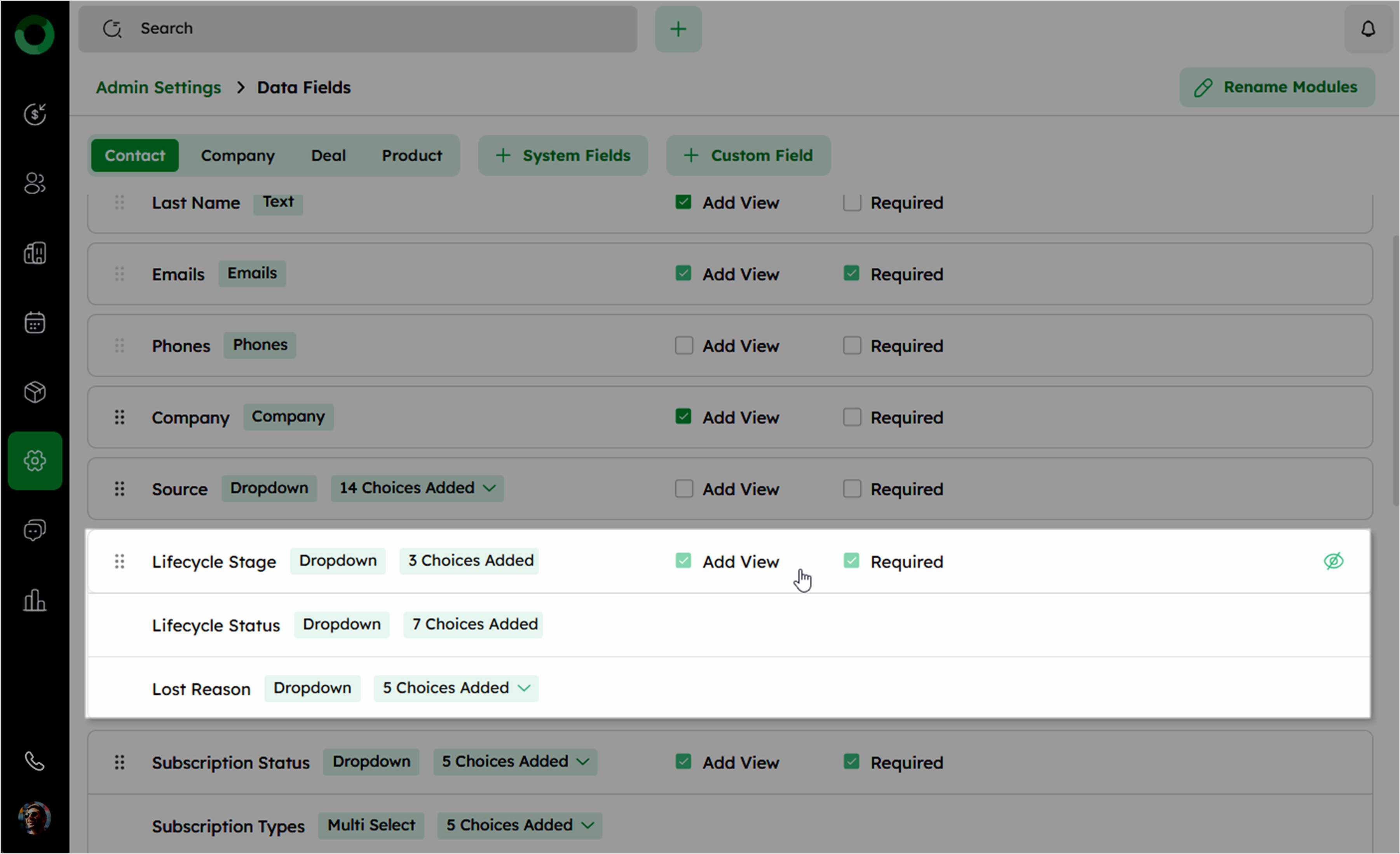
Dependable fields are interconnected fields where the value of one field determines the options available in another. This feature helps maintain data accuracy and relevance.
- Dependable Fields:
| Module | Dependable Fields |
|---|---|
| Deal | Pipeline, Stage, Won reason, Lost reason, Deal closed on |
| Expected close date, Forecast category | |
| Contact | Lifecycle stage, Status, Lost reason |
| Subscription status, Subscription types, Unsubscribe reason, Other unsubscribe reasons |
Dependable fields can be configured in the Data Fields setup page by defining parent-child relationships.
- Adjusting the first field in a dependable group applies to all fields.
Checking Add View or Required for one field applies it to all dependable fields.
Custom Fields: Tailoring Data to Your Business Needs
Custom fields allow you to tailor the system to their specific needs by creating up to 10 custom fields for each field type. You can easily create, edit, or delete custom fields, providing flexibility in how data is organized and captured.
Follow the below steps to customize the fields,
-
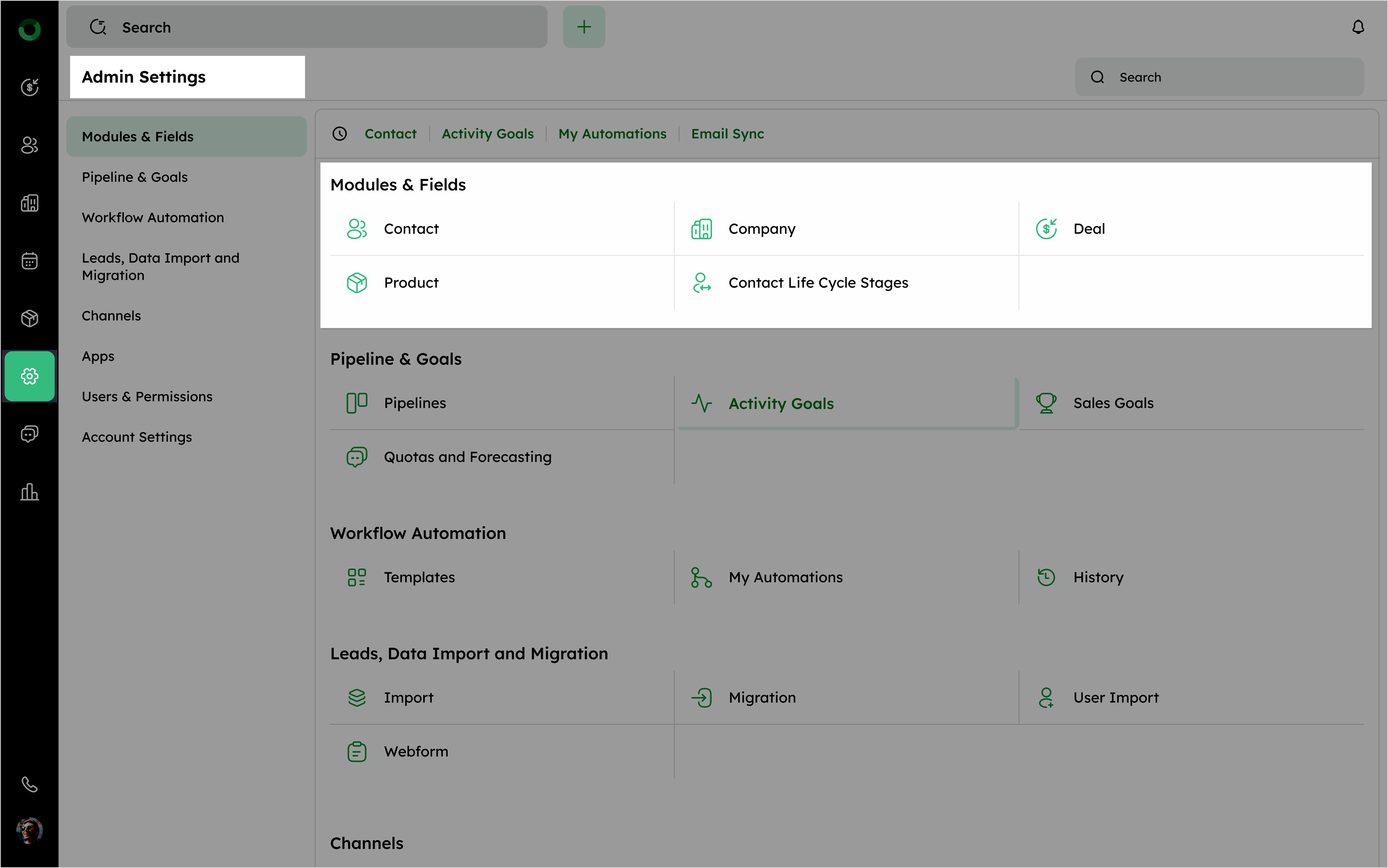
Navigate to the Admin Settings.
-
Select your desired module under the Modules & Fields section.
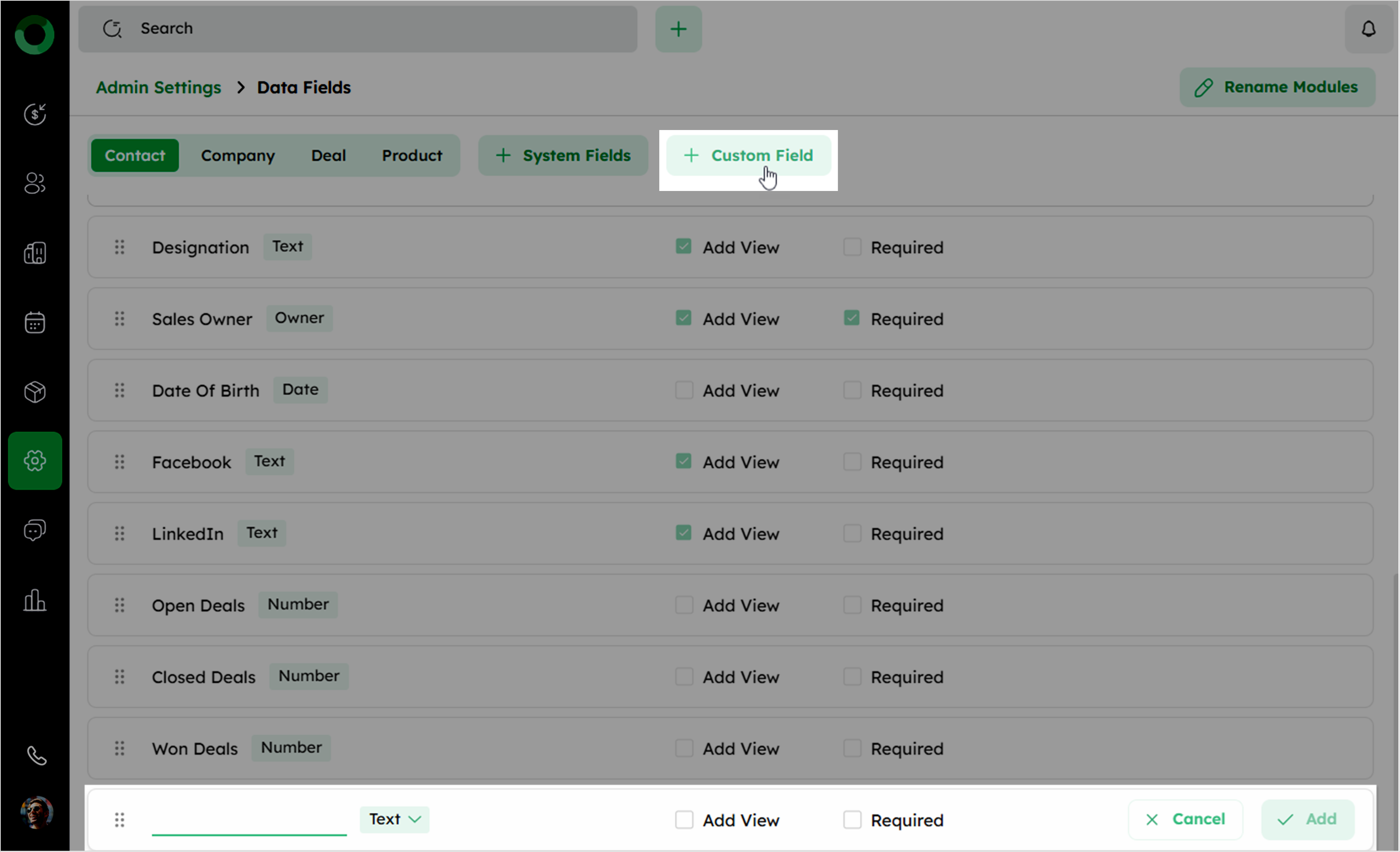
- Click on + Custom Field and specify the field name and type.
-
Check Add View to display the field on the contact creation form, and check Required to make it mandatory for users to fill in.
-
Click Add to create the custom field.
Types of Custom Fields and Their Limitations:
| Types of Fields | Description | Max Character Limits |
|---|---|---|
| Text | A field for entering a single line of text. | Maximum of 255 characters |
| Large Text | A field for entering multiple lines of text | Maximum of 32,000 characters |
| Single Number | A field for entering a numerical value | Maximum of 16 digits |
| Dropdown | A field for selecting one option from a set of options | Maximum of 10 options |
| Multi-select | A field for selecting more than one option from a set of options | Maximum of 10 options |
| Monetary | A field for entering a numerical value with a currency symbol | Maximum of 16 digits, including decimal places |
| A field for entering an email address | Maximum of 320 characters | |
| Phone | A field for entering a phone number prefixed with a country code | Minimum of 5 and maximum of 17 characters |
| Address | A field for storing the full address | No character limit specified |
| Date | A field for entering a specific date in the format DD MM YYYY | Format: DD MM YYYY |
| Date Range | A field for entering a date range in the format DD MM YYYY to DD MM YYYY | Format: DD MM YYYY to DD MM YYYY |
| Time | A field for entering a specific time in the format HH:MM | Format: HH:MM |
| Time Range | A field for entering a time range in the format HH:MM to HH:MM | Format: HH:MM to HH:MM |
| Date and Time Range | A field for entering a date and time range in the format DD MM YYYY HH:MM | Format: DD MM YYYY HH:MM |
| Contact | A field for entering existing contacts from the account, with navigation to the item entered | No character limit specified |
| Owner | A field for entering other users into the account | No character limit specified |
Data Standardization: Phone Number Formatting Rules
To ensure consistent data management and accurate communication, it's important to follow specific phone number formatting rules in the CRM system. These rules standardize entries, prevent errors, and support seamless integration across platforms.
The table below outlines the special characters used in phone numbers:
| Character | Usage | Example |
|---|---|---|
| Parentheses ( ) | Enclose area codes | US: (123) 456-7890, Brazil: +55 (11) 98765 4321 |
| Hyphens (-) | Separate parts of the number (area code, exchange code) | UK: +44 20 7946 0958, Germany: +49 170-1234567 |
| Spaces | Separate parts for readability | France: +33 1 70 18 99 00, Australia: +61 2 9876 5432 |
| Pluses (+) | Indicate international dialing prefix | India: +91 123 456 7890, Australia: +61 2 9876 5432 |
