Data Fields and System Structure
The Data Fields module in Twozo allows you to define and manage structured information across your CRM. By creating and customizing data fields, you can ensure consistency, accuracy, and better organization of your records.
What are Data Fields? Customizing Your CRM's Input Areas
Data Fields are customizable input areas that store key information like text, numbers, dates, or dropdown options. You can personalize them, use system-generated options, or stick with default fields for consistency. They help keep your data organized, accurate, and easy to access.
Follow these steps to access the Data Fields setup page:
-
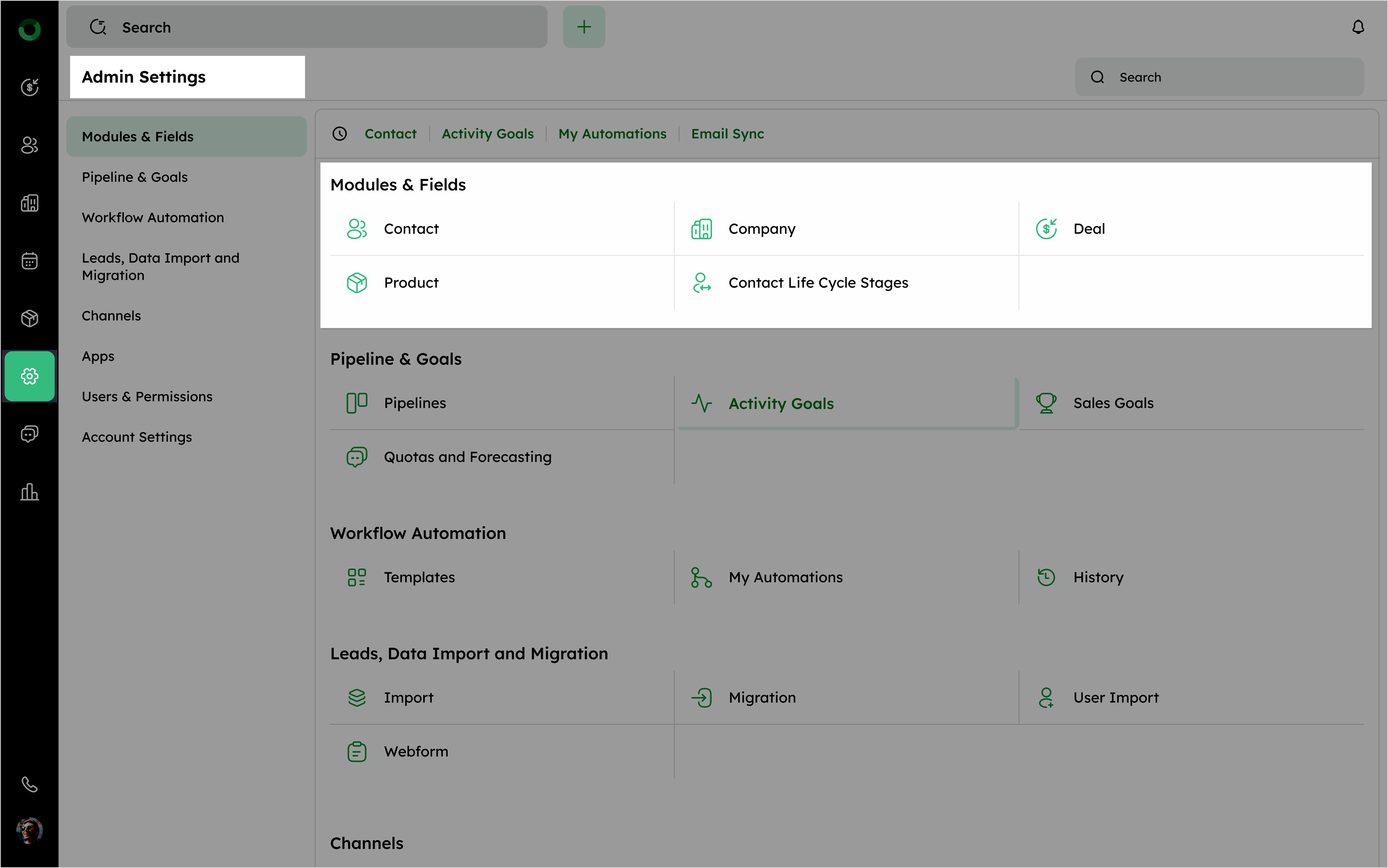
Click Settings icon to open the Admin Settings page from the main navigation panel.
-
Under Modules & Fields, click the relevant module where you want to configure or view data fields.
- Review the existing fields for the selected module, including the Field Name, Field Type, and available actions like Add View or Required.
-
Add View: Select the checkbox to add a field to the add form.
-
Required: Select the checkbox to make a field mandatory.
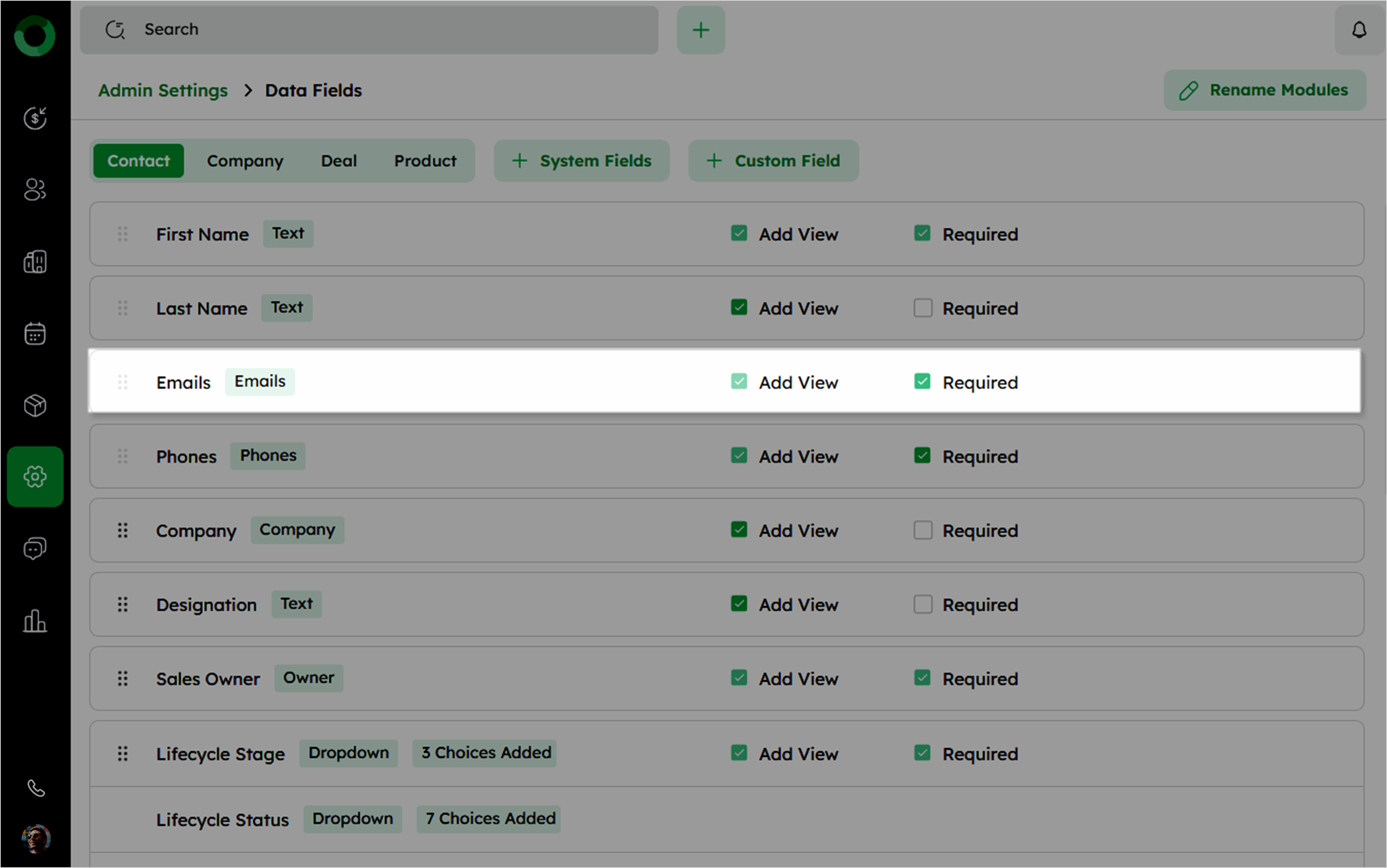
Selecting the Required checkbox automatically select the Add View checkbox.
System Fields: Working with the Platform's Core Data
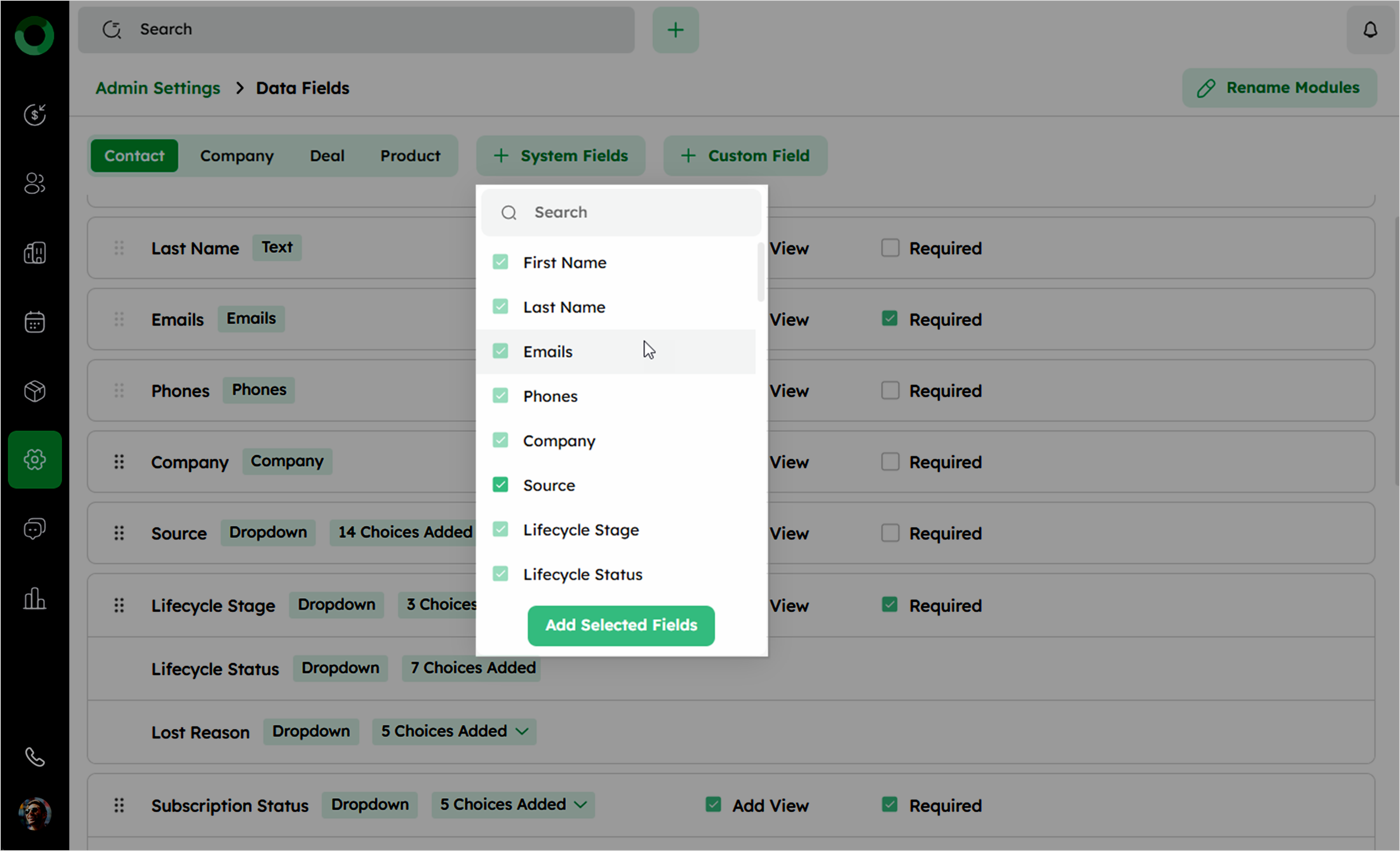
System fields are predefined data fields that are automatically generated by the system to help organize and manage essential information. These fields are accessible through the + System Fields dropdown menu, allowing user to select, display, or hide specific fields based on their needs.
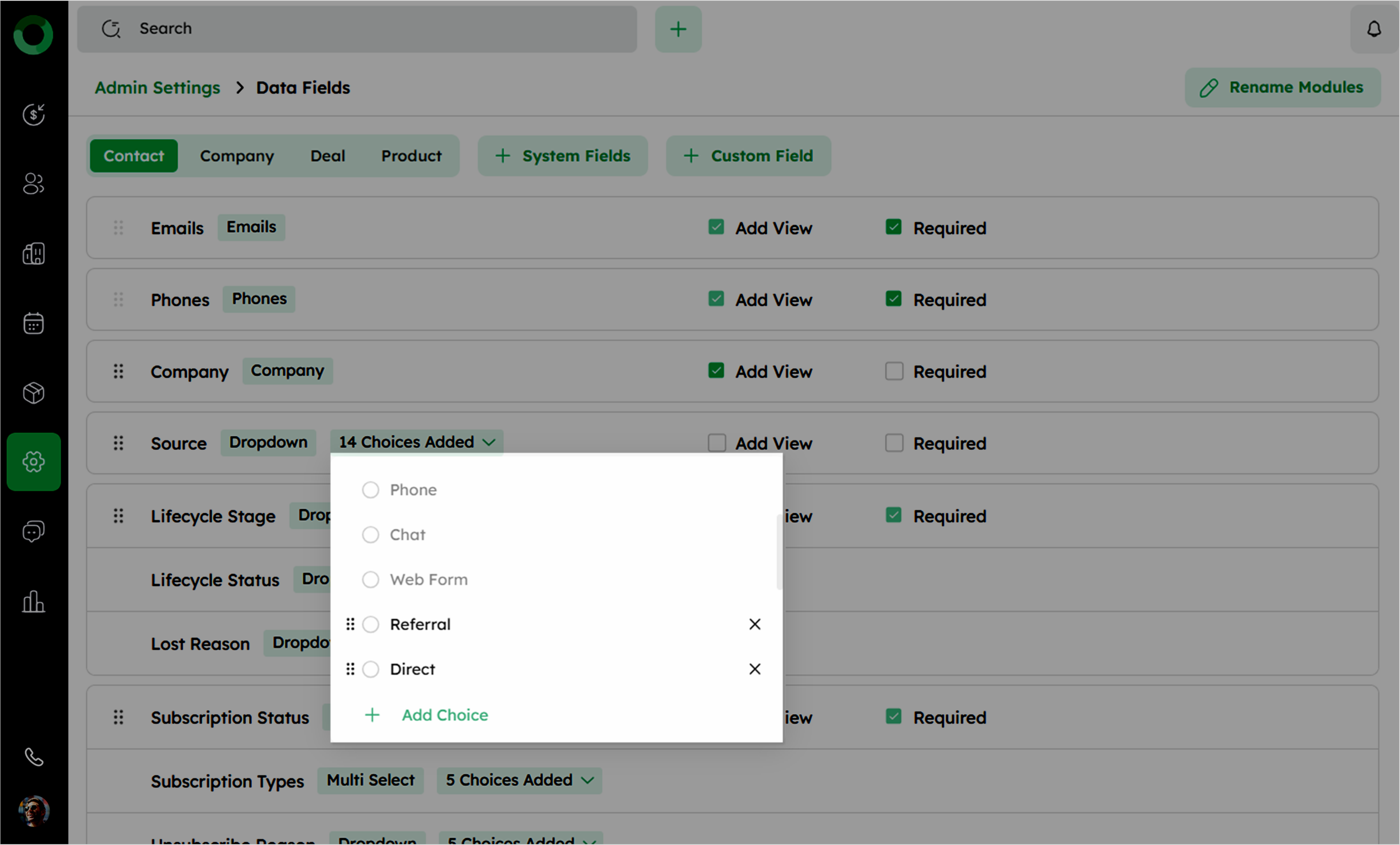
You can modify certain drop-down fields from the system fields, which are categorized as follows:
- Static drop-down: These fields remain constant, and no new options can be added or modified.
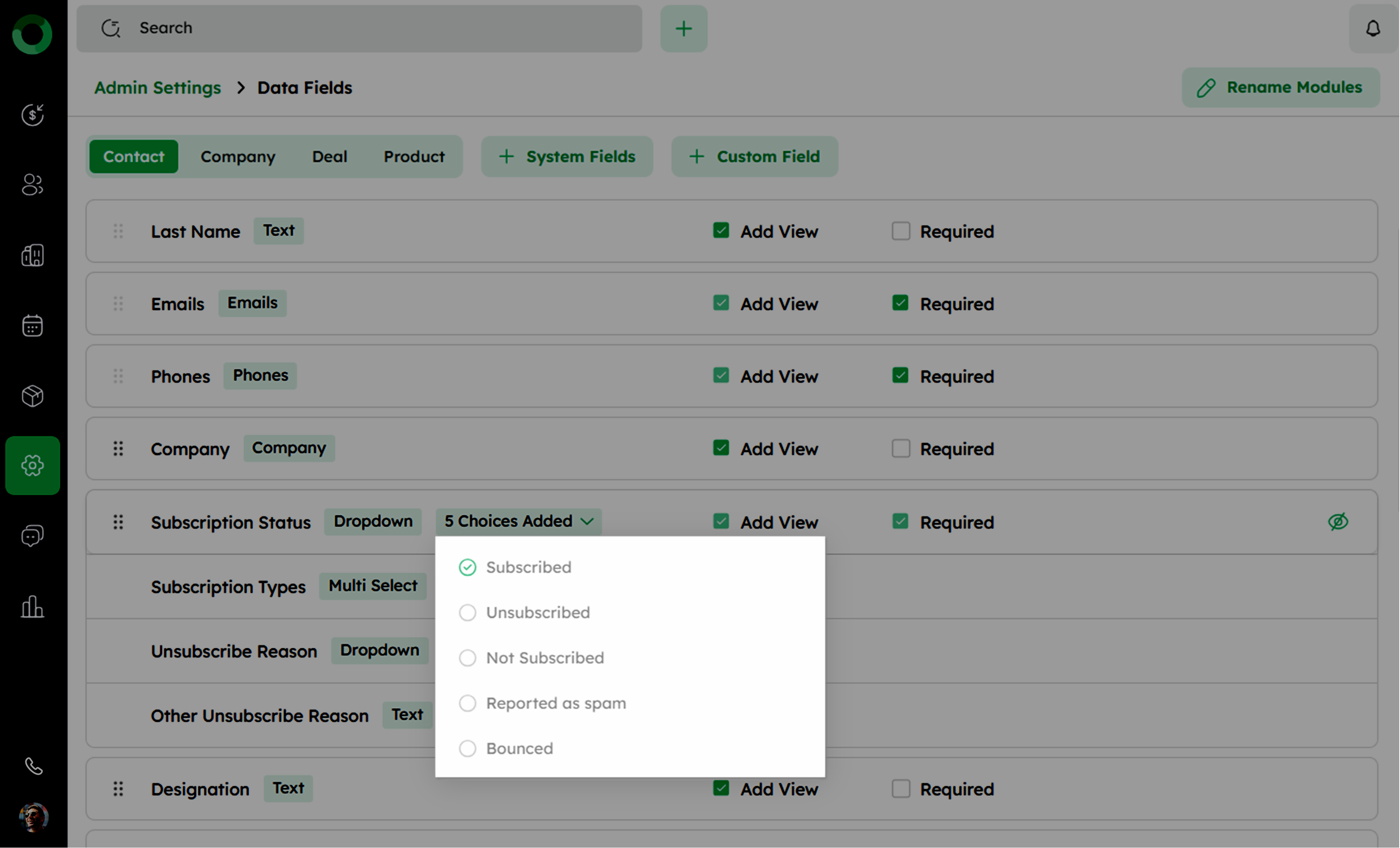
- Dynamic drop-down: Fields can be edited or expanded by adding new options as needed.
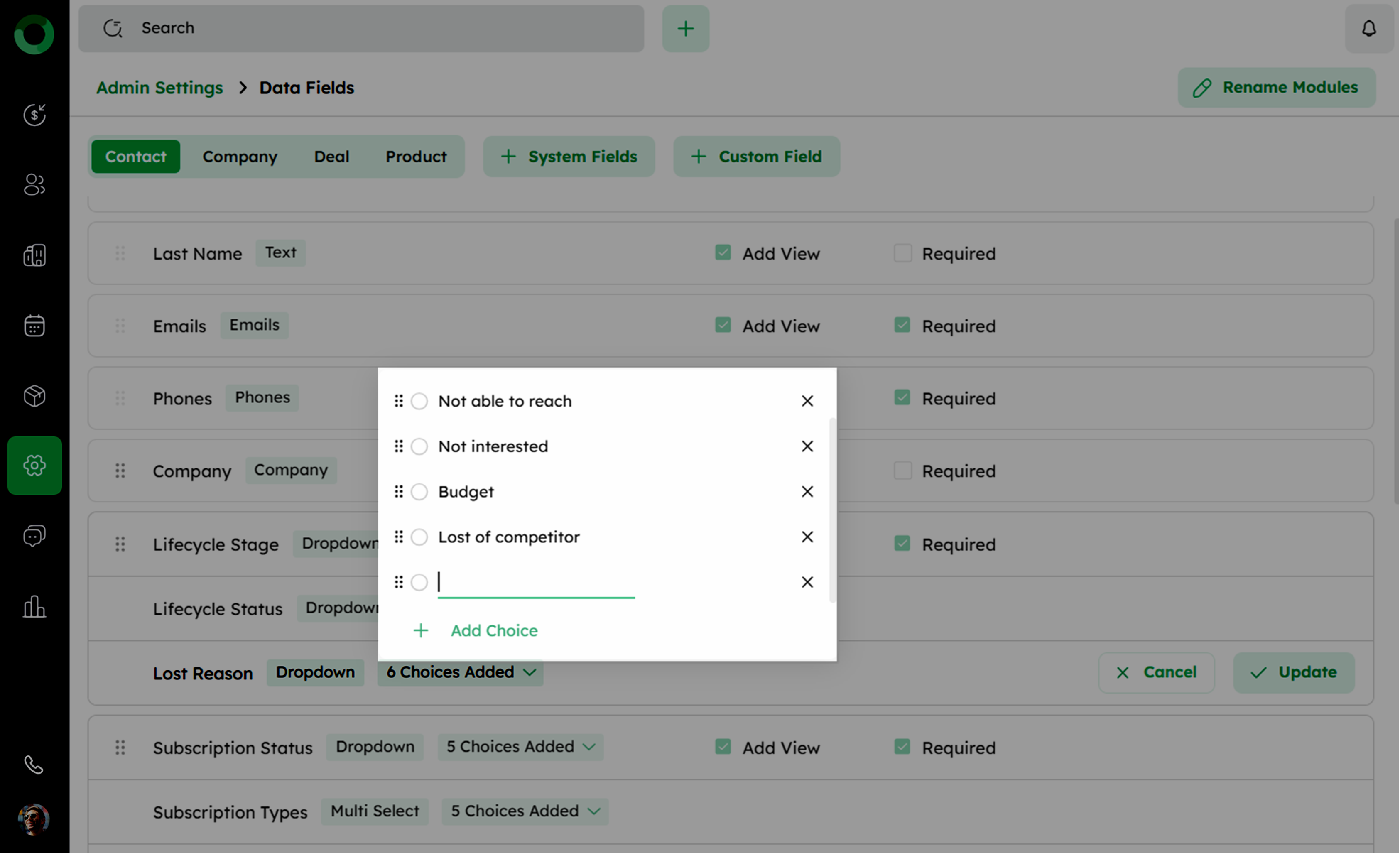
- Hybrid drop-down: A combination of both, where some options remain fixed while others can be modified or added.