Managing Activity Status: Marking Tasks as Completed
Managing activities efficiently is a key to stay organized. You can quickly mark activities as complete in Activity List View, Bulk Actions, Activity Summary, Calendar View, Global Search, Deal Summary or directly from Deal, Contact, or Company detail pages. Each approach offers a quick way to update task statuses and keeps your workflow smooth and up to date.
If no activity exists for a particular source, clicking Mark as Done will automatically open the Add Activity drawer.
Quick Completion in the Activity List View
The Activity List View displays all activities in a tabular format, allowing for easy selection and updates.
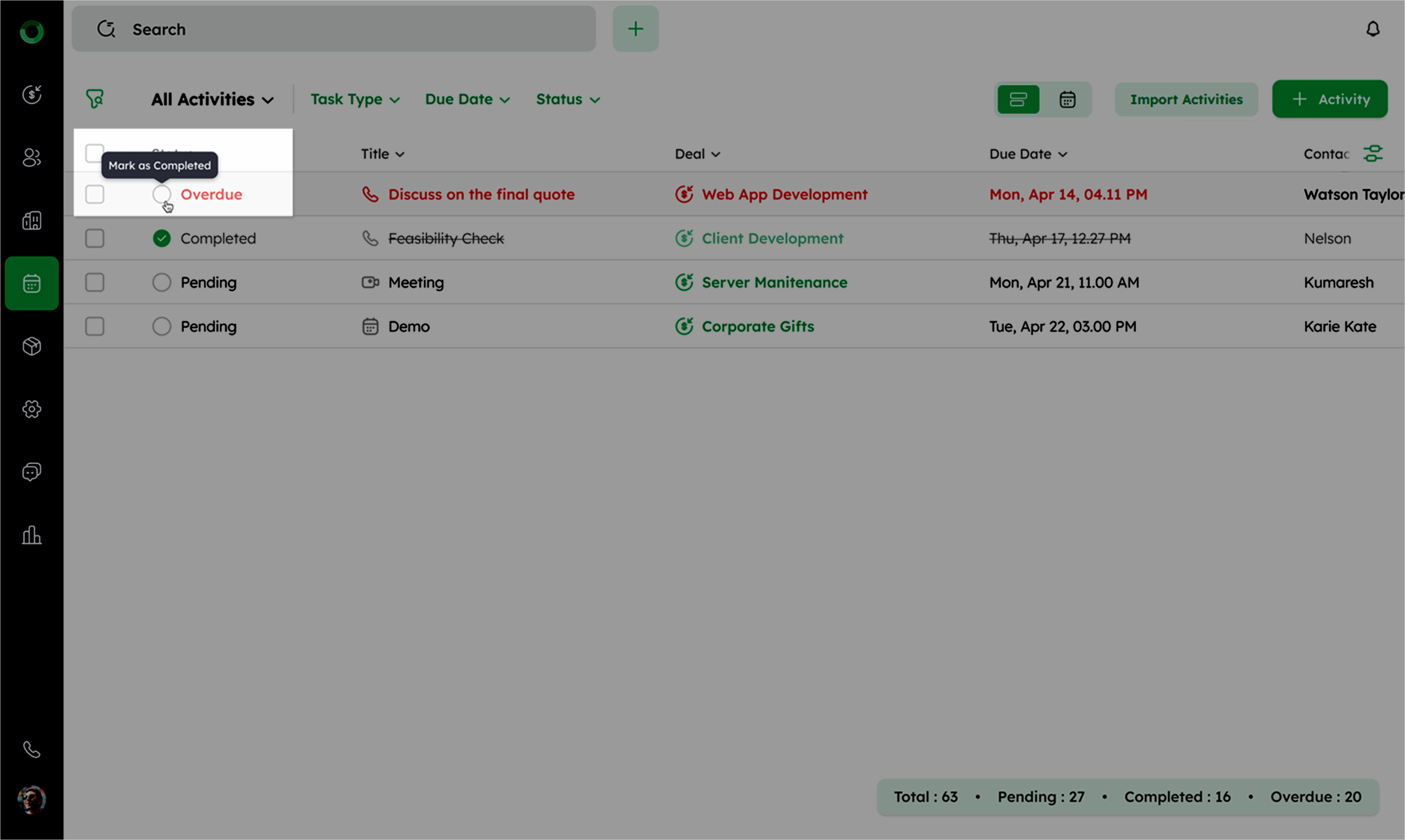
- In the Activity List View, you can quickly mark an activity as completed by simply clicking the radio button beside the activity.
-
This will immediately update the status of the activity as completed, without needing any additional confirmation or steps.
-
It's a fast and efficient way to manage your tasks directly from the List View.
Bulk Mark as Completed using Bulk Actions
Bulk action enables you to mark multiple activities as completed instead of handling them individually.
- Go to the Activity Module from the main navigation bar.
-
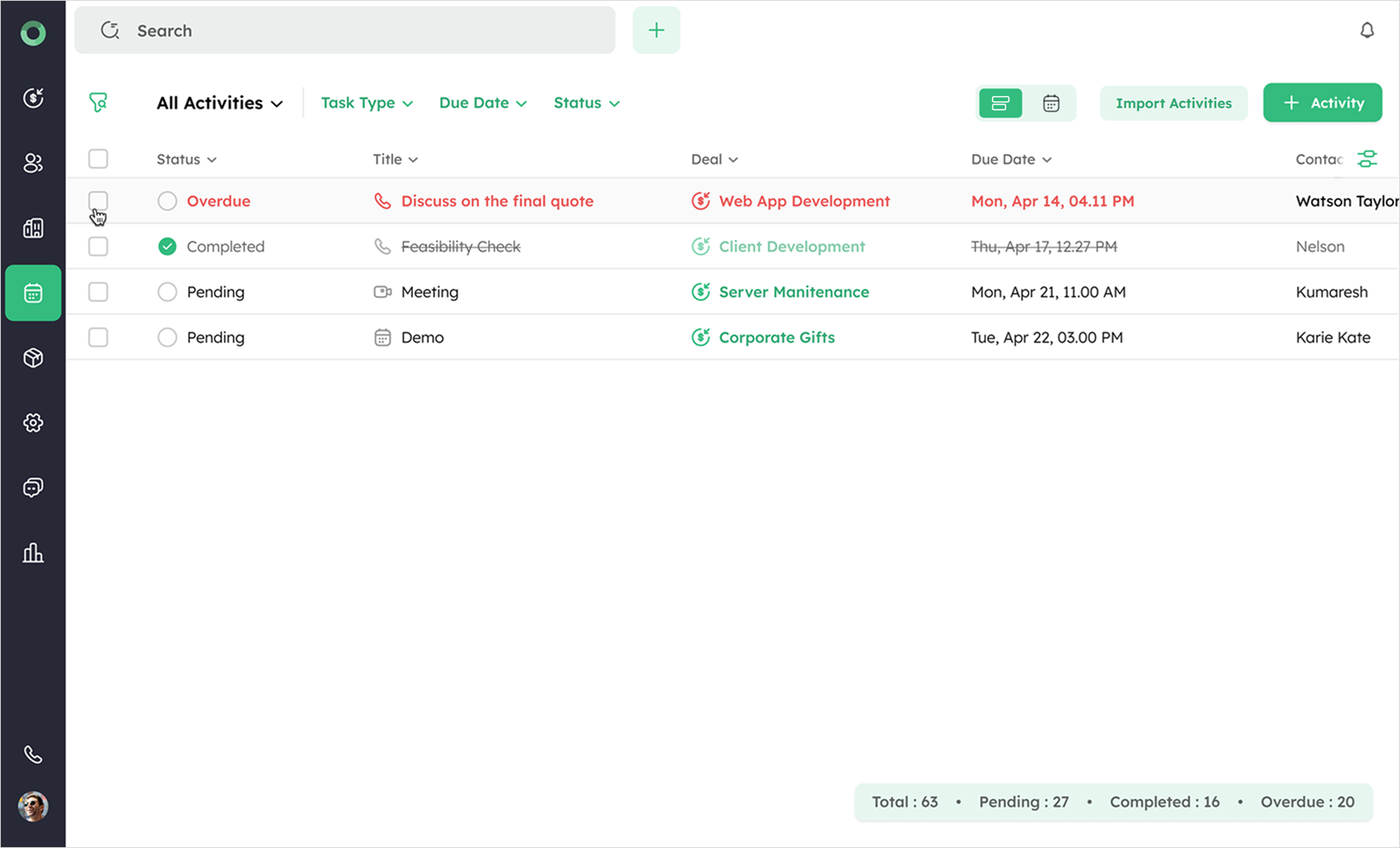
In the List View, check the boxes beside the activities you want to mark as complete.
-
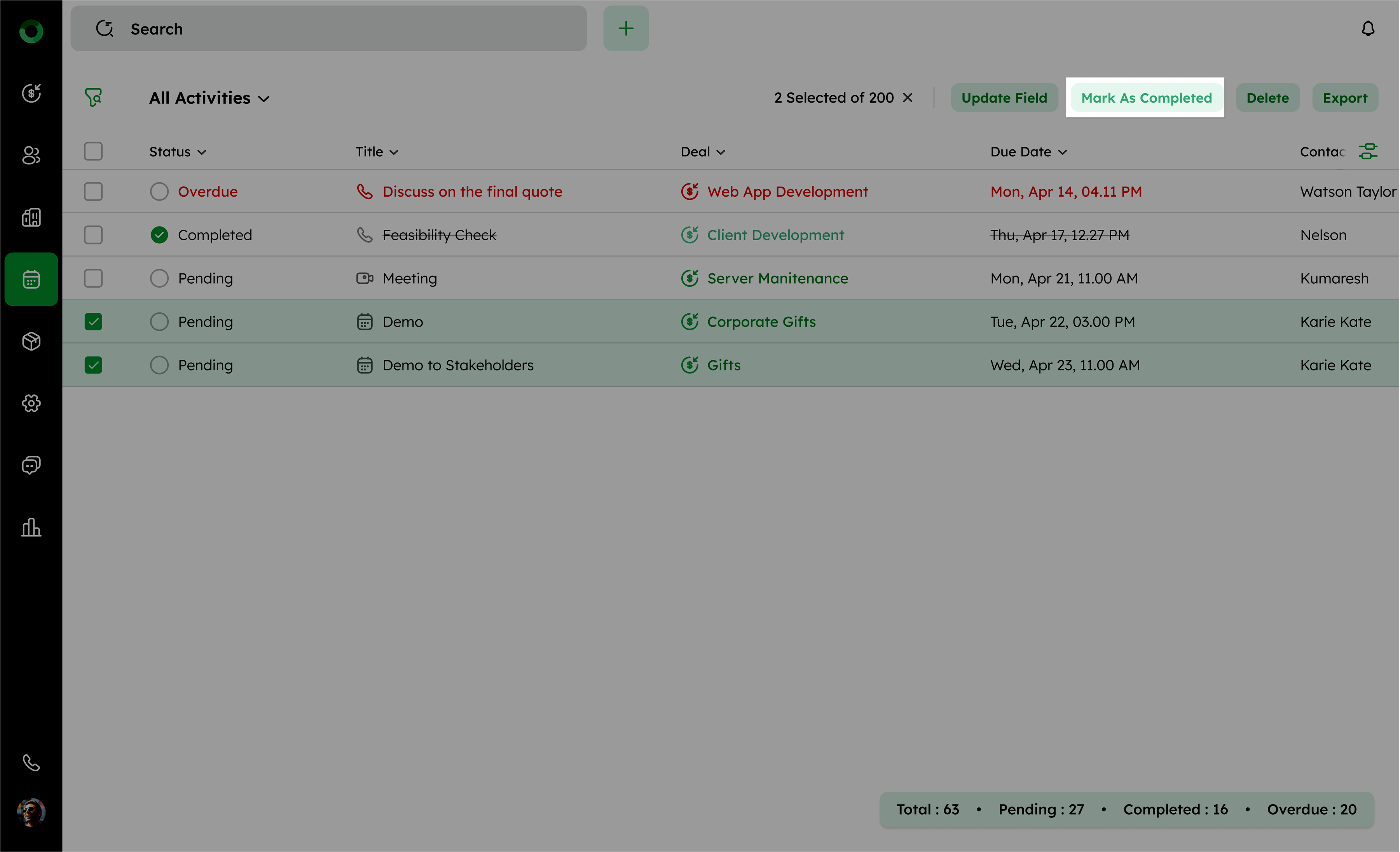
Click the Mark as Complete button in the toolbar to update the status of the selected activities.
Status Update via the Activity Summary Drawer
The Activity Summary allows you to quickly update activities without leaving the List View.
-
In the Activity List View, select any activity to open the Activity Summary drawer on the right side.
-
View the activity details and its current status.
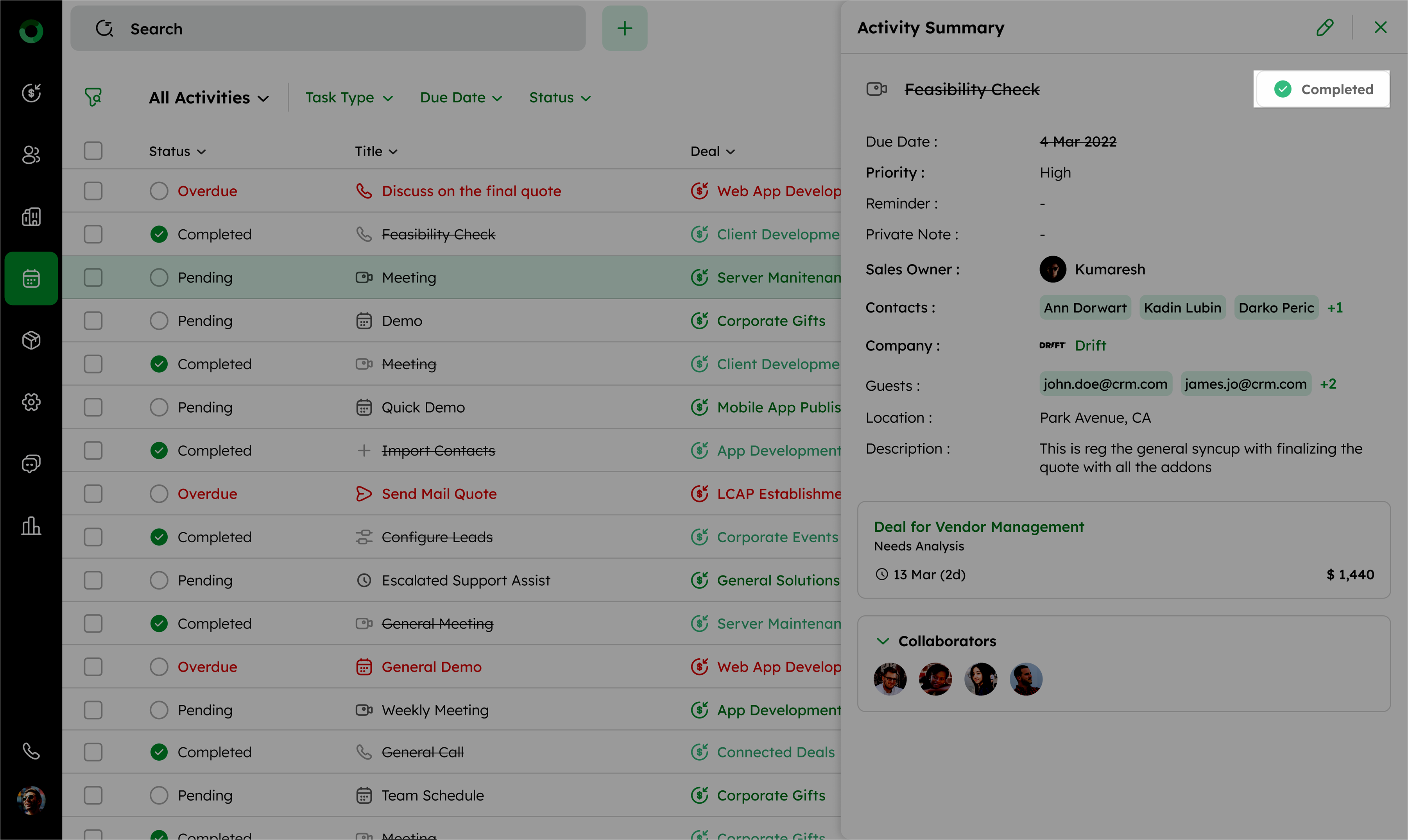
- Check the box to mark the activity as completed. This allows for quick status updates without leaving the view, ensuring efficient task management.
Completing Activities from the Calendar View
The Calendar View real-time task updates directly from the calendar interface.
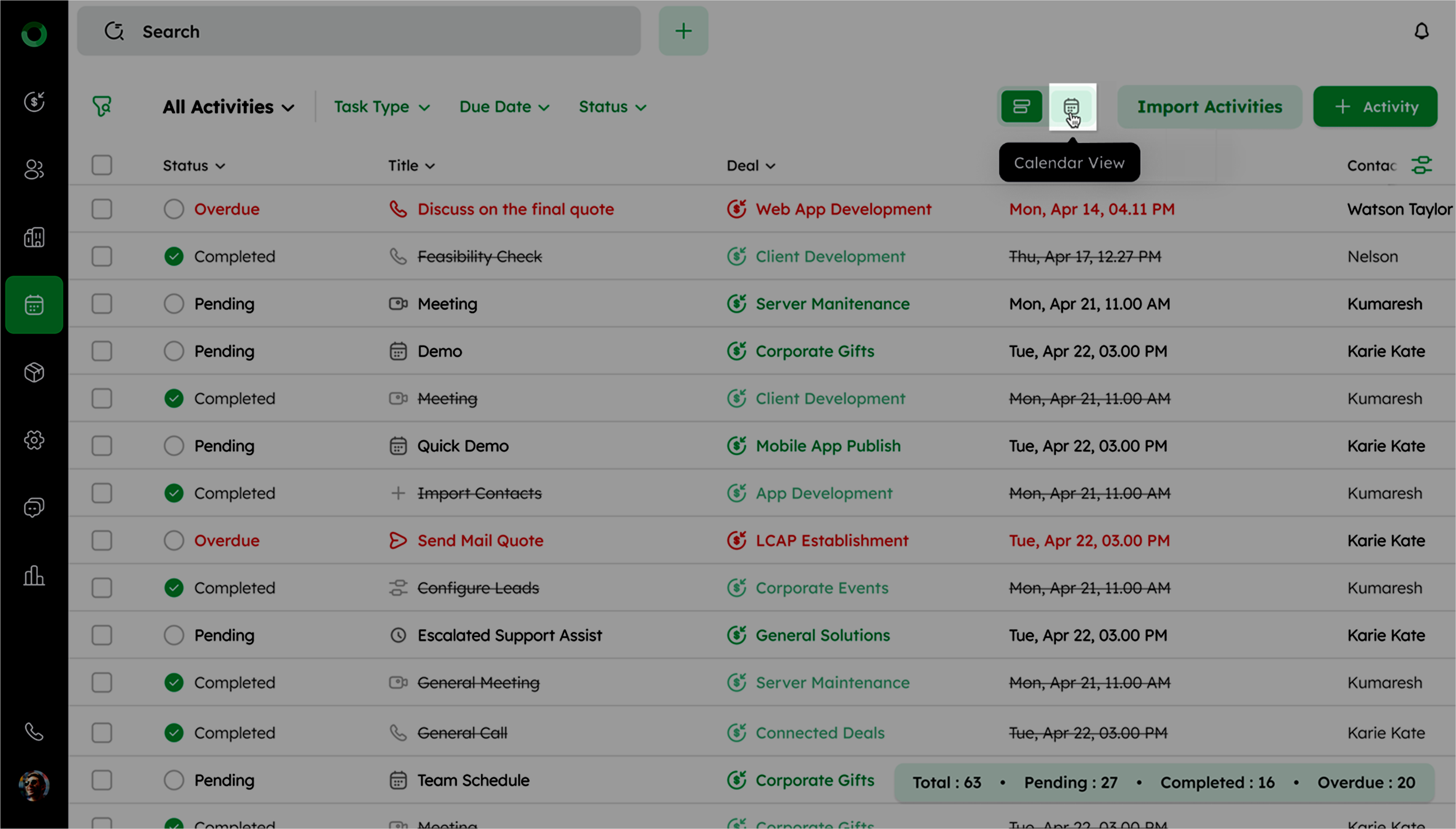
- Click the Calendar View icon at the top right of the List View.
In Calendar View, activities appear in their corresponding date and time slots.
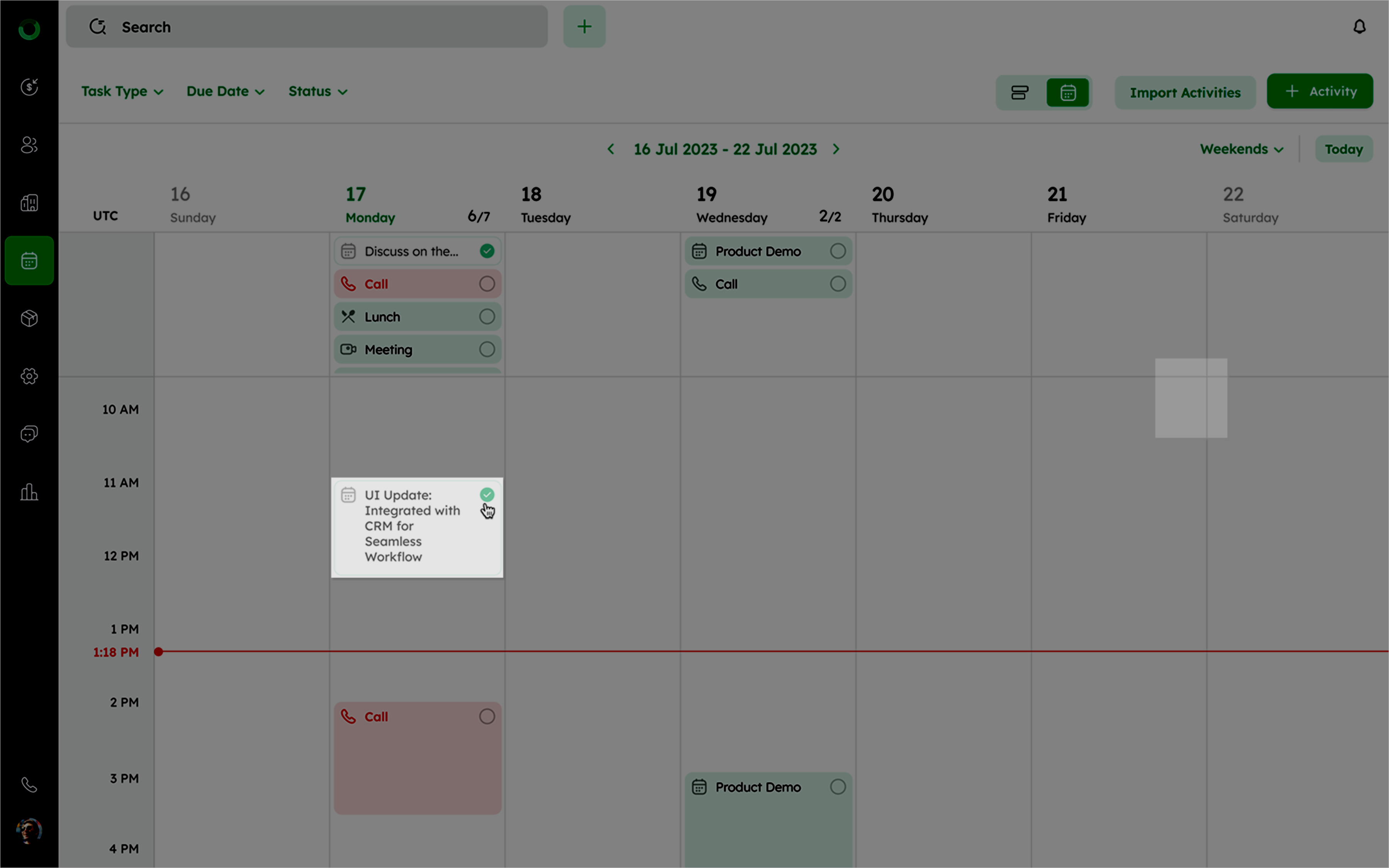
- Mark activities as completed by checking the radio button directly in the calendar section.
Marking Complete via the Global Search Results
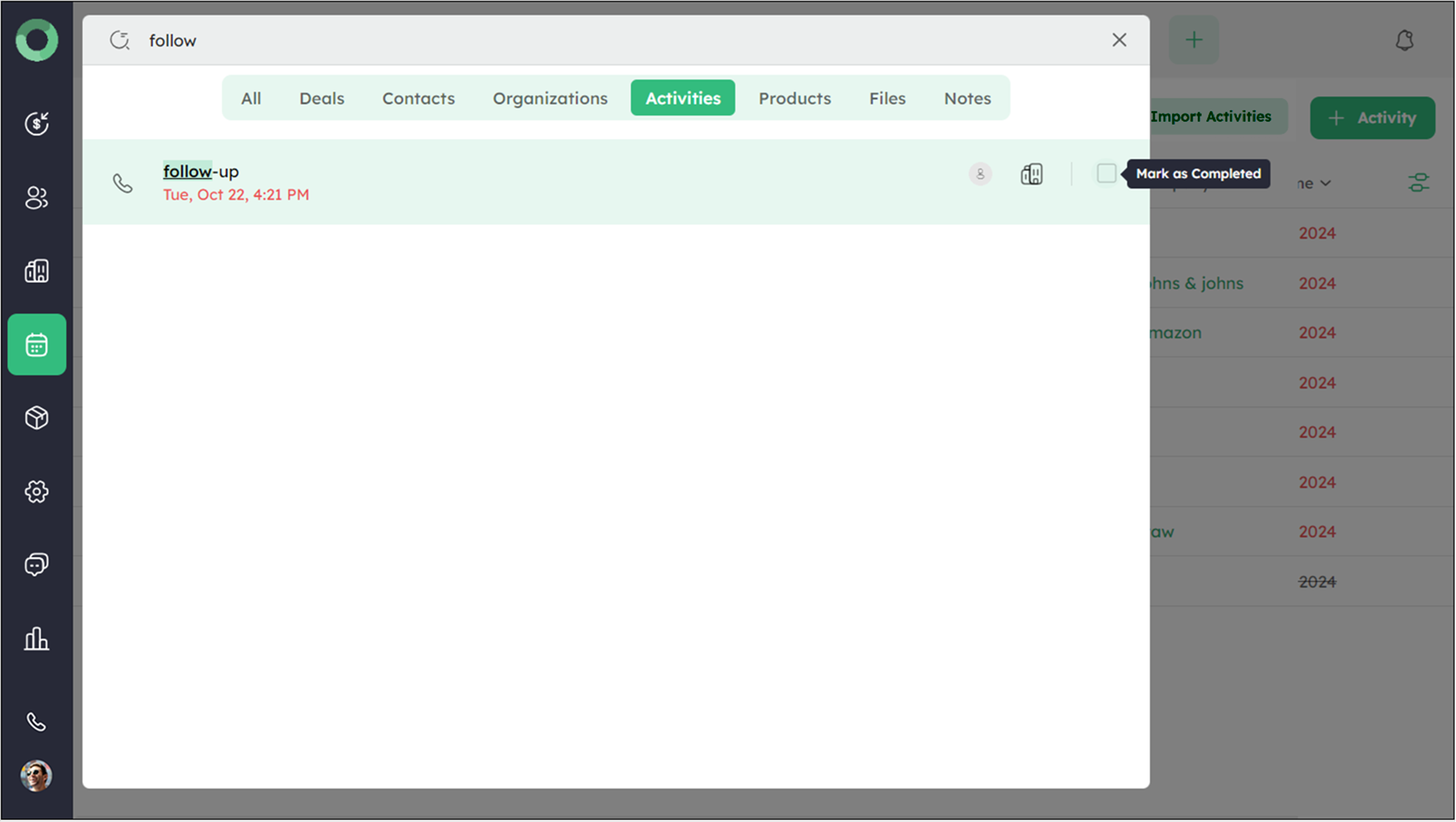
Use global search to quickly find and complete specific activities.
-
Enter the activity name or relevant keywords in the global search bar present at the top.
-
View all results under the All tab. To see only activities, select the Activities tab.
-
Mark the activity as completed directly from the search list.
Setting Status as Completed in the Add Activity Form
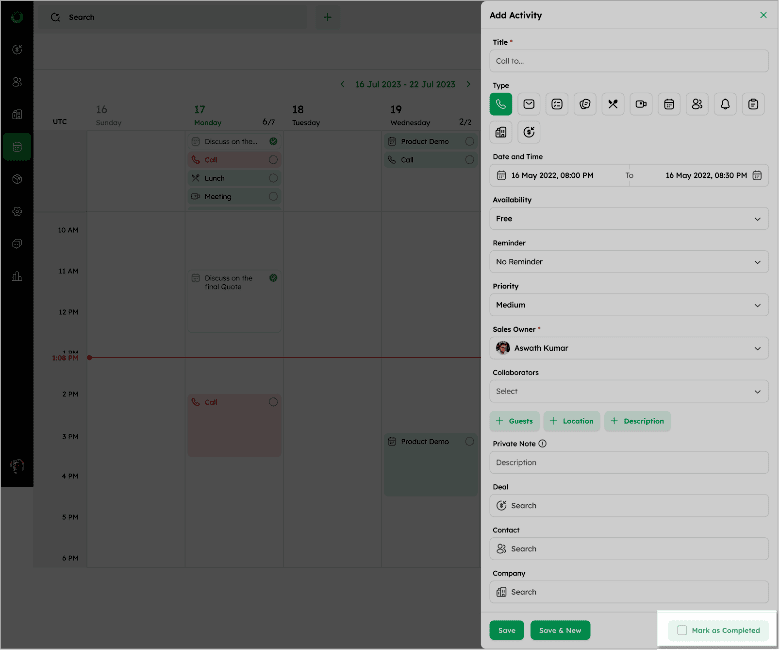
While adding a new activity, you can also mark the status as completed.
-
Go to the Activity Module.
-
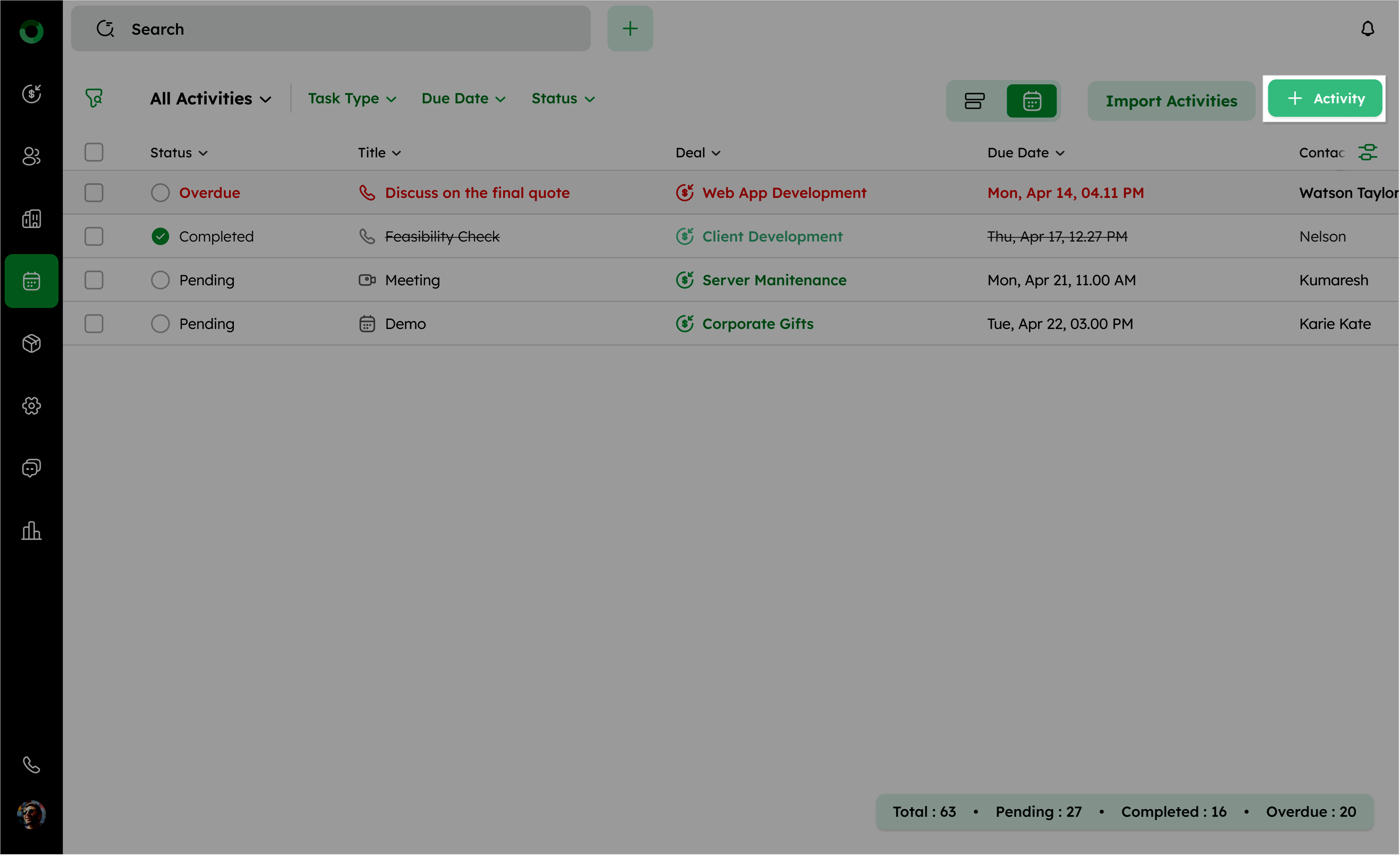
In the Activity List View, click the +Activity button to open the Add Activity form.
-
Fill in the necessary details for the new activity.
-
At the bottom of the form, you can mark an activity as done at the time of creation.
Updating Activity Status on the Deal Detail Page
Activities linked to specific deals can be marked as complete from the Deal Detail Page.
-
Open the Deal Module from the main navigation bar.
-
Select the deal you want to work on from the list.
-
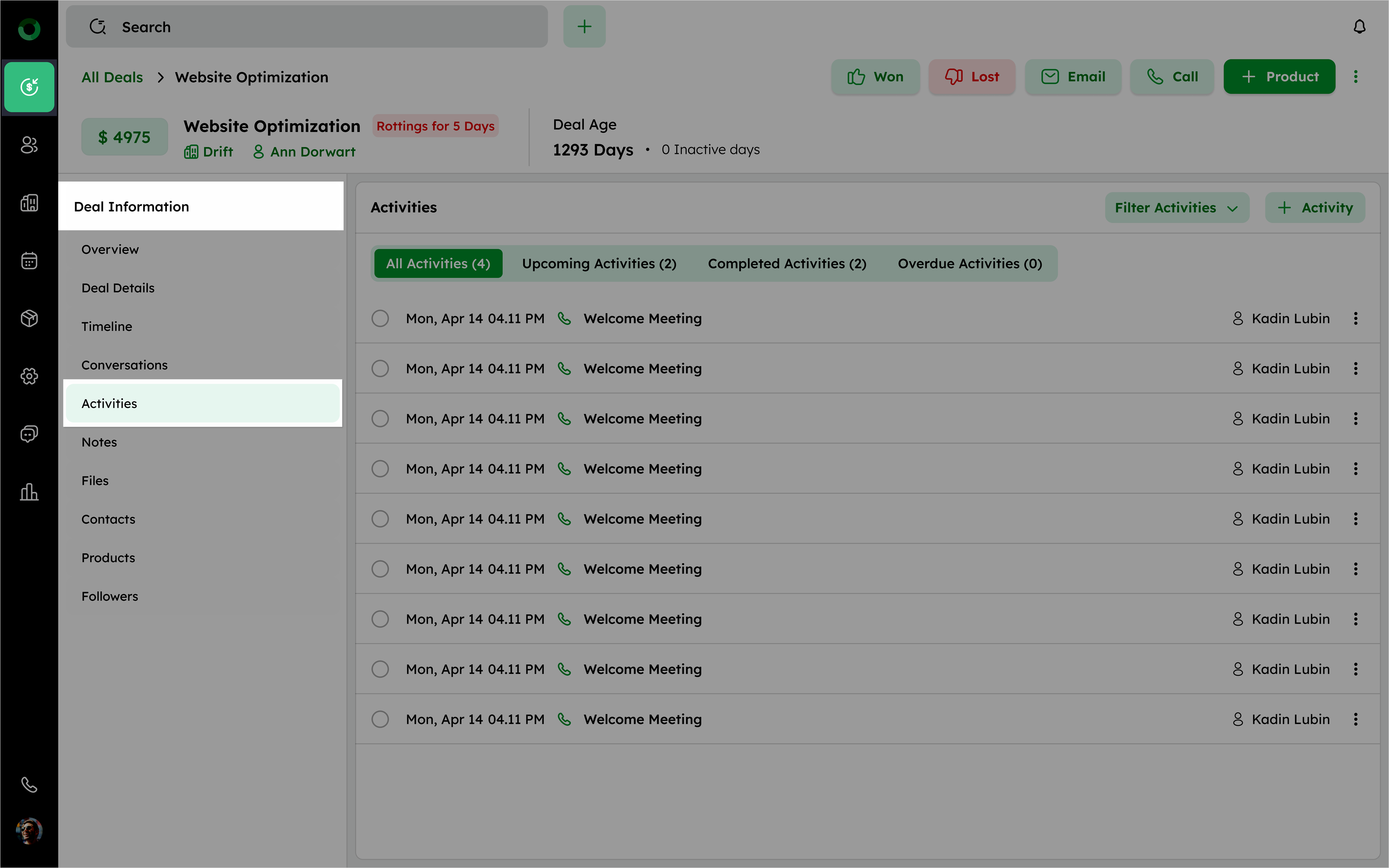
In the Deal Detail Page, go to the Activities tab under the Deal Information.
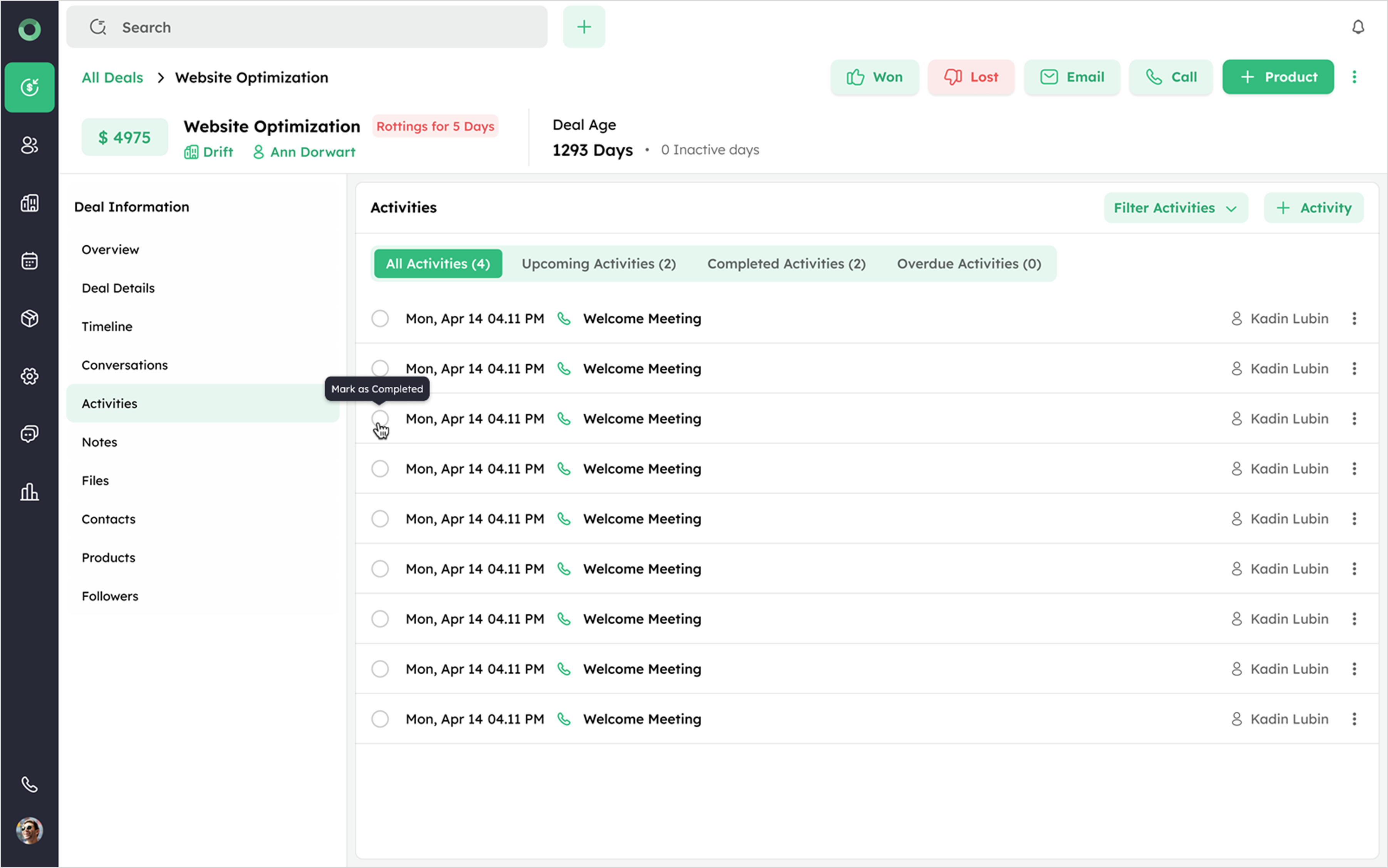
- Find the activity listed and click the radio button to Mark as Completed.
 '
'
Marking Complete from the Contact Detail Page
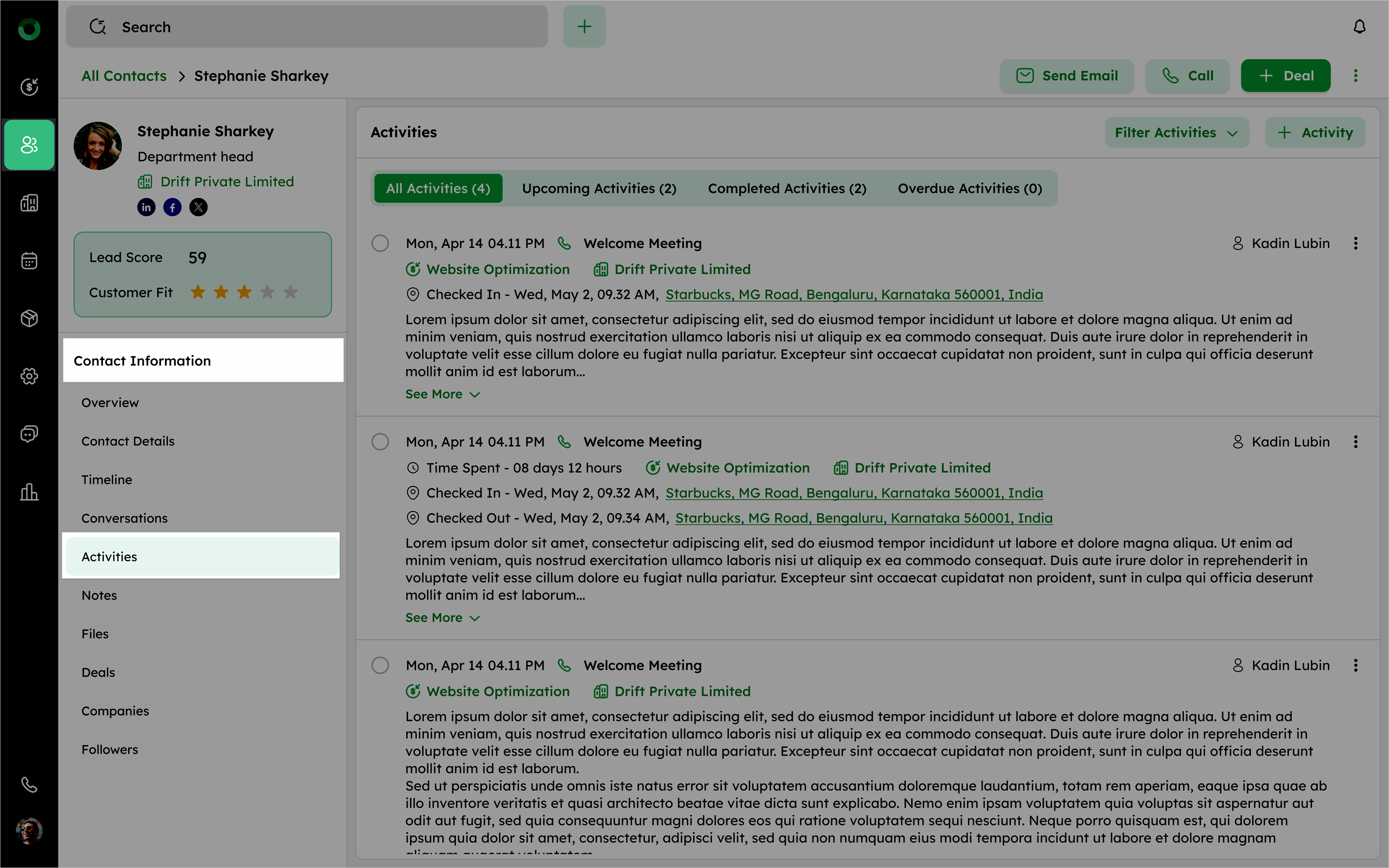
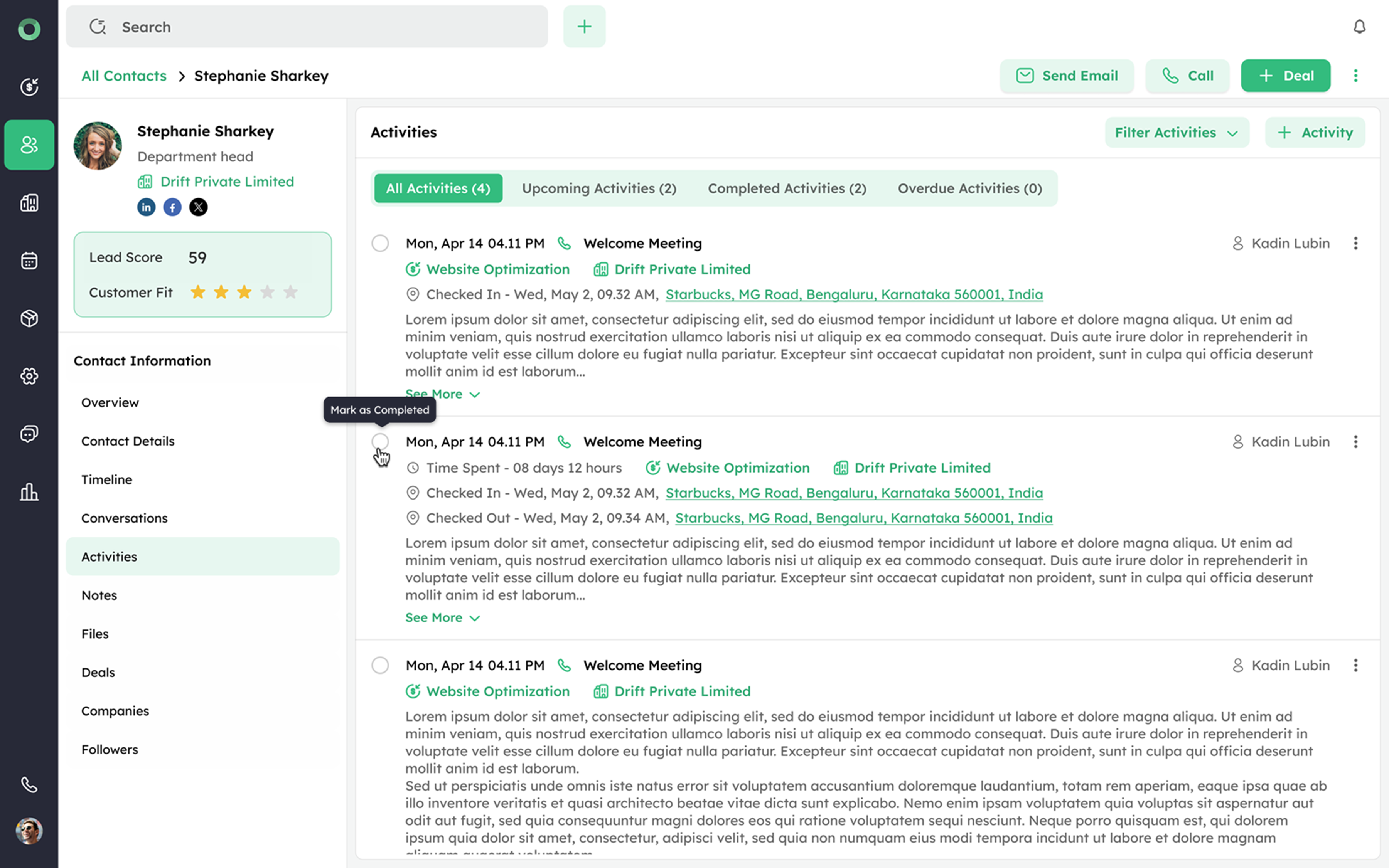
Activities associated with a contact can be marked as completed from the Contact's Detail Page.
-
Open the Contact Module from the left menu.
-
Select the contact you want to work on from the list.
-
In the Contact Detail Page, go to the Activities tab under the Contact Information.
 '
'
- Find the activity listed and click the radio button to Mark as Completed.
Completing Activities on the Company Detail Page
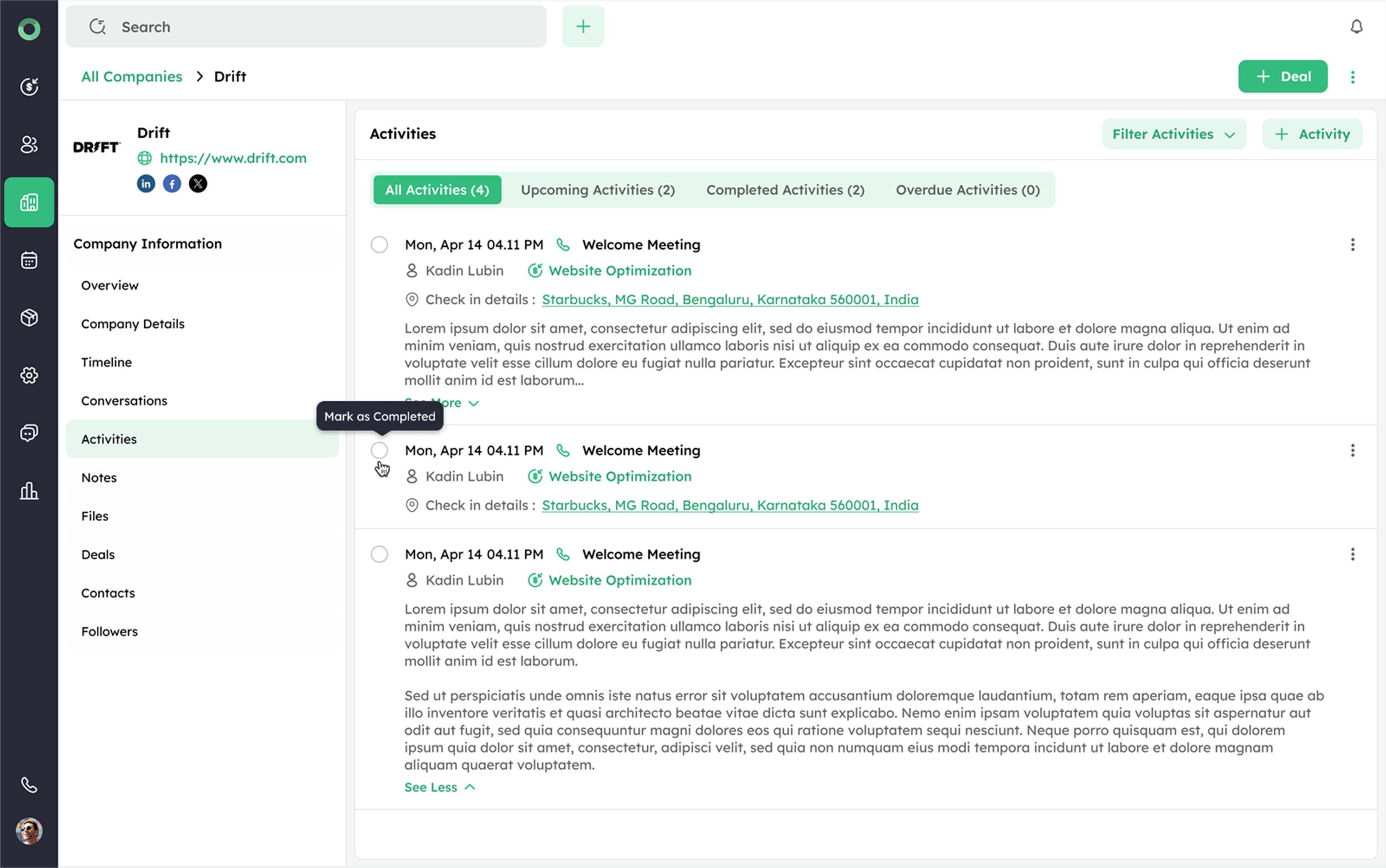
Activities tied to a company can be marked as complete from the Company Detail Page.
-
Open the Company Module from the left menu.
-
Select the company you want to work on from the list.
-
In the Company Detail Page, go to the Activities tab under the Company Information.
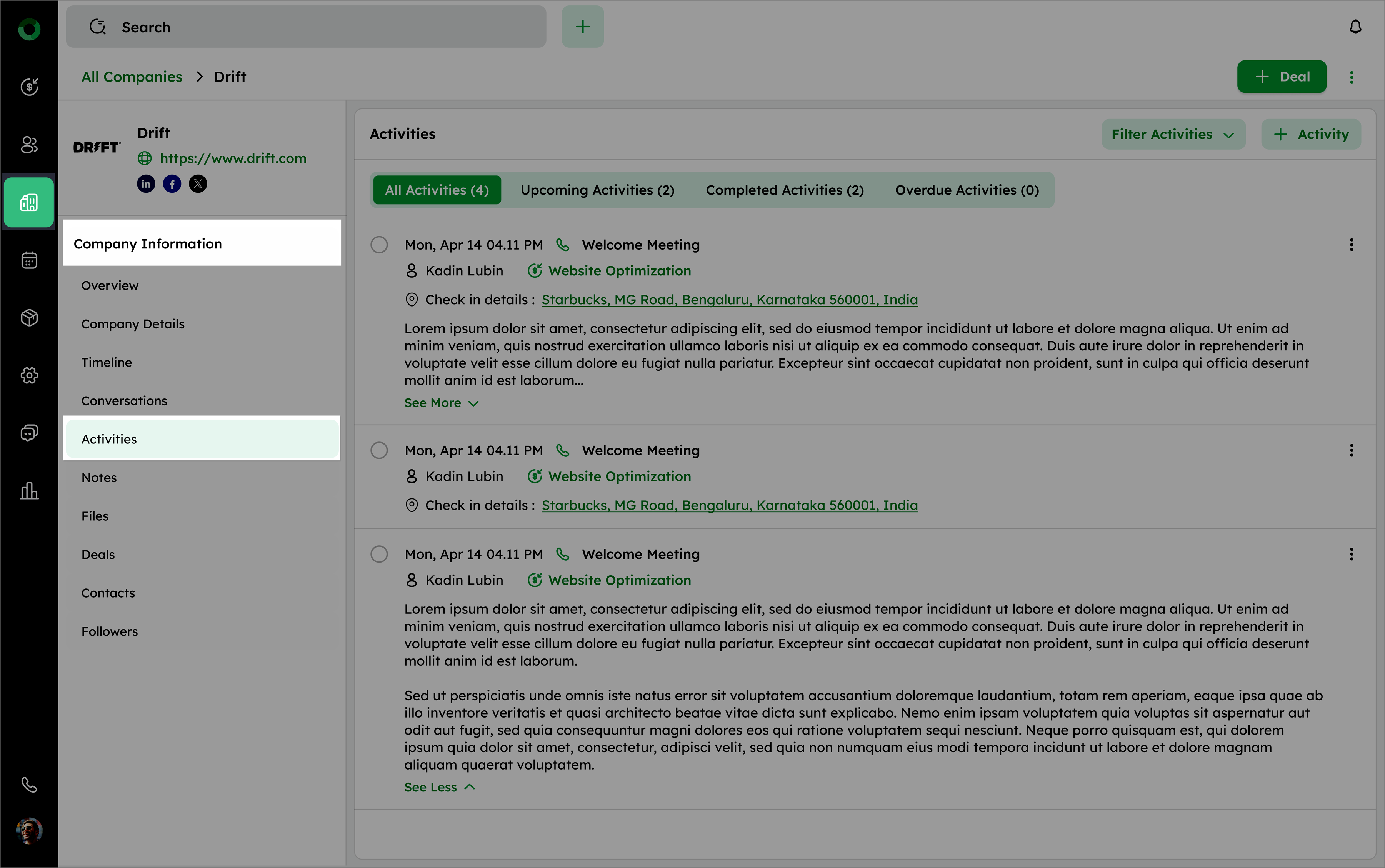
- Find the activity listed and click the radio button to Mark as Completed.