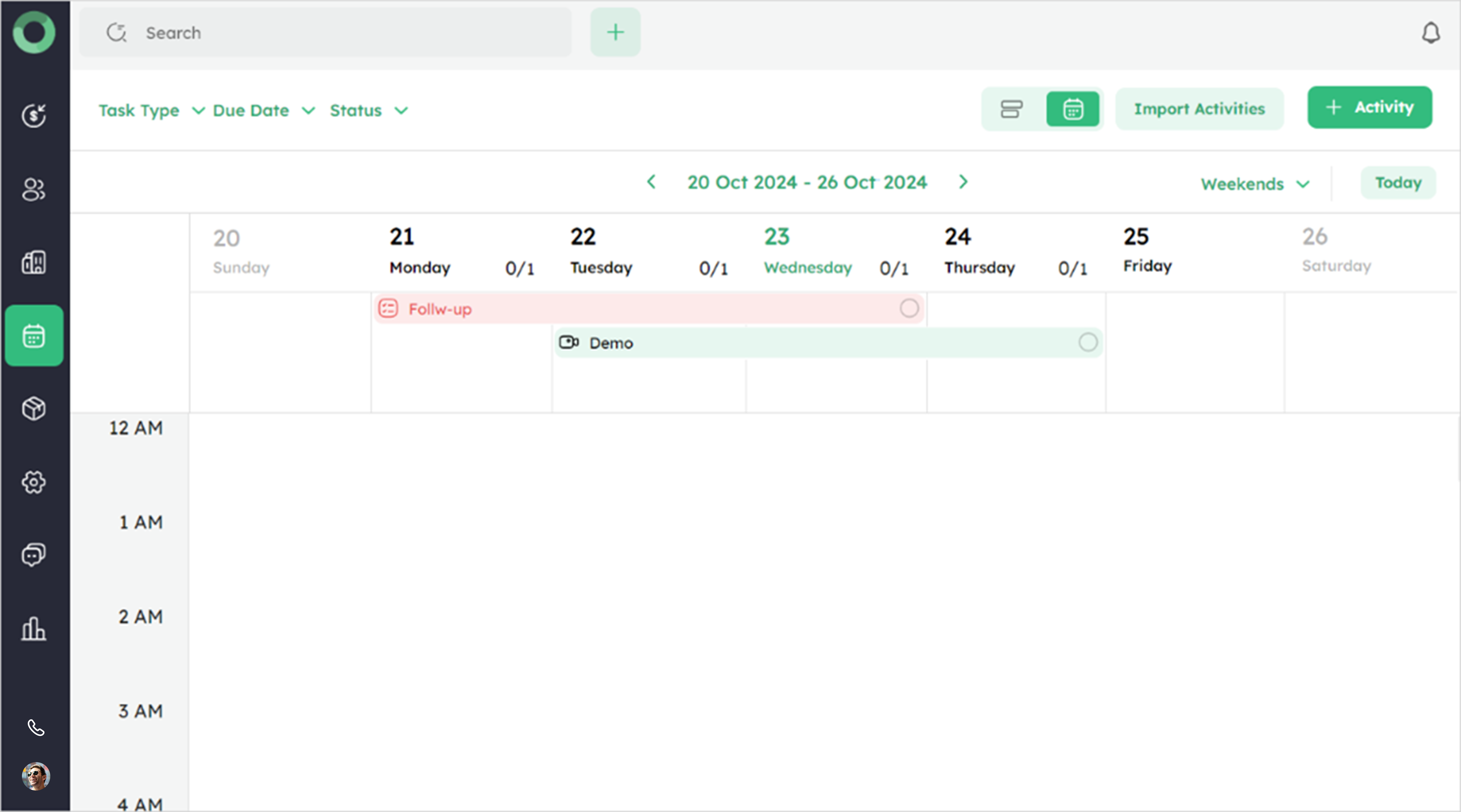
Calendar View
The Activity Calendar View provides a weekly overview of your scheduled activities helping you efficiently manage your daily workflow.
Calendar Layout: Understanding the Weekly Overview
-
Located in the middle of the screen displaying the days of the week from Sunday to Saturday.
-
The calendar shows activities for a seven-days period in a weekly format.
-
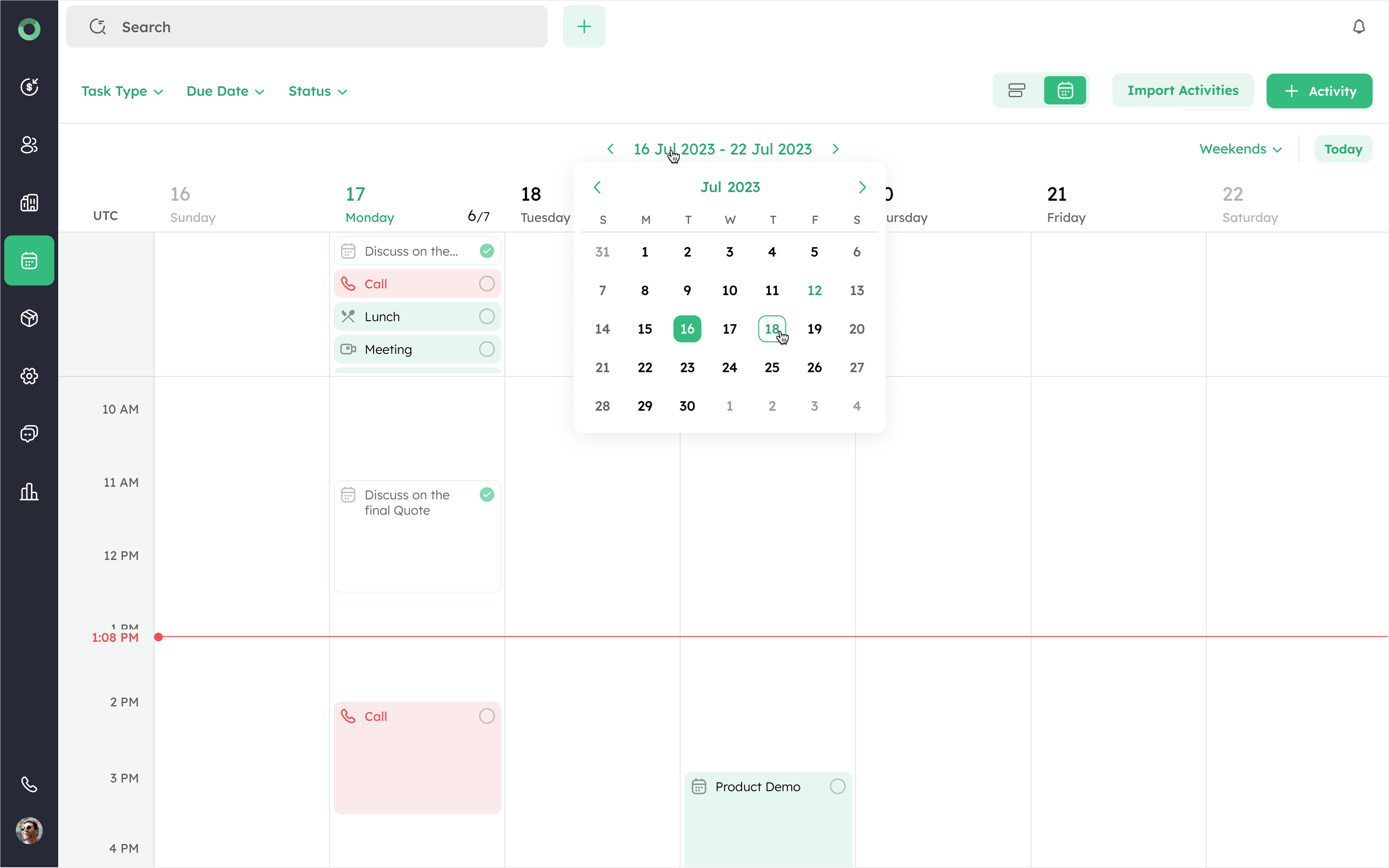
Activities are displayed in their corresponding time slots under the respective dates.
-
Each activity displays its name, type, and a checkbox for quickly marking the task as complete.
-
Scroll down to view tasks scheduled for later in the day.
-
You can also drag the activity to your preferred date and time.
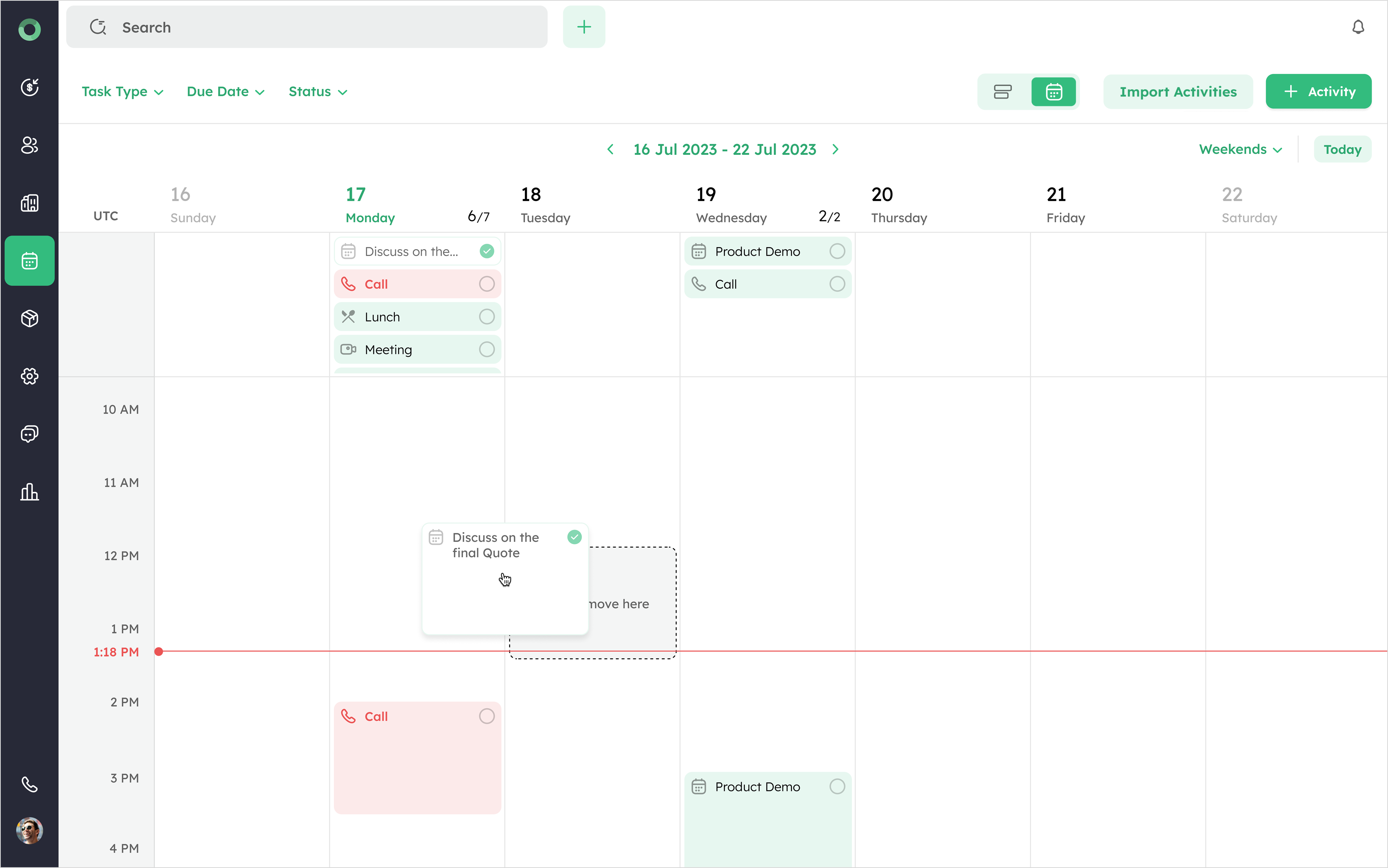
- Placing the cursor above an activity displays the scheduled time for that activity.
How is the Task Count calculated for each day?
- Below each date, you'll see the ratio of completed tasks to total tasks for the day.
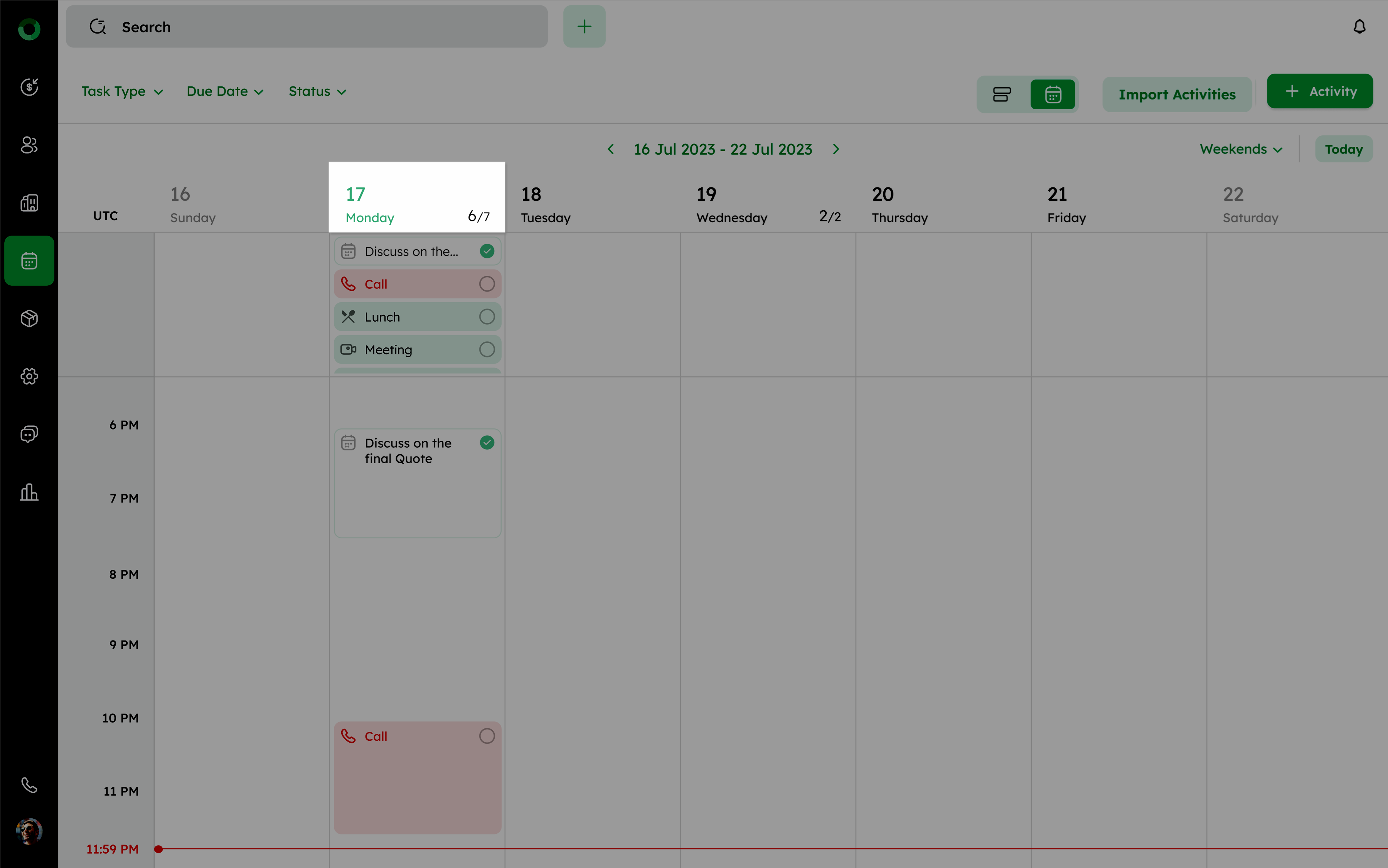
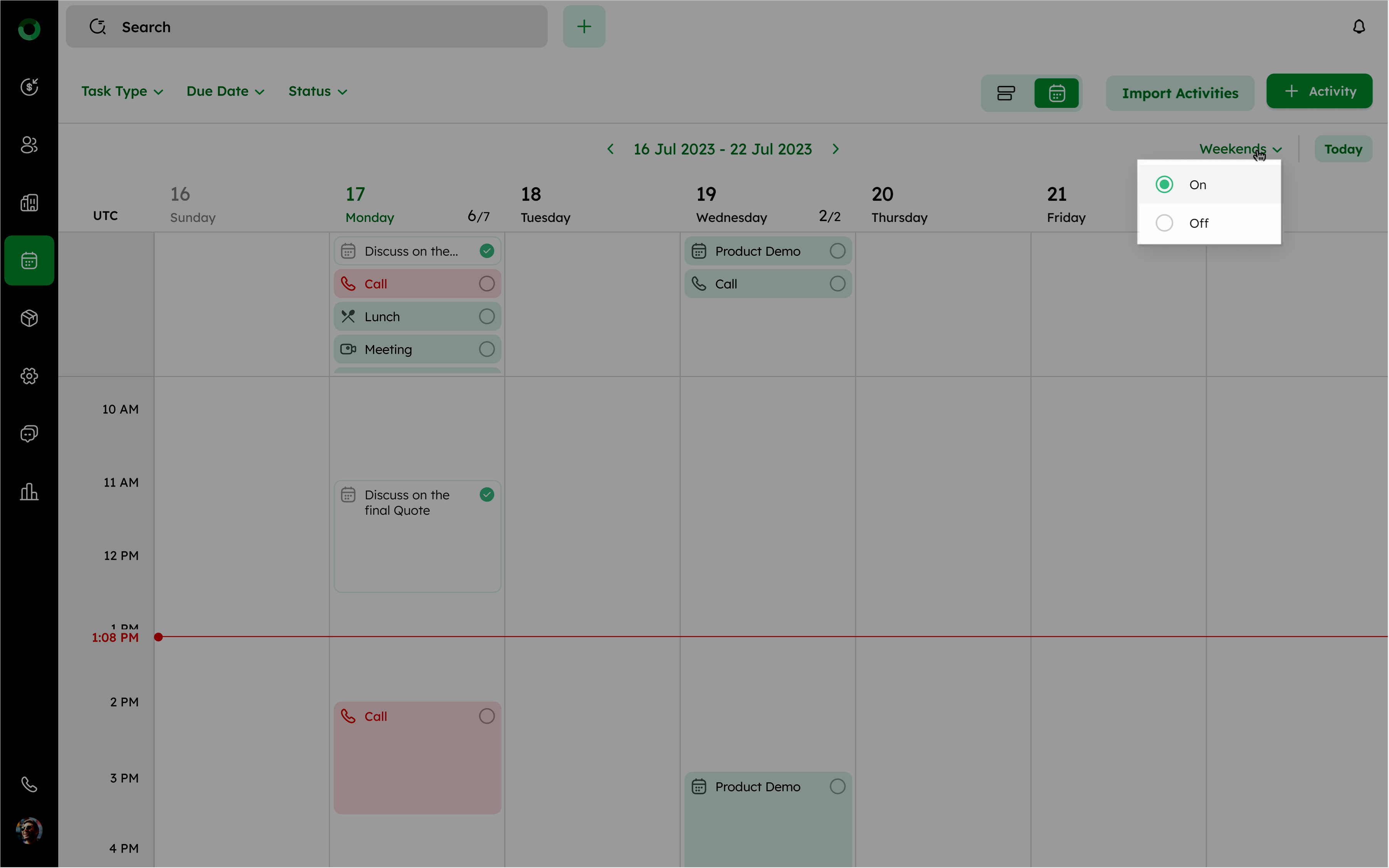
- For example, on Monday 17, it shows 6/7, meaning 6 tasks are completed out of a total of 7 scheduled tasks.
Toggle Weekends and use the Today Button for quick navigation
- Use the Weekends drop-down located at the top right, to display or hide weekends in the Calendar View.
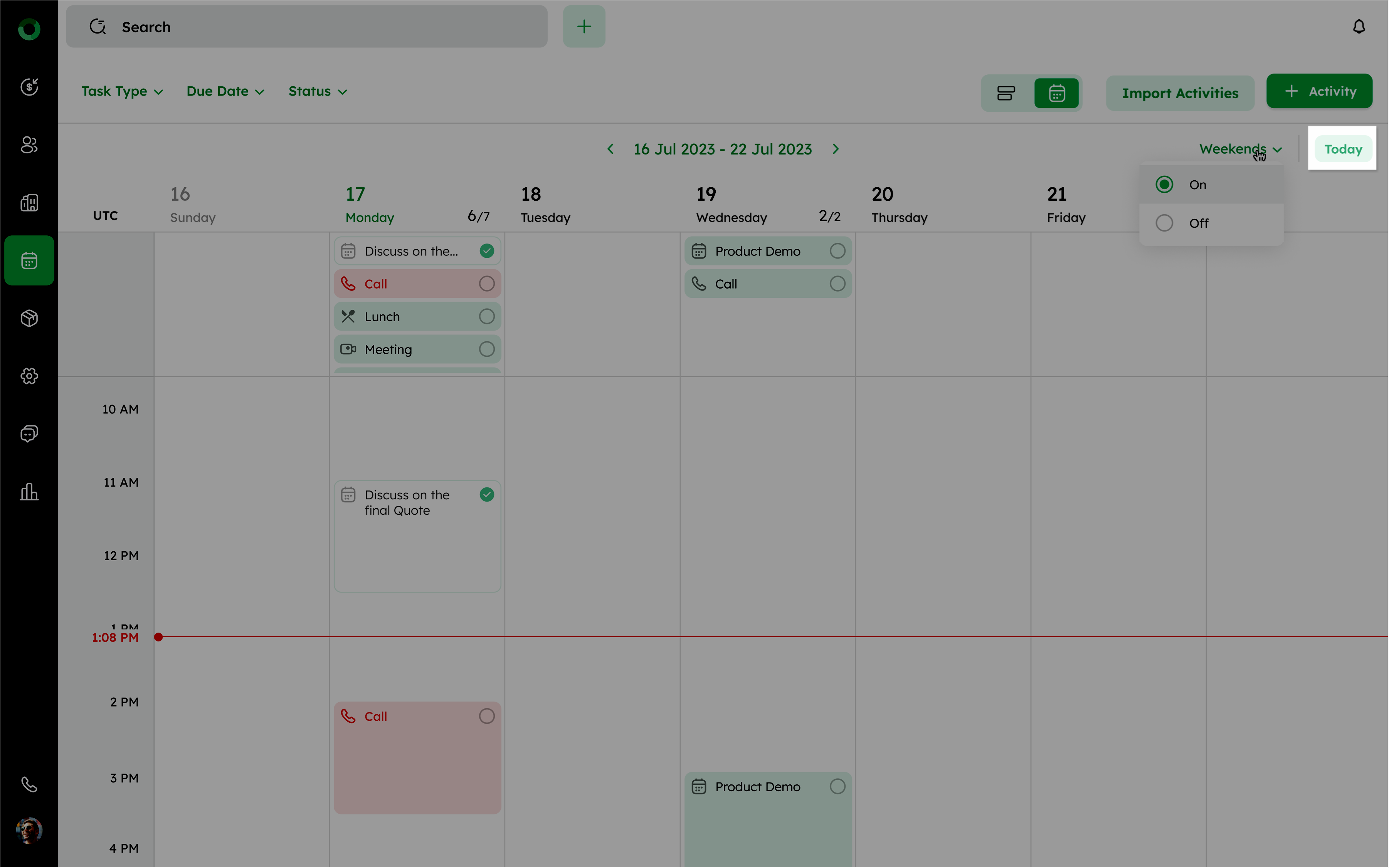
- Use the Today button present in the top right corner to quickly navigate back to the current week on the calendar.
Visibility for Activities Scheduled Across Multiple Days
- Activities scheduled across multiple days are highlighted above the designated section for better visibility. This helps users prioritize and manage longer-term tasks, ensuring important deadlines are not missed and supporting proactive planning within the CRM system.