Adding a Contact Profile Picture
Adding a profile picture for contacts helps in quickly identifying and personalizing the contact, making it easier to manage and recognize them within the system.
-
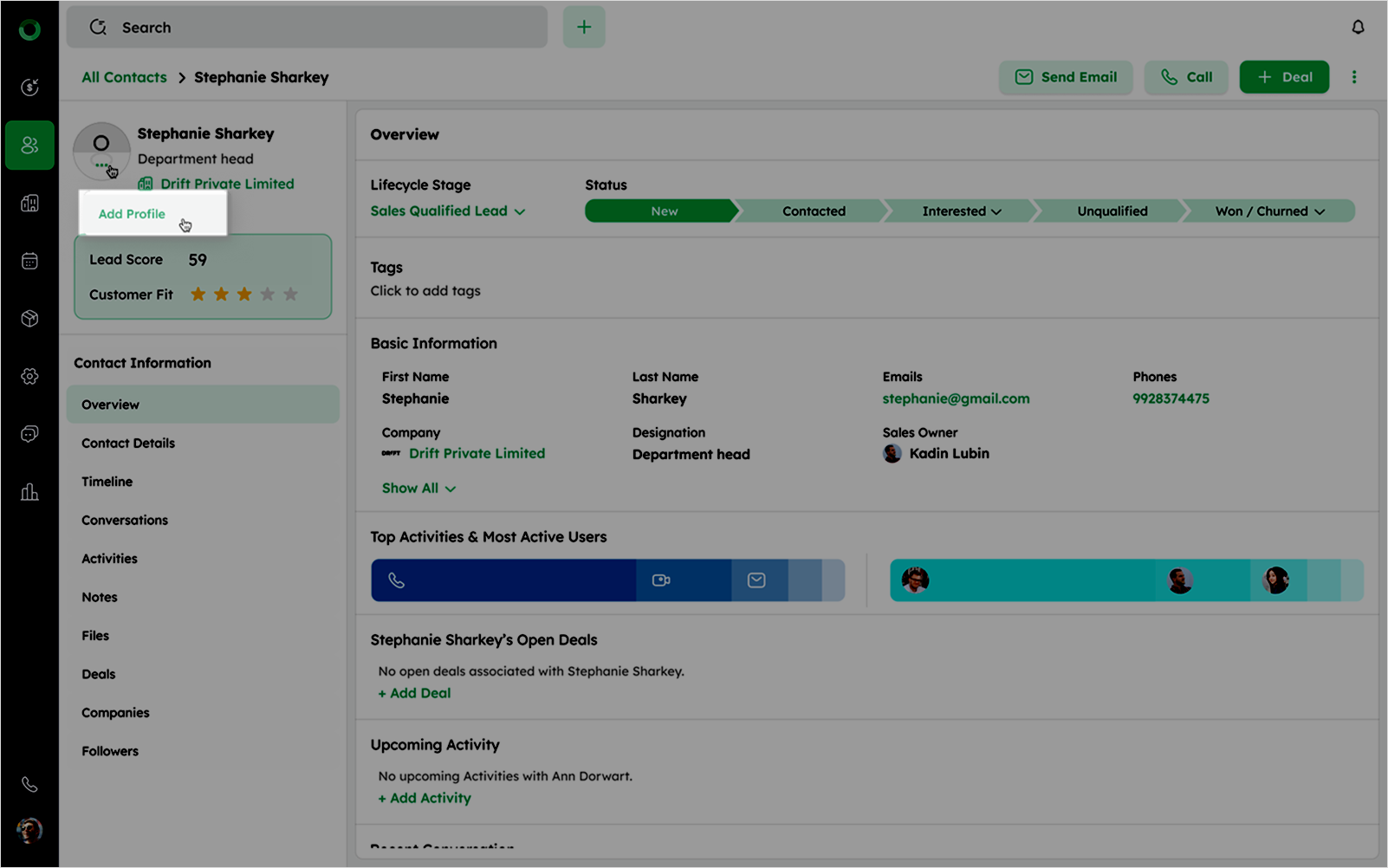
Navigate to the detail page of the contact whose profile picture you want to add.
-
Hover over the profile icon to reveal the ellipsis icon, then click on it and select Add Profile.
-
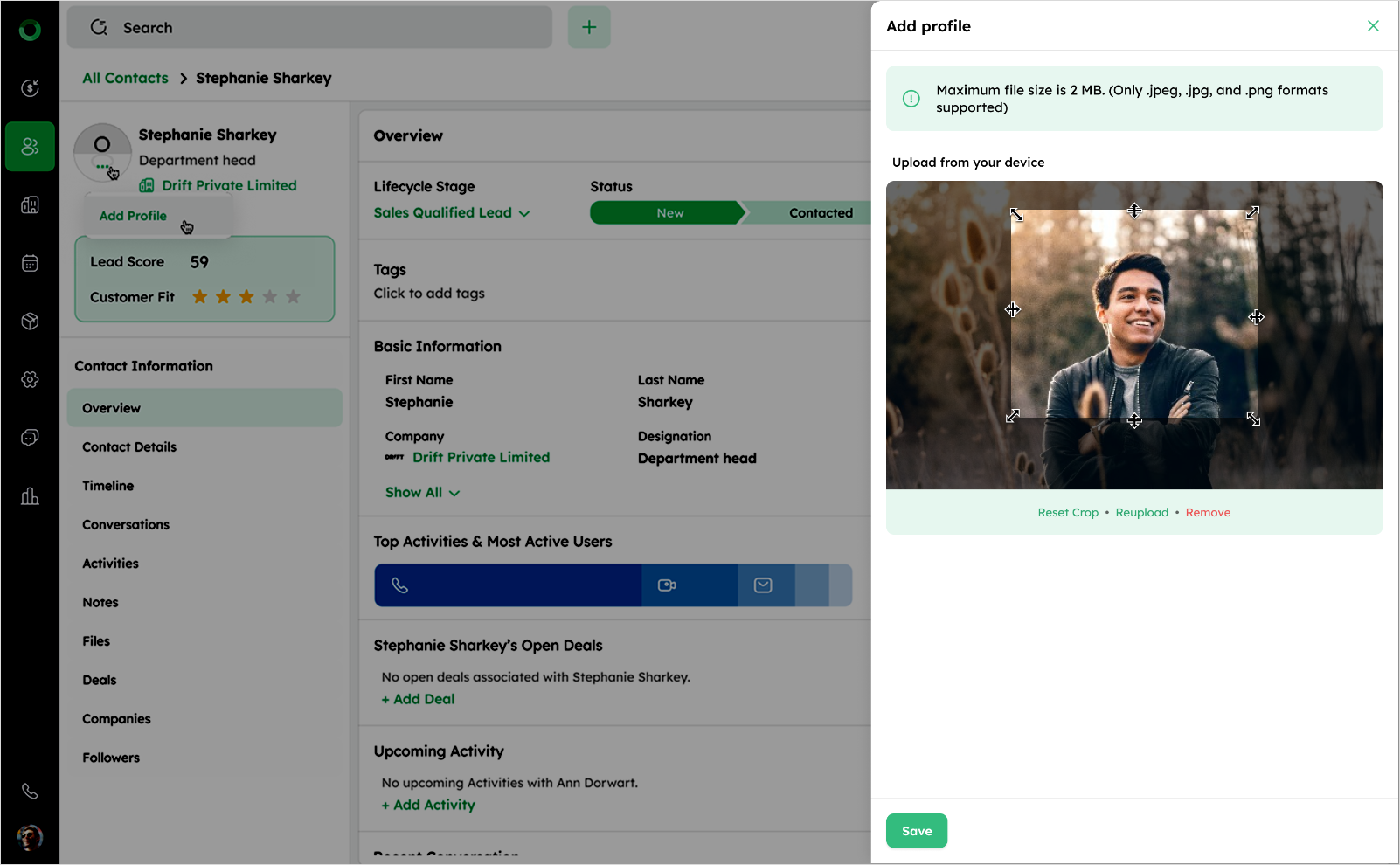
In the Add Profile drawer, upload an image by dragging and dropping a file or clicking the placeholder.
-
After uploading, adjust the image by cropping, re-uploading, or removing it as needed.
-
Click Save to apply the profile picture.
Note:
The maximum file size for a profile picture is 2MB. Supported formats are .jpeg, .jpg, and .png