Reviewing Individual Deal Records
The Deal Detail View presents a connected, well-organized view of each deal, bringing together key updates, activities, and linked records so users can stay focused and manage every stage without losing context.
Accessing the Deal Detail View
-
Go to the Deal Module from the main navigation.
-
Click on a deal to open its Detail View.
-
At the top, view the deal name, value, primary contact, and associated company.
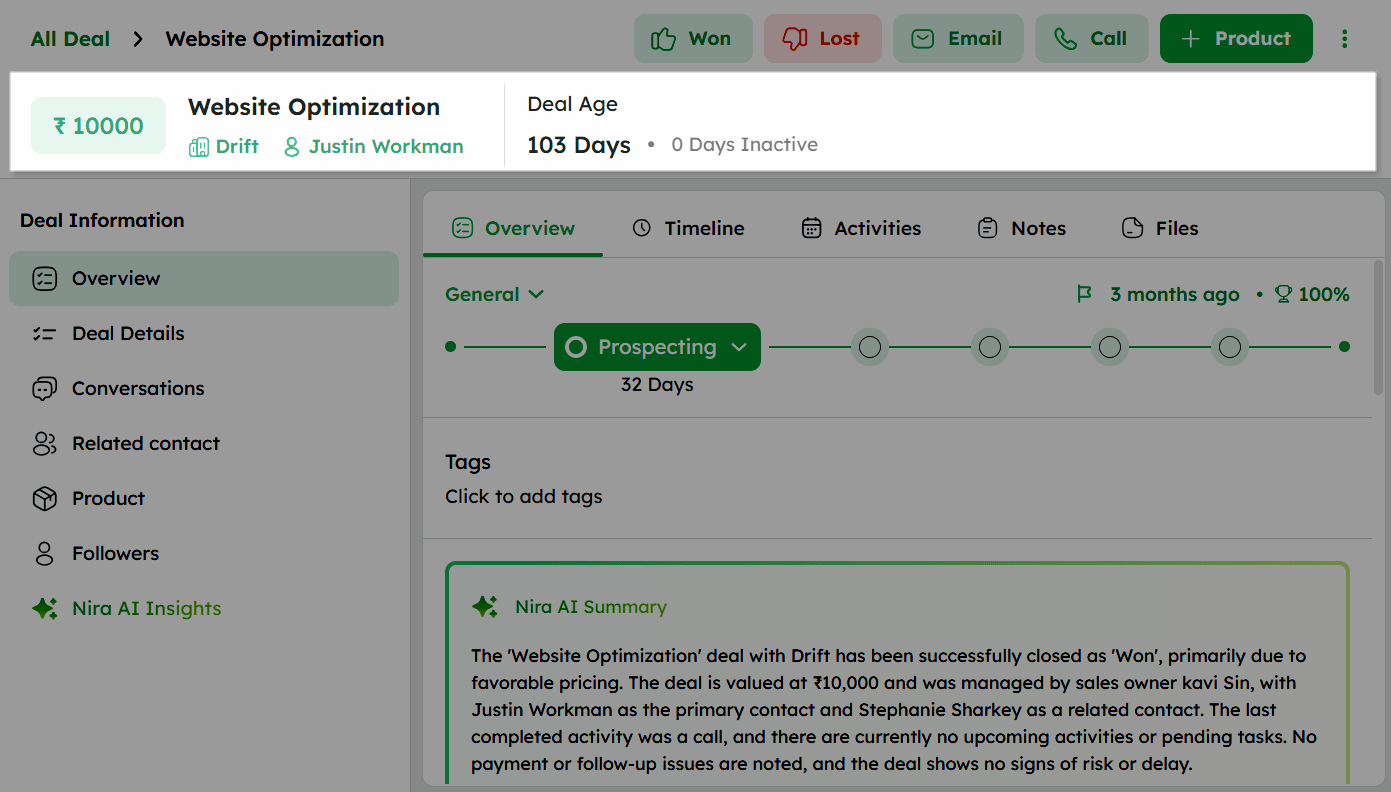
Rotten Deal – Indicates that the deal has exceeded the configured rotten days. The rotten label shows the number of days since the deal became rotten.

Deal Age – Indicates the number of days since the deal was created.

Inactive Days – Indicates the number of days since the last activity was performed on the deal.

-
Click the primary contact or company name to navigate to their respective detail page.
-
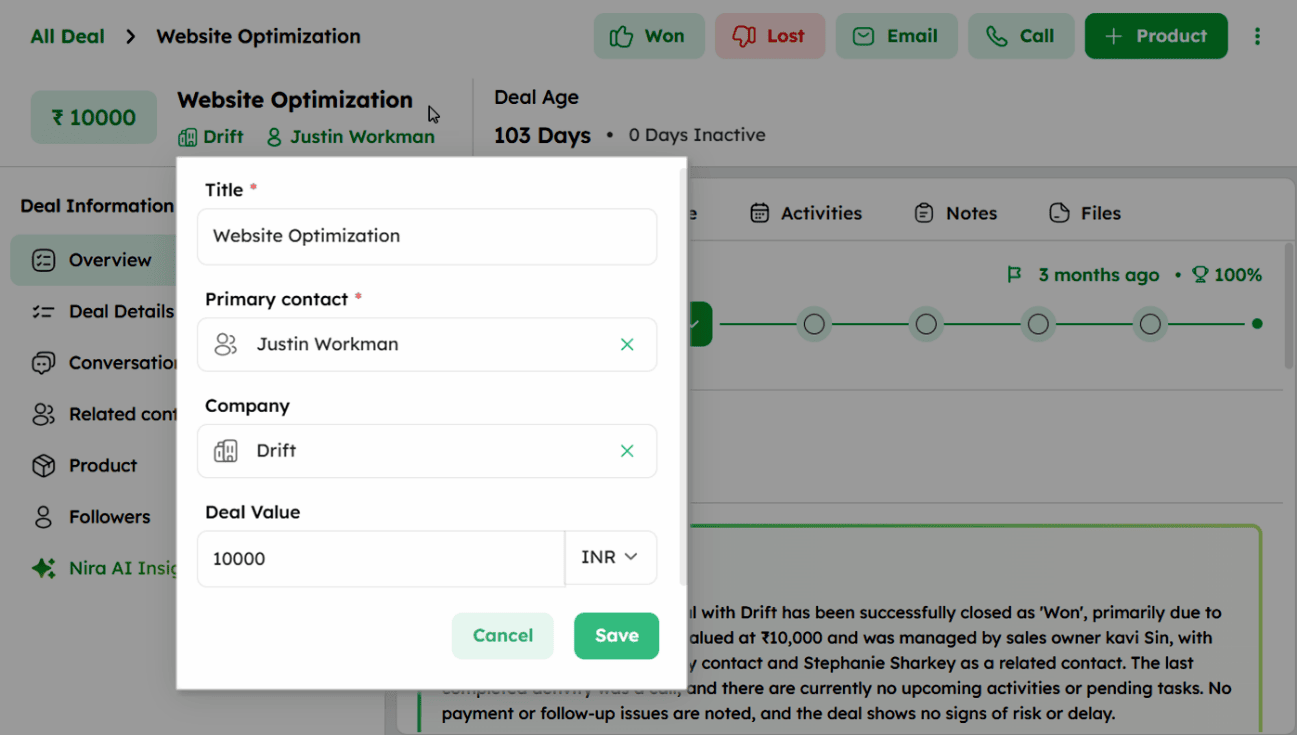
Hover over the deal name to reveal the edit icon.
-
Click the edit icon to update the title, contact, or value, then click Save to confirm or Cancel to discard changes.
Deal Information & Details
The Deal Information provides access to all key sections associated with the deal, including Overview, Deal Details, Conversation, and Linked Records. Each section is explained in the following steps.
Navigating the Deal Detail Page: Overview Tab
The Overview tab provides a snapshot of the deal’s progress, key details, AI insights, and recent activities. The Overview tab consists of the following sections:
-
Click the Overview tab from the Deal Information panel to access the deal's overview.
-
The stage progress bar displays the current pipeline and active stage at the top of the Overview tab.
The active stage is highlighted with a green indicator, showing the number of days spent in that stage.
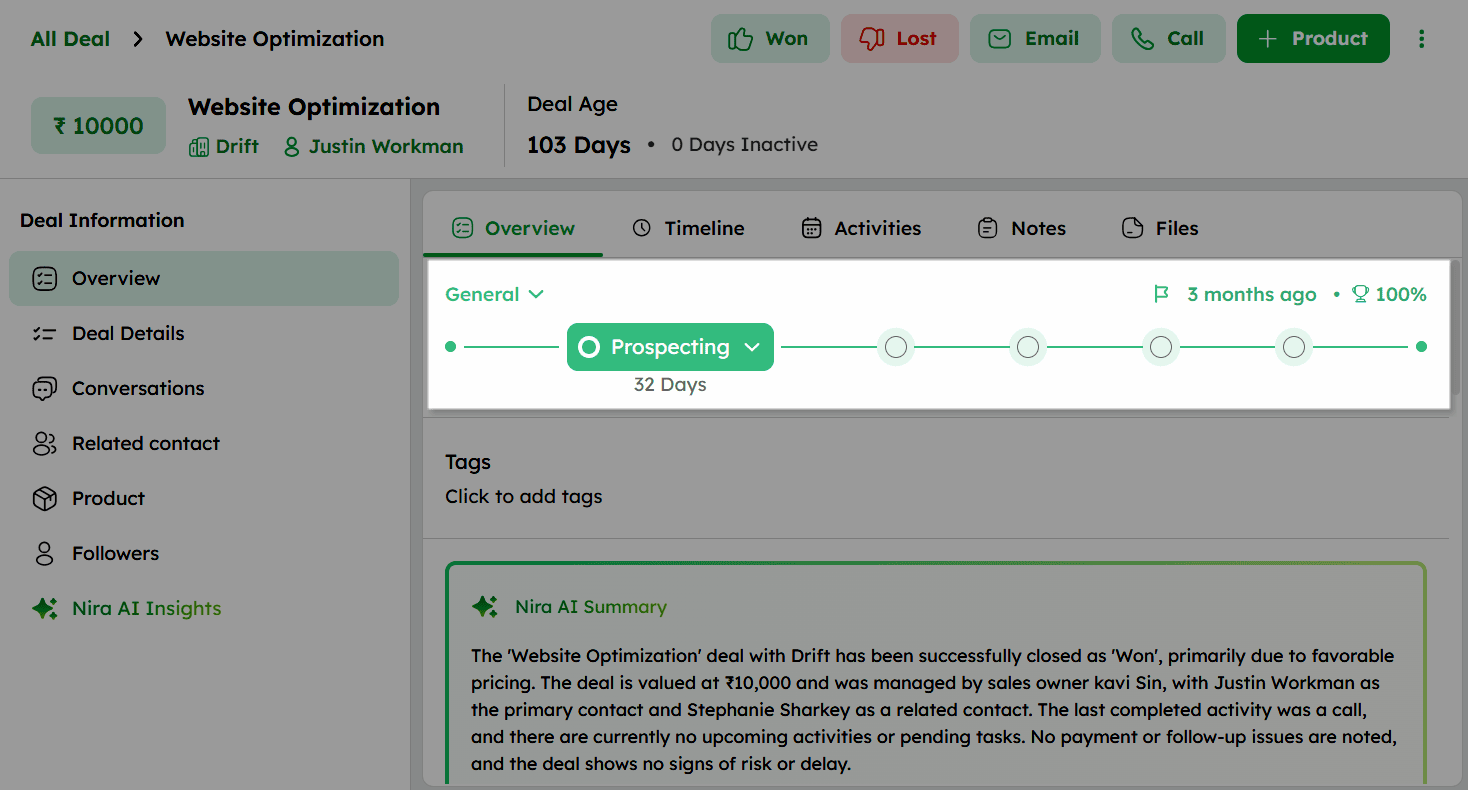
- Hover over any stage indicator on the progress bar to view the stage name.

- Click the active stage dropdown to move the deal to a different stage or mark it as Won or Lost (with reasons and close dates).
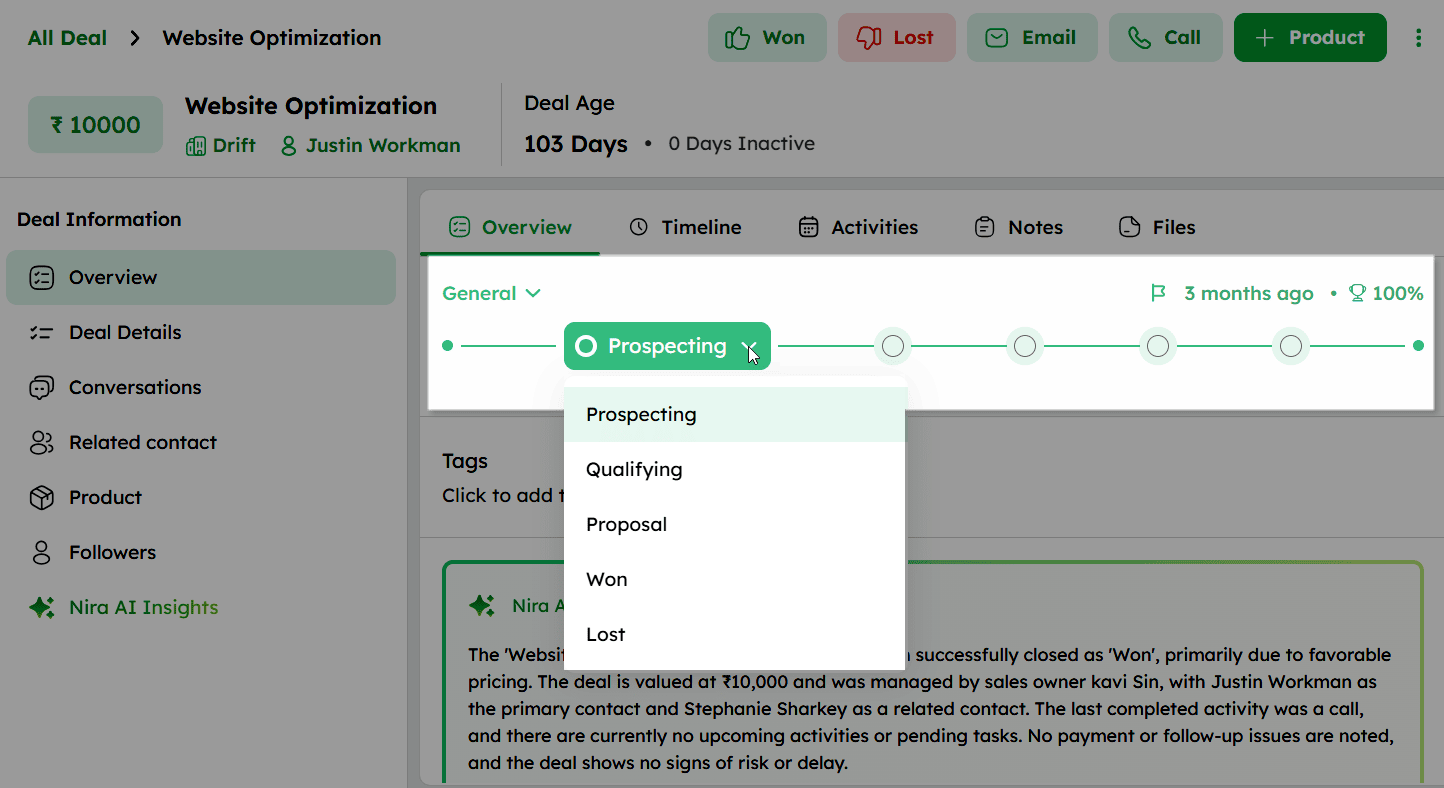
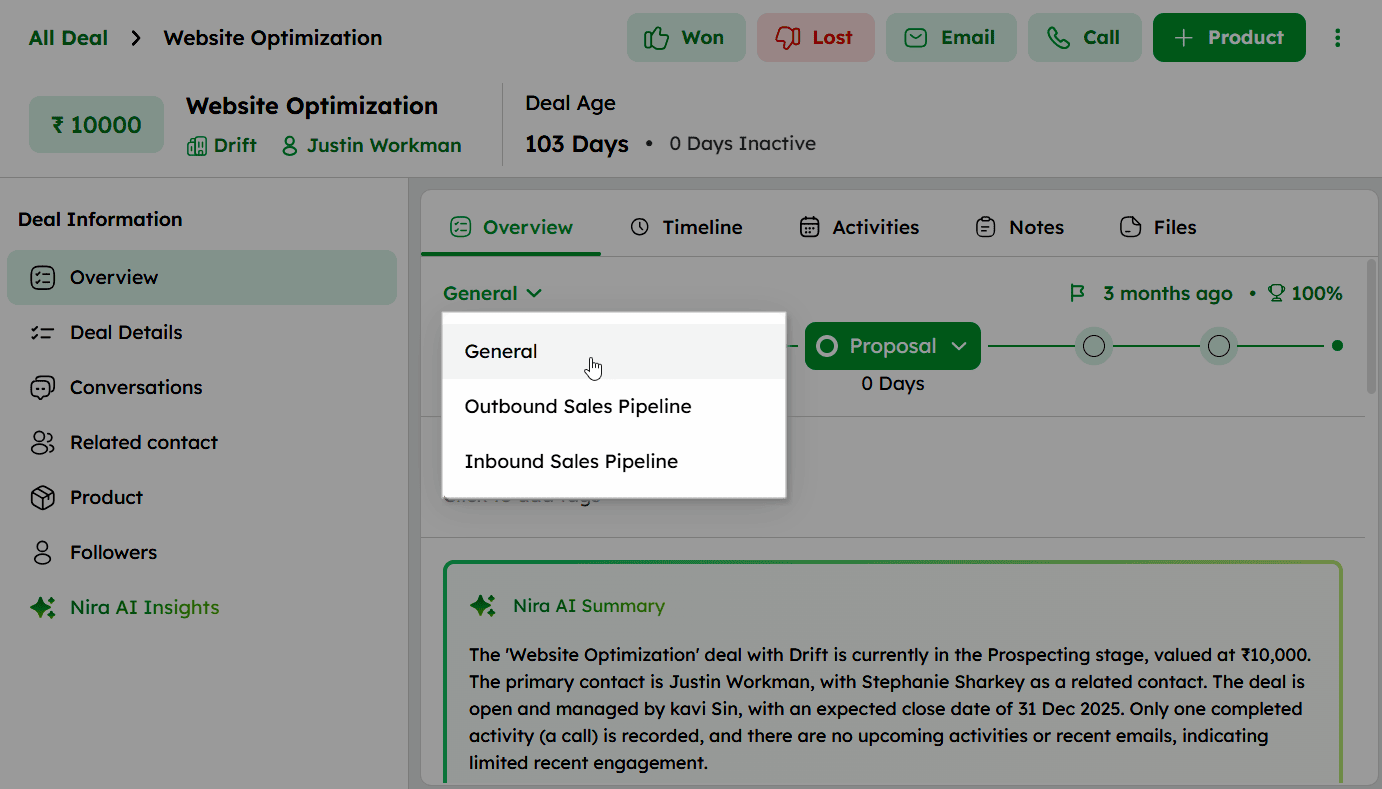
- Click the General pipeline at the top left to move the deal to a different pipeline. The deal will start at the first stage of the selected pipeline.
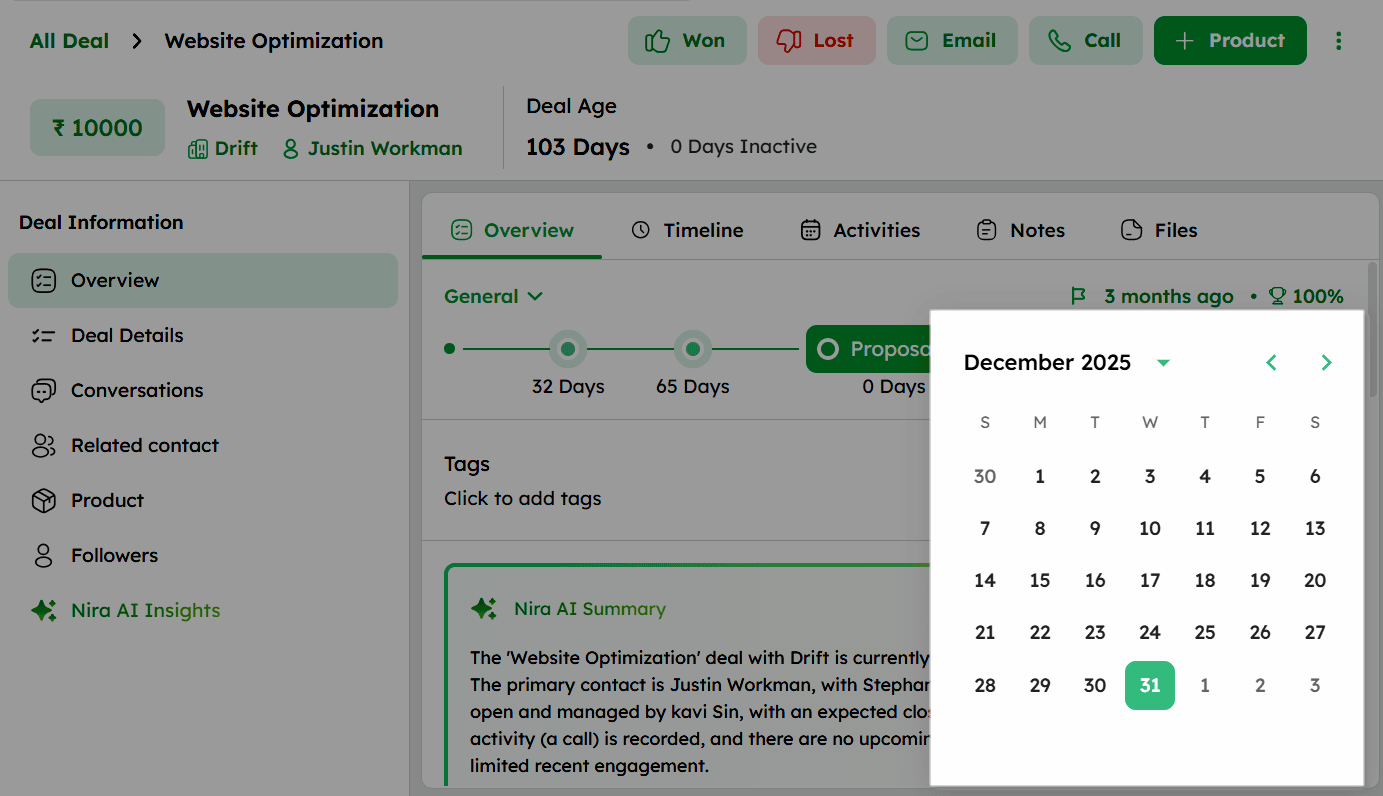
- View the Expected Close Date on the right side and edit it using the date picker.
-
Review the Probability displayed on the right side, editable from the pipeline drawer.
-
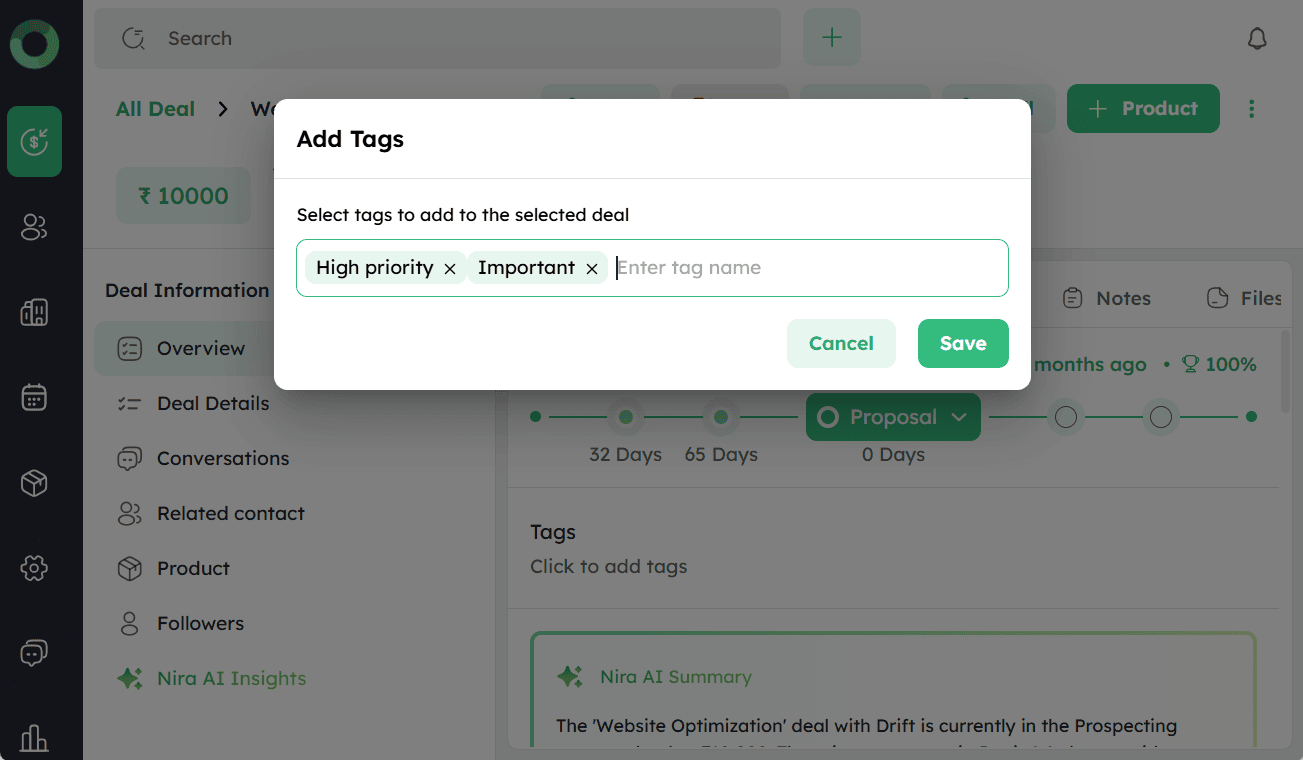
Add and manage Tags below the scale bar to categorize the deal.
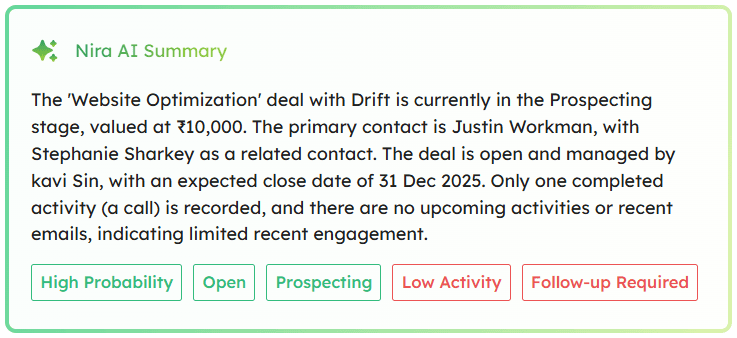
- The NIRA AI Summary section displays an AI-generated overview of the deal, extracts key insights and keywords from deal interactions.
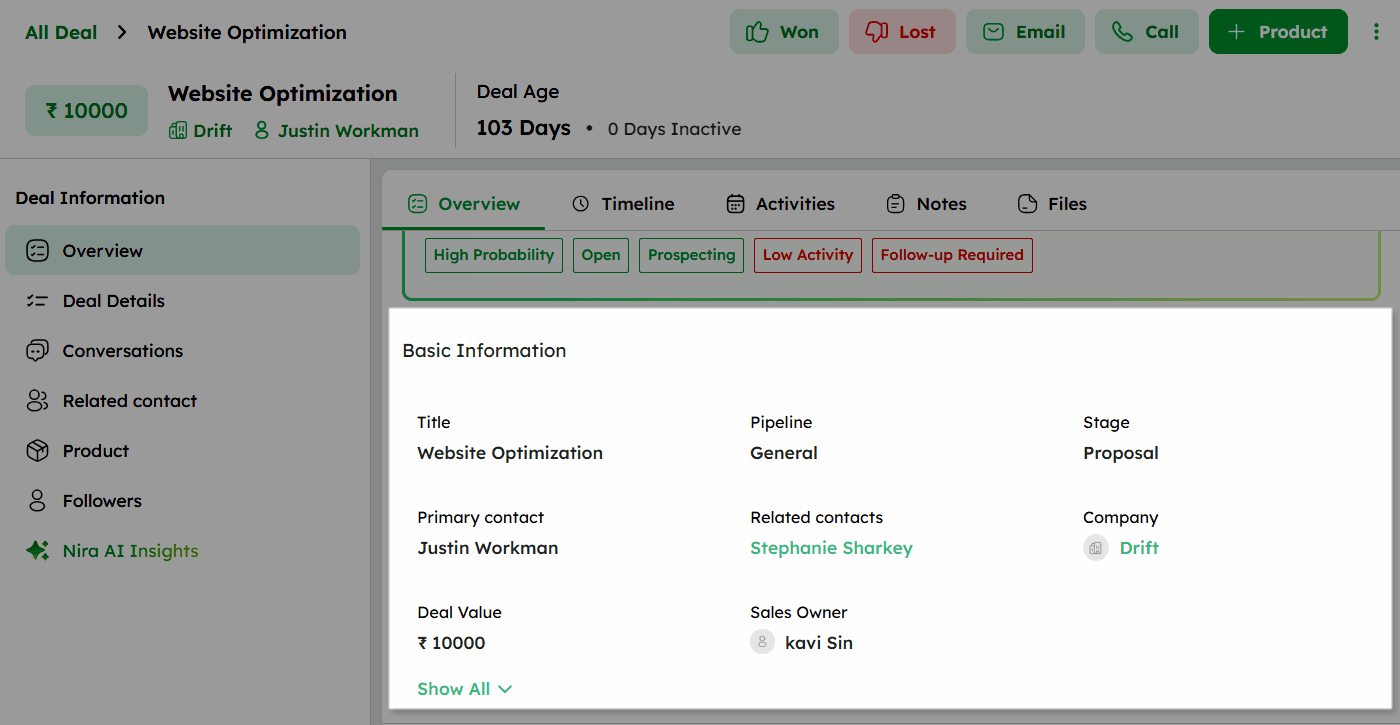
- The Basic Information section displays the following fields: Title, Pipeline, Stage, Primary Contact, Related Contacts, Company, Deal Value, and Sales Owner. Click Show All to view additional fields.
-
Hover over any field in the Basic Information section to reveal the inline edit option and update the value directly.
-
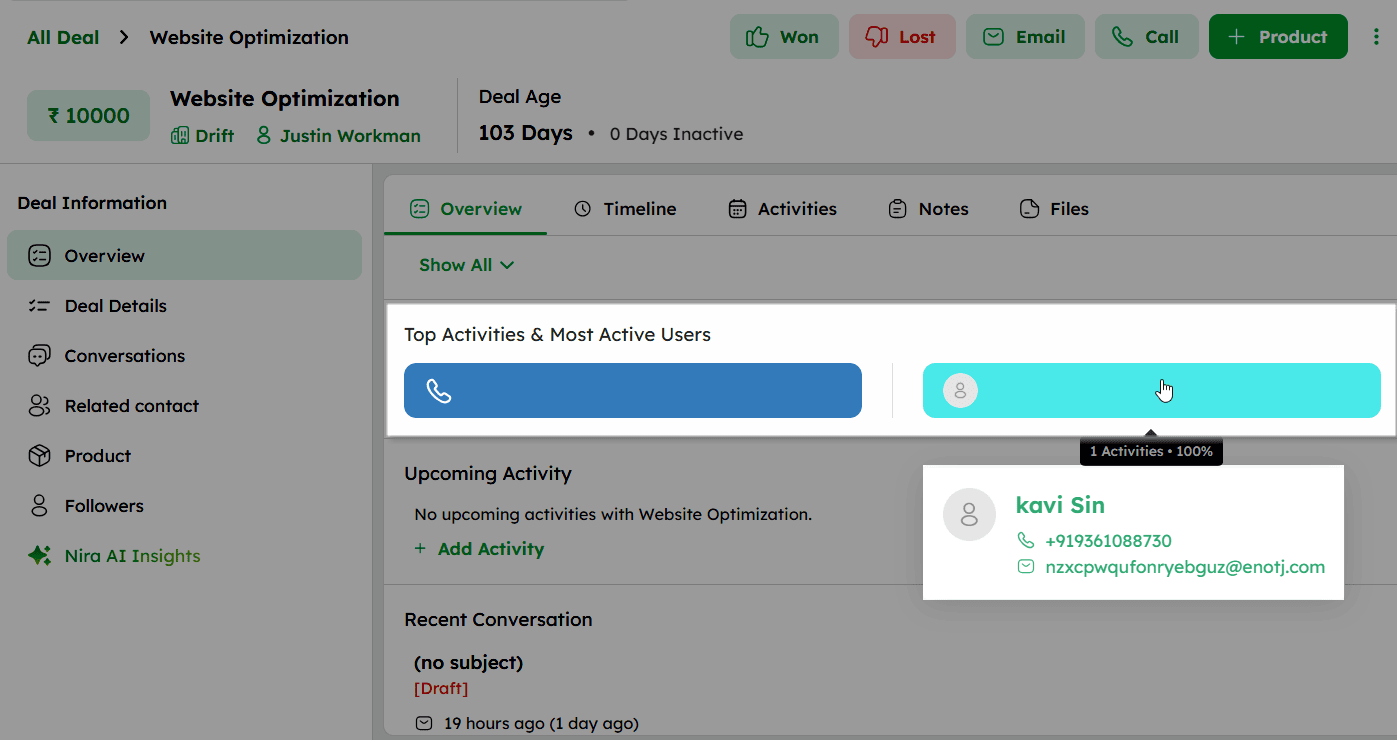
The Top Activities & Most Active Users section displays visual bars showing the most frequently performed activity types and the most engaged users. Hover over a user bar to view their details.
-
Top Activity: Icons representing activity types.
-
Most Active Users: Profile images of the most engaged users.
- Below that:
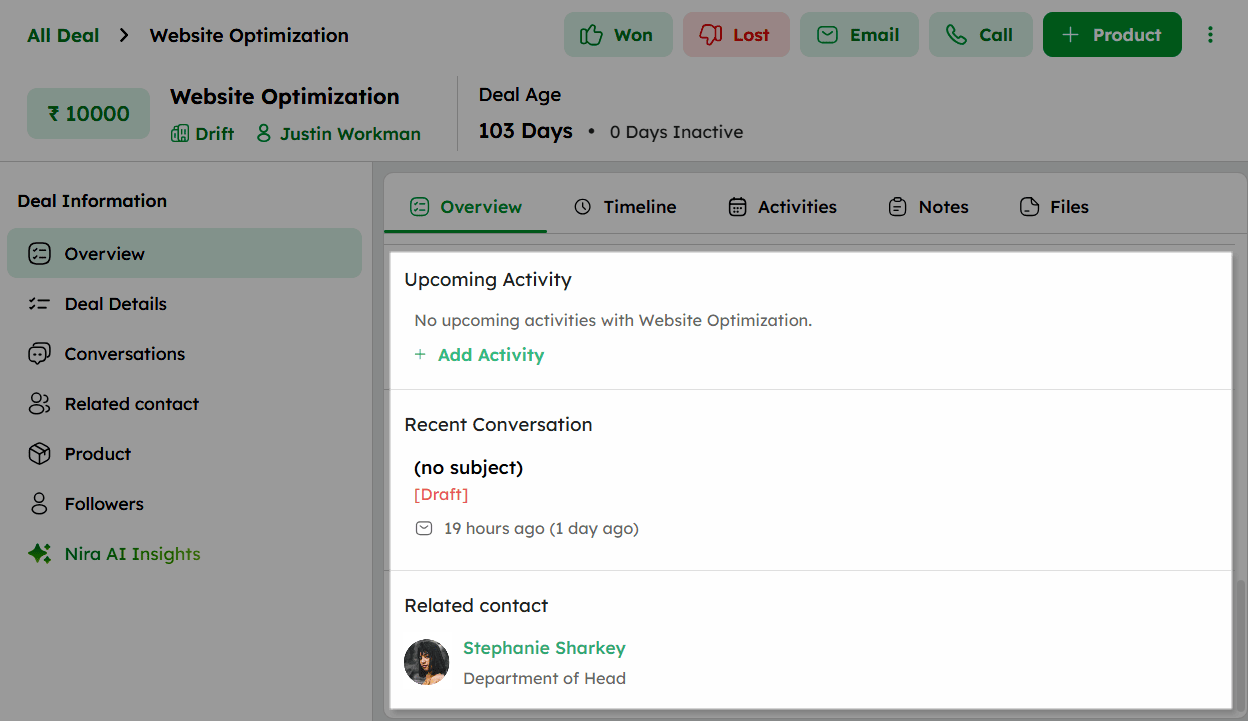
- The Upcoming Activity section displays all scheduled tasks associated with the deal. Click +Add Activity to schedule a new activity.
-
The Recent Conversation section displays the latest email conversation linked to the deal, including the subject, status, and timestamp.
-
The Related Contact section displays the contacts linked to the deal, including their names.
-
If no records are available, an add option is shown. Once a record is added, it is no longer displayed.
-
Clicking any linked record, such as an activity, conversation, or contact, opens its respective detailed view or interaction window.
Deal Timeline
The Timeline tab provides a chronological record of all interactions, updates, and activities related to the deal, grouped by date.
-
In the Deal module, click any deal to open the Deal Detail page.
-
In the Deal Information panel, navigate to the Overview section.
-
Click the Timeline tab at the top of the Overview section to view the deal’s interaction history.
-
Timeline entries are grouped by date, with each entry displaying the timestamp, action, and the user who performed it.
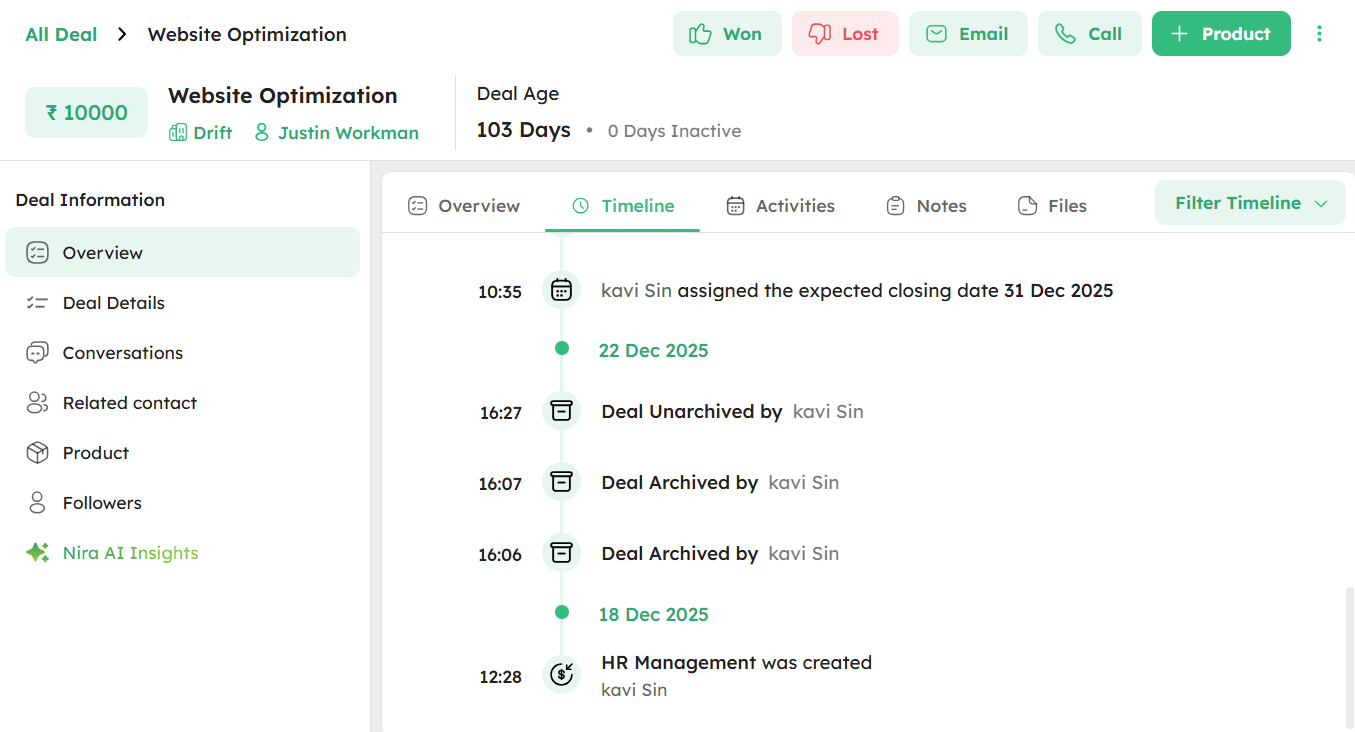
- Click Filter Timeline at the top right to filter entries by type. The available filter options are Calls, Emails, Notes, Activities, Files, and Updates.
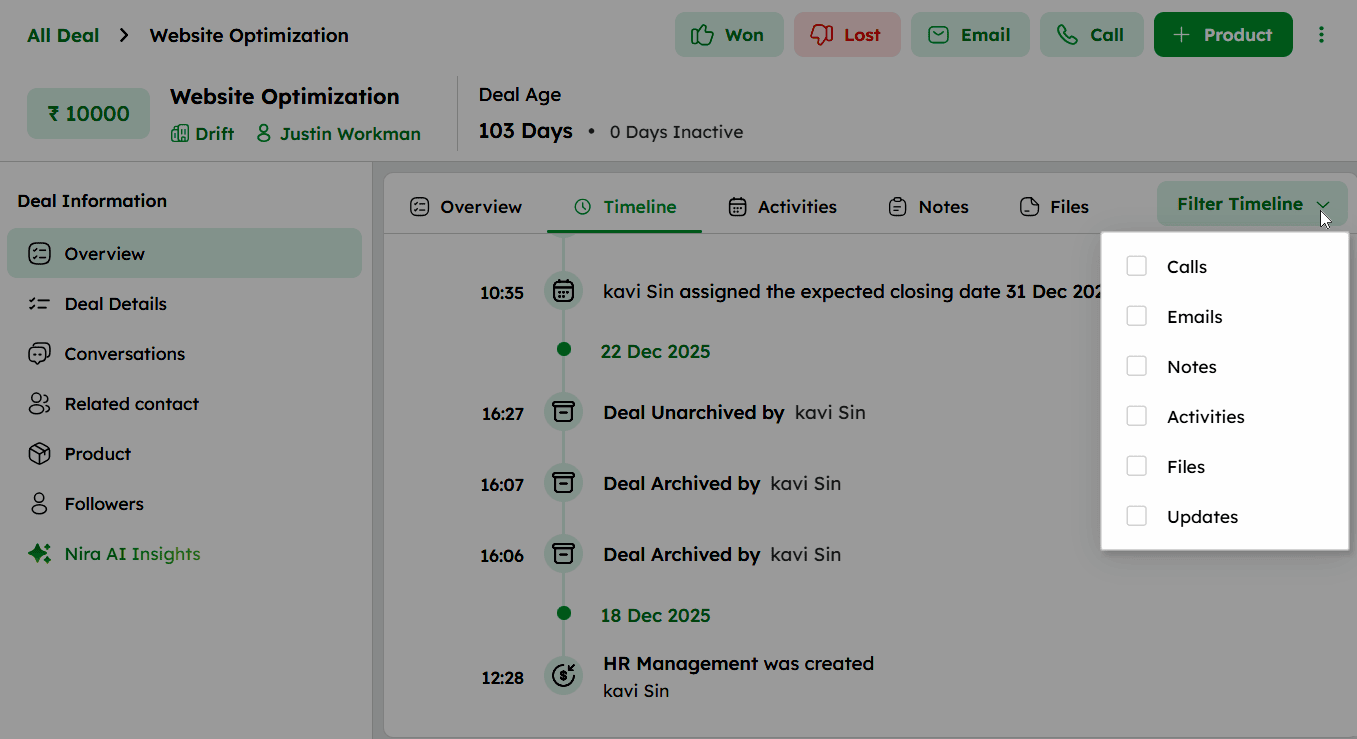
- Select one or more filter options to view specific entry types together.
Deal Activities
The Activities tab displays all scheduled, completed, and overdue tasks associated with the deal.
-
In the Deal module, click any deal to open the Deal Detail page.
-
In the Deal Information panel, navigate to the Overview section.
-
Click the Activity tab at the top of the Overview section to view all tasks added for the deal.
Each activity entry displays the date, time, activity type, deal name, primary contact, company, and sales owner.
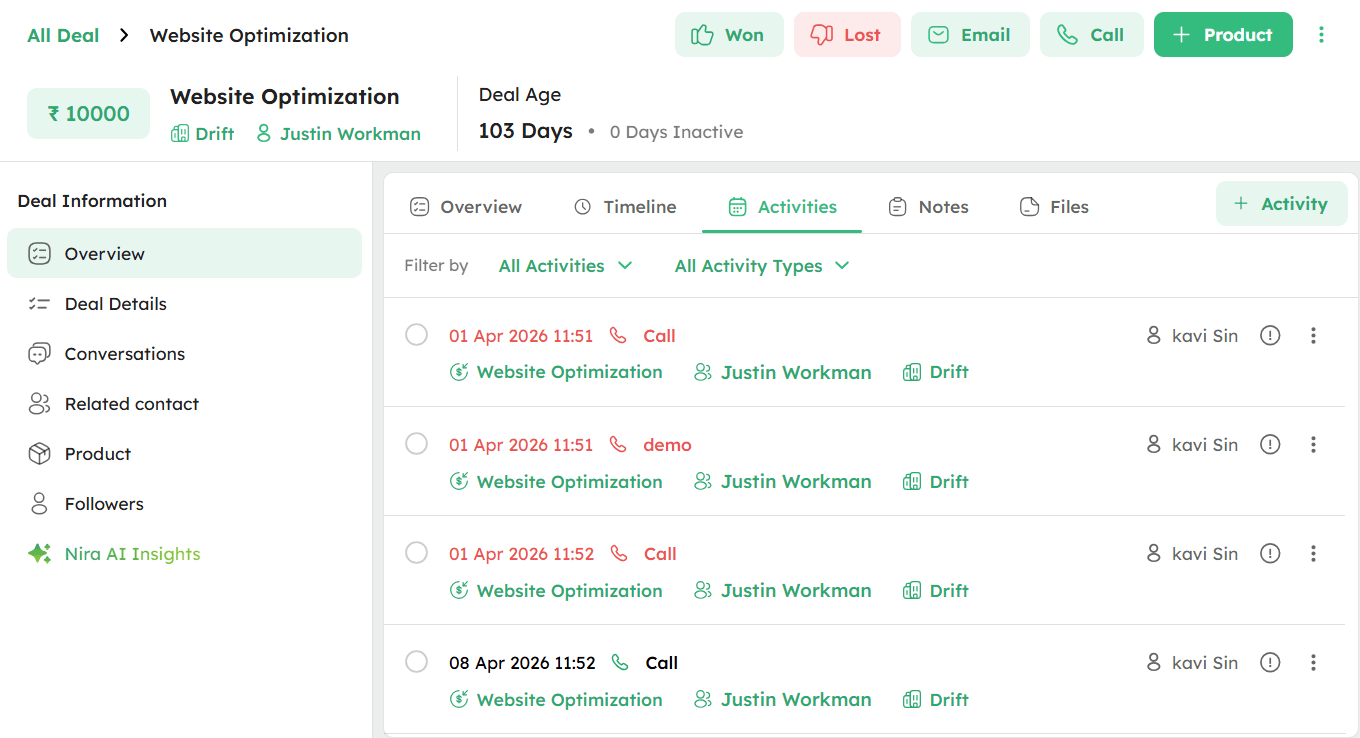
- Use the Filter by dropdown to filter activities by status. The available options are All Activities, Upcoming Activities, Completed Activities, and Overdue Activities.
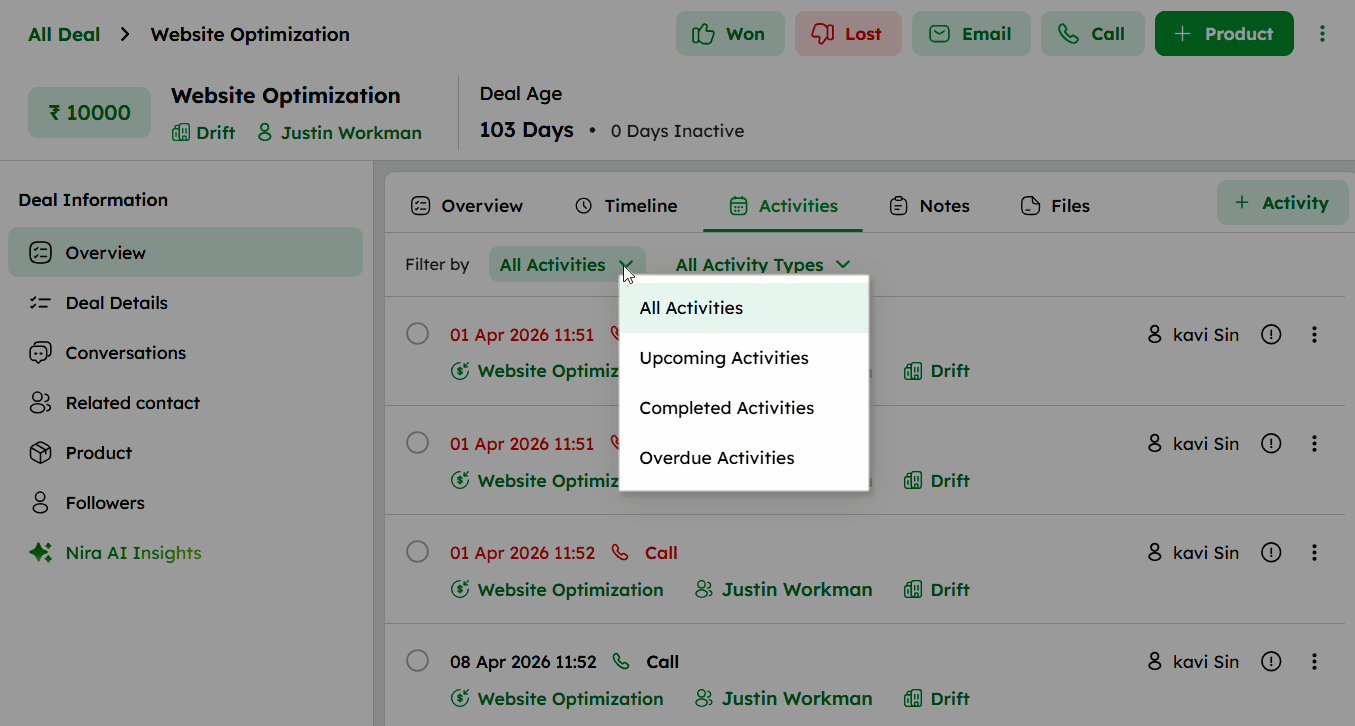
- Use the All Activity Types dropdown to filter activities by type. The available options are Call, Mail, Meeting, Task, and Lunch.
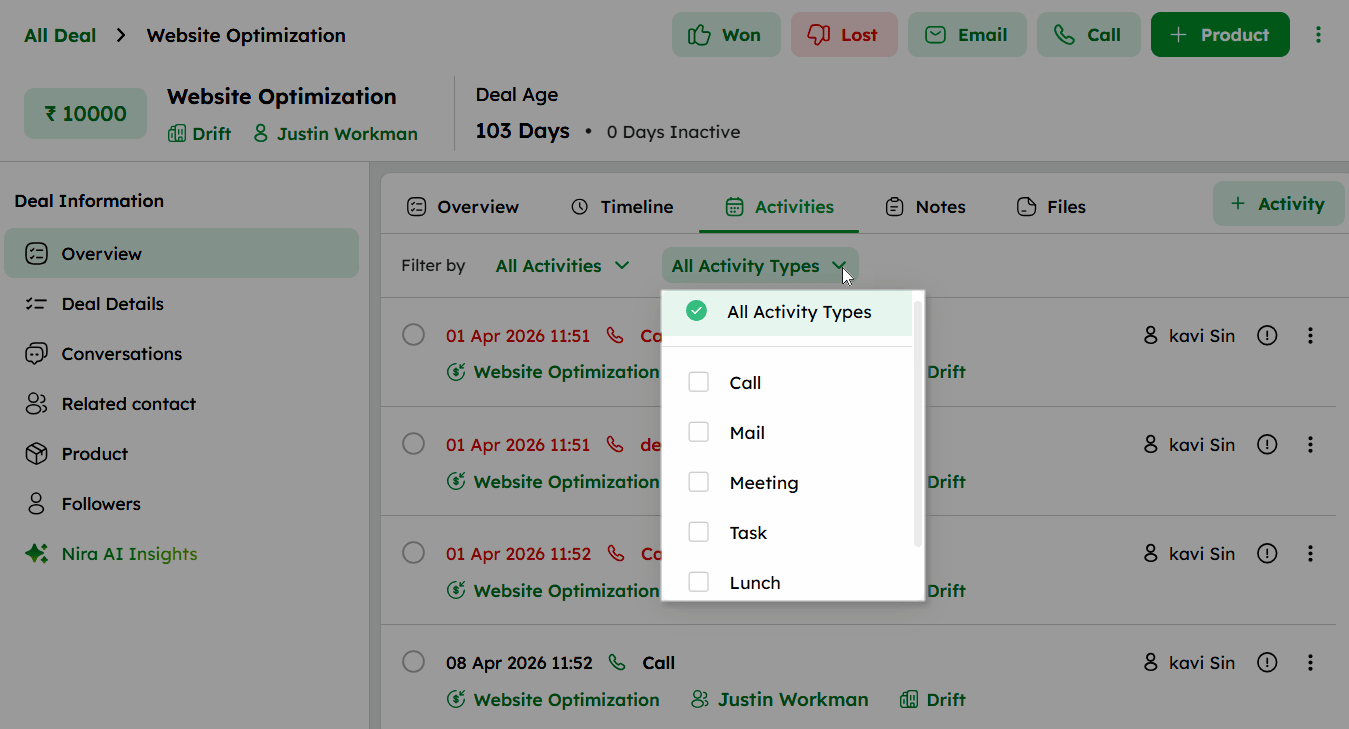
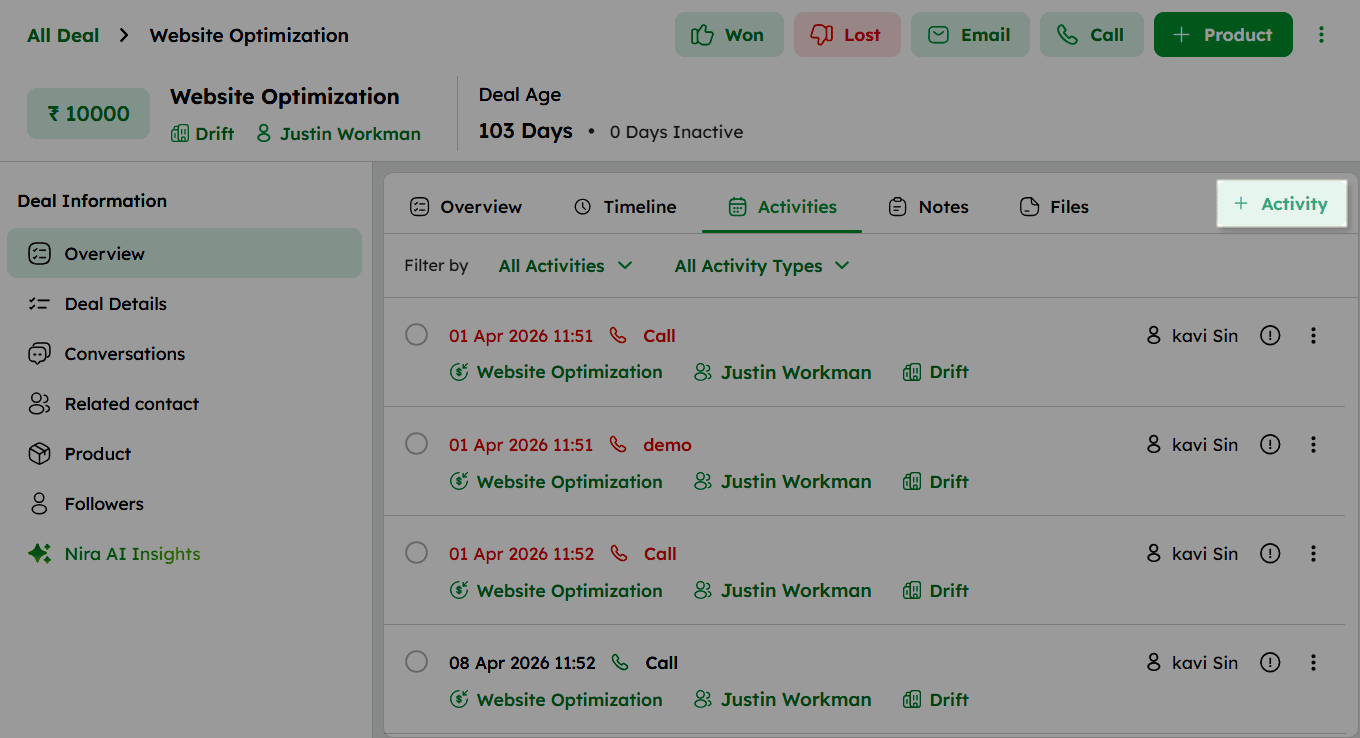
- Click + Activity button at the top right to create new tasks directly from this tab.
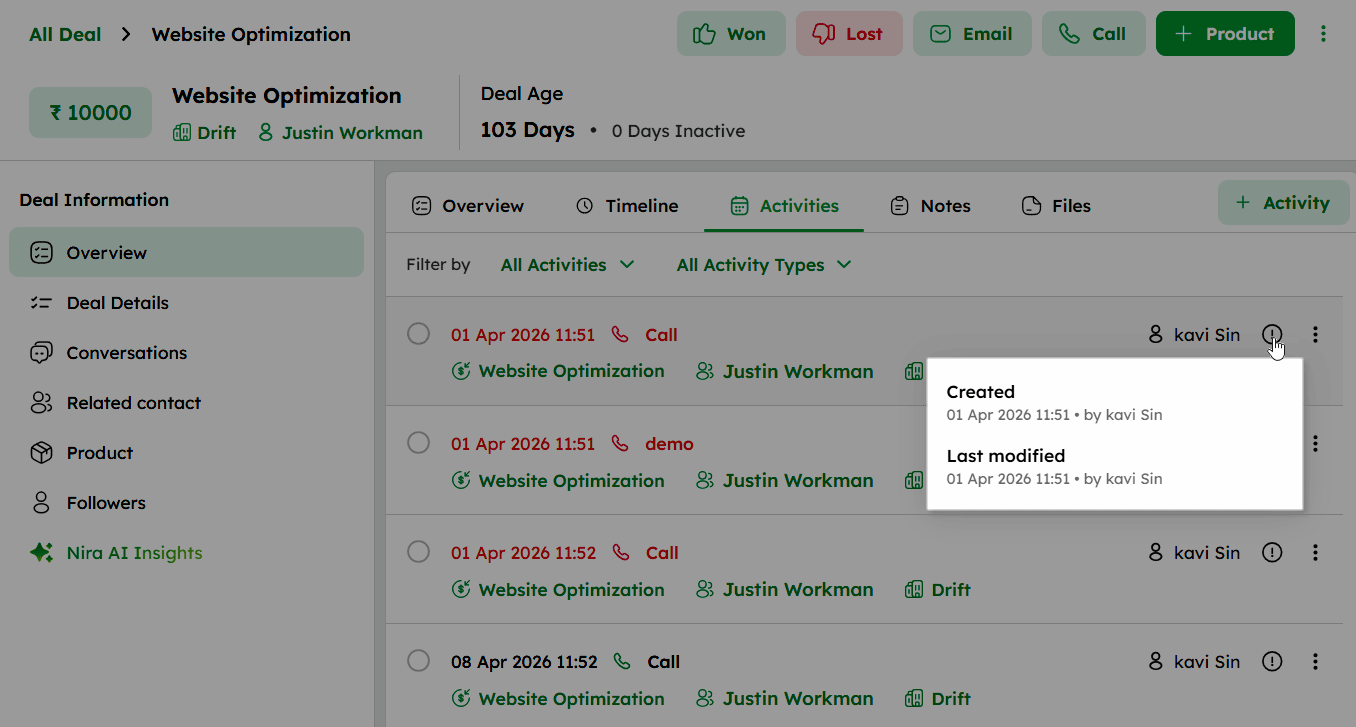
- Click the Info (!) icon next to an activity to view who created or modified it, along with the date and time.
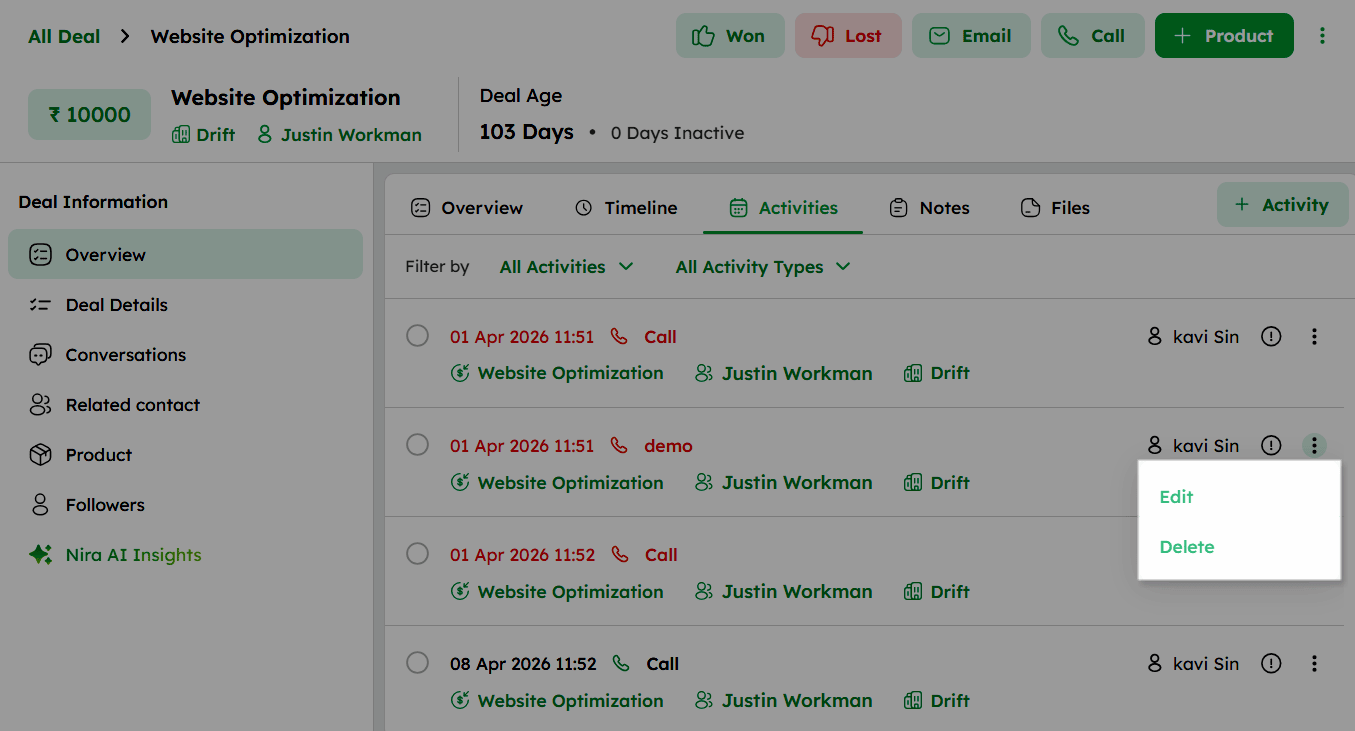
- Click the ellipsis (⁝) icon to Edit or Delete the activity.
-
Edit - Opens the activity to make changes.
-
Delete - Removes the activity from the deal.
Deal Notes
The Notes section in the Overview allows you to add and manage important information related to the deal.
-
In the Deal module, click any deal to open the Deal Detail page.
-
In the Deal Information panel, navigate to the Overview section.
-
Click the Notes tab at the top of the Overview section to access the notes section.
-
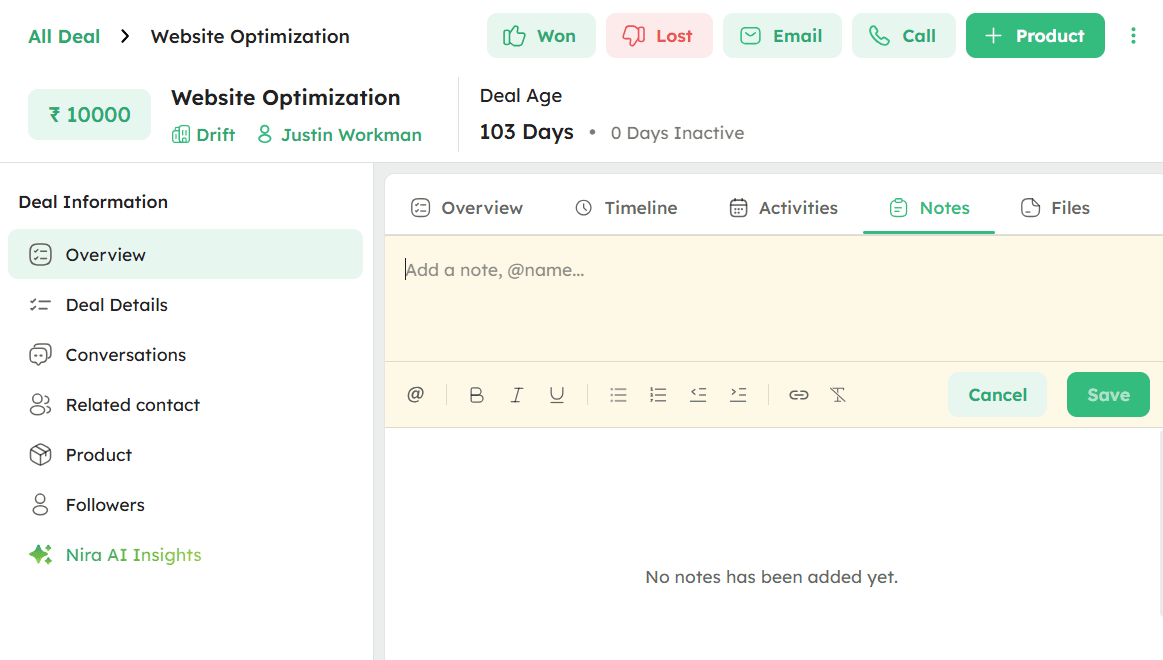
Click the input field displaying "Add a note, @name..." and type your note directly.
-
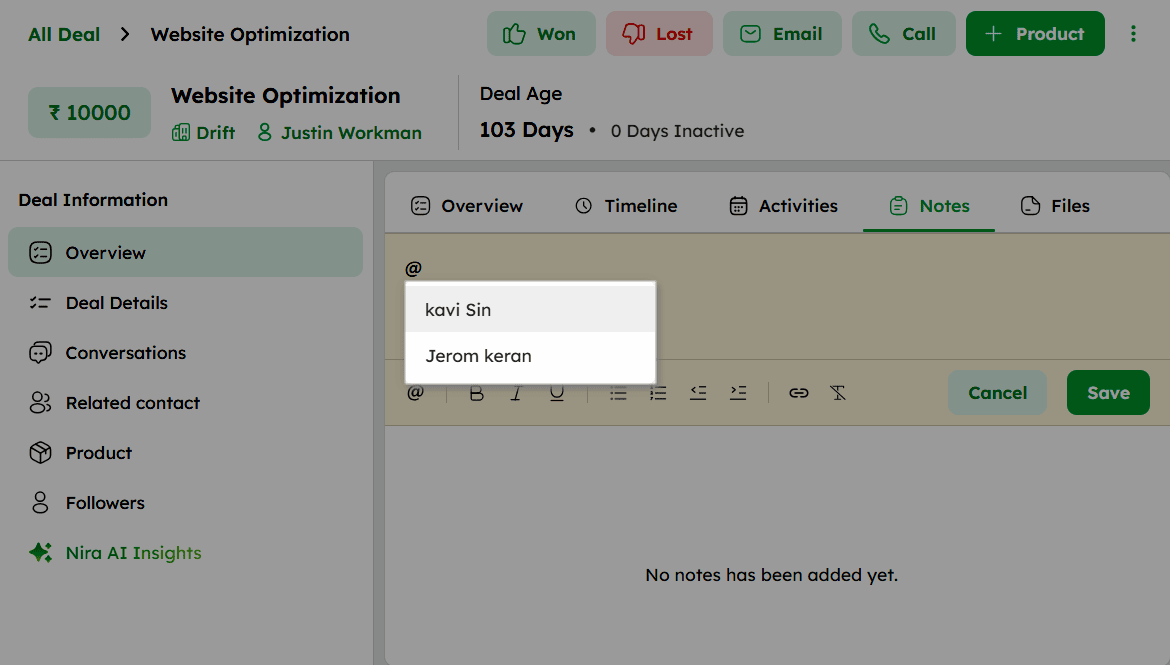
Use @ to mention a teammate by name. A dropdown will appear with the list of available users. Select a user to tag them in the note.
-
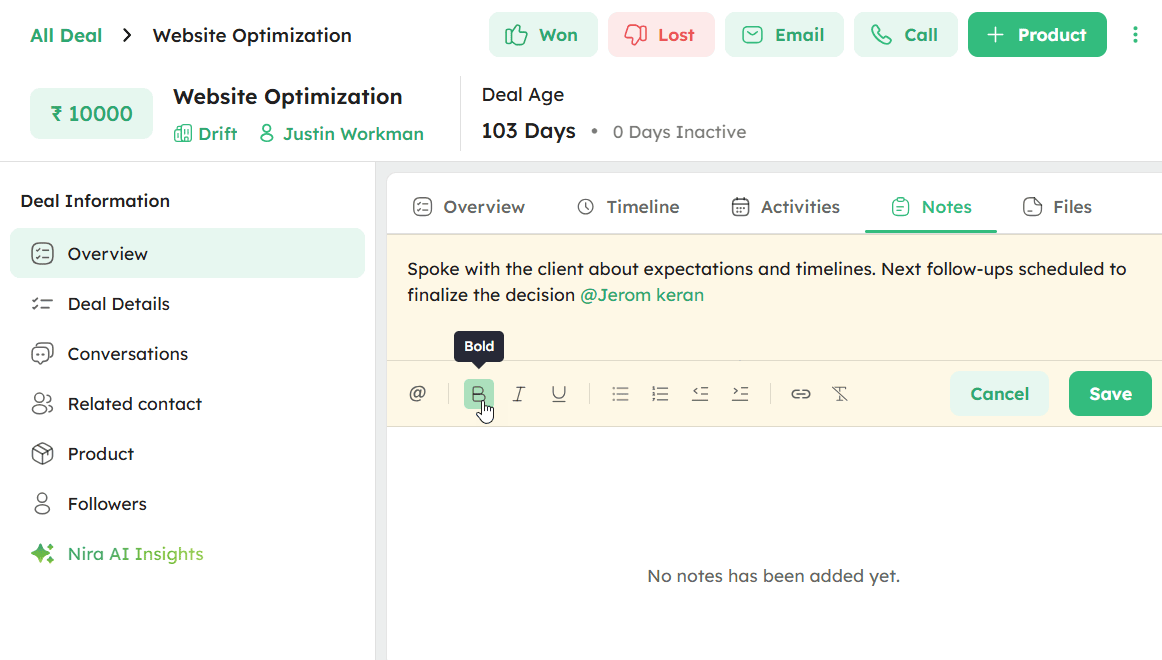
Use the formatting toolbar to format the note content using options such as **Bold, Italic, Underline, lists, links, and more.**
-
Click Save to add the note or Cancel to discard it.
-
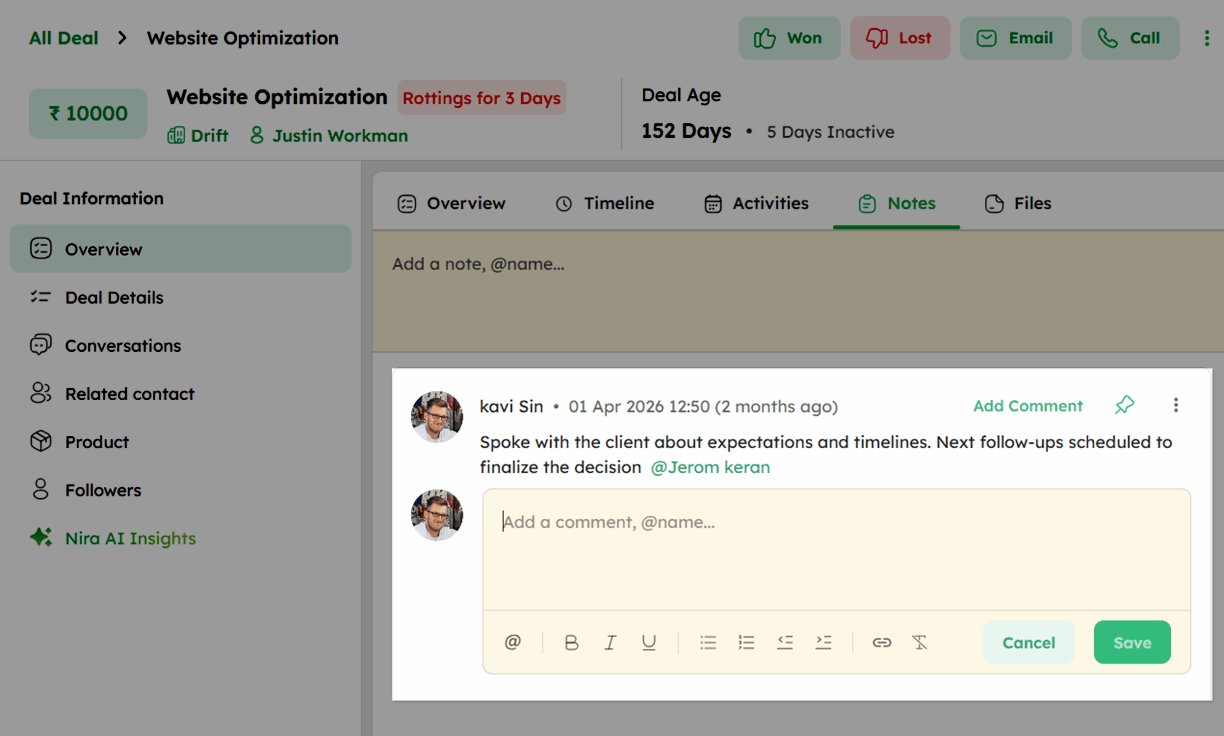
Once a note is saved, it displays the author's name, date, and time.
-
Click Add Comment on a saved note to add a reply or comment.
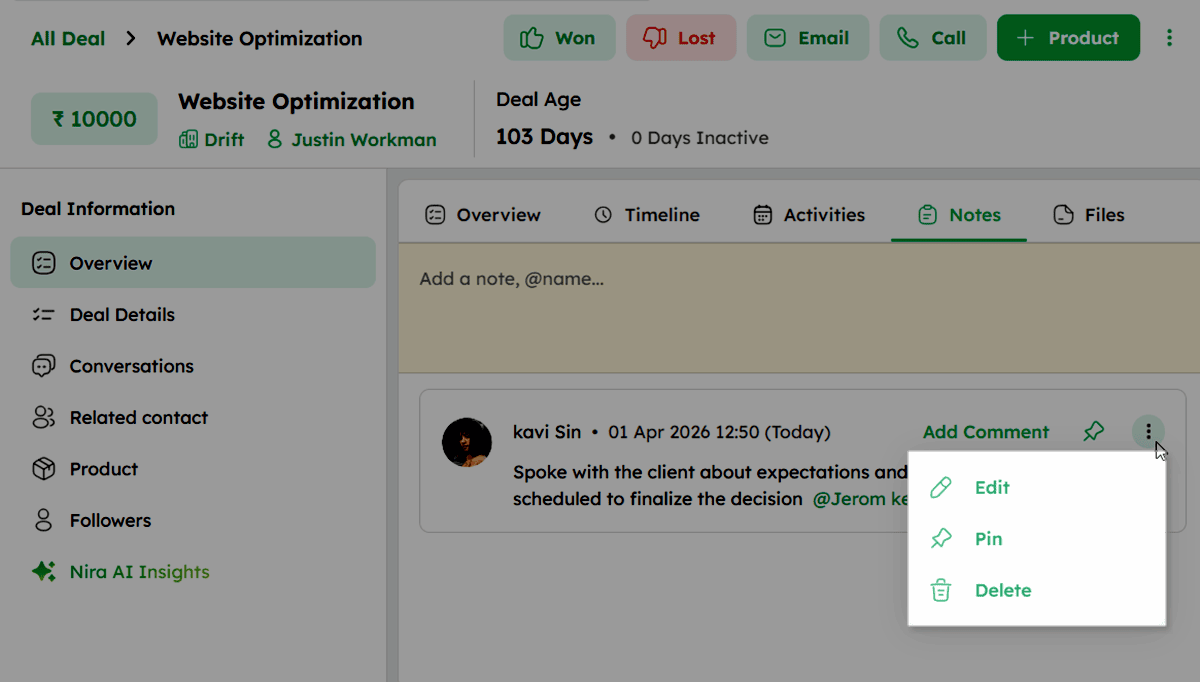
- Click the ellipsis (⋮) icon on a saved note to access the following actions:
-
Edit - Opens the note to make changes.
-
Pin - Pins the note to the top of the notes list.
-
Delete - Removes the note from the deal.
Mentioning a teammate in a note sends them a notification if they have access to the deal.
Deal Files
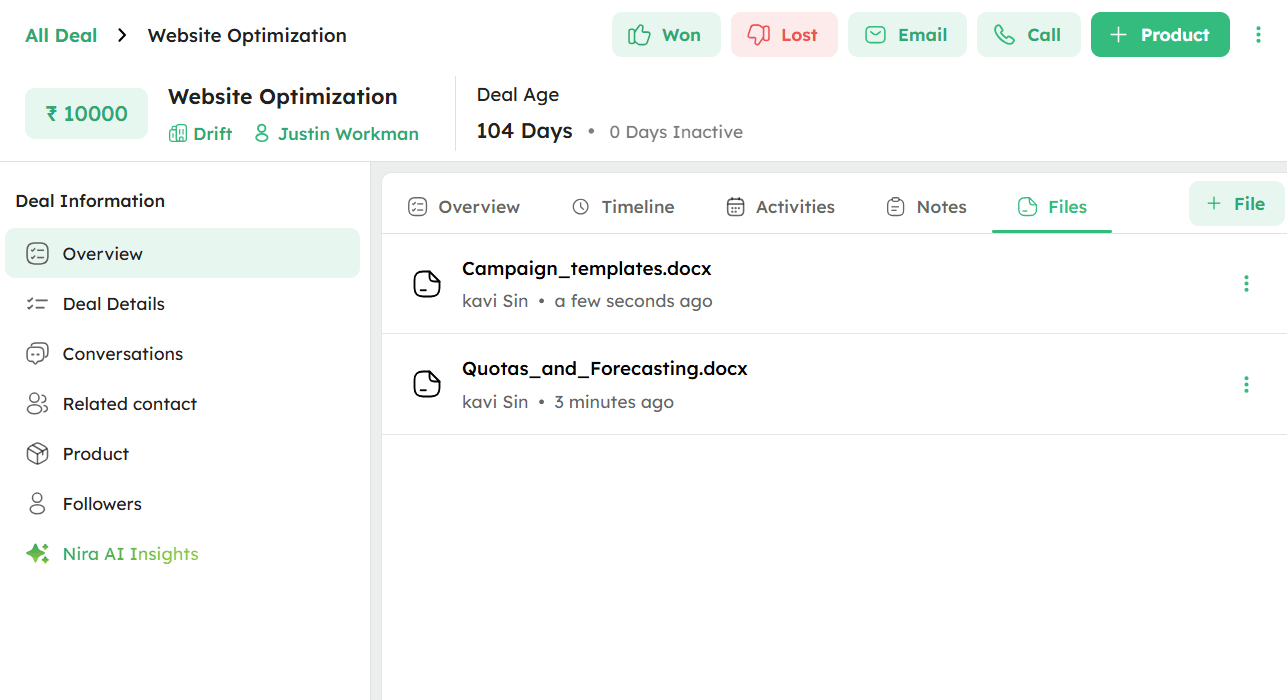
The Files tab allows you to upload and manage deal-related documents and attachments directly from the Deal Detail page.
- In the Deal module, click any deal to open the Deal Detail page.
-
In the Deal Information panel, navigate to the Overview section.
-
Click the Files tab at the top of the Overview section to view all uploaded files.
-
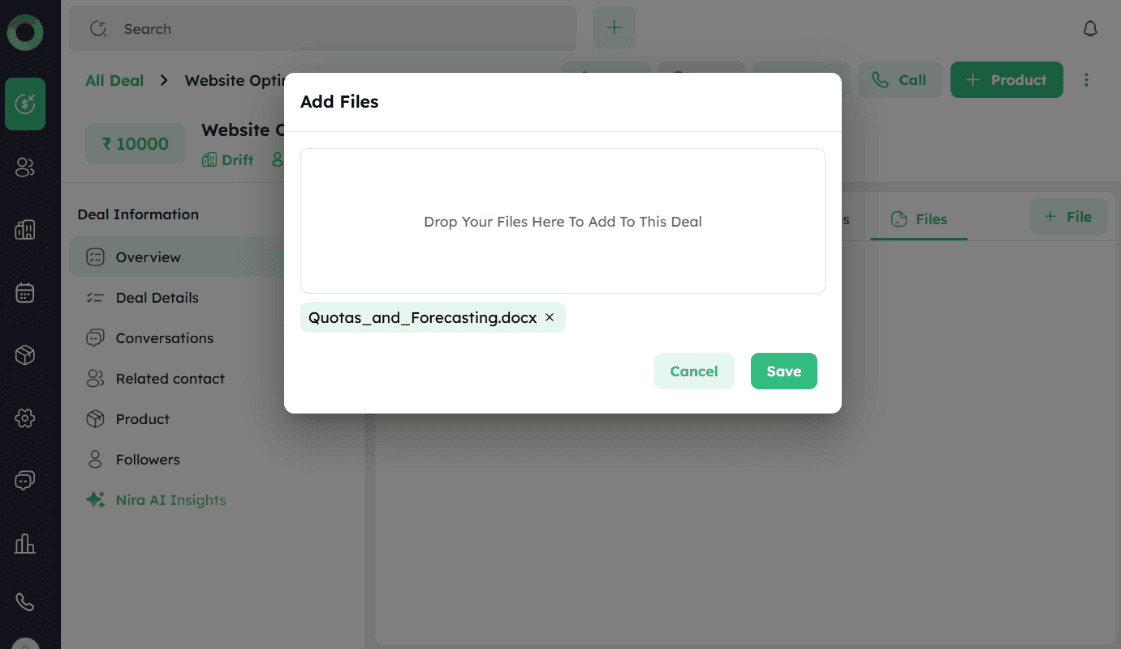
Click + File at the top right to open the Add Files dialog box.
-
In the Add Files dialog box, drag and drop files into the upload area or click to browse and select files from your device.
-
Click Save to upload the file or Cancel to discard.
-
Click the ellipsis (⋮) icon next to a file to Download or Delete it.
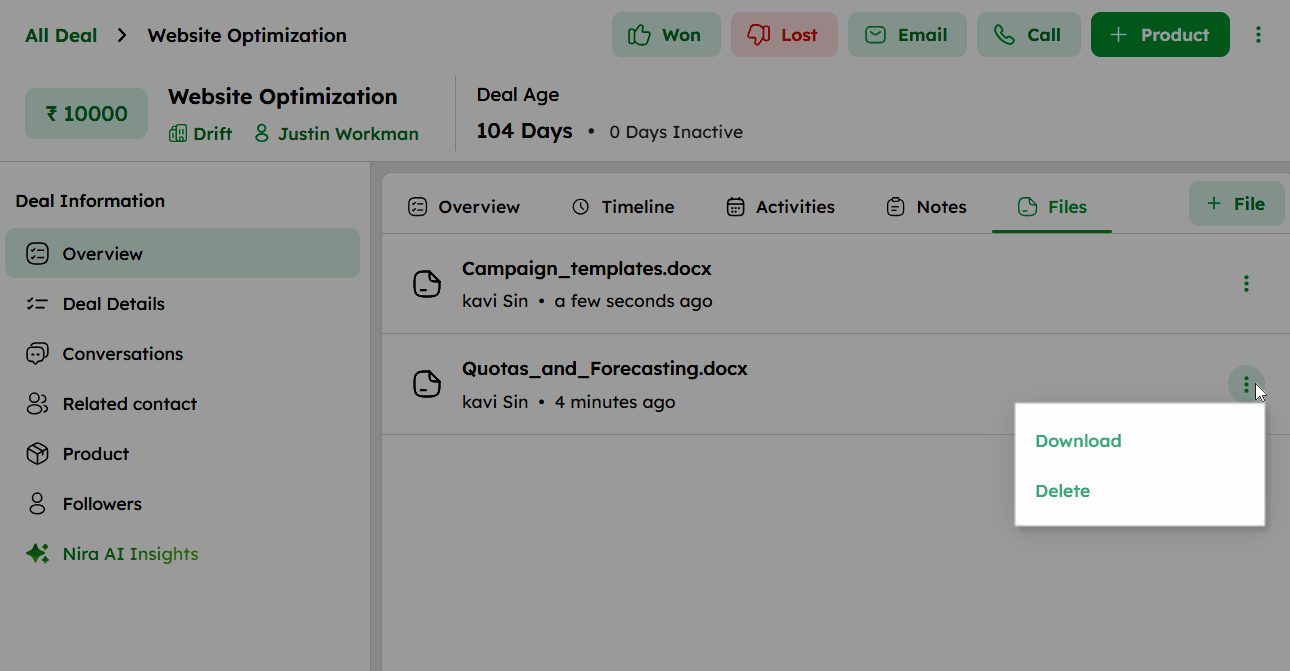
- Each file entry displays the file name, uploaded by, and the timestamp.
- The maximum file size allowed is 50 MB.
- Supported file formats: DOCX, DOC, PDF, PPT, PPTX, XLS, CSV, XLSX, TXT, HTML, GIF, JPG, JPEG, and PNG.
- The file name, including the extension, must not exceed 255 characters.
Navigating the Deal Detail Page: Deal Details Tab
The Deal Details section provides a structured view of all fields associated with a deal, including system-defined and custom fields.
-
In the Deal module, click any deal to open the Deal Detail page.
-
Click Deal Details from the Deal Information panel to access all deal fields.
-
Use the search bar at the top left to find fields by name or value.
-
Click Manage Fields at the top right to access and configure the deal data fields.
-
Use the Show Empty Fields toggle to show or hide fields without values.
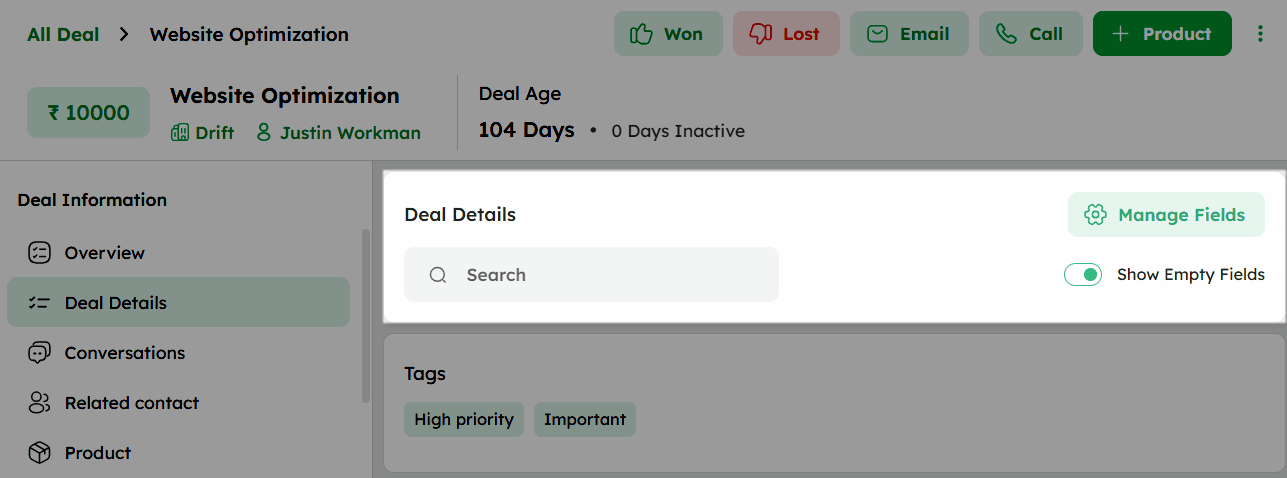
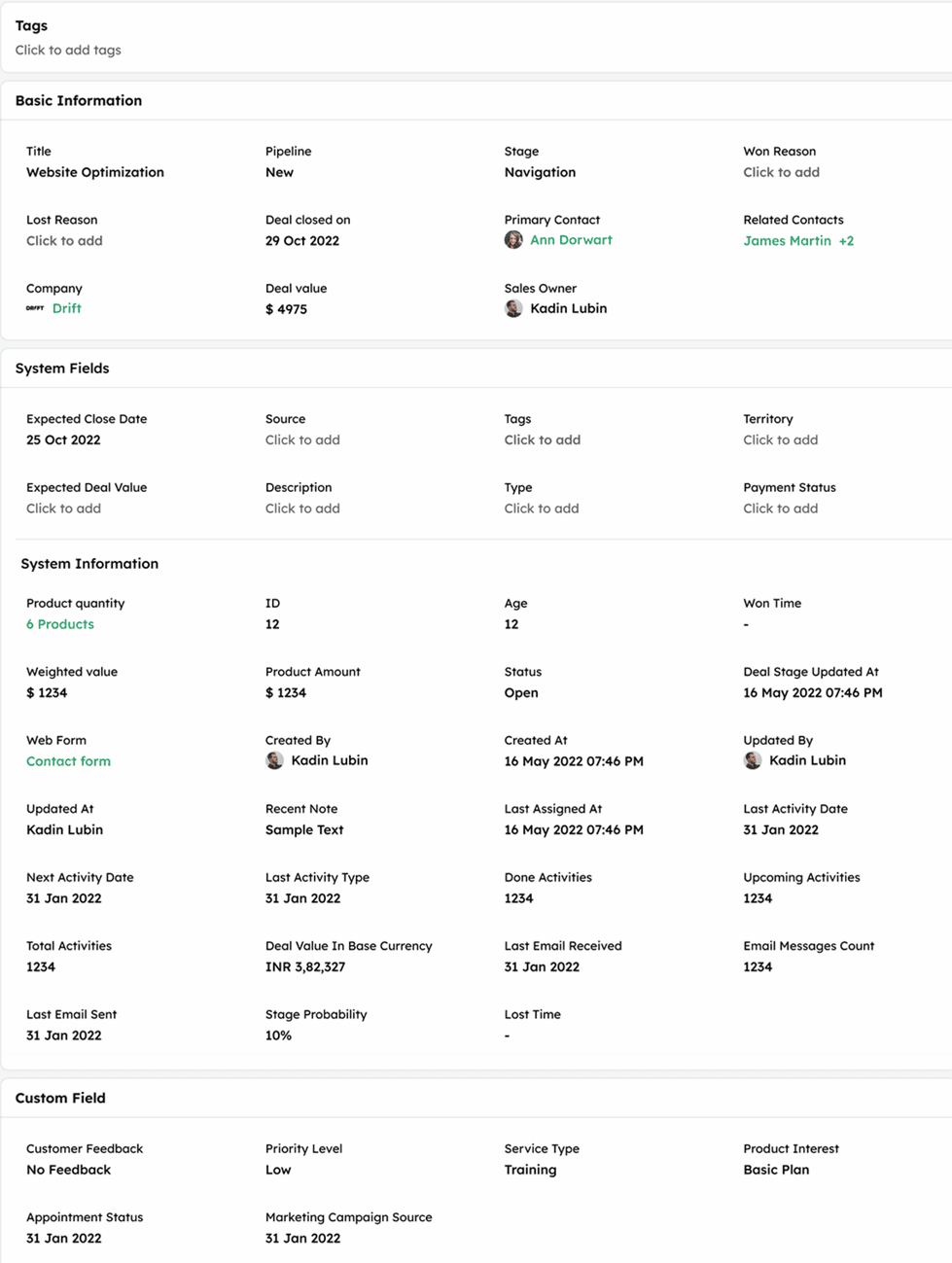
- The fields are organized into the following sections:
-
Tags - Displays tags associated with the deal for quick categorization
-
Basic Information - Displays editable key deal fields including Title, Pipeline, Stage, Won Reason, Lost Reason, Deal Closed On, Primary Contact, Related Contacts, Company, Deal Value, and Sales Owner.
-
System Fields – Displays editable system-defined fields including Expected Close Date, Forecast Category, Source, Tags, Territory, Expected Deal Value, Description, Type, and Payment Status.
-
System Information – Displays auto-generated and non-editable CRM fields such as Product Quantity, ID, Age, Won Time, Weighted Value, Product Amount, Status, Deal Stage Updated At, Web Form, Created By, Created At, Updated By, Updated At, and more.
-
Custom Field – Displays user-created custom fields associated with the deal.
-
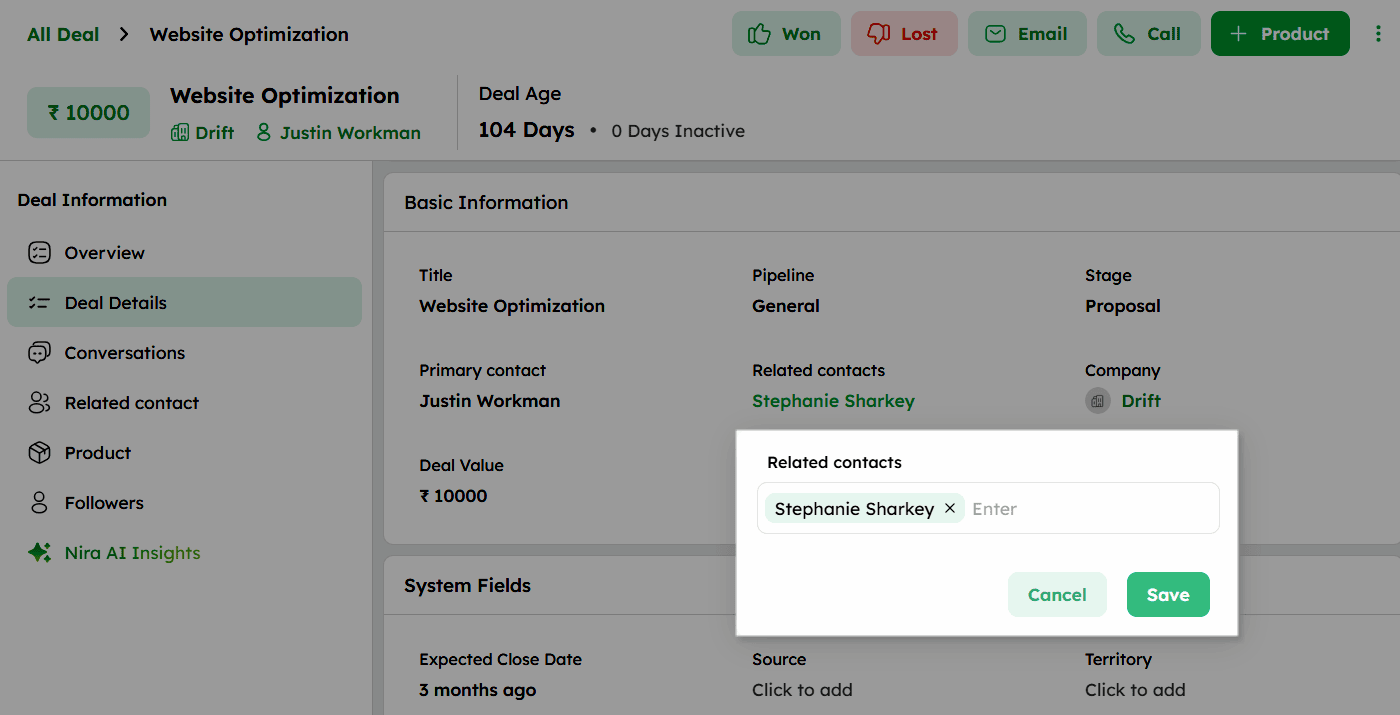
Hover over any editable field to reveal the inline edit option.
-
Click the edit icon to update the field value directly. Click Save to confirm or Cancel to discard the changes.
Navigating the Deal Detail Page: Conversations Tab
The Conversations section displays all deal-related communications, providing a complete interaction history across multiple channels.
-
In the Deal module, click any deal to open the Deal Detail page.
-
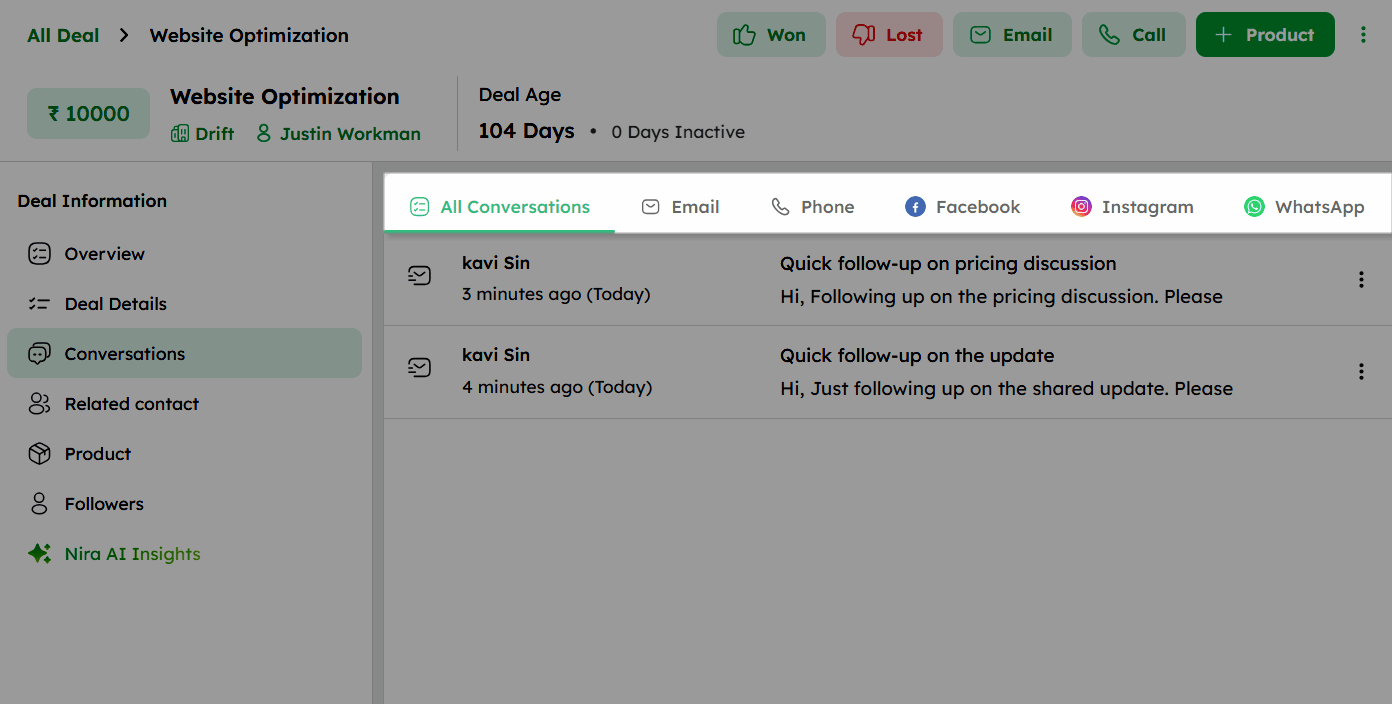
Click Conversations from the Deal Information panel to view all communications linked to the deal.
-
Use the channel tabs to filter conversations by All Conversations, Email, Phone, Facebook, Instagram, or WhatsApp.
-
Each conversation entry displays the sender, timestamp, subject, and a preview of the message content.
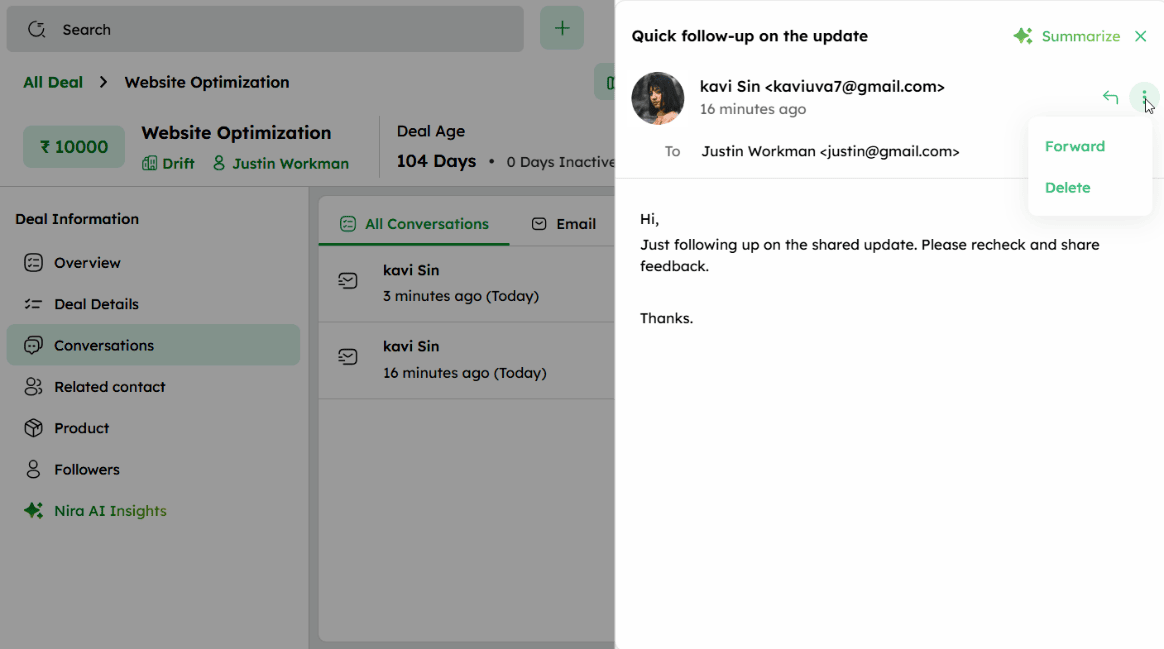
- Click any conversation to open the preview drawer and view its full content.
Draft emails open directly in the Compose tab.
- In the preview drawer, click Summarize to generate an AI summary of the conversation using Nira AI.
-
Click the reply icon in the preview drawer to reply to the conversation directly.
-
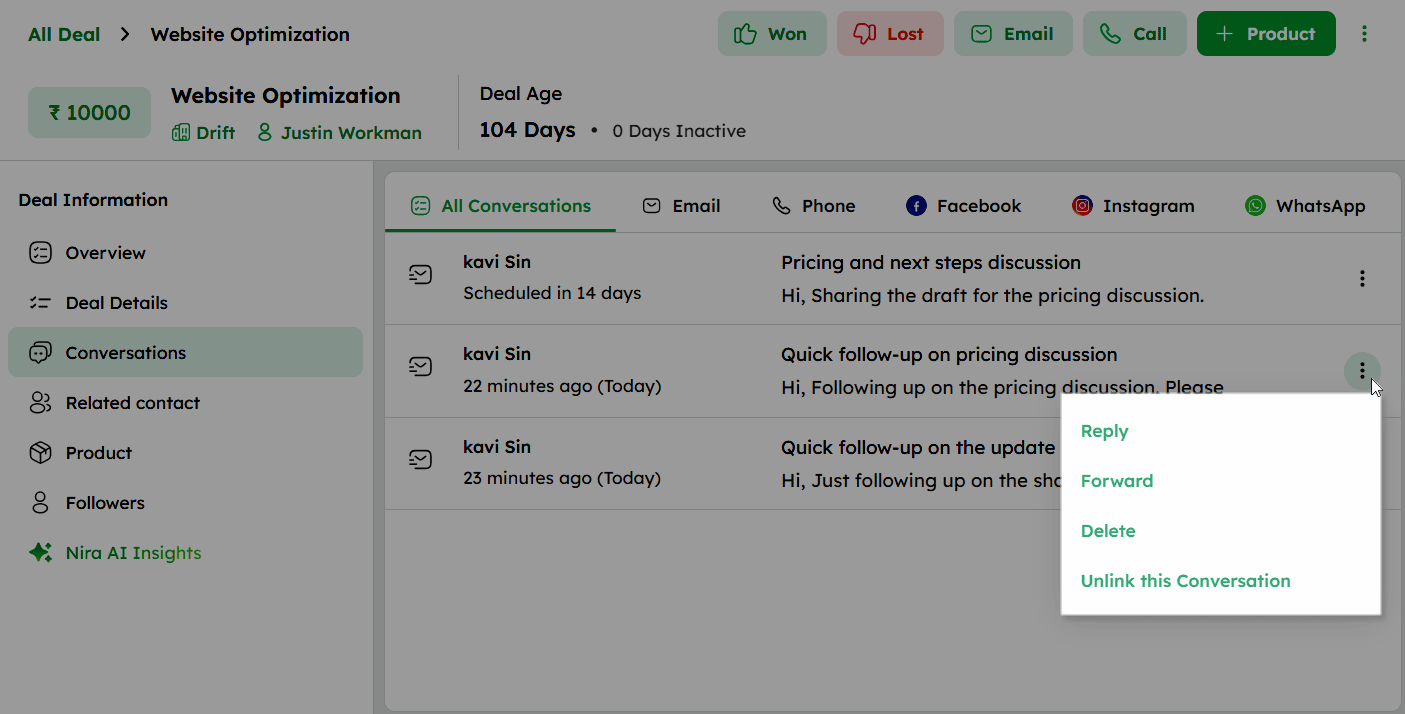
Click the ellipsis (⋮) icon next to a conversation to access the following actions:
- Reply - Respond to the conversation.
- Forward - Forward the conversation to another recipient.
- Delete - Remove the conversation from the deal.
- Unlink this Conversation - Remove the conversation from the Conversations and Timeline tabs.
- Received emails owned by other users cannot be deleted.
- Deleted emails are moved to the Trash folder.
- Use Unlink this Conversation to remove a conversation from the Conversation and Timeline tabs.
- To relink an unlinked conversation, open the email conversation and link it back to the deal.
- If Link to Deal is disabled mid-conversation, existing links remain but new ones will not be added.
- If Link to Deal is disabled mid-conversation, existing links remain, but new ones will not be added.
Navigating the Deal Detail Page: Related Contact Tab
The Related Contact section displays all contacts linked to the deal in a list view with their key contact details.
-
In the Deal module, click any deal to open the Deal Detail page.
-
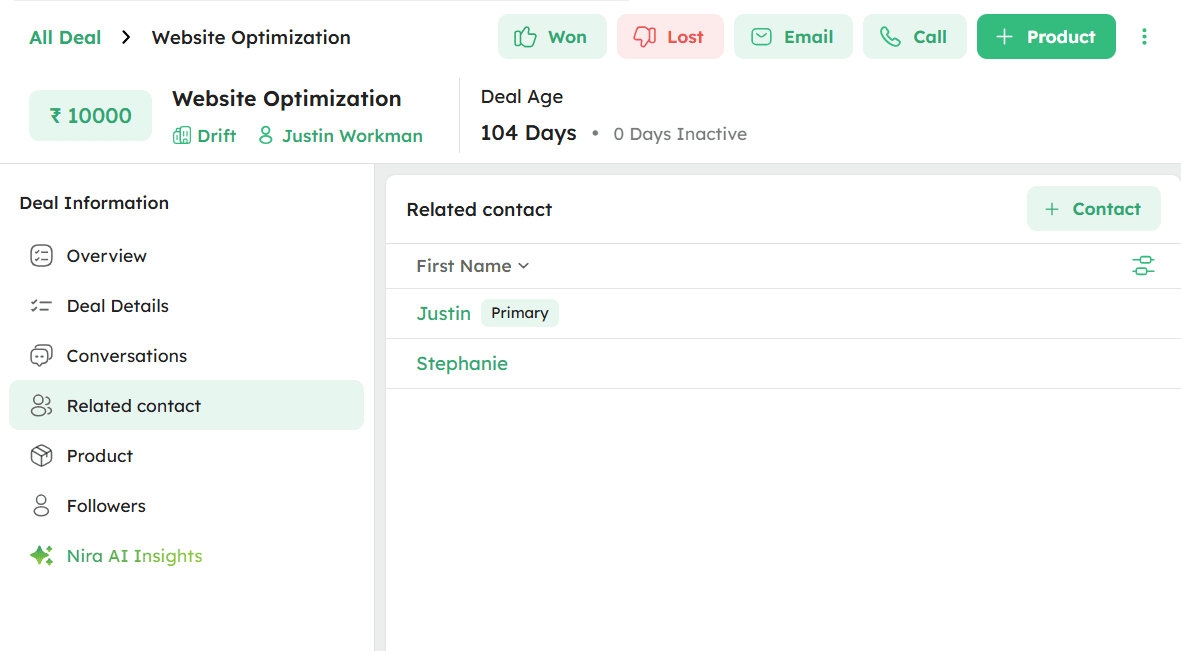
Click Related Contact from the Deal Information panel to view all contacts associated with the deal.
-
The primary contact is marked with a Primary tag in the contact list.
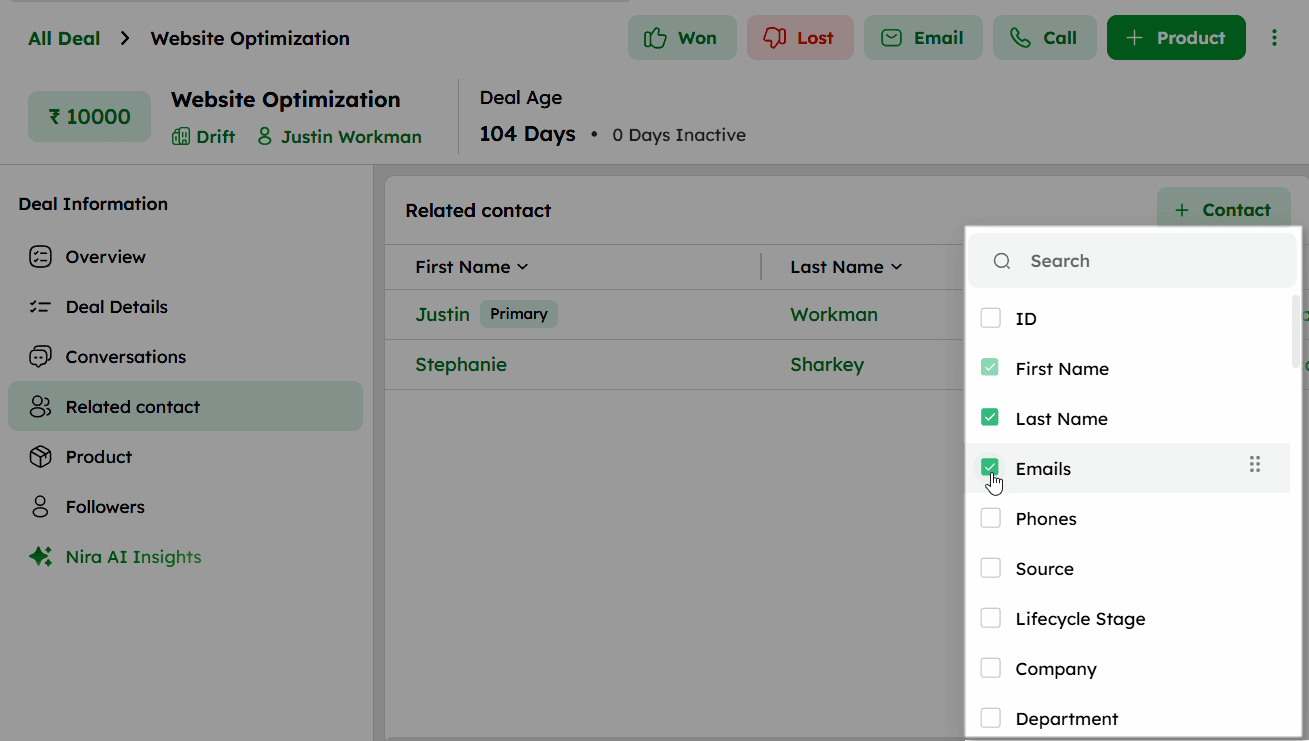
- Use the column settings icon to customize the list layout.
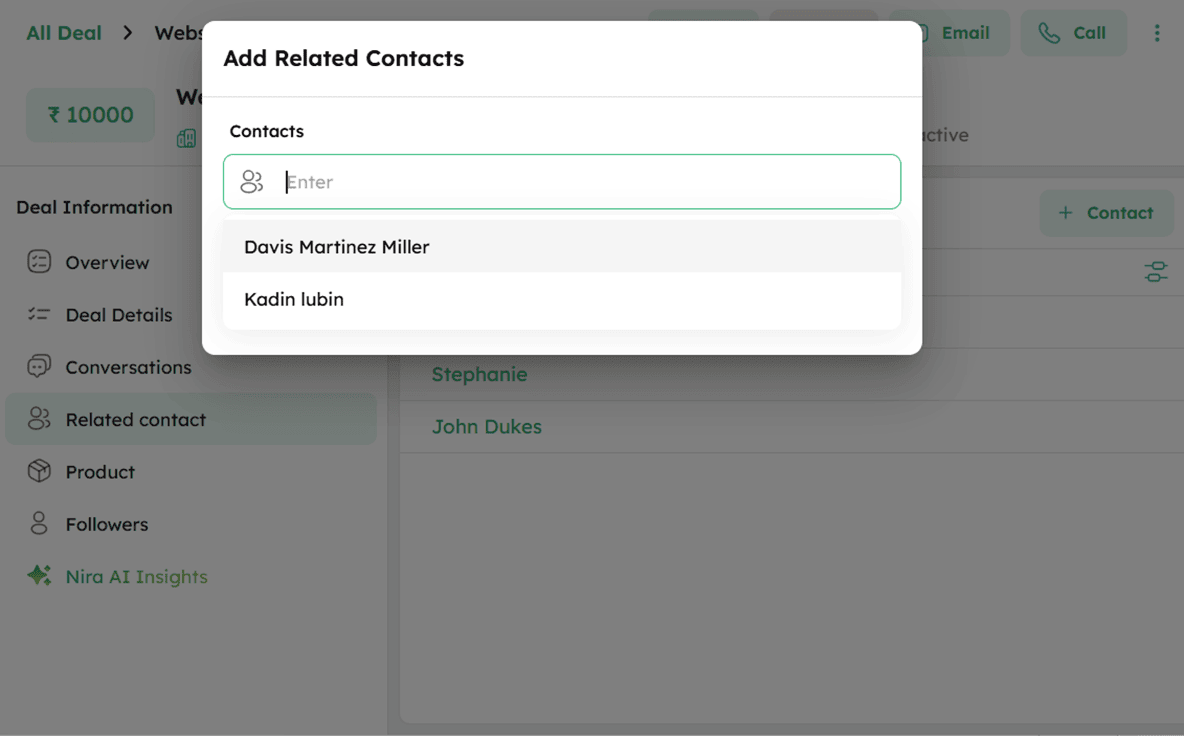
- Click +Contact at the top right to open the Add Related Contacts drawer.
-
Click the Contacts field and select a contact from the drop-down list.
-
Click Save to add the selected contact as a related contact for the deal.
Once a contact is added to the deal, the same contact cannot be added again.
Navigating the Deal Detail Page: Product Tab
The Product section displays all products linked to the deal in a list view with their key details.
-
Click Product from the Deal Information panel to view all products associated with the deal.
-
Each product entry displays the Name, Product Code, Category, Taxable, Type, and more.
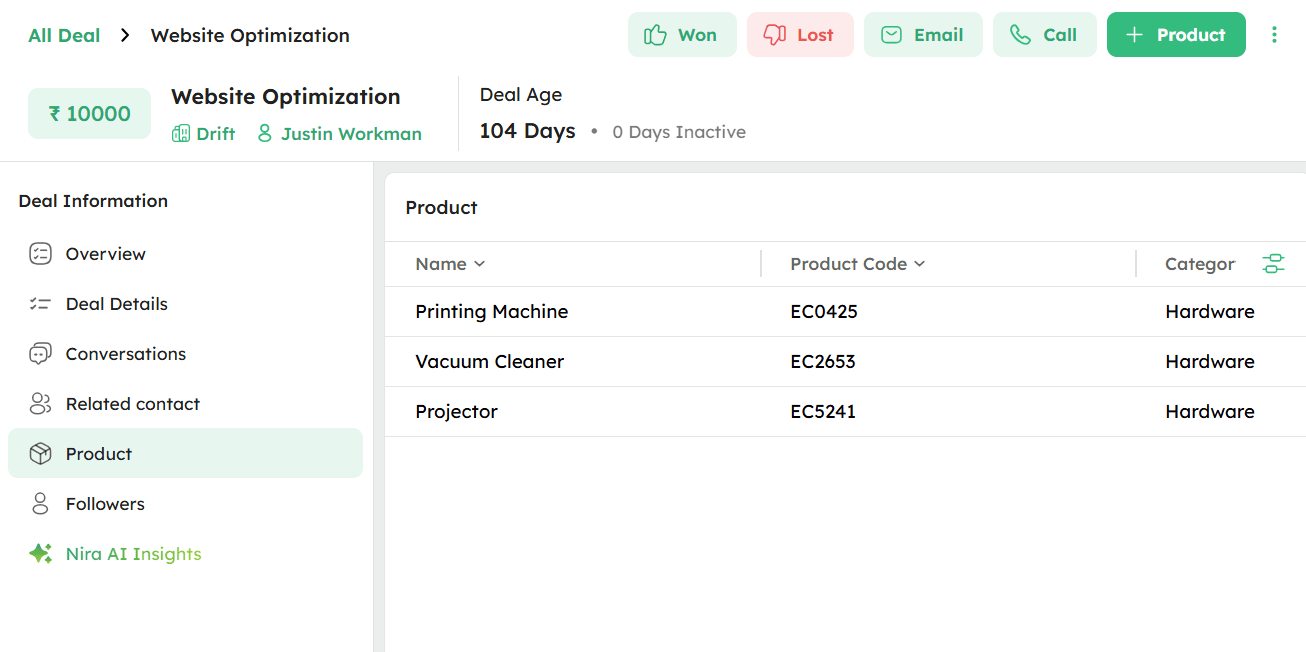
- Click the column settings icon at the top right to add or remove fields displayed in the list view.
Navigating the Deal Detail Page: Followers Tab
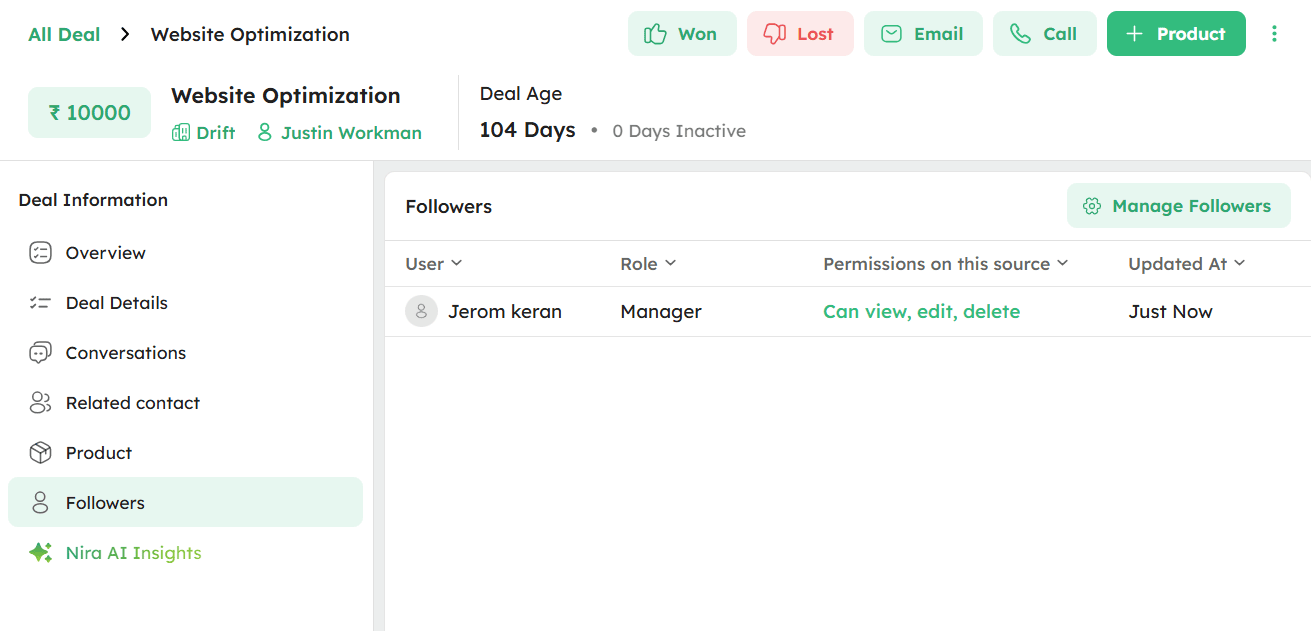
Displays the list of followers associated with the deal, including their permission level and role.
- Click Followers from the Deal Information panel to view all followers assigned to the deal.
-
Click Manage Followers at the top-right to add or remove followers.
-
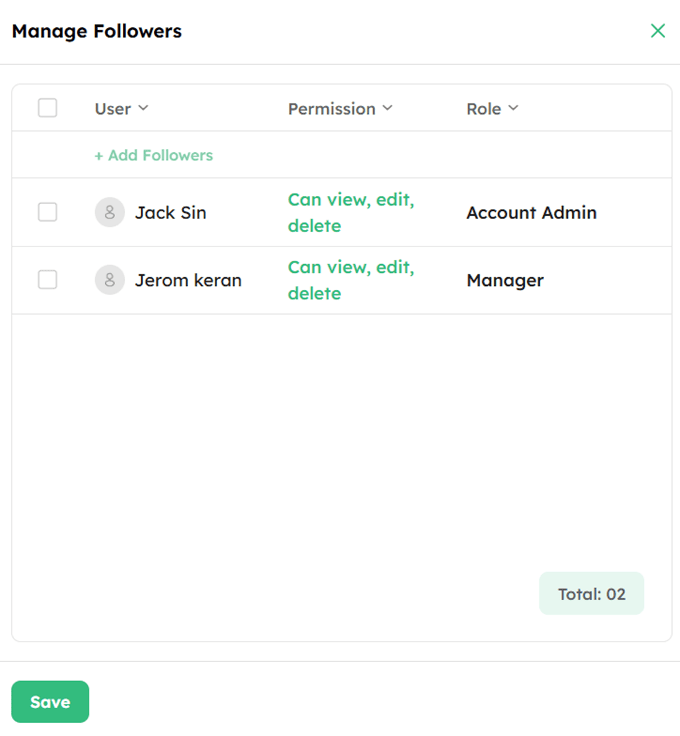
In the Manage Followers drawer, each follower is listed with their User, Permission, and Role.
-
Click +Add Followers to add new users as followers to the deal.
-
To remove a specific follower or multiple followers, select the checkboxes next to the users and click Remove from Followers.
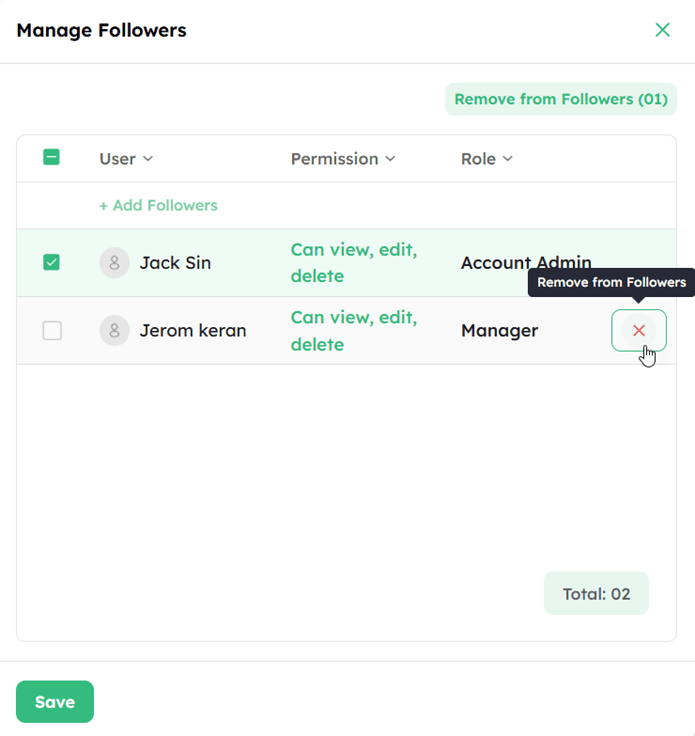
- Click Save to confirm the changes.
Nira AI Insights
Nira AI Insights displays an AI-generated summary of the deal, providing key information and insights to help quickly understand the deal's progress, status, and important details. The summary includes the following sections:
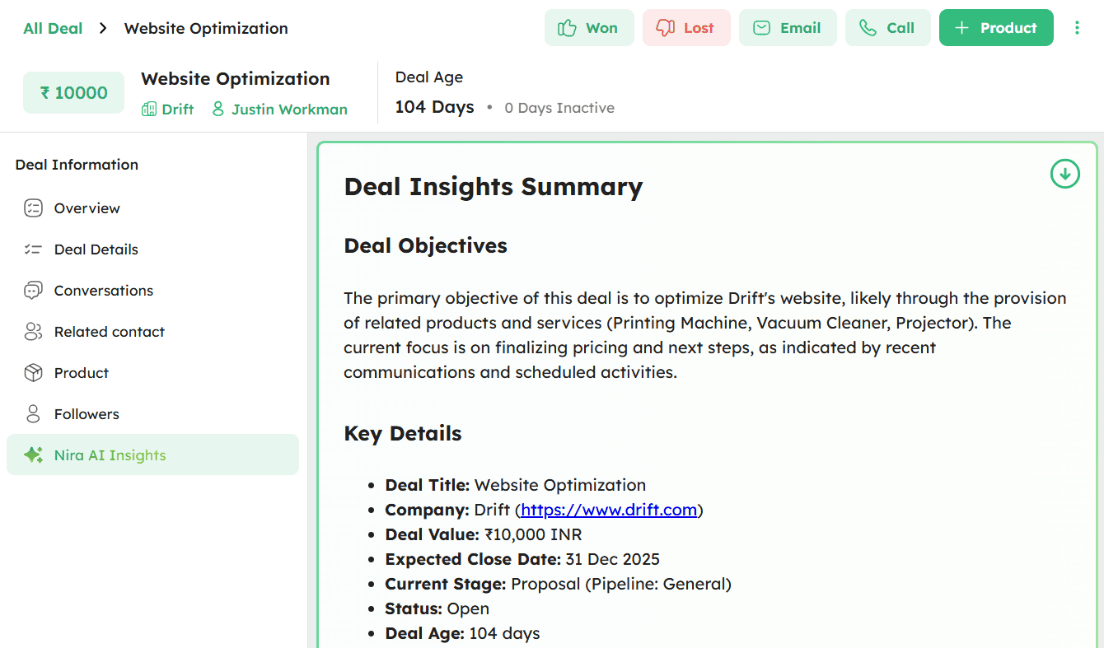
Deal Objectives - An AI-generated overview of the deal's primary objective based on available data.
Key Details - A comprehensive snapshot of the deal including Deal Title, Pipeline, Stage, Deal Value, Expected Close Date, Primary Contact, Related Contacts, Sales Owner, Tags, Activities, and Email Engagement.
Parties Involved - Lists all parties associated with the deal, including their name, role, and organization.
Overall Deal Assessment - An AI-generated evaluation of the deal's current status, highlighting key strengths and warning signals.
AI Deal Prediction - Displays the likelihood of closing the deal as a percentage, along with the rationale behind the prediction.
Risks & Warning Signals - Identifies potential risks and warning signs that may affect the deal's progress.
Stakeholder & Relationship Insights - Provides insights into the relationship strength and engagement levels with key stakeholders.
Engagement & Activity Signals - Summarizes email engagement, completed activities, notes, meetings, and calls associated with the deal.
Financial & Commercial Insights - Covers deal value, payment status, product details, and commercial terms.
Deal Progress & Velocity - Evaluates the deal's progress through pipeline stages and identifies any stagnation or bottlenecks.
Competitive & Strategic Position - Highlights any competitive threats, differentiators, or strategic advantages identified.
Contribution Breakdown - Displays a breakdown of each team member's contributions to the deal, including activities, emails, meetings, and notes.
Recommended Next Best Actions - Provides AI-generated actionable recommendations to move the deal forward.
Additional Insights - Includes any other relevant observations or recommendations generated by the AI.
To learn more about Nira AI Insights, refer to the Nira AI Insights.
Navigating the Deal Detail Page: Deal Action Tools
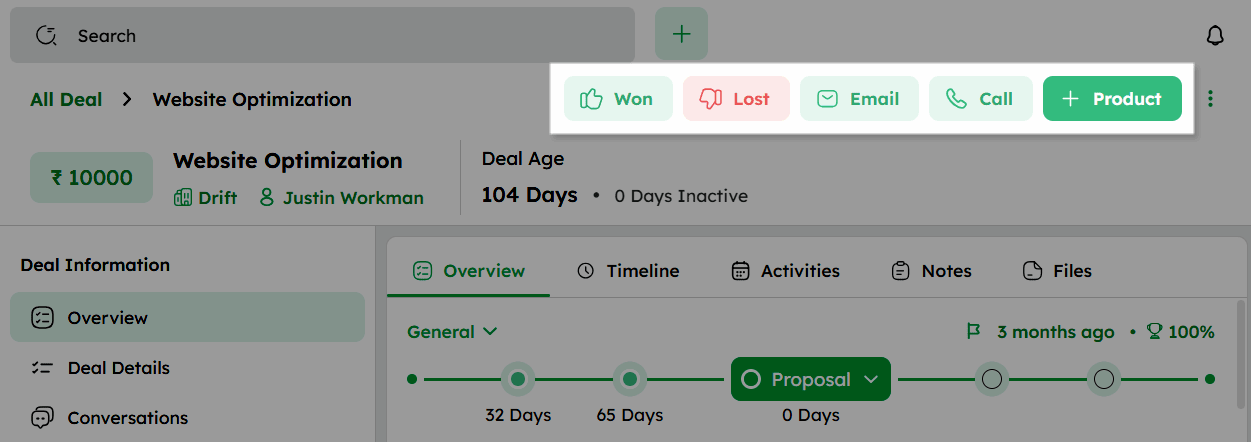
The Deal Action Tools, located at the top-right corner of the Deal Detail Page, allowing users to quickly manage deal outcomes and perform key interactions:
-
Won: Opens the Closed Won dialog box to enter the won reason and Deal Closed on Date. After saving, a Reopen button becomes available.
-
Lost: Opens the Closed Lost dialog box to enter the lost reason and Deal Closed on Date. After saving, a Reopen button becomes available.
-
Email: Opens the compose window with the contact's primary email prefilled. Sent emails appear in the deal's conversation section.
-
Call: Initiates a call with the primary contact. After the interaction, use the Log a Call option to manually record the call details.
-
+Product: The +Product option allows you to quickly add products related to a deal.
Navigating the Deal Detail Page: Ellipsis Menu Options
Click the ellipsis (⋮) icon in the top-right corner to access additional actions, as shown below:
| Action | Definition |
|---|---|
| Edit | Modify or update the existing deal details. |
| Merge | Combine two deals into a single record by consolidating their information and eliminating duplicate data. |
| Clone | Create an exact copy of the deal, including all associated data and settings, while leaving the original deal unchanged. |
| Delete | Move the deal to the Recycle Bin. Deleted deals are retained for 90 days and can be restored before they are permanently deleted. |
| Archive | Move the deal to the Deal Archive without deleting it, preserving all data for future reference. For additional actions on archived deals, refer to Managing Archived Records. |
| Log a Call | Manually record the details of a call associated with the deal. |
| Export | Download the deal data in supported file formats, including XLSX, XLS, and CSV, for backup or use in other applications. |
