Managing Your Sales Pipeline & Stage
A pipeline represents the end-to-end sales process, while stages define each phase a deal passes through, enabling deal progress tracking, opportunity management, and revenue forecasting.
Initially, the default pipeline, General, is displayed with its stages: New, Won, and Lost.
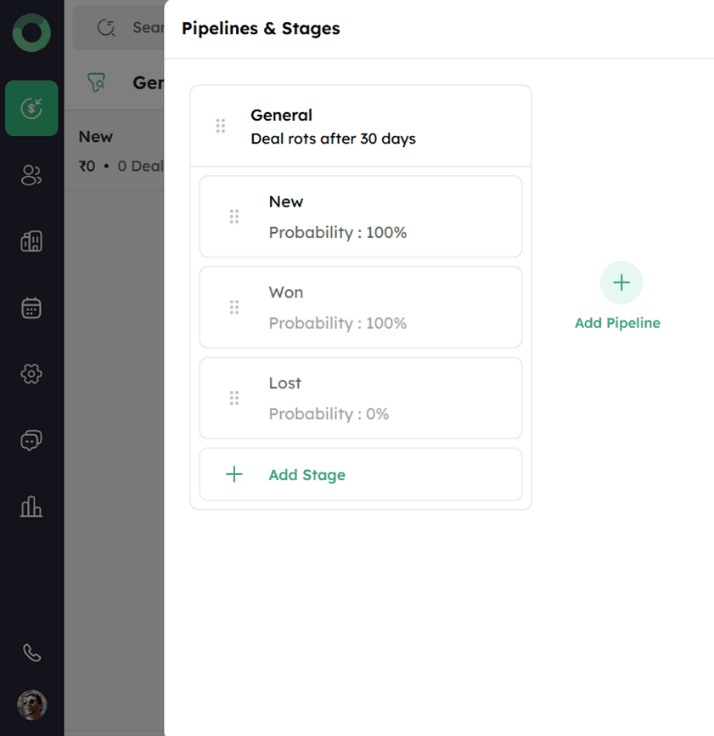
The default pipeline cannot be deleted. If any other pipeline is deleted, deals associated with it will be moved to the default pipeline's initial stage.
How to Create a New Sales Pipeline & Stages?
Follow these steps to create a new pipeline/stage:
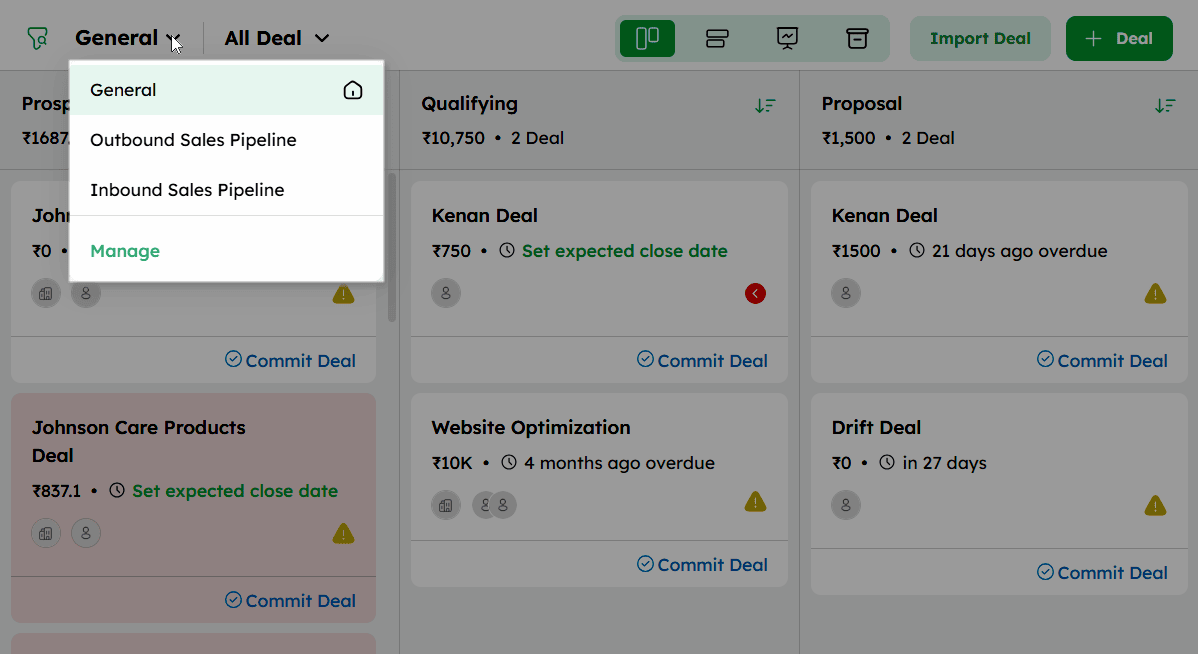
- Click General at the top left of the screen to open the pipeline list.
-
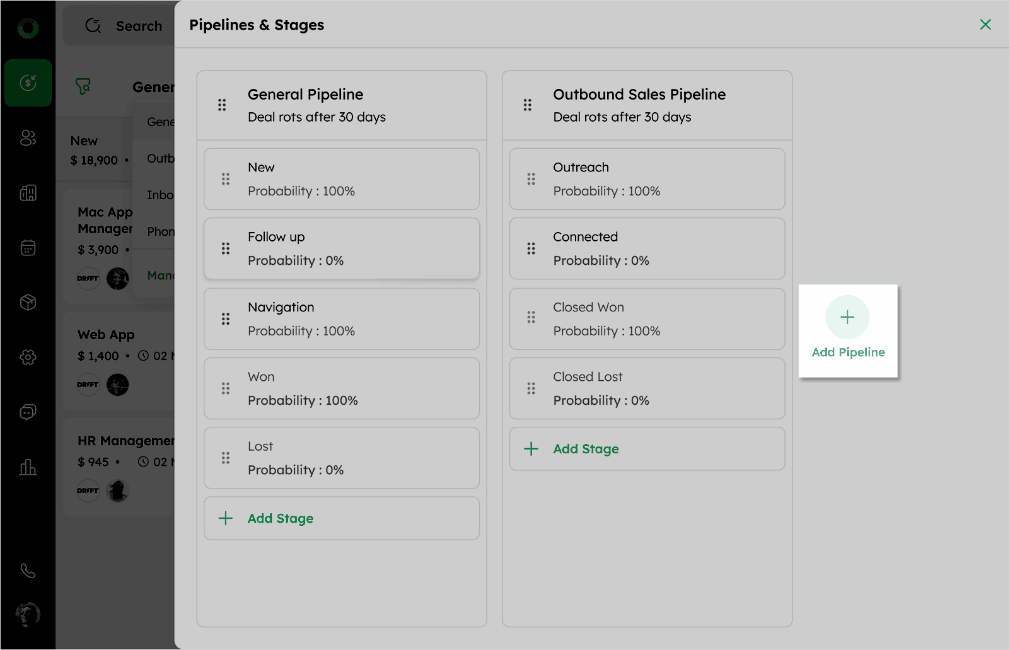
Select Manage from the dropdown to open the Pipelines & Stages drawer.
-
Click Add Pipeline to start creating a new pipeline.
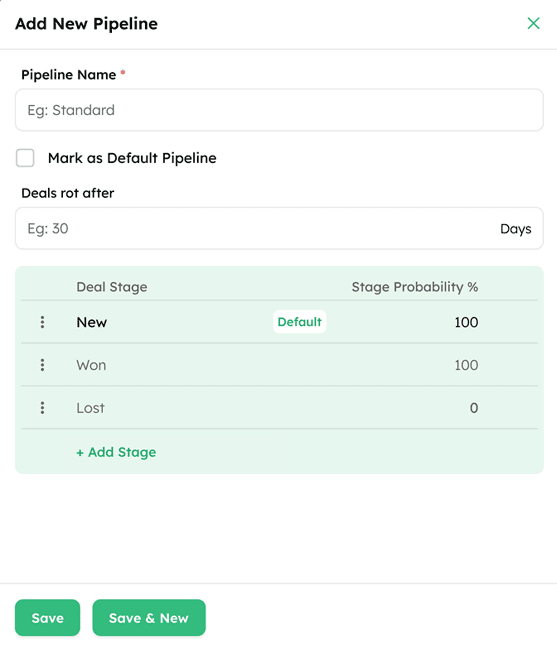
- Enter Pipeline Details:
a) Enter the Pipeline Name.
b) Select the Mark as Default Pipeline checkbox to set this pipeline as the default.
c) In the Deals rot after field, specify the number of inactive days after which a deal is marked as rotten. The default is 30 days.
d) Deals that exceed this limit are highlighted in red in the pipeline view and profile page.
- Manage Stages:
a) Default stages New, Won, and Lost are always visible.
b)To add new stages, click +Add Stage and Enter Stage Name and Stage Probability % (default is 100%).
You can add up to 15 stages per pipeline and create a maximum of 15 pipelines.
Save the Pipeline:
a) Click Save to finalize the pipeline.
b) Use Save & New to save the current pipeline and immediately open a new pipeline drawer.
c) Click the close icon at the top right corner to cancel the pipeline creation.
How to Update an Existing Pipeline or Stage?
Follow the below steps to update a Pipeline/Stage:
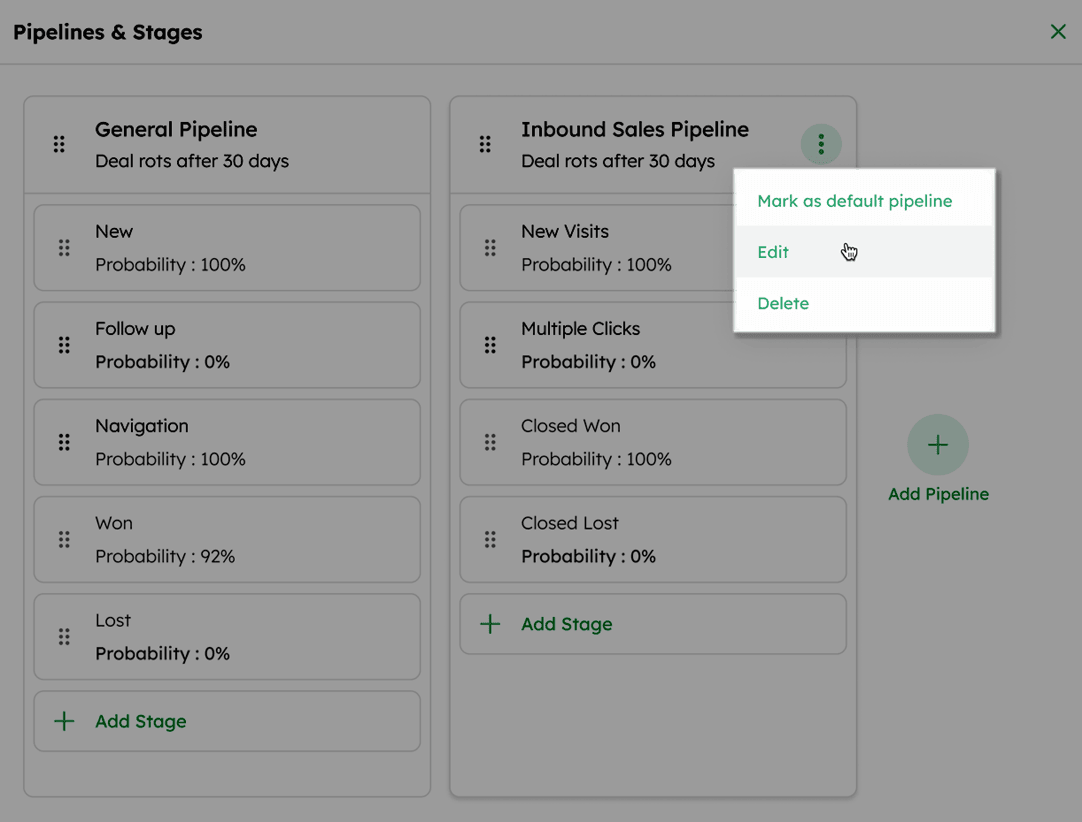
- Select the Edit option on each stage or the ellipsis (⋮) from the pipeline header to open the Edit Pipeline drawer
-
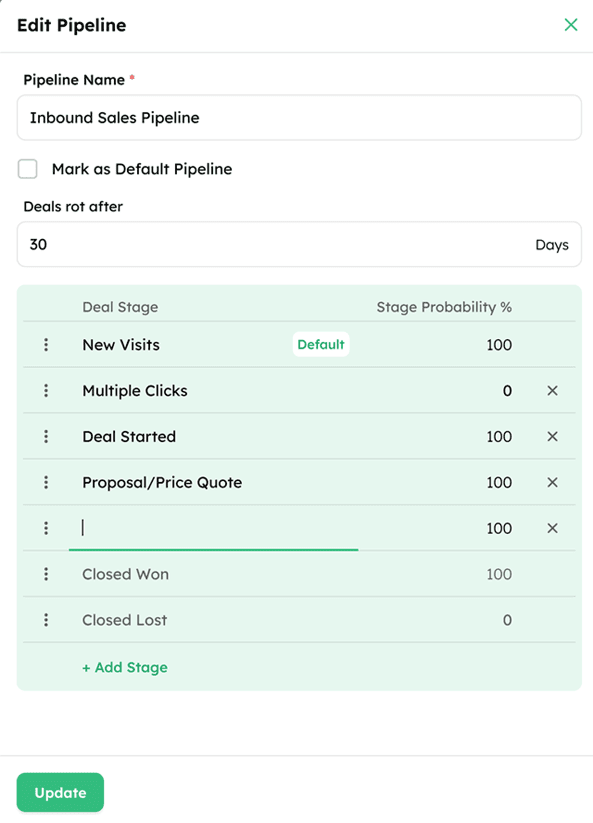
Change the existing Pipeline Name as needed.
-
Add or adjust the Rotten days' value, with the default set to 30 days.
-
Change the name of the first stage (note: this stage cannot be removed).
-
Add, remove, or edit additional stages and their probabilities. The names and probabilities for the Won and Lost stages are fixed and cannot be edited.
-
Click Update to save the modifications.
Managing Deal Cards in the Pipeline View
Deal cards in the Pipeline View can be repositioned across stages using drag-and-drop. When a card is dragged, the following options appear at the bottom of the screen:
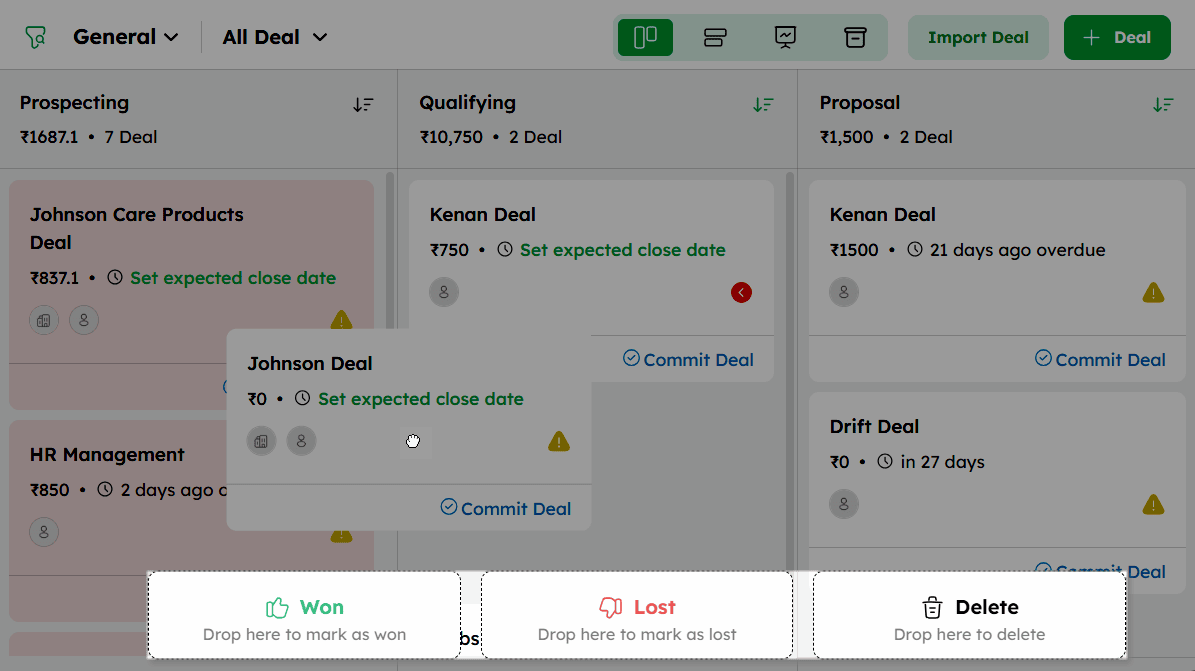
Won: A pop-up appears prompting you to enter the Won Reason and Deal Closed On date. The Won Reason field opens a dropdown with available options, and the Deal Closed On field opens a date picker.
Lost: A pop-up appears prompting you to enter the Lost Reason, and Deal Closed On date. The Lost Reason field opens a dropdown with available options, and the Deal Closed On field opens a date picker.
Delete: A confirmation dialog appears with the message: "Are you sure you want to delete this deal?" Click Delete to move the deal to the Recycle Bin or Cancel to discard.
