Getting Started with Deals
Understanding Deal Terminology in Twozo CRM
In Twozo CRM, a deal tracks a lead's journey from first contact to closure, capturing stage, revenue, probability, and key details for accurate forecasting and stronger customer engagement.
Definition
Deal stage - Indicates the specific phase a deal currently occupies within the sales process, such as prospecting, negotiation, or closed.
Deal pipeline - A visual representation of all active deals organized across stages, providing an overview of the entire sales workflow.
Expected deal value - It represents the estimated revenue calculated based on the deal amount and the probability of winning the deal.
Stage probability - The likelihood or chance that a deal will be successfully closed, expressed as a percentage.
Related contacts - People or individuals who are associated with a specific company, deal, or record but are not necessarily the primary point of contact.
Expected close date - Represents the estimated date on which the deal is expected to be closed.
Rot Days - The number of days a deal has remained inactive or without any progress in the sales pipeline.
Source - Represents the origin of the deal or where the deal came from.
Weighted value - Refers to the adjusted deal value calculated according to the current stage probability of the deal.
How to Create a New Deal in Twozo?
Creating deals in Twozo helps to manage opportunities and track their progress through the sales pipeline. Follow these steps to create a deal in Twozo:
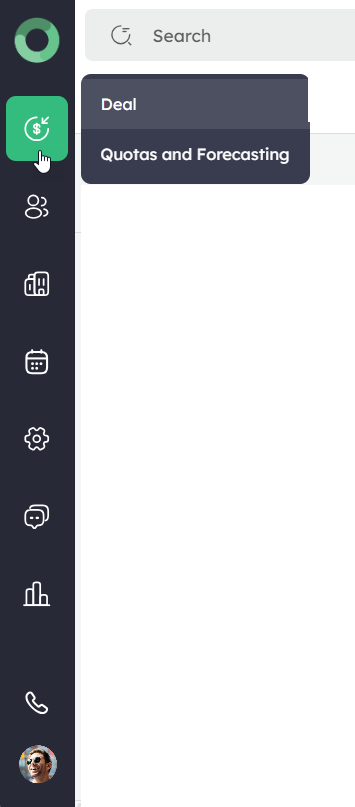
- From the homepage, click the Deal icon in the top left sidebar.
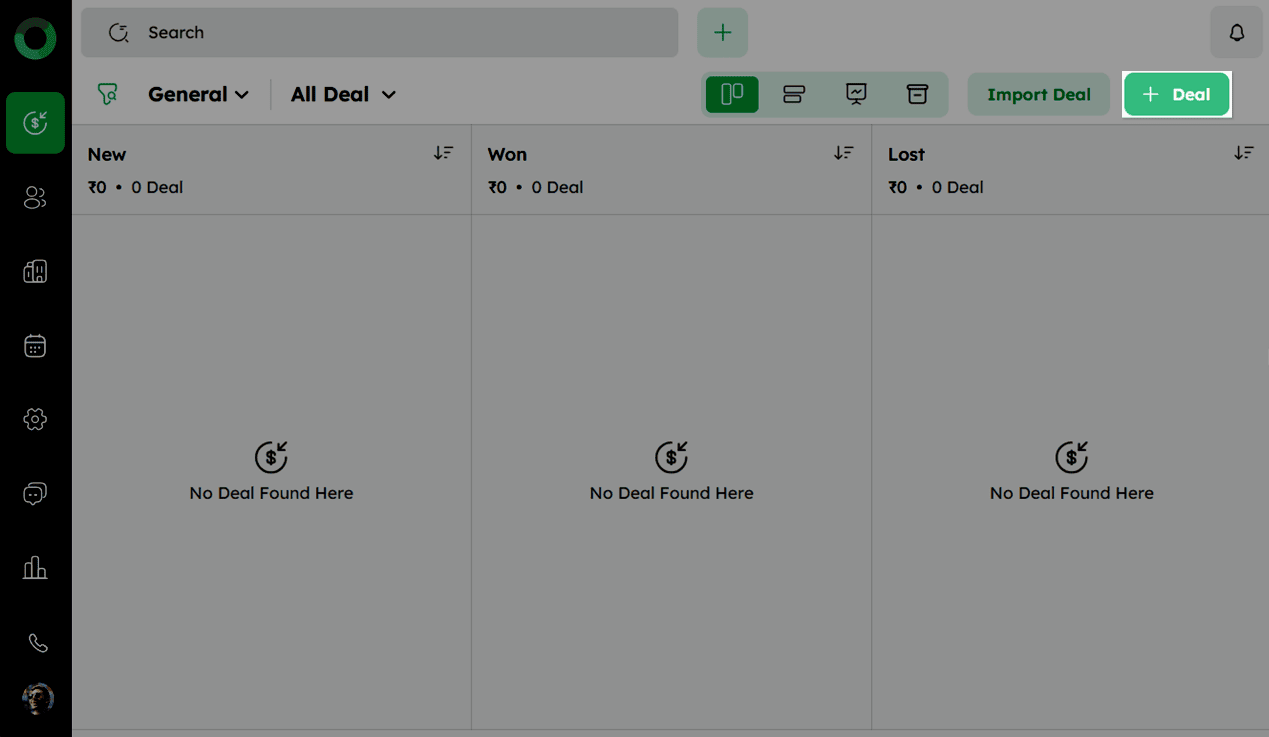
- On the Deal page, click + Deal at the top right corner.
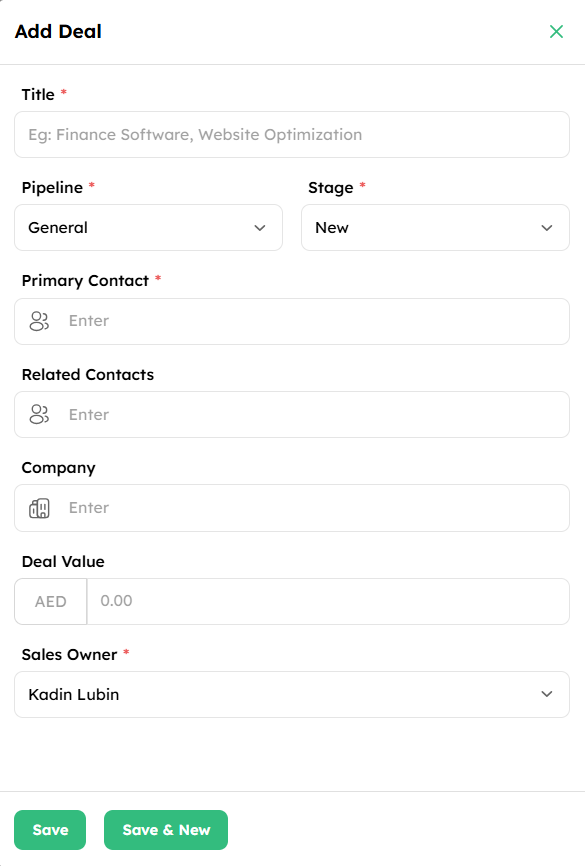
- In the Add Deal drawer, enter the following details as described below:
| Fields | Description |
|---|---|
| Title* | Name or description of the deal. |
| Pipeline* | Represents the sales pipeline to which the deal belongs. |
| Stage* | Represents the current progress stage of the deal within the selected pipeline |
| Won Reason* | If applicable, select the reason for why the deal was successfully closed. Note: This field is mandatory when the Won stage is selected. |
| Lost Reason* | If applicable, select the reason why the deal was lost or unsuccessful. Note: This field becomes mandatory when the Lost stage is selected. |
| Deal Closed On* | The date when the deal was closed. Note: This field is required when either the Won/Lost stage is selected. |
| Primary Contact* | The main person associated with the deal. Note: If the contact doesn’t exist, you can create one by entering their name, email, phone, and sales owner. |
| Related Contacts | Additional contacts linked to the deal who may have a role or involvement in the decision-making process. |
| Company | Select the company associated with the deal. If not found, create a new entry with the company’s Name, Sales Owner, and other required fields. |
| Deal Value | Enter the deal’s monetary value for revenue forecasting. Enter it manually or link it using a product tag. |
| Product | Select the product or service associated with the deal. This helps in categorizing the deal and understanding the customer’s needs. |
| Sales Owner* | Assign the sales representative responsible for managing the deal. This ensures accountability and proper follow-up. |
An asterisk (*) next to the field indicates a mandatory field.
- After entering all the required details, click Save.
Alternatively, you can click Save & New to save the current deal and instantly open a new deal form for creating another deal.
Completing all these steps ensures your deal is visible on the Deal page.
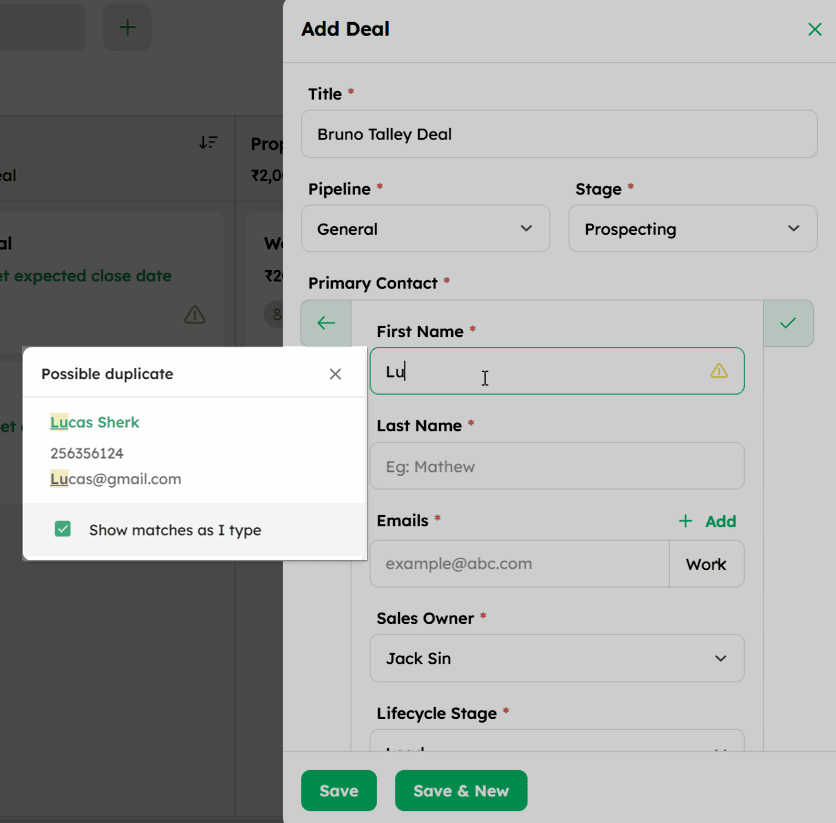
If the deal matches existing records by Contact Name, Contact Email, Phone Number, Company Name, and Company Address, the system will display a duplicate warning with suggested matching records.
What is Global Search and how do I use it?
-
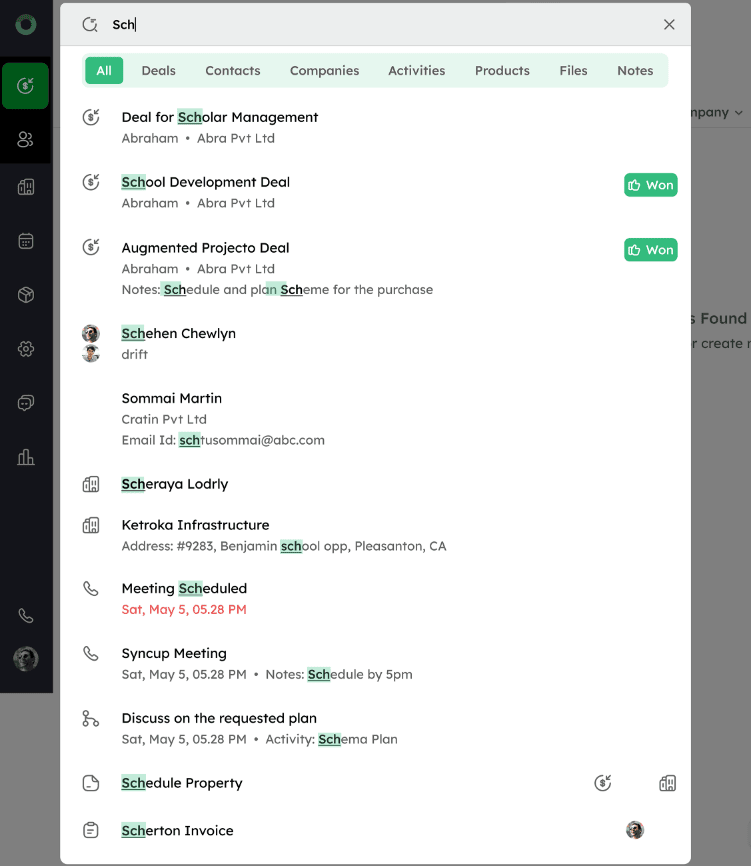
The global search in Twozo lets users quickly find deals, contacts, and other records by entering keywords, enabling faster access and easier navigation.
-
This feature searches across Deals, Contacts, Companies, Products, Activities, Notes, and Files, helping users quickly find information without manual navigation.
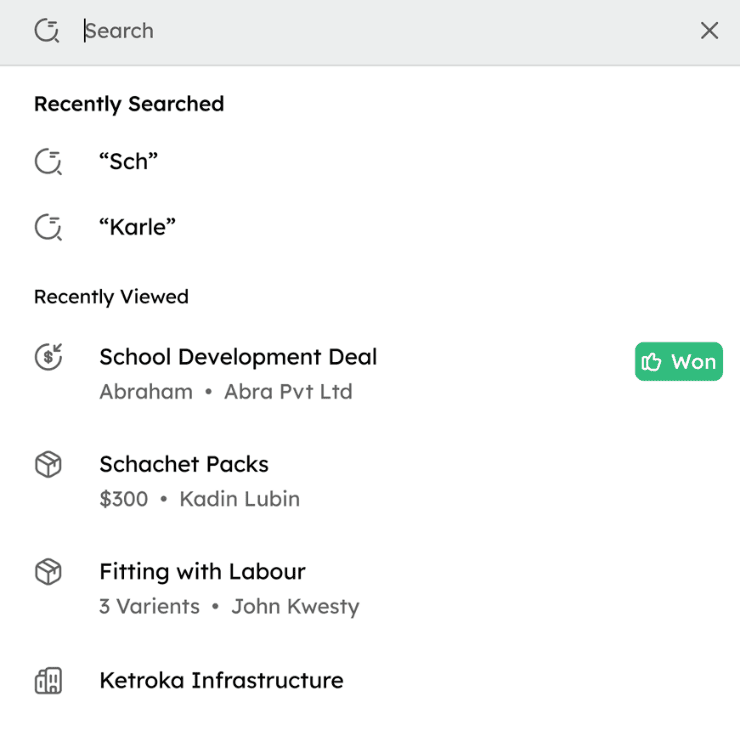
- Before entering a keyword in the search bar, the following options are displayed:
Recently searched: Displays the last two keywords entered in the search bar.
Recently viewed: Displays the last 14 records you have recently created, viewed, or edited.
How to Add Non-Existing Records in the Global Search?
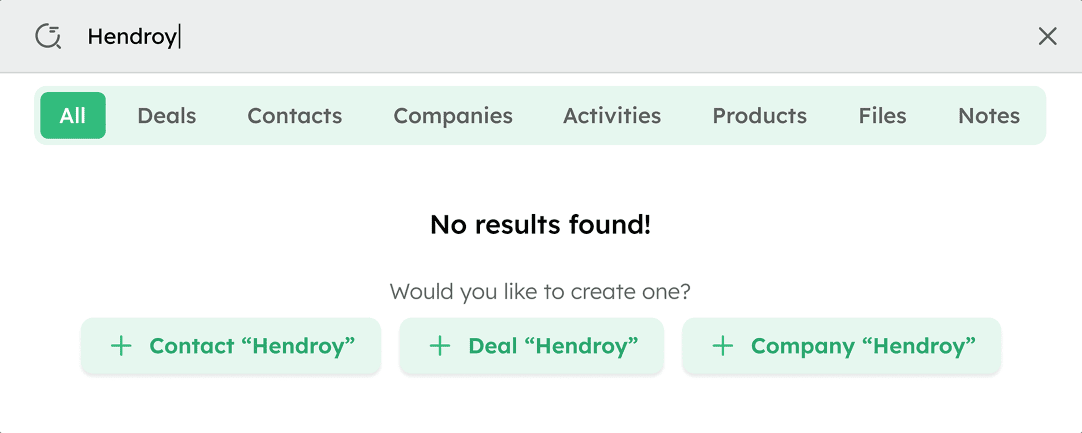
If no matching records are found, the system shows “No results found!” and allows adding the searched term as a new deal, contact, or company.