Managing Existing Deal Records
How to Update an Existing Deal Record?
Update deals whenever changes occur to keep information accurate and stay informed of the latest details and status. Follow these steps to update a deal:
You can update a deal from the Pipeline View, List View, or Deal Detail Page, based on your preference.
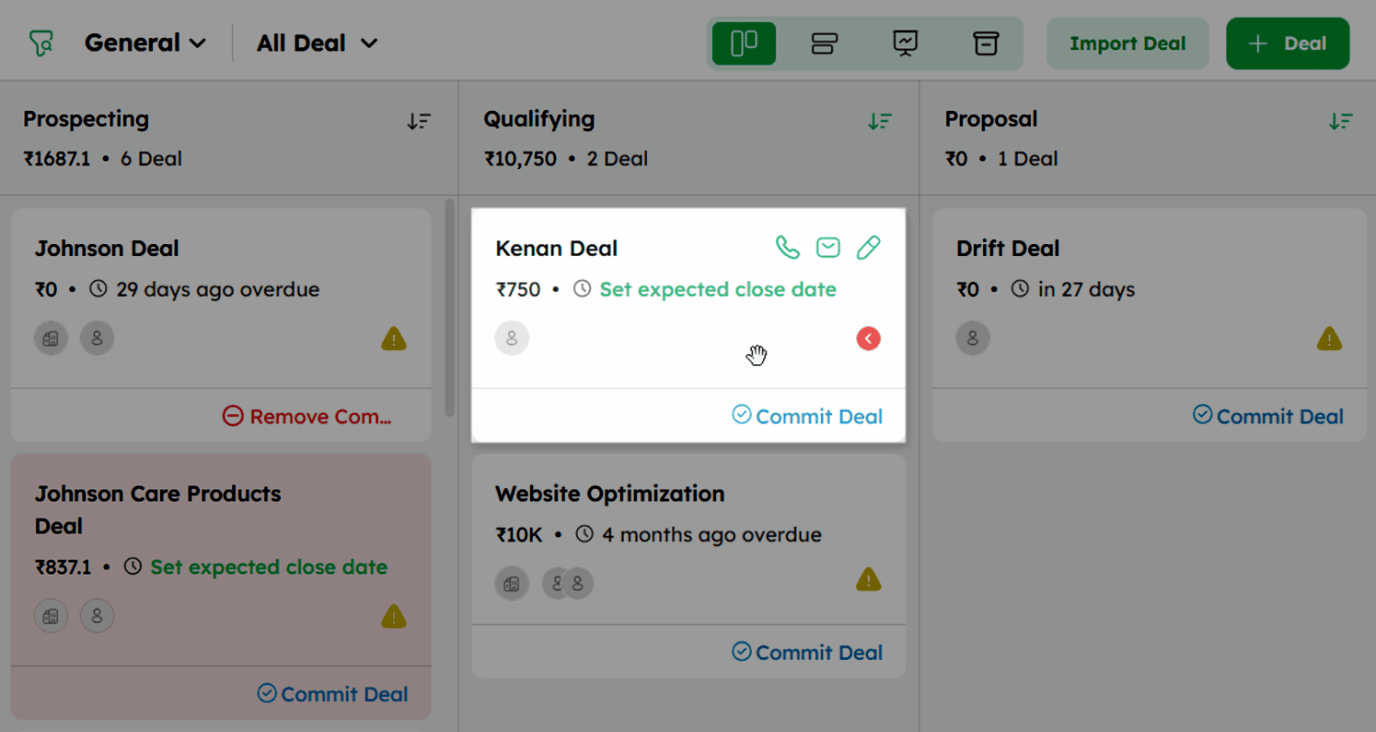
- Pipeline View: Hover over the deal card to reveal the action icons. Click the edit icon to open the Update Deal drawer, make the necessary changes, and click Update to save.
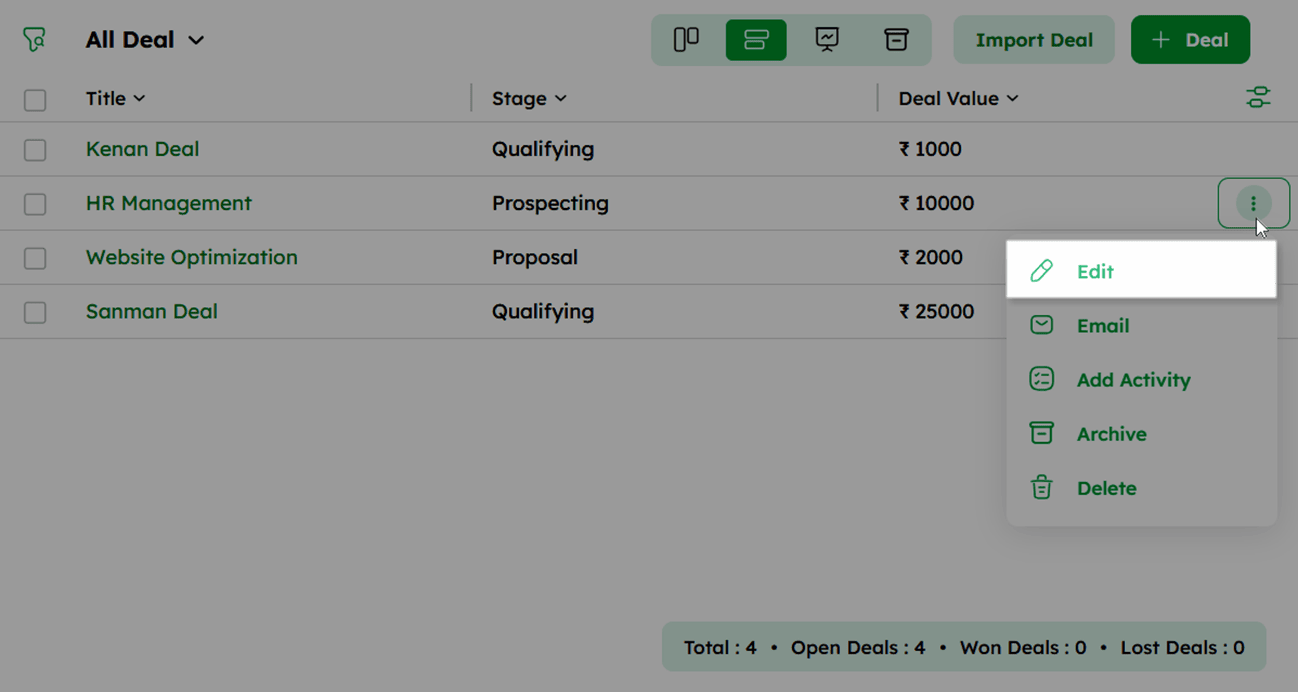
- List View: Click the ellipsis (⋮) icon next to the deal and select Edit from the dropdown. The available options are Edit, Email, Add Activity, Archive, and Delete.
Select Edit to open the Update Deal drawer, make the necessary changes, and click Update to save.
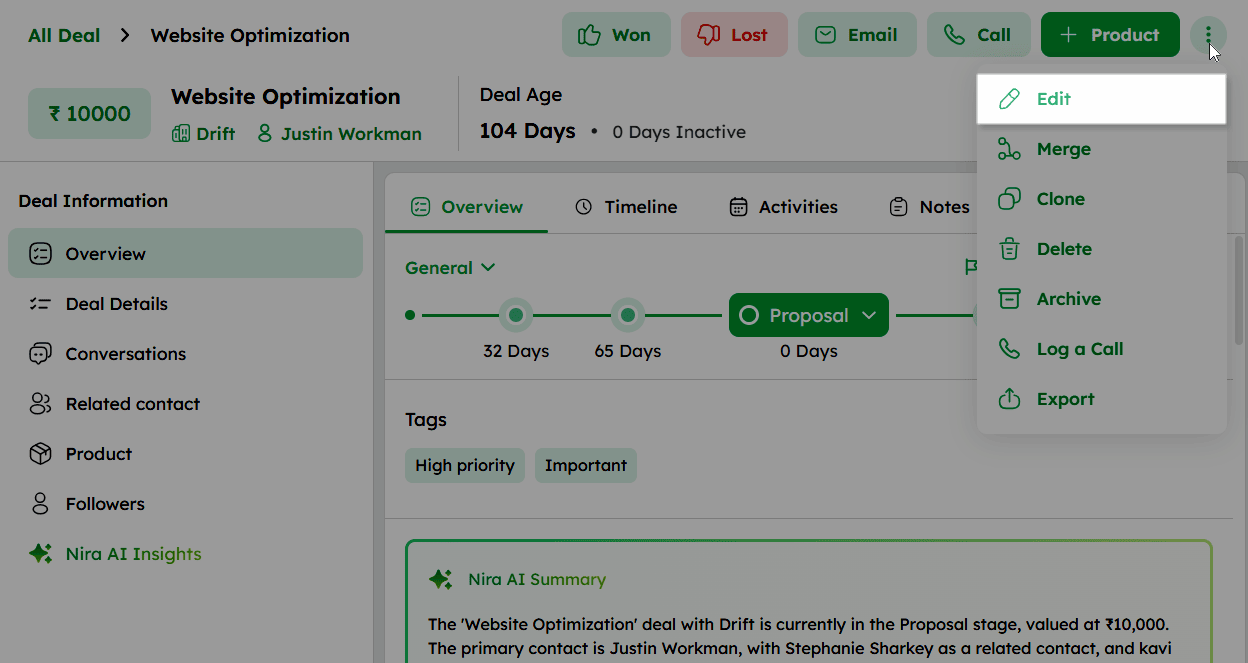
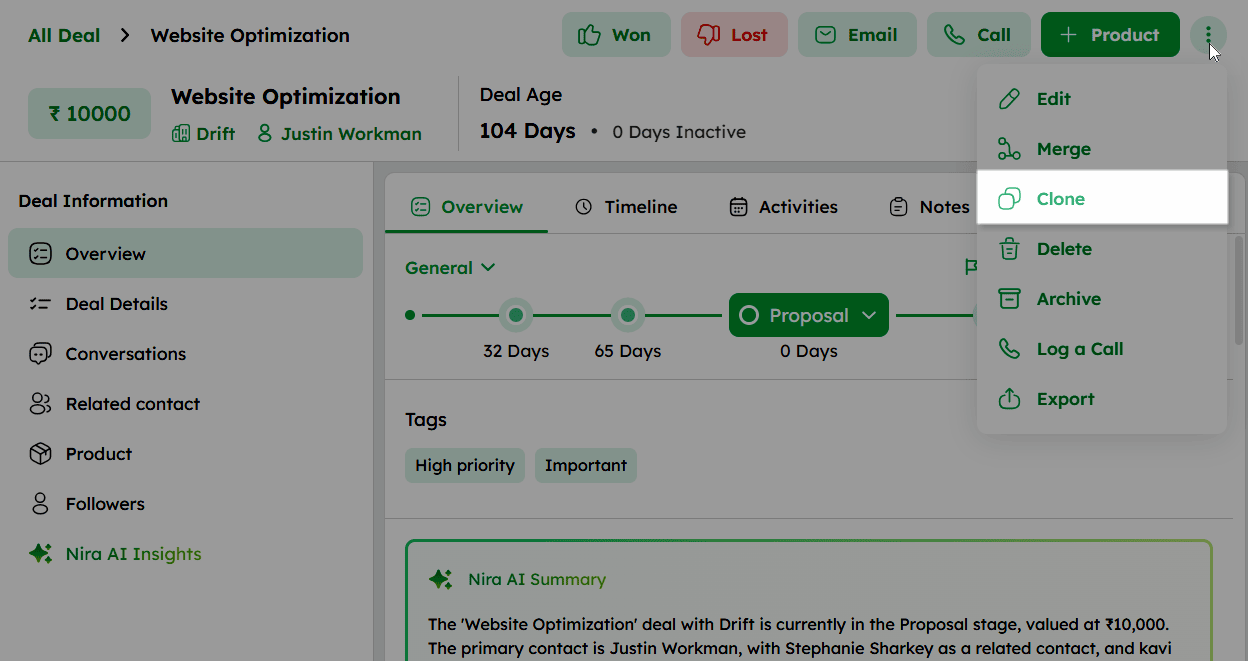
- Deal Detail Page: Click the ellipsis (⋮) icon at the top-right corner of the Deal Detail Page and select Edit from the dropdown. The available options are Edit, Merge, Clone, Delete, Archive, Log a Call, and Export. Select Edit to open the Update Deal drawer, make the necessary changes, and click Save to confirm.
How to Merge Duplicate Deals?
Merging deals combines two records into one, consolidating all associated data to remove duplicates and simplify tracking and follow-up.
Follow the steps below to merge deals:
-
Open the Deal Detail Page of the deal you want to merge.
-
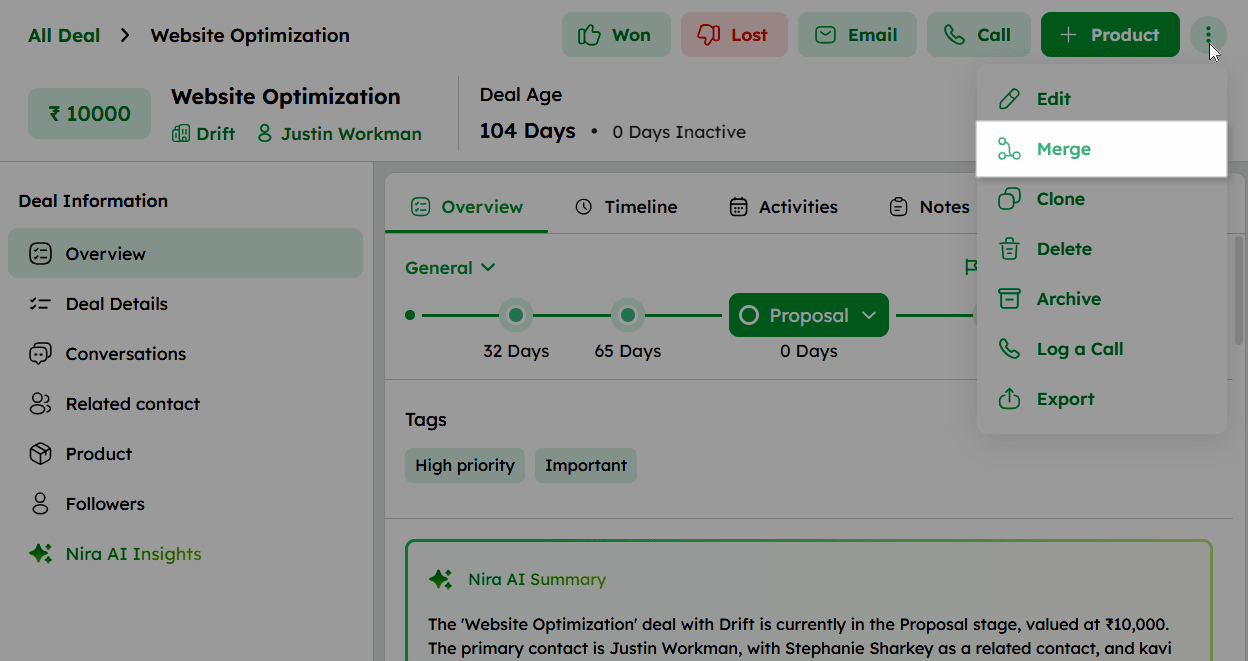
Click the ellipsis (⋮) icon at the top-right corner and select Merge from the dropdown.
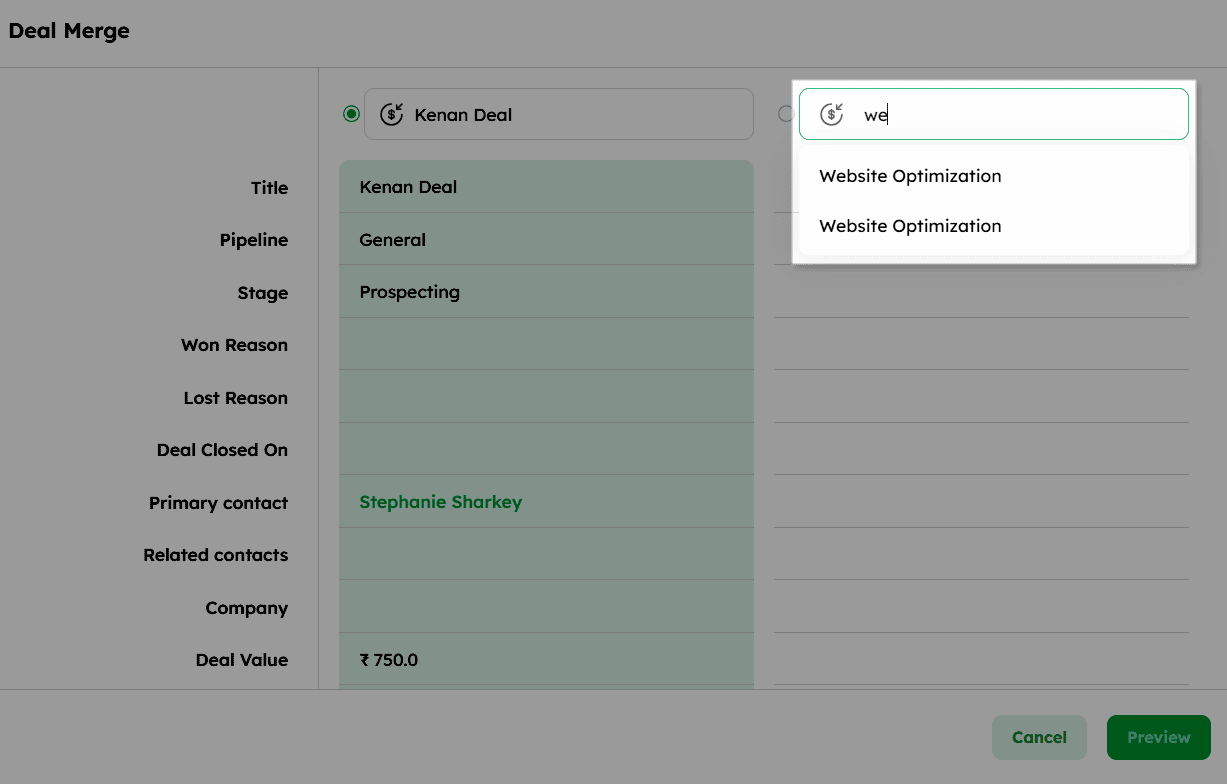
- In the Deal Merge drawer, search for and select the secondary deal you want to merge with from the search field.
-
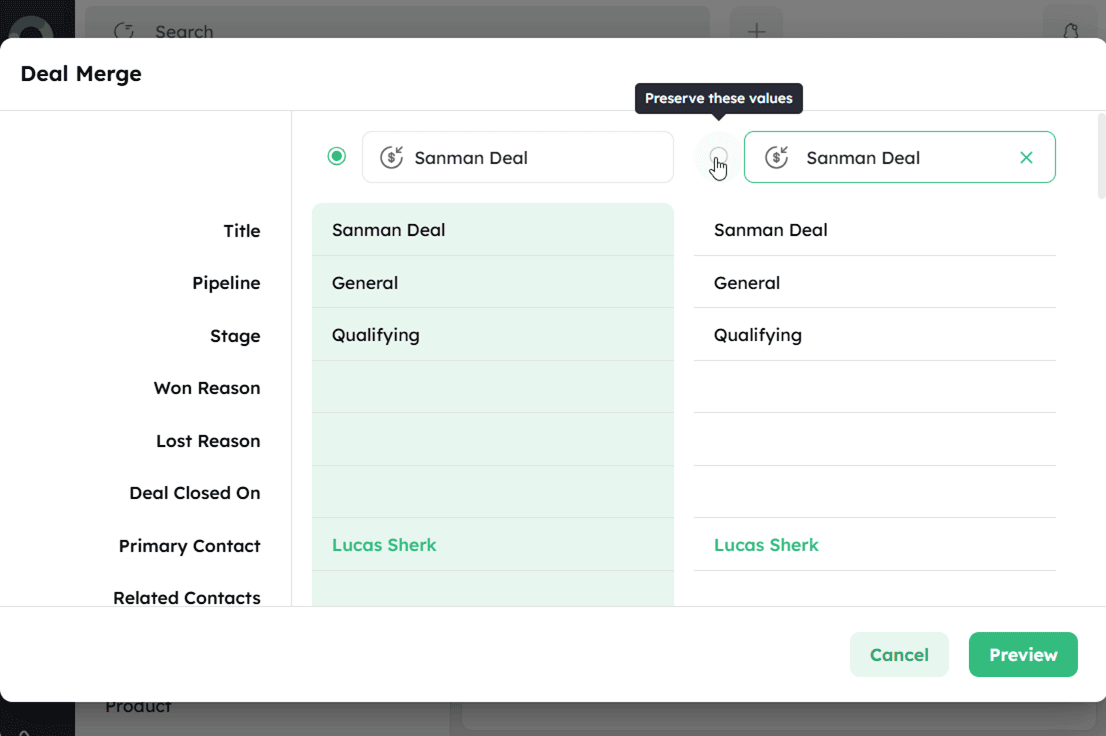
The Deal Merge drawer displays both deal records side by side for comparison.
-
Select the radio button next to the deal whose values you want to preserve as the primary record. Hover over the radio button to see the "Preserve these values" tooltip.
-
Click Preview to review the merged deal details before confirming.
-
In the preview, verify the consolidated deal information and confirm all fields are accurate.
-
Click Merge to combine the deals.
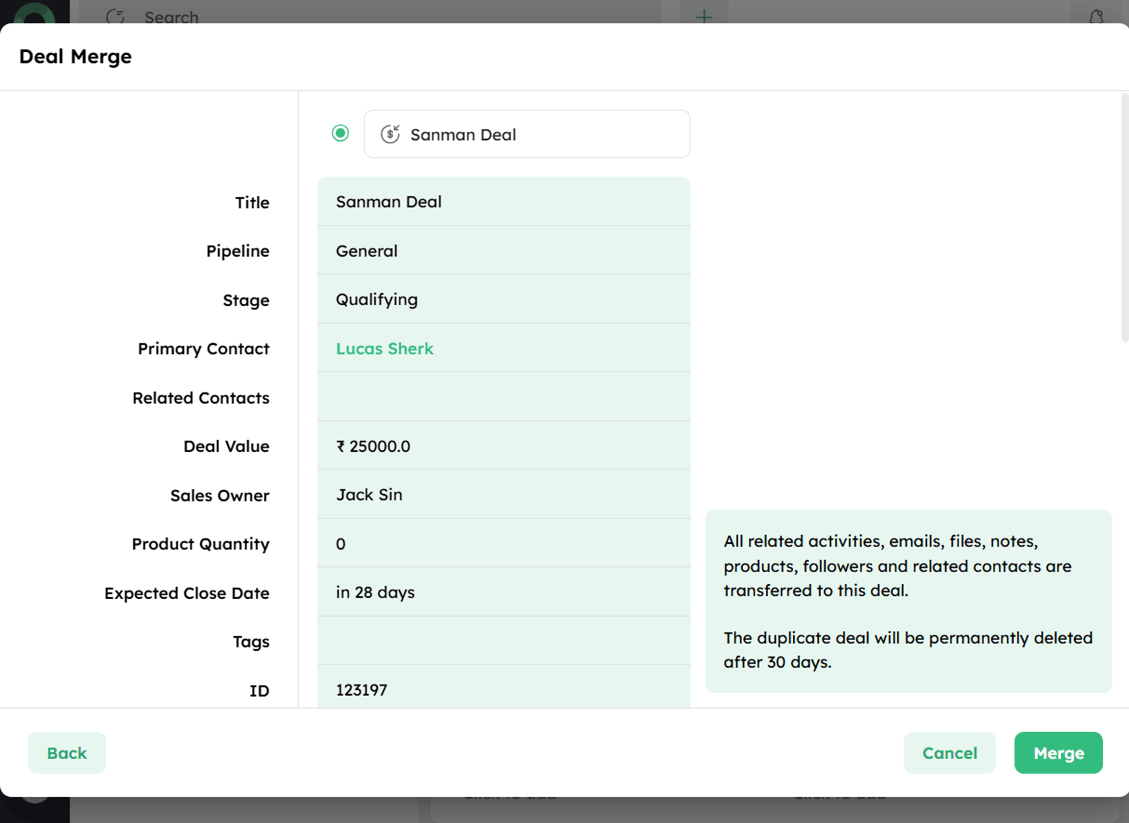
- All related activities, emails, files, notes, products, followers, and related contacts are transferred to the primary deal record.
- The duplicate deal will be permanently deleted after 30 days.
How to Clone a Deal?
Cloning a deal creates an exact copy of the existing deal record, useful for replicating deals with similar attributes without having to re-enter all the details.
-
Open the Deal Detail Page of the deal you want to clone.
-
Click the ellipsis (⋮) icon at the top-right corner and select Clone from the dropdown.
-
The Clone Deal drawer opens with all existing deal details pre-filled.
- Review and update any fields as needed before saving.
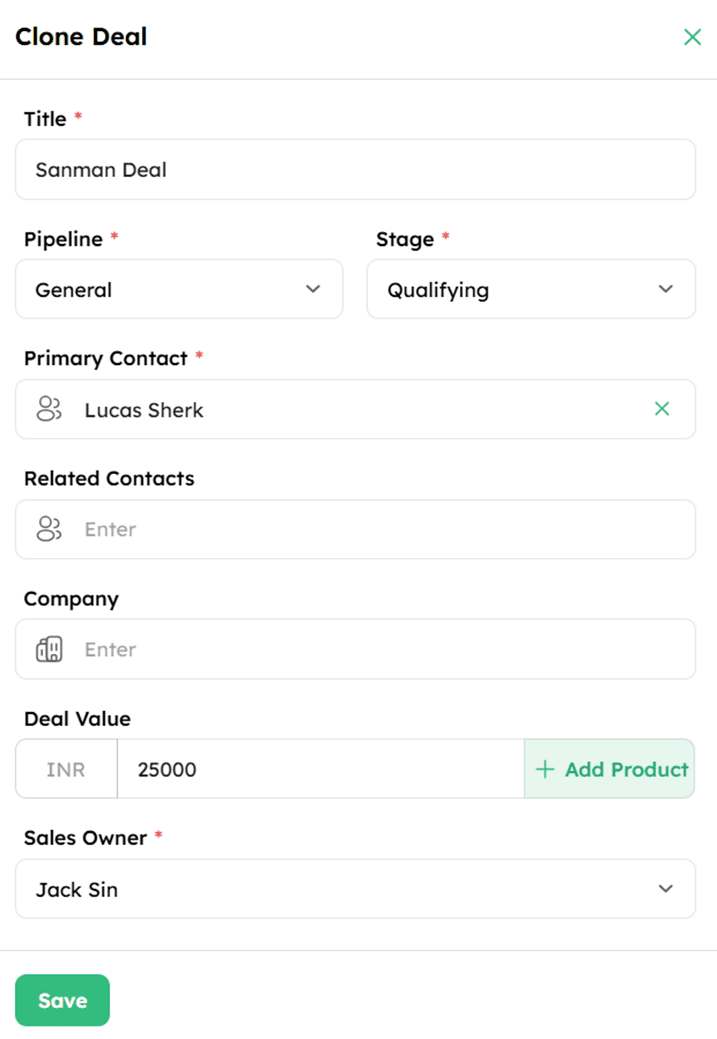
- Click Save to create the cloned deal record.
