Working with the Deal’s List View
In the Deal List View, the following fields are displayed by default: Title, Stage, Won Reason, Lost Reason, Deal Closed On, Primary Contacts, Related Contacts, Company, Deal Value, Sales Owner, and Product Quantity.
Customizing the List View: How to Edit Columns
The column settings icon in the Deal List View enables you to add or remove fields, allowing you to tailor the list display to your needs.
-
Click the column settings icon at the top-right to view all system and custom fields.
-
Select or deselect the corresponding checkboxes to show or hide specific fields in the List View.
-
Use drag-and-drop to reorder the fields in the List View. Changes are reflected instantly.
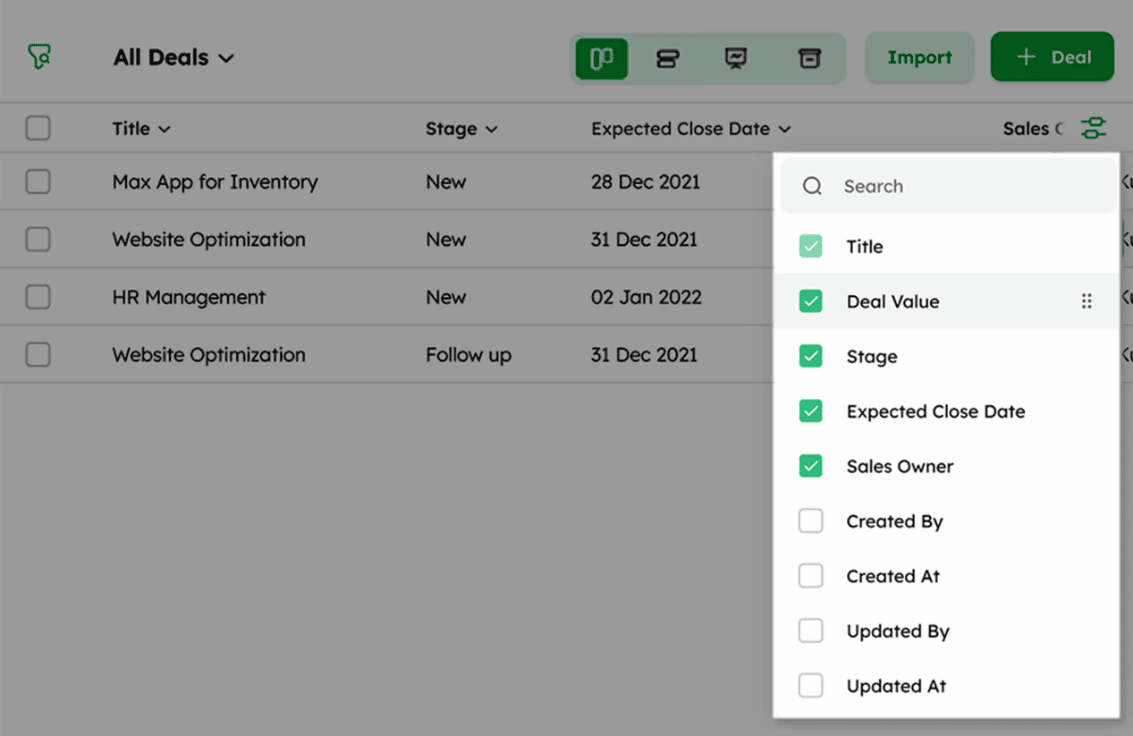
The Title field is mandatory and cannot be disabled.
- Use drag-and-drop within the dropdown menu to reorder the display of fields in the list view.
Executing Bulk actions on Multiple Deals
The Bulk Action feature in the Deal module allows you to perform actions on multiple deal records at once, eliminating the need to update each record individually.
Selecting one or more deals in the List View activates the bulk action tray, which includes the following options:
Send Email, Assign Owner, Assign Followers, Update Field, and Delete are displayed directly in the bulk action tray. Additional options such as Export, Add Tags, Remove Tags, and Archive are accessible via the ellipsis (⋮) menu in the bulk action tray.
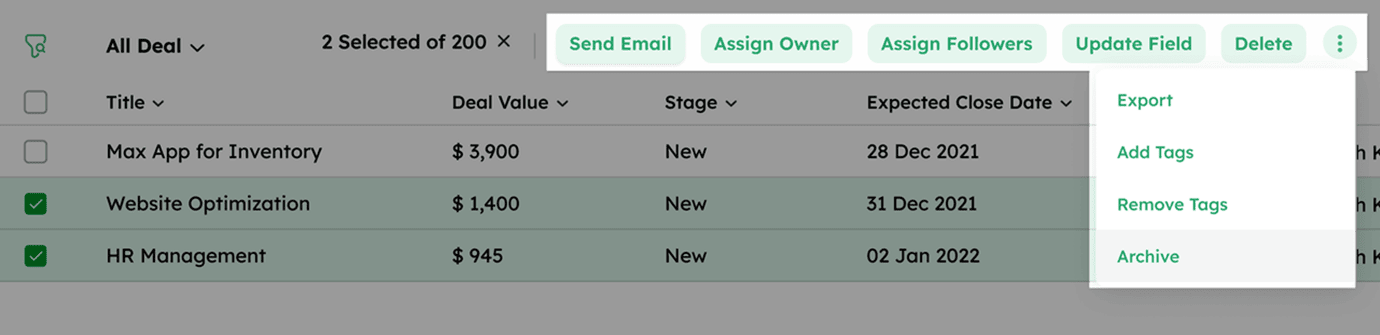
The following sections explain each bulk action in detail:
How to Send Bulk Email?
The Send Email bulk action enables sending emails to multiple deal contacts directly from the Deal List View.
Bulk emails are sent to the primary email addresses of the Primary Contact and Related Contacts associated with the selected deals.
-
Go to Deal List View.
-
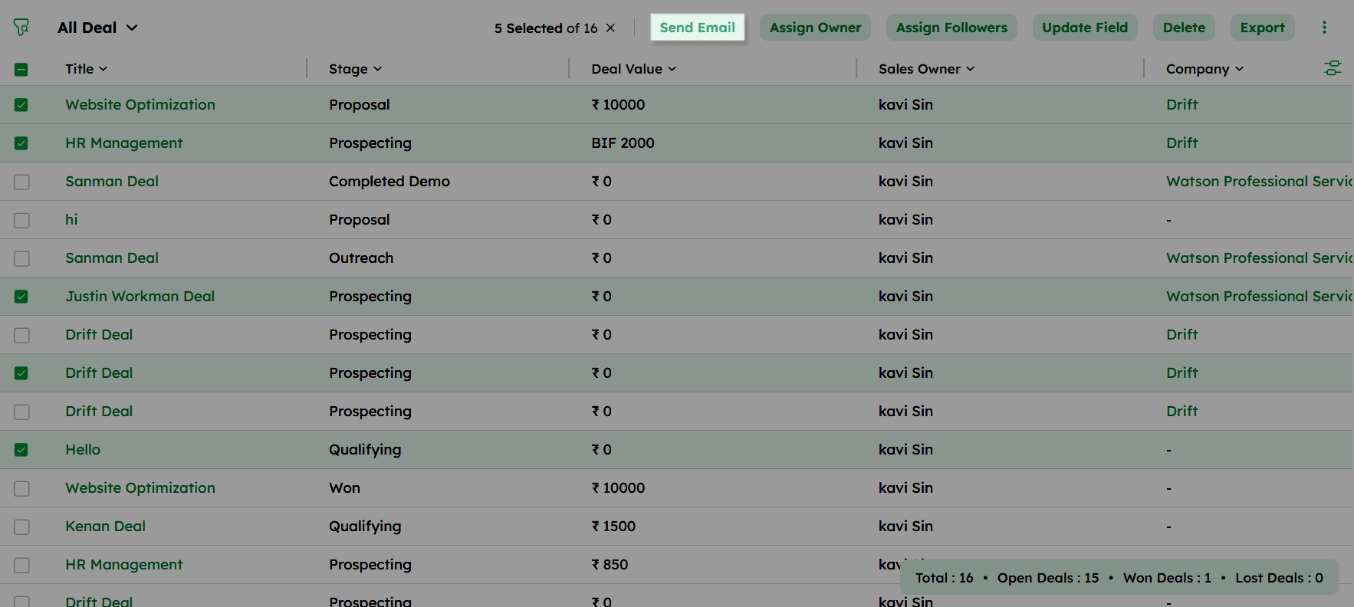
Select the required deals by checking the boxes next to their names. To select all records, click the checkbox in the column header.
Bulk emails can be sent to a maximum of 50 recipients at a time. Related contacts linked to the selected deals are counted toward this limit.
- Click Send Email from the bulk action tray.
-
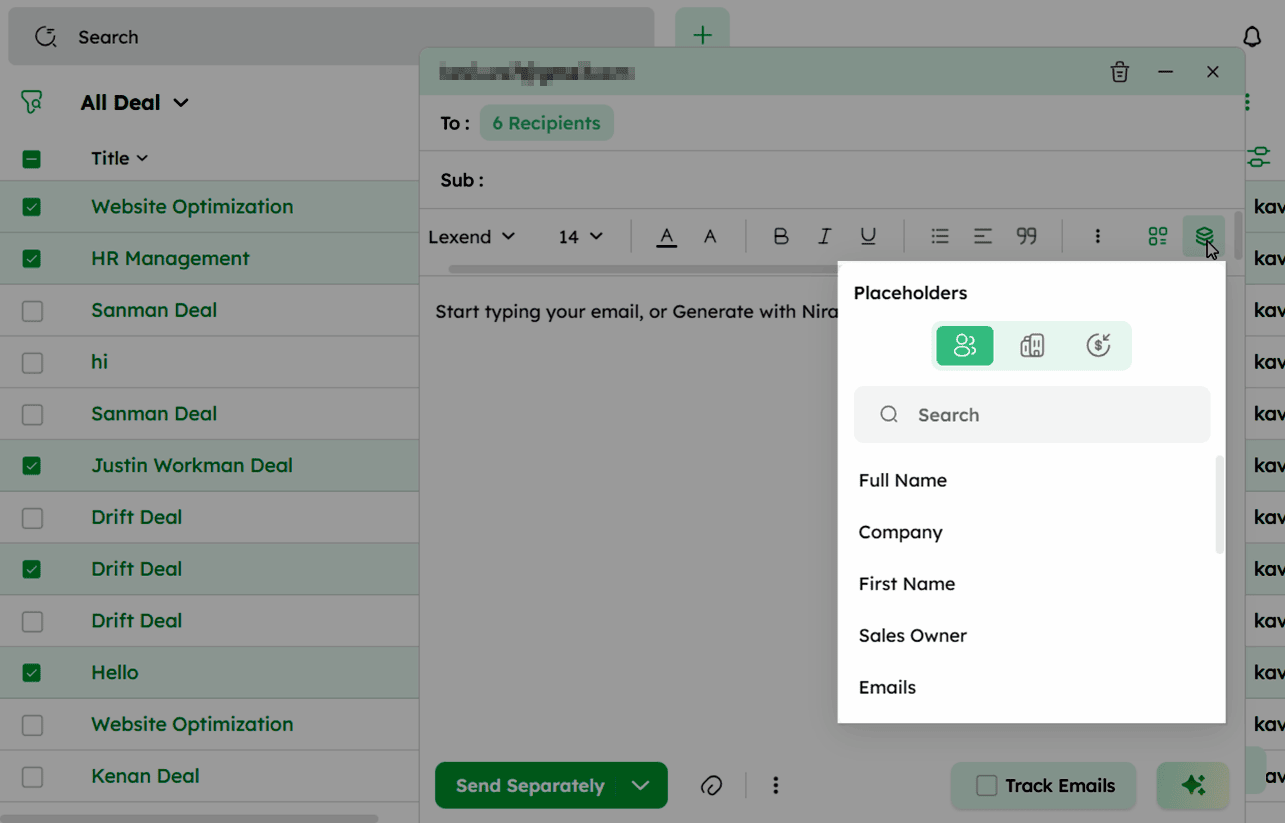
Compose the email by entering the subject and body content.
-
Use placeholders to personalize the email content for each recipient.
-
To use a pre-existing template, select one from the Template dropdown.
-
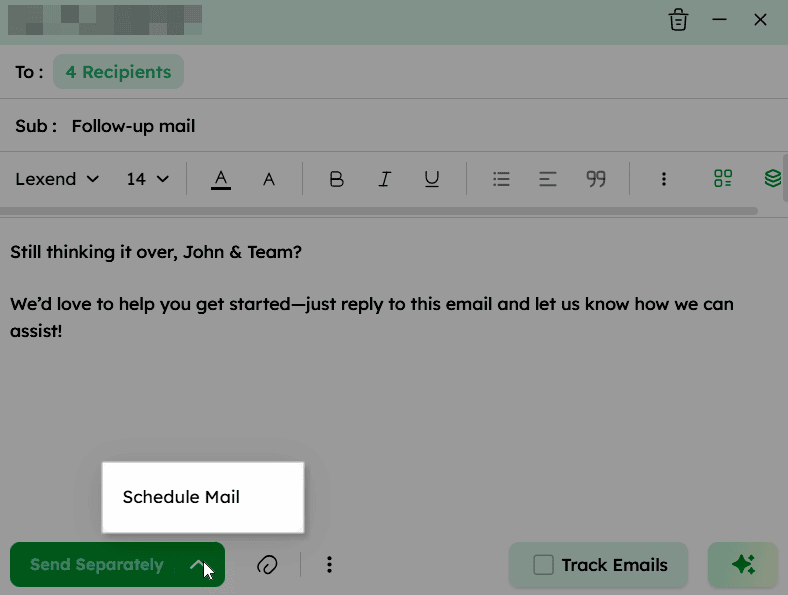
Click Send Separately to deliver each email individually to its recipient.
-
To schedule the email, click Schedule and select the preferred date and time.
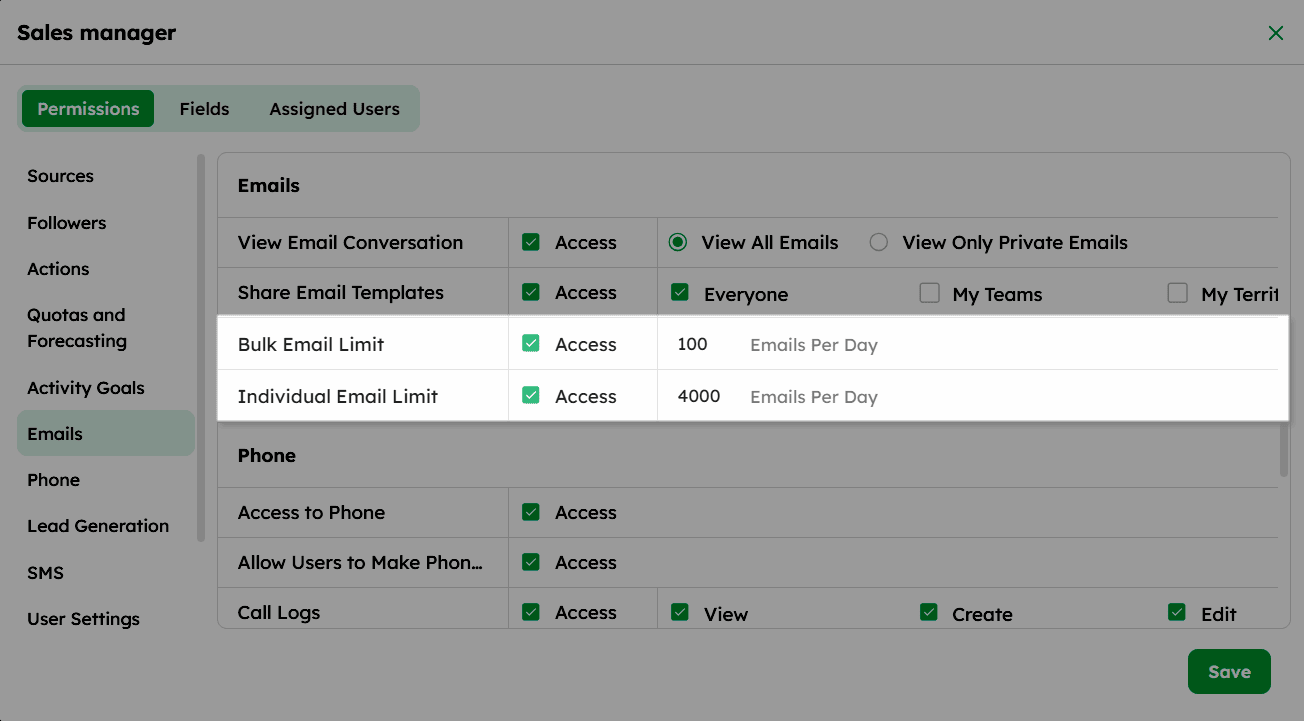
Email sending is subject to the daily limit configured in Permission Settings. If a limit is set, the user can send only up to that number per day across all synced email accounts. If no limit is configured, emails cannot be sent.
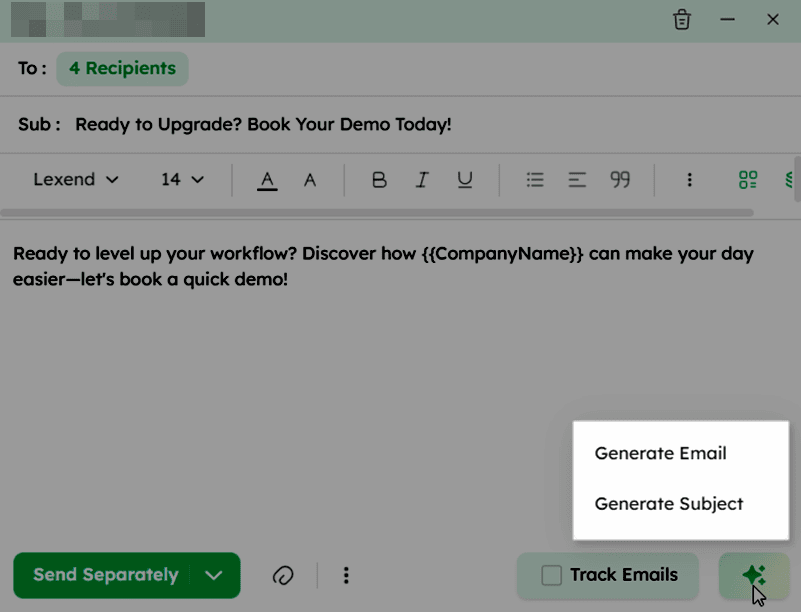
Tip: Use NIRA AI Email Composer to auto-generate and refine subject lines and email drafts for your specific needs.
How to Assign New Owners in Bulk
Assigning an owner to a deal establishes responsibility, enabling better tracking, accountability, and reporting across the sales pipeline.
-
In the Deal List View, select the deals you want to assign an owner to by checking the boxes next to their names.
-
Click Assign Owner from the bulk action tray to open the Assign Owner dialog box.
-
In the Assign to dropdown, search for and select the user you want to assign as the owner.
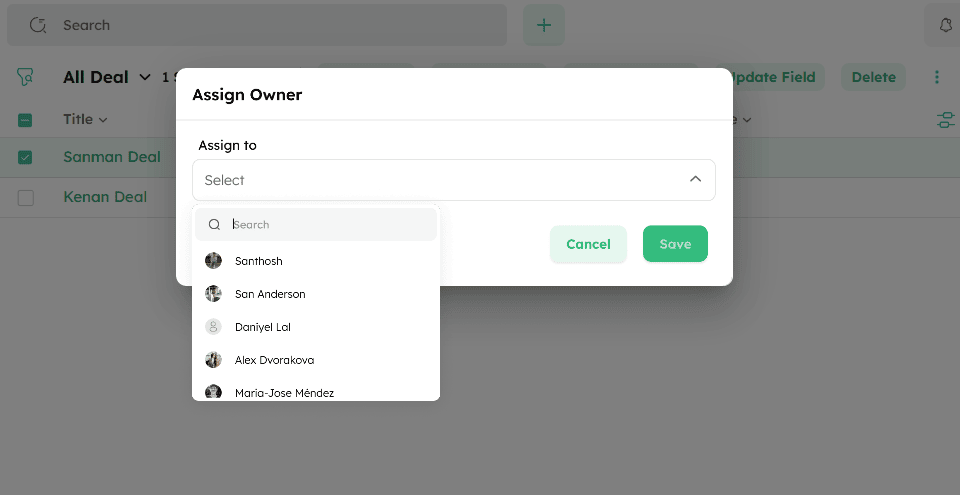
- Click Save to confirm.
Assigning a new owner updates the existing owner with the selected owner.
How to Assign Followers in Bulk?
The Assign Followers bulk action allows you to add team members as followers to multiple deal records at once, enabling them to stay updated on deal activities and track deal progress.
-
Select the deals you want to assign followers to from the Deal List View by checking the boxes next to their names.
-
Click the ellipsis (⋮) icon in the bulk action tray and select Assign Followers.
-
In the Assign Followers dialog box, search for the users (deal records) (some other name) you want to assign as followers from the dropdown list.
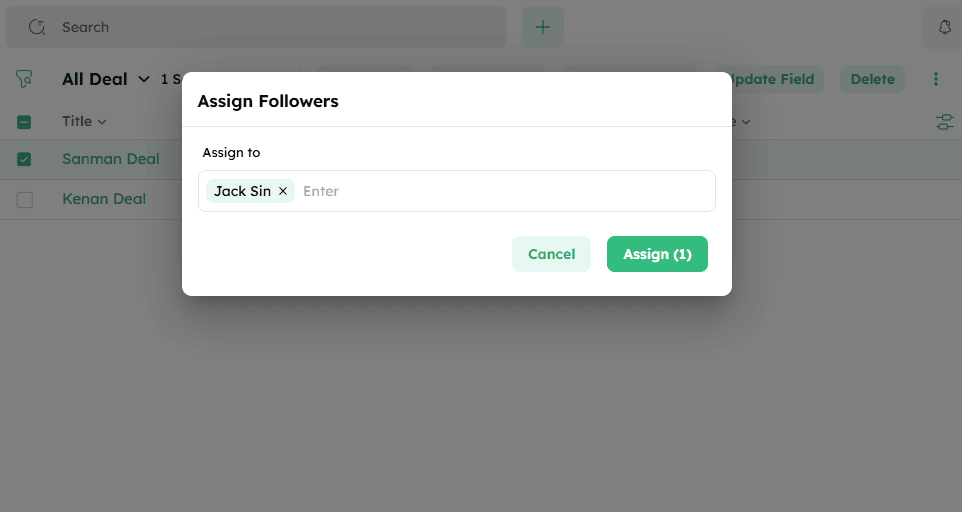
- Click Assign to add the selected users as followers to all chosen deals.
How to Update Deal Fields in Bulk?
Updating fields in the CRM, helps to keep deal information accurate and up to date, ensuring better tracking and decision-making.
-
Navigate to the Deal List View and select the deals you want to update.
-
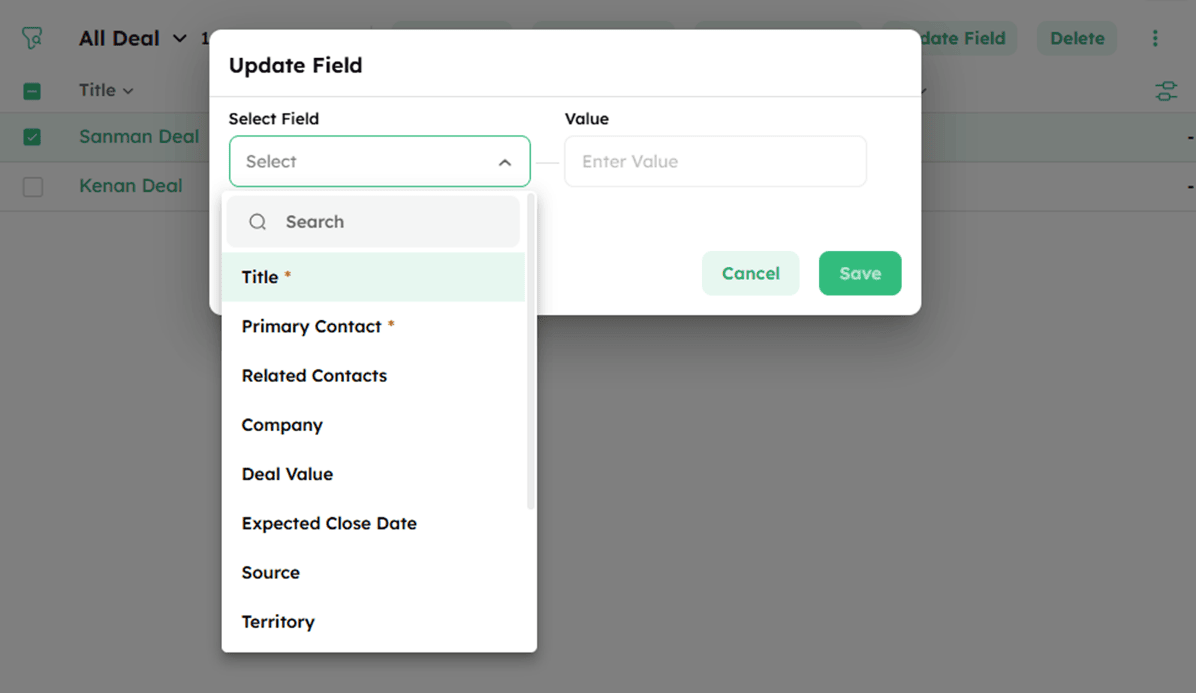
Click Update Field from the bulk action tray. Choose the field(s) to update from the dropdown list.
-
All deal fields are available for update except auto-generated fields.
-
Enter the new value for the selected field.
-
Click Save to apply the update to all selected deals
You can add all available fields from the dropdown and change their values as needed.
How to Add or Remove Tags in Bulk?
Adding or removing tags helps to categorize and organize deals, making it easier to search, filter, and manage relevant information.
Add Tags:
-
In the Deal List View, select the required deals to update their tags.
-
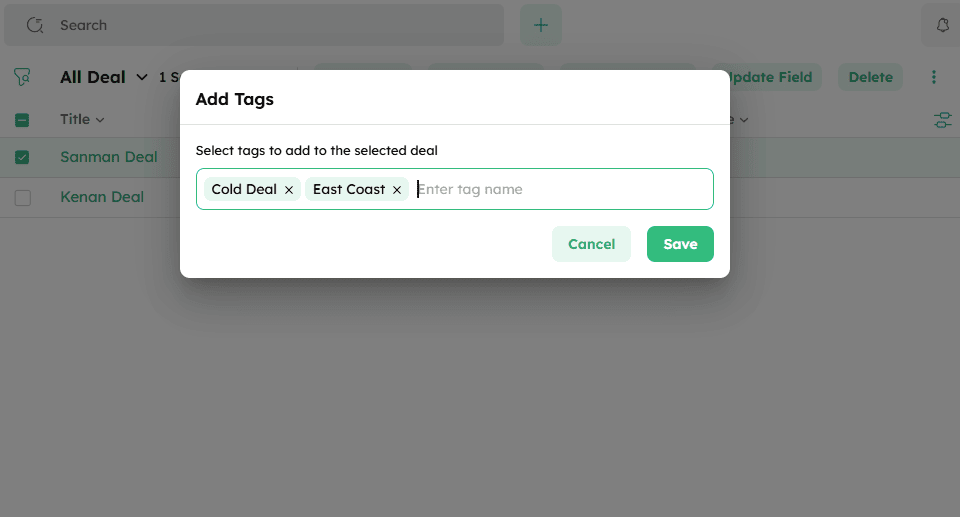
Click the ellipsis (⋮) icon in the top-right corner and choose Add Tags from the drop-down list.
-
In the Add Tags dialog box, search and select one or more tags from the drop-down list.
-
Click Save to apply the tags to the selected deals.
Remove Tags:
-
Select the deals to remove the tags.
-
Select the ellipsis (⋮) icon in the top-right corner and choose Remove Tags from the drop-down.
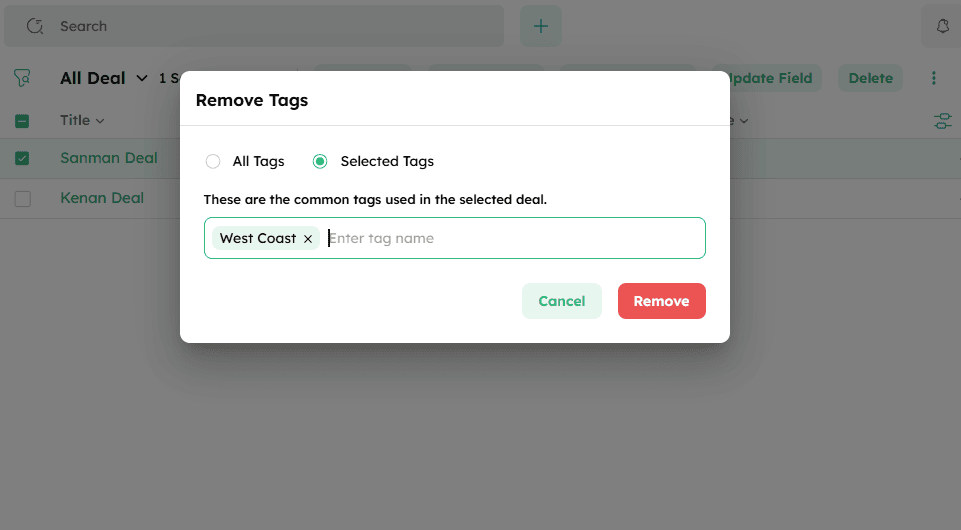
- Choose one of the following:
-
All Tags - Removes every tag linked to the deal.
-
Selected Tags - Removes only the chosen tags.
- Click Remove to detach the selected tags from the chosen deals.
How to Export Deals in Bulk?
The Export bulk action enables multiple deal records to be exported from the Deal List View in a preferred file format for reporting or backup purposes.
-
In the Deal List View, select the deals you want to export by checking the boxes next to their names.
-
Click the ellipsis (⋮) icon in the bulk action tray and select Export from the dropdown.
-
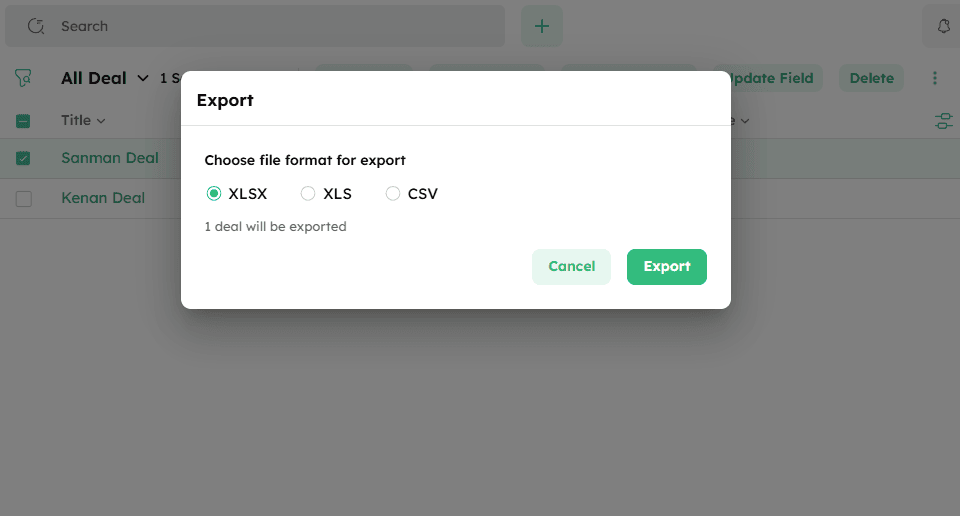
Choose your preferred file format, such as XLSX, XLS, or CSV.
-
Click Export to generate the file.
-
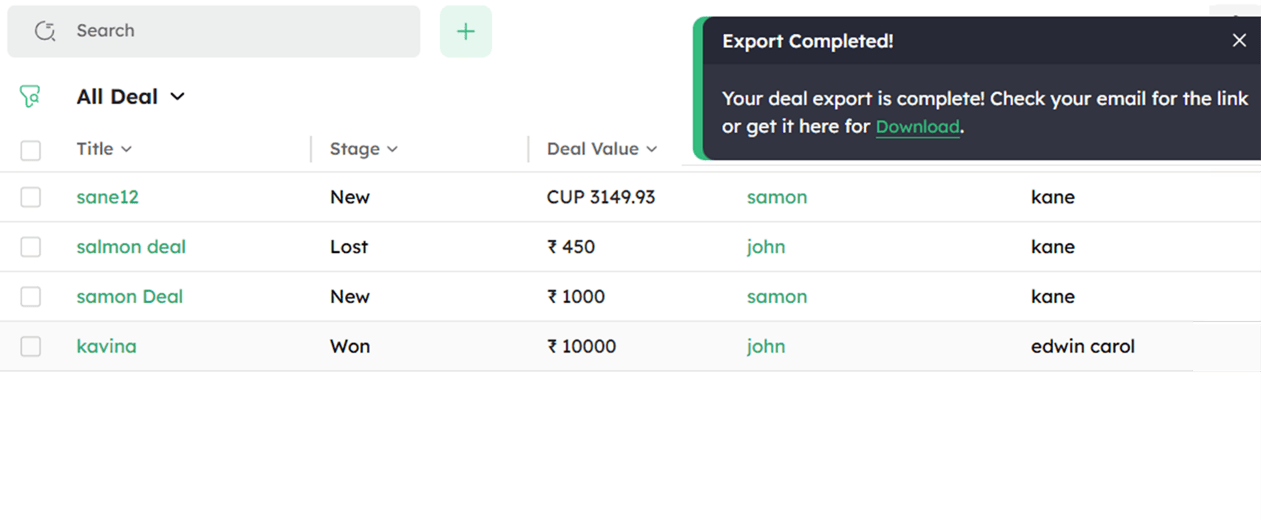
Once the export is complete, click Download to save the file to your device.
How to Archive Deals in Bulk?
Archiving multiple deals at once helps keep your active pipeline clean while retaining records for future reference.
-
In the Deal List View, select the deals to archive by checking the boxes next to their names.
-
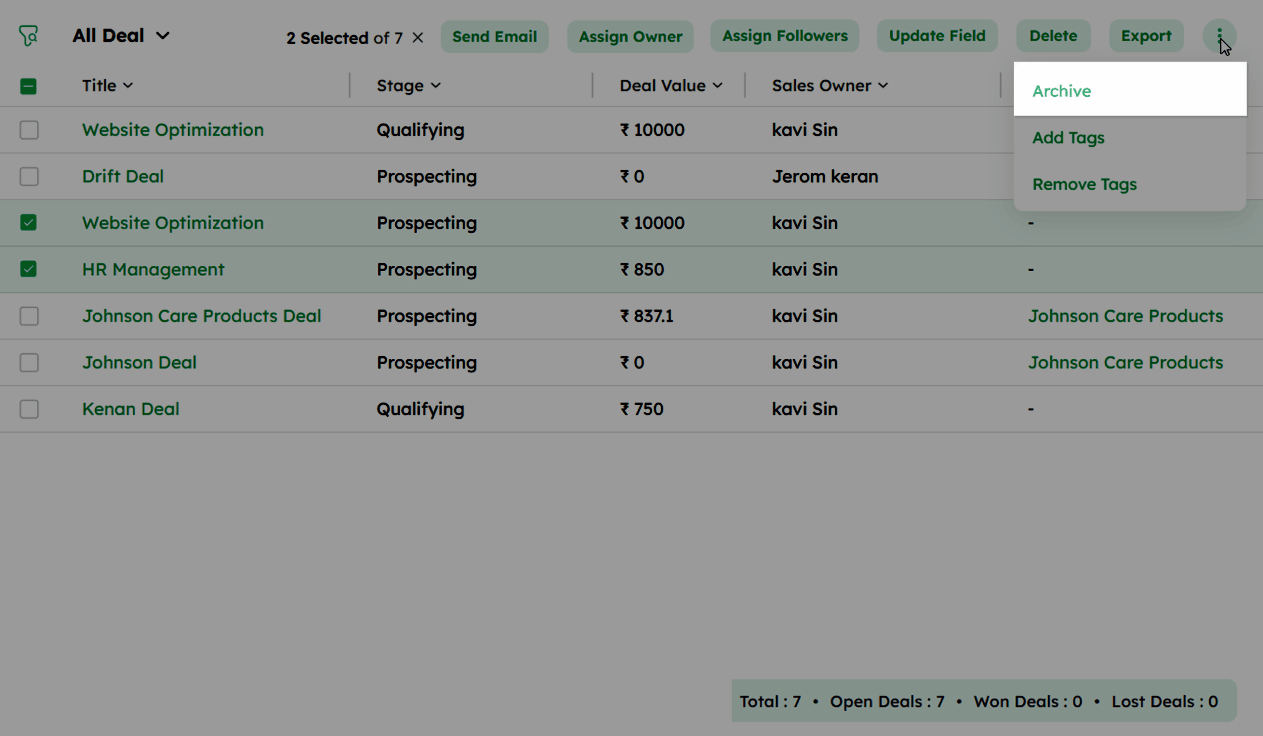
Click the ellipsis (⋮) icon in the bulk action tray and select Archive.
A confirmation dialog will appear asking if you want to archive the selected deals.
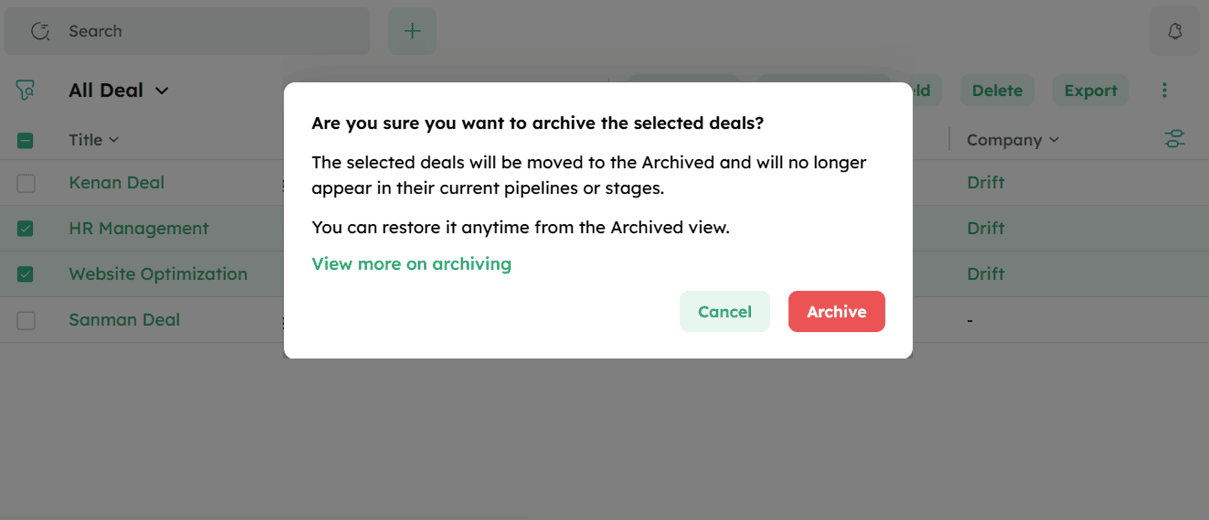
- Click Archive to move all selected deals to the Deal Archive tab.
-
The selected deals are moved to the Deal Archive tab.
-
Deals can be archived individually from both the Deal List View and Deal Detail Page.
-After archiving the deals, refer to Managing Archived Deals for further actions.
How to Delete Deals in Bulk?
Deleting a deal removes it along with all associated data from your records, helping maintain an organized and clutter-free database.
-
Select the deals you want to delete by clicking the checkboxes next to their titles.
-
Click the ellipsis (⋮) icon, and select Delete from the drop down.
-
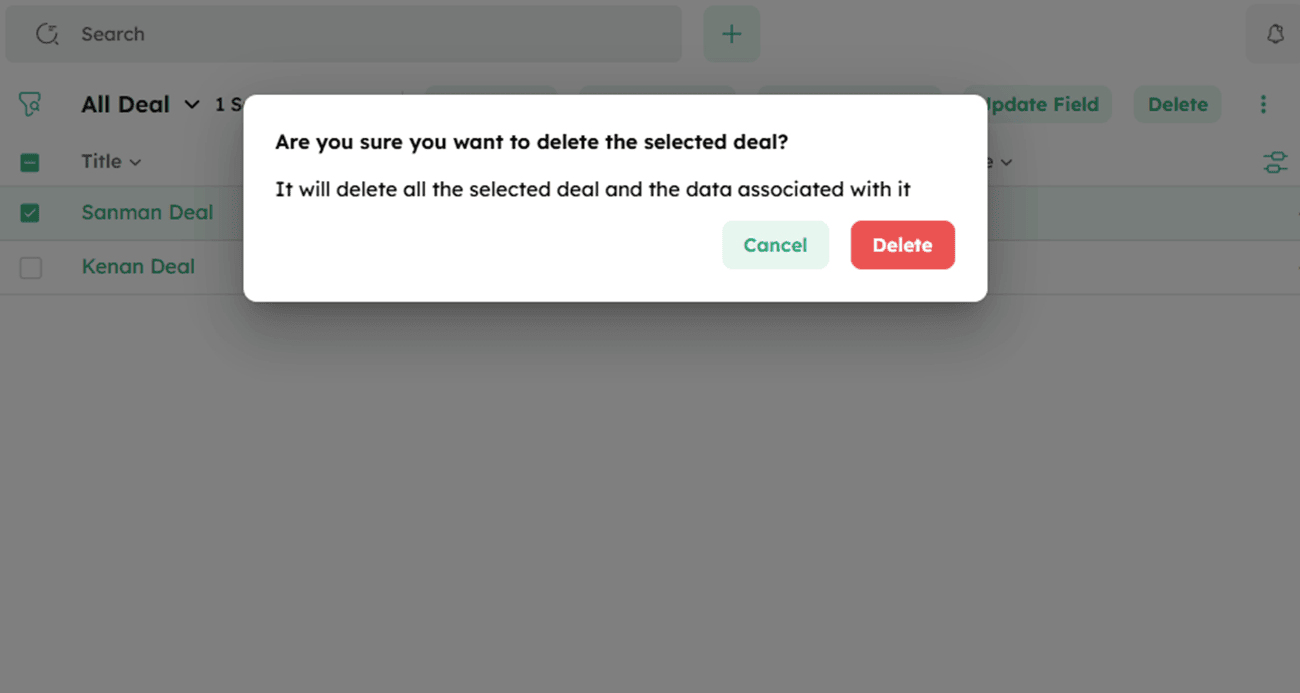
A confirmation pop-up appears with the message Are you sure you want to delete the selected deals? this will remove all associated data.
-
Click Delete to remove the selected deals and their associated data.
-
Click Cancel to discard and close the dialog box.
Reviewing Deals in the Summary View
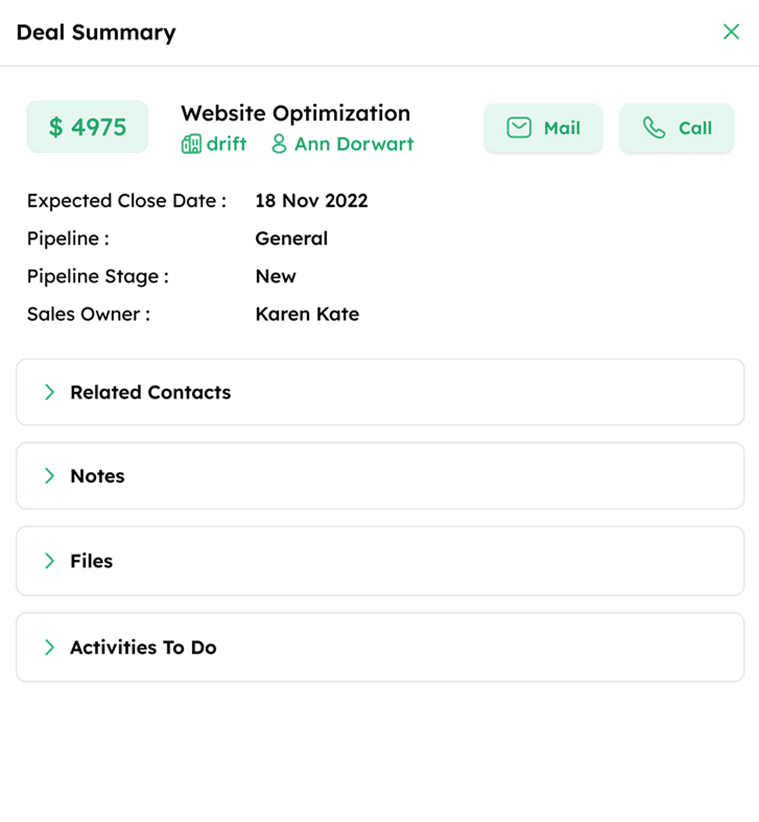
The Summary View provides a quick snapshot of key deal details when a deal is clicked in the List View. It opens as a side drawer, allowing users to view deal information without navigating to the full Deal Detail Page.
Navigating the Summary View:
- Click any deal record in the Deal List View to open the Deal Summary drawer.
-
The drawer displays the deal name, deal value with currency, Expected Close Date, Pipeline, Pipeline Stage, and Sales Owner. If no value is provided, it displays zero with the default currency.
-
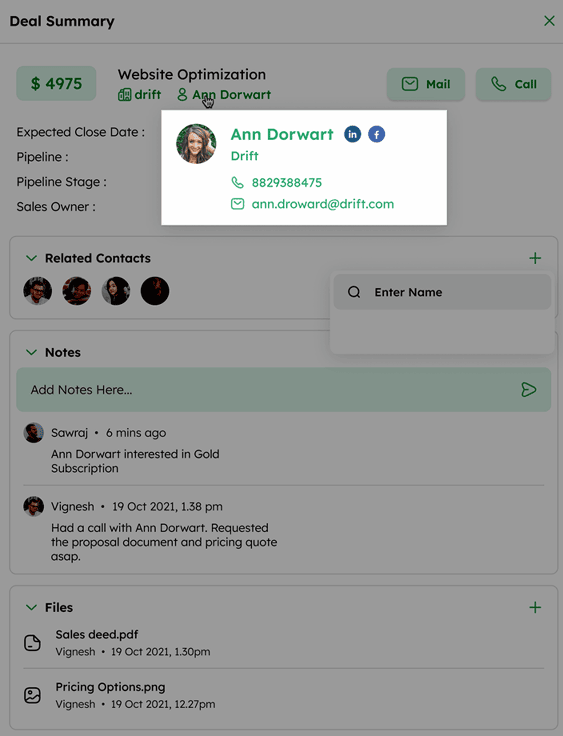
Clicking the company or contact name opens a profile card with key details. Click the name on the card to navigate to their respective Detail Page.
-
Use the Mail or Call buttons to send an email or initiate a call directly from the drawer.
-
Expand the toggle sections to view Related Contacts, Notes, Files, and Activities To Do.
-
Click the deal title to open the Deal Detail Page for complete deal information.
How to Manage Archived Deals?
All archived deals are listed under the Deal Archive tab, where they can be viewed and managed.
- In the Deal Module, click the Deal Archive tab to view all archived deals.
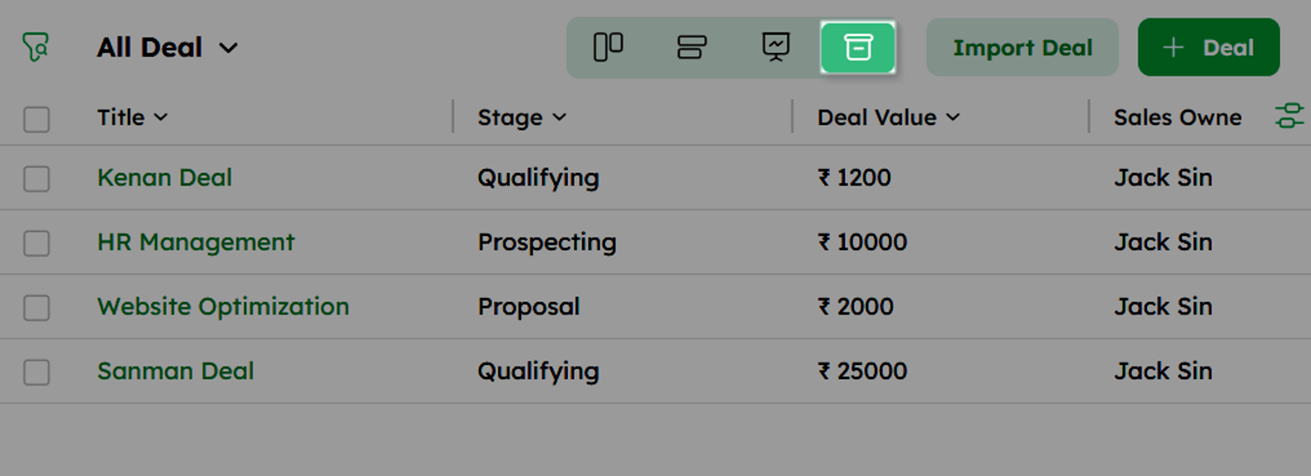
- Hover over any archived deal to display the ellipsis (⋮) icon.
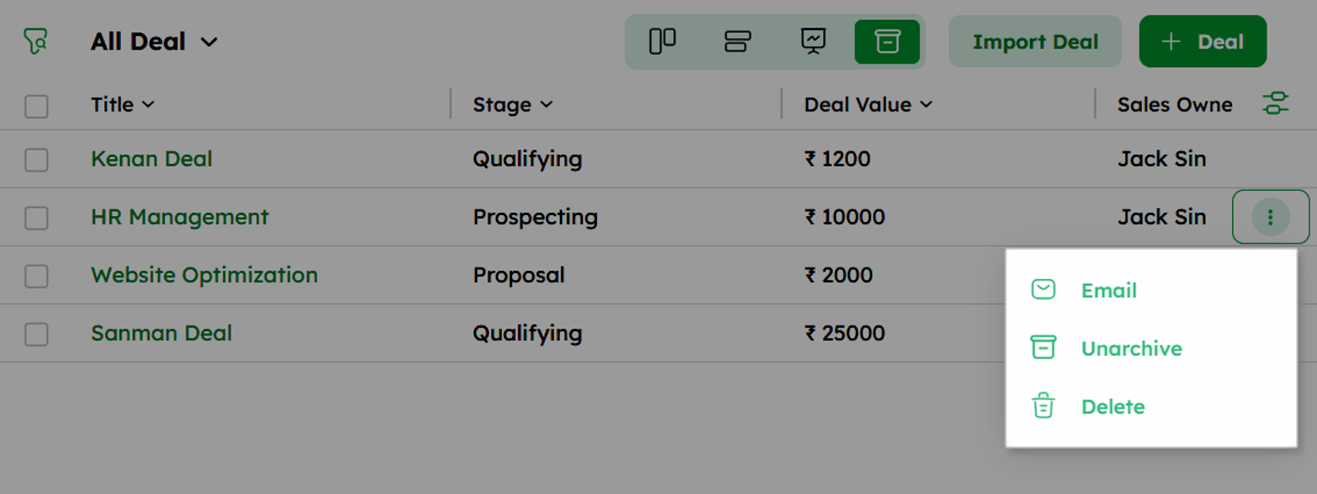
- Click the ellipsis (⋮) icon to access the following actions:
-
Unarchive – Restore the deal to the active pipeline.
-
Email – Compose and send an email linked to the deal.
-
Delete – Move the deal to the recycle bin.
-
Deal fields cannot be edited, and new activities, contacts, or products cannot be added to archived deals.
-
Archived deals are hidden from List, Kanban, and Forecast views.
-
Workflow automations do not apply to archived deals.
-
Viewing, searching, adding/editing notes, sending emails, exporting, and unarchiving deals remain possible.
