Performing Bulk Actions on Products
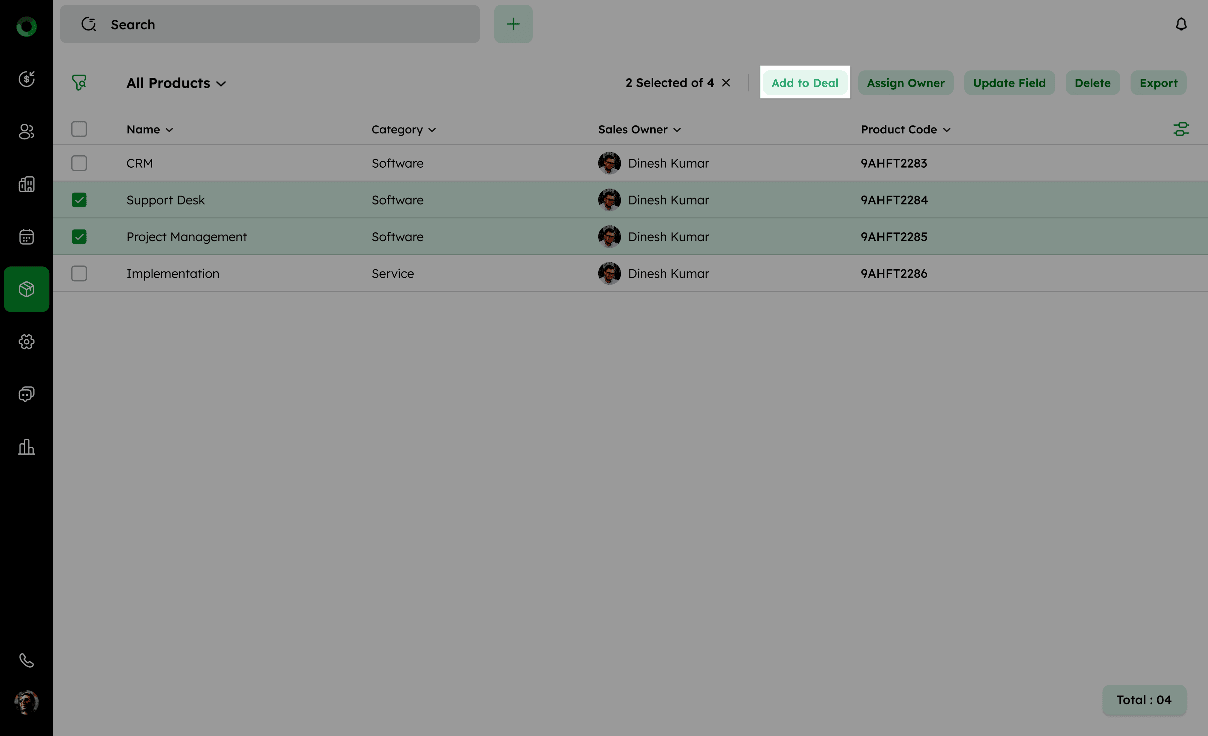
The Bulk Action feature enables you to manage multiple items simultaneously and reduce the need of repetitive tasks. Available options include Add to Deal, Assign Owner, Update Field, Delete, and Export.
Bulk: Adding Products to Deal
Bulk-adding products to a deal simplifies workflows by saving time, minimizing errors, ensuring consistent product details and pricing, and enabling faster updates.
To Bulk-Add Products to a Deal:
-
In the Product List View, select the products you wish to add to a deal.
-
Click Add To Deal in the toolbar. The Add Products to Deal drawer will open.
- Entering a Deal Name auto-fills the associated Contact Person and Company, which are non-editable.
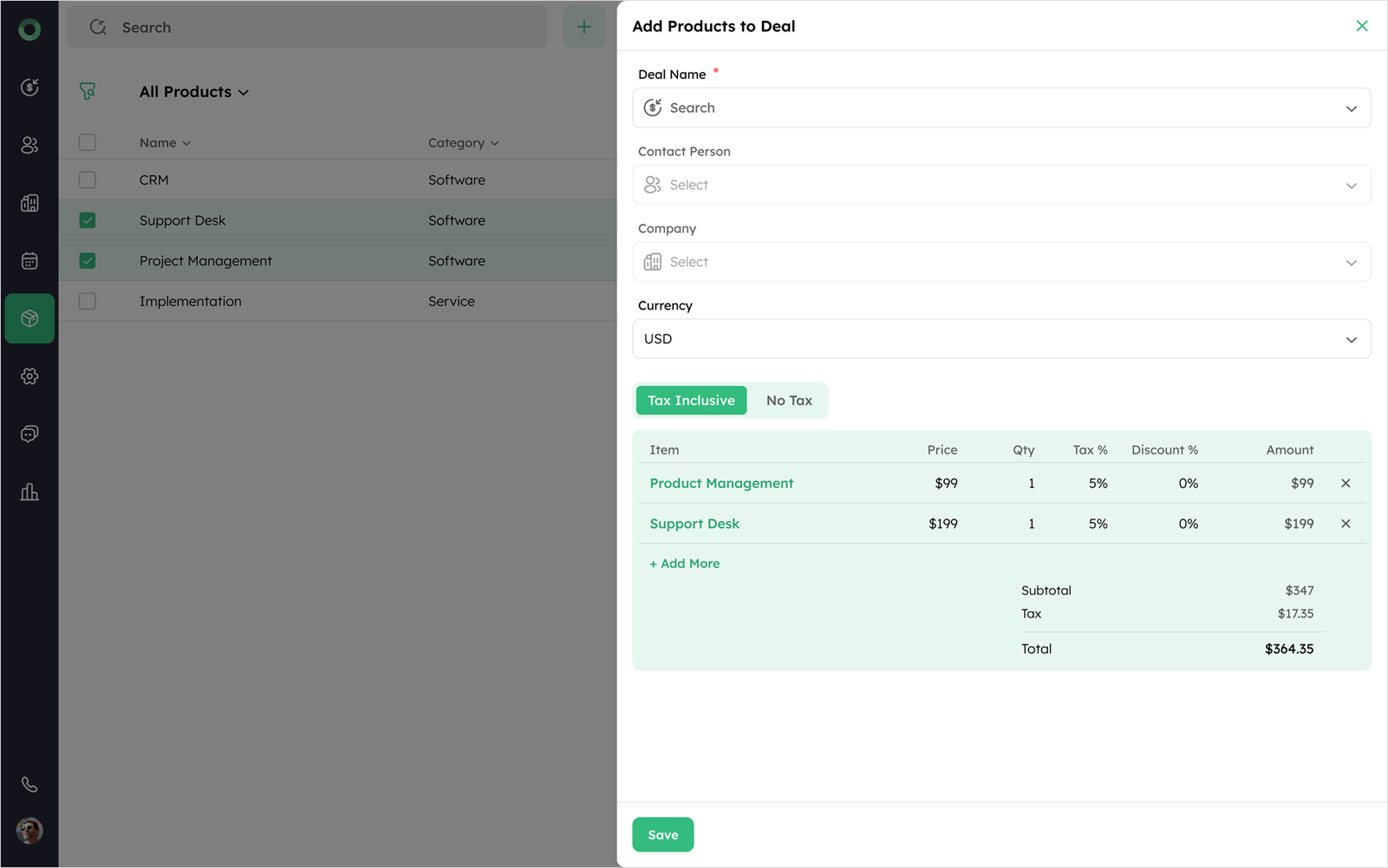
- The drawer currency displays the default currency, with an option to select from a list of active currencies.
The table below outlines the key terms used in the form to configure tax settings and display item details.
| Detail | Description |
|---|---|
| Tax Inclusive | Toggle switch to include tax or exclude tax in calculations. |
| No Tax | Indicates no tax is applied to the calculation. |
| Item | Name or description of the product or service listed. |
| Price | Cost per unit of the item. |
| Quantity | Number of units for the item. |
| Tax | A column displays tax details, (hidden if no tax is applied) which is omitted if tax is not applied. |
| Discount | Any reduction in price applied to the item. |
| Amount | Total value is calculated based on price, quantity, and discount. |
- Click +Add More to open a dropdown with a search bar. Use the search bar to add more products.
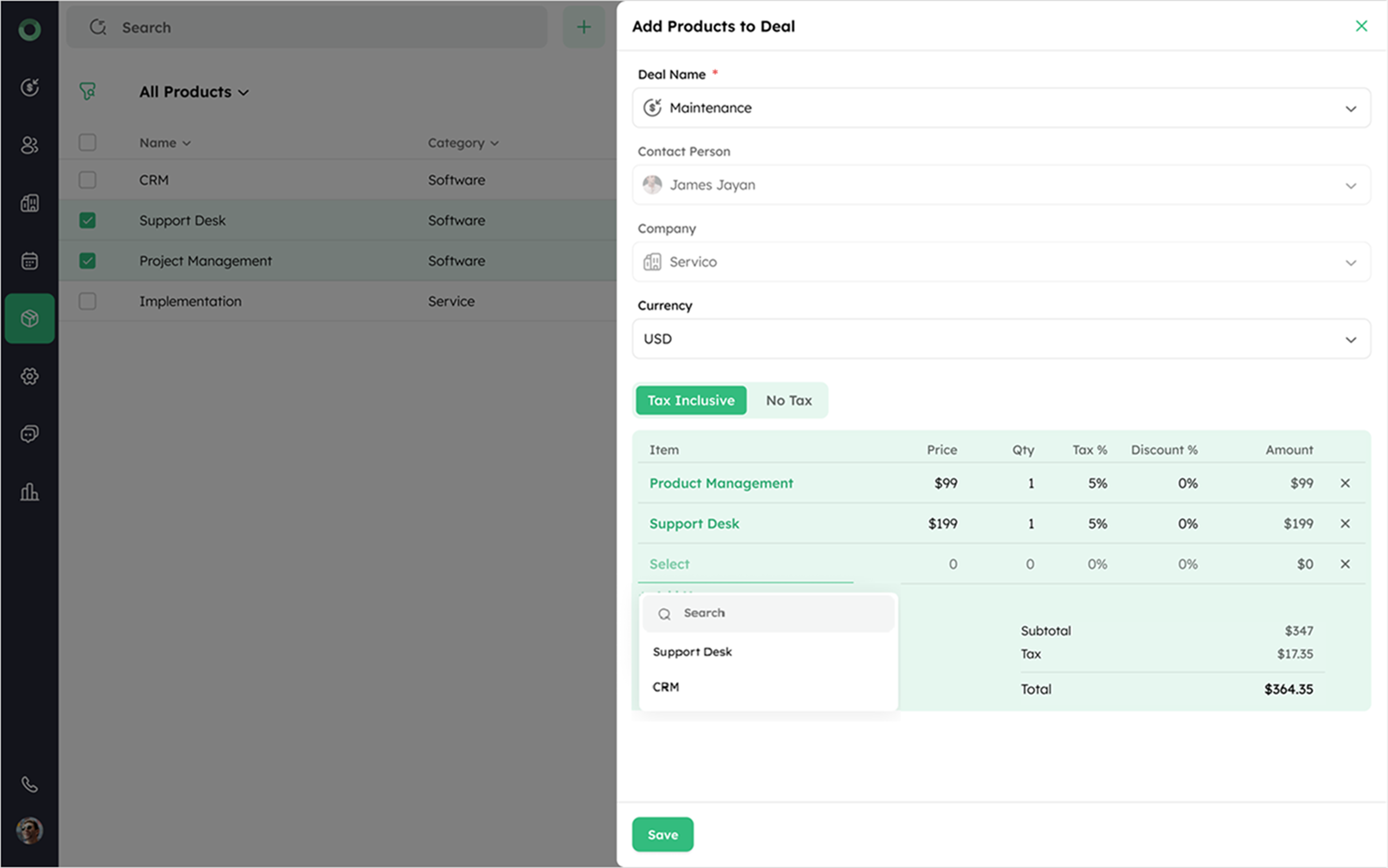
- Once products are selected, the total amount, subtotal, and tax (if applicable) are calculated automatically. will be displayed. Click Save to finalize and add the products to the deal.
Bulk: Assigning Owners
Assign an Owner to multiple products at once using bulk actions. This ensures accountability, saves time, and minimizes errors. This approach also streamlines management and enhances coordination, resulting in more efficient product oversight.
-
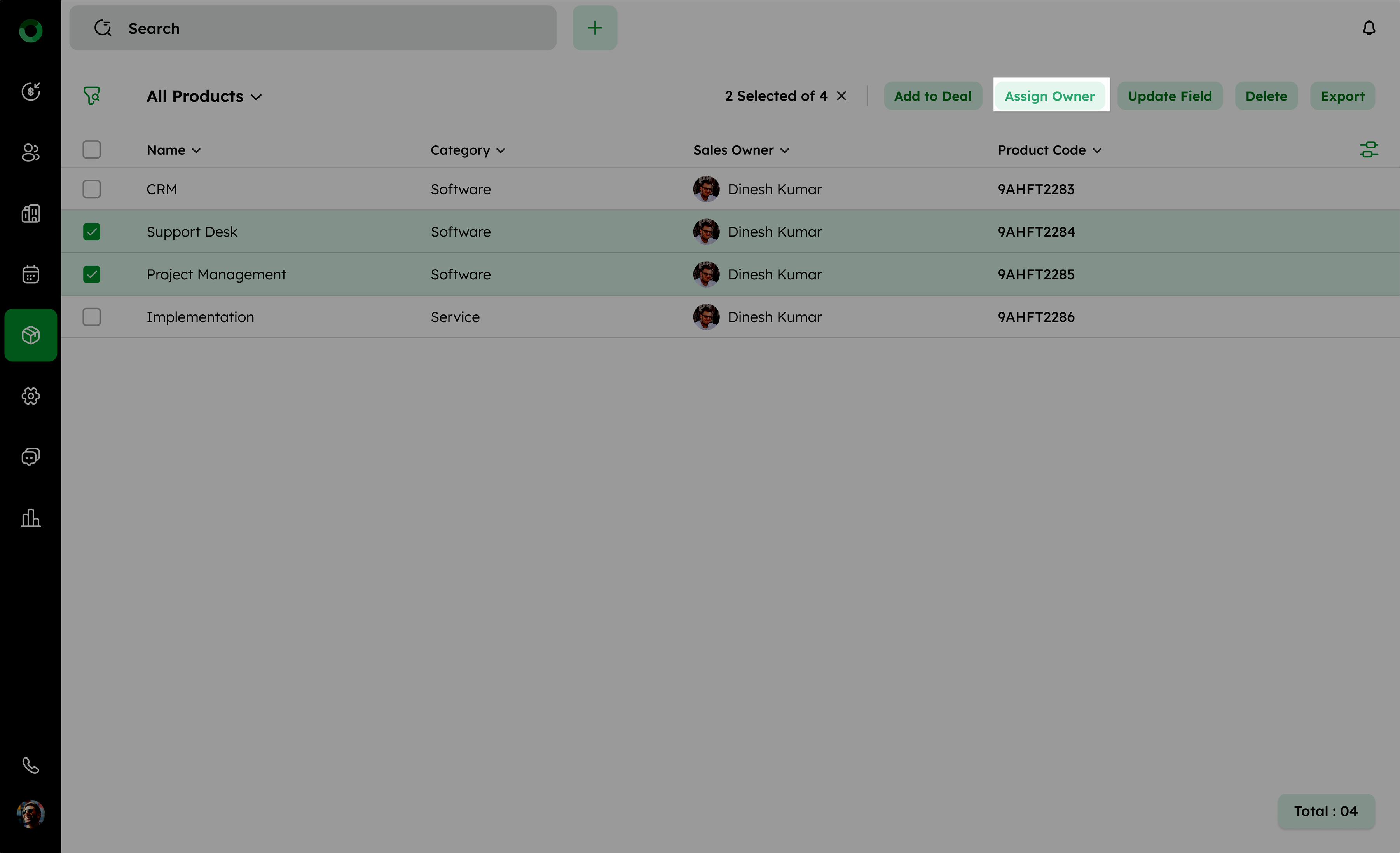
Access the Product List View and select the products to assign an owner.
-
Select the checkbox next to the products you want to assign.
-
Click Assign Owner from the bulk action toolbar.
-
Select the desired user from the list of available owners.
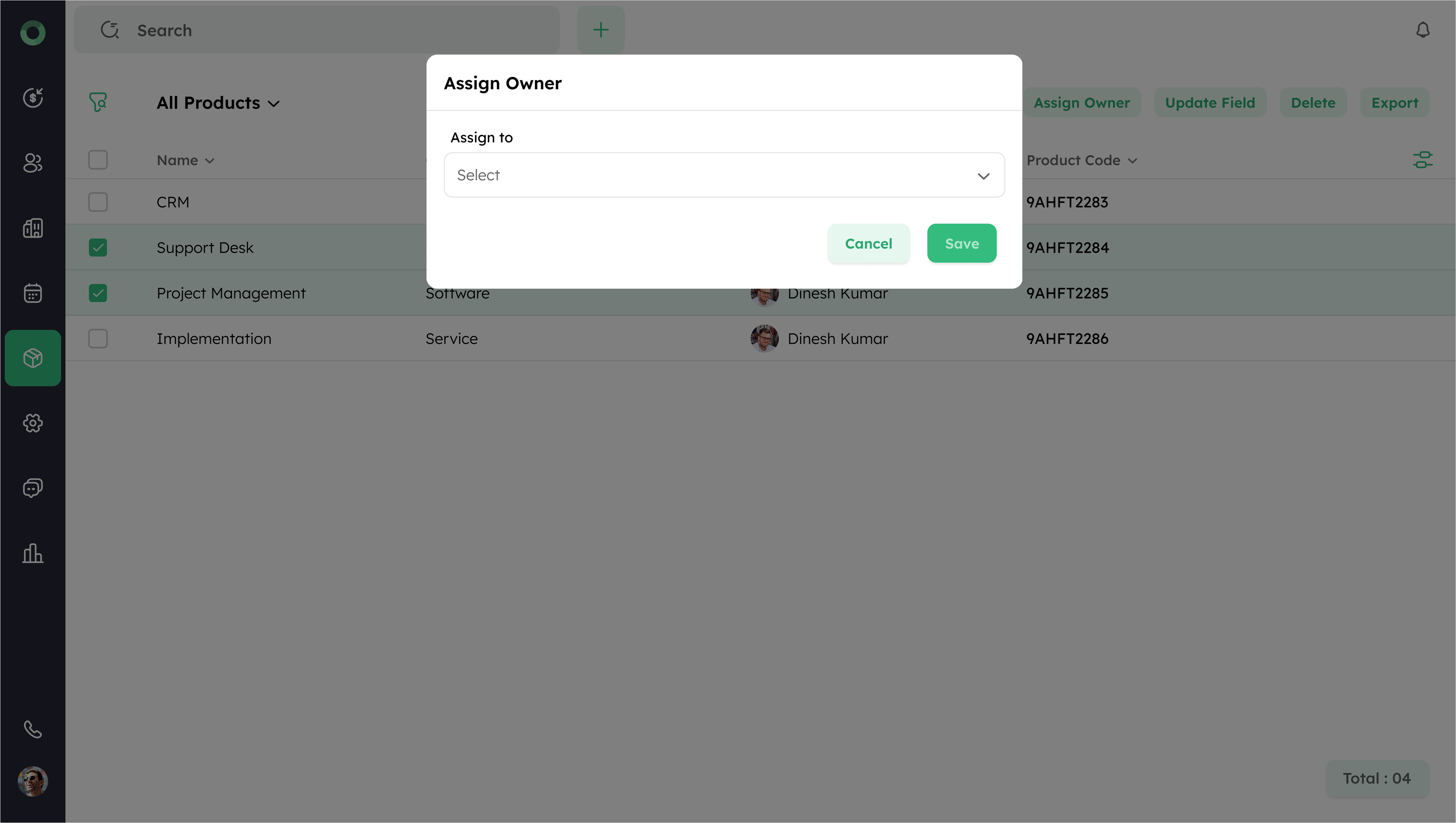
- Click Save to confirm and apply selected owner to the chosen products.
Bulk: Updating Fields
The Update Field bulk action allows you to make changes to multiple products at once, ensuring consistency, improving accuracy, and saving time compared to individual updates.
-
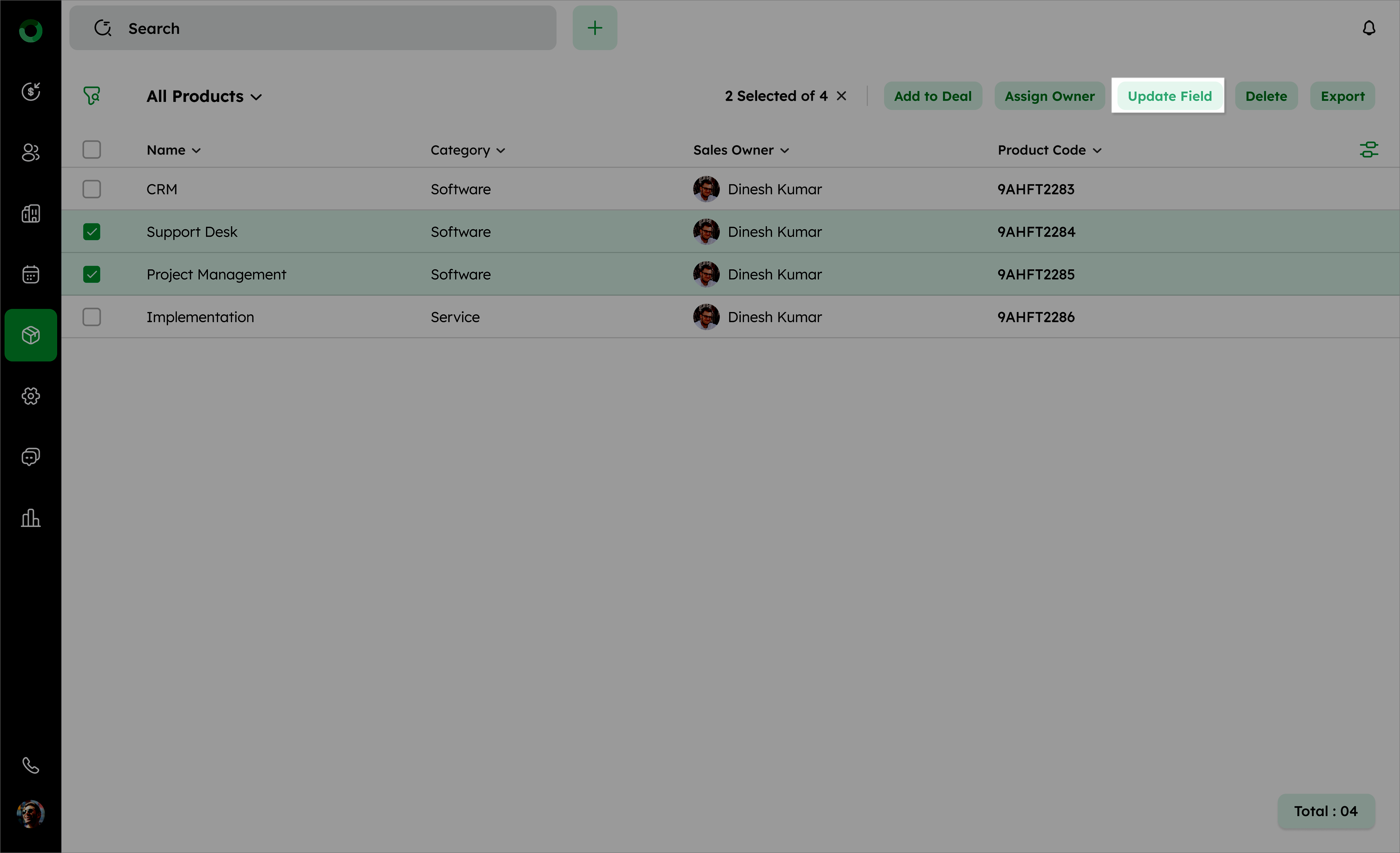
In the Product List View, select the products you wish to update.
-
Select the check boxes next to the product you want to update.
-
Click Update Fields from the bulk action toolbar.
-
In the drawer, choose the field to update from the dropdown (editable system and custom fields only).
-
Enter the new value for the selected field.
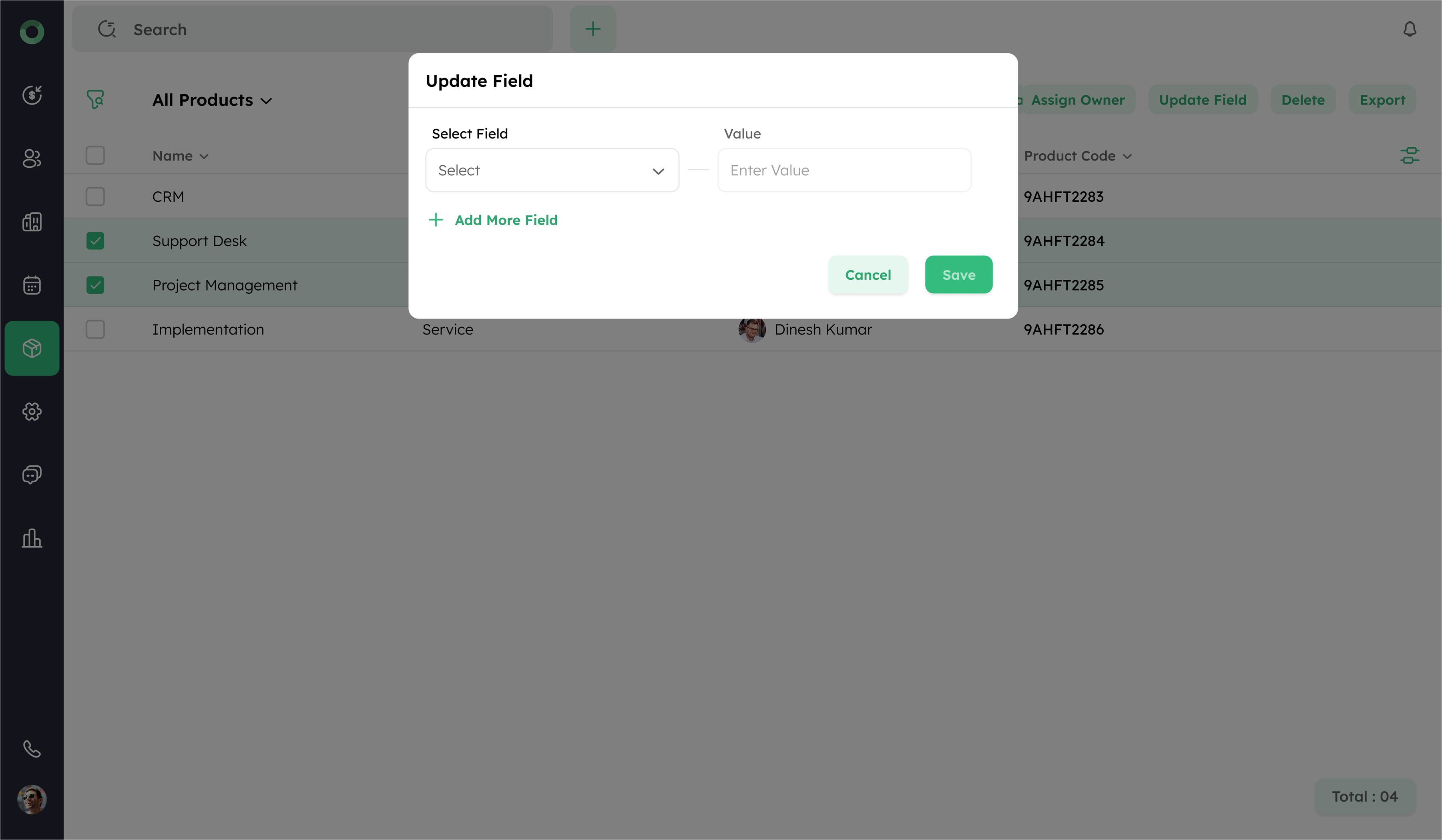
- Review the changes and click Save to apply updates to the selected products.
If a field is marked as required after a product is created, and you attempt to update another field, a validation message will appear.
Bulk: Deleting Products
The Delete bulk action allows you to remove multiple records from a system or database in one operation. This simplifies data cleanup and management.
-
Open the Product List View.
-
Select the checkboxes next to the products you want to delete.
-
Click Delete from the bulk action toolbar.
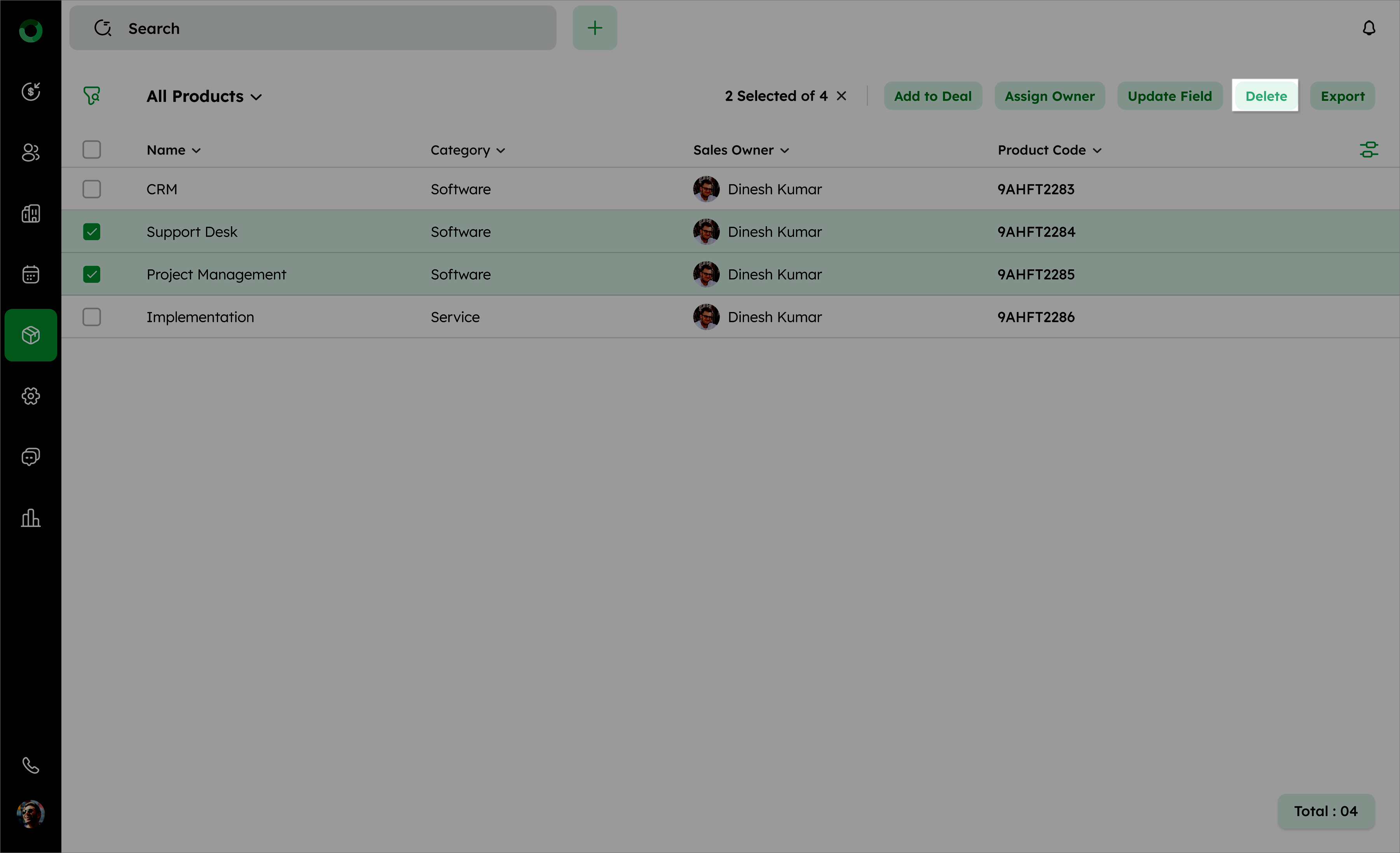
- A confirmation pop-up will appear. Click Delete to confirm the action.
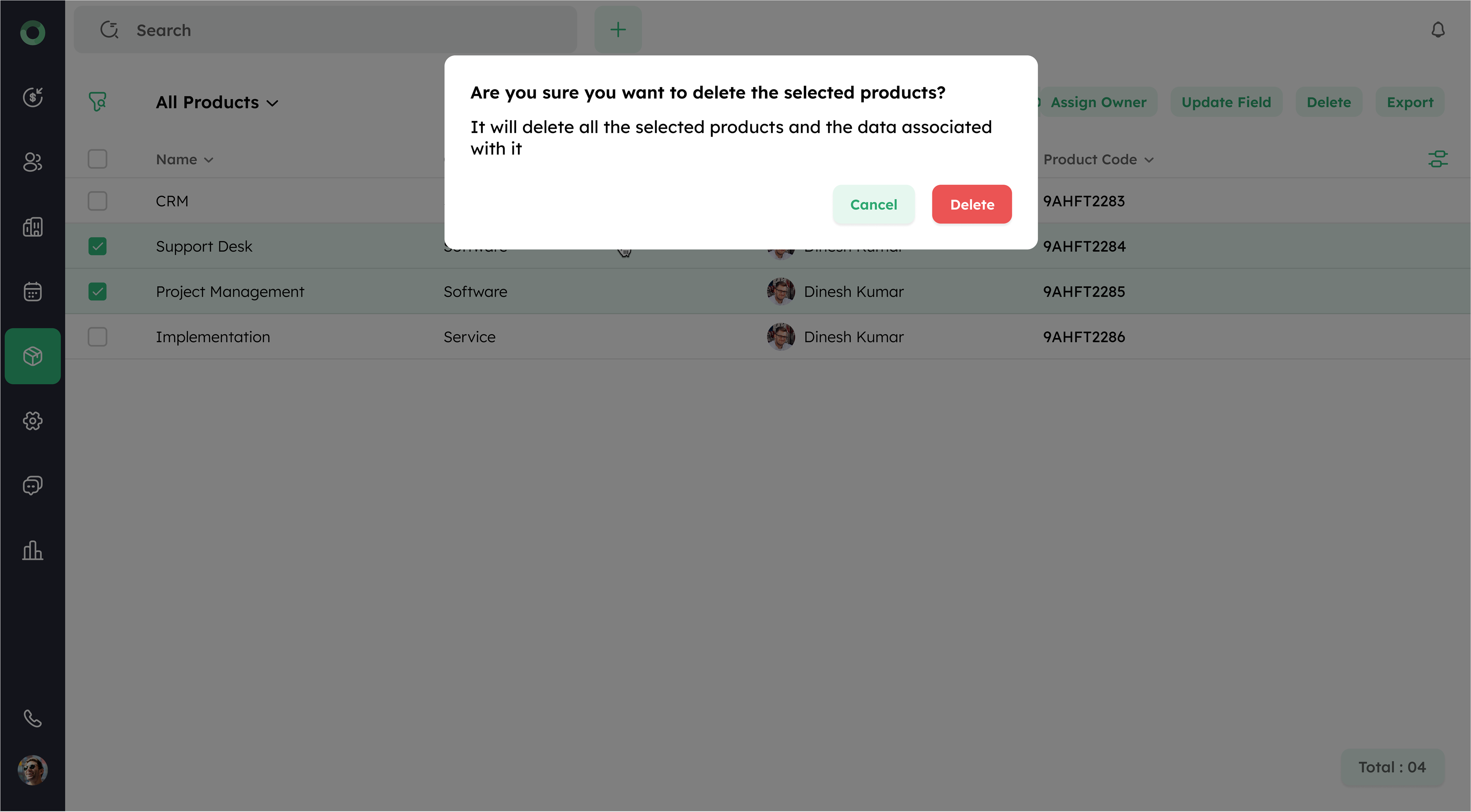
Deleted products are moved to the Recycle Bin and retained for 90 days before permanent removal.
Bulk: Exporting Data
The Export bulk action enables you to download multiple product records into a single file. such as CSV, XLS, or XLSX. The exported file can be accessed offline, analyzed or shared with other systems and applications.
-
Open the Product List view.
-
Select the product checkboxes for the products you want to export.
-
Click Export from the bulk action toolbar to open the Export drawer.
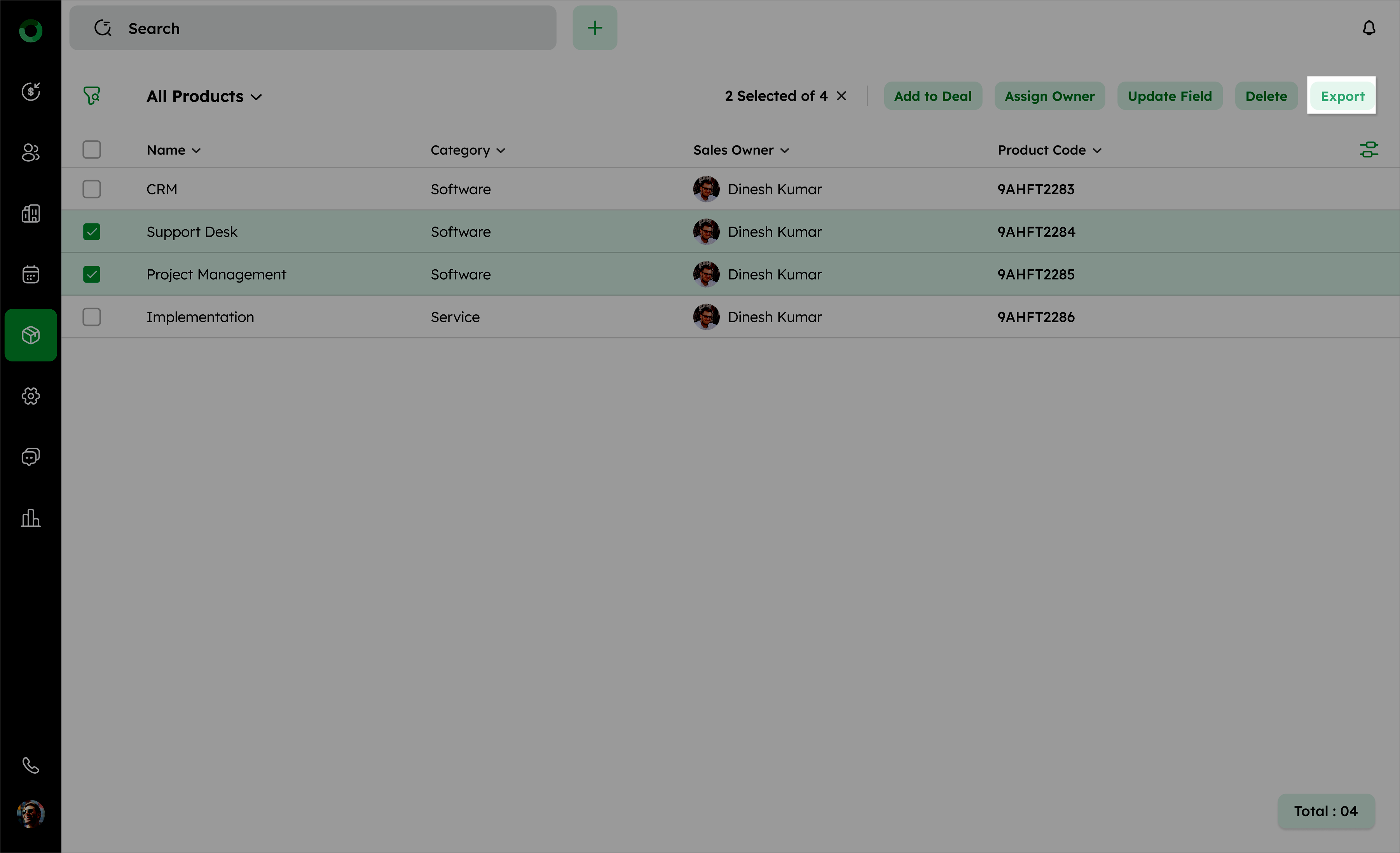
- From the Export popup drawer, choose the file format you need, such as XLSX, XLS, or CSV.
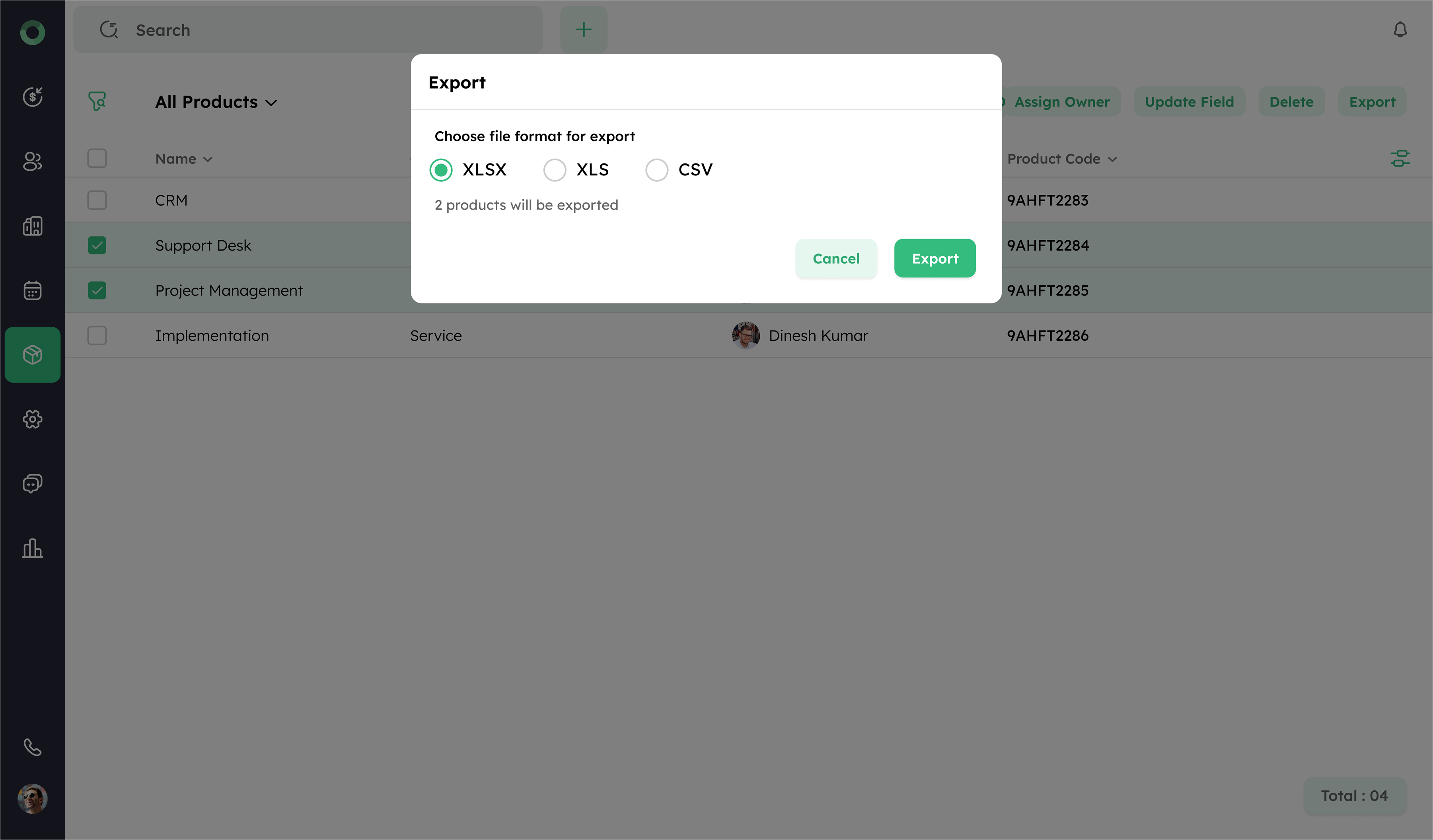
- Click Export to generate the file.
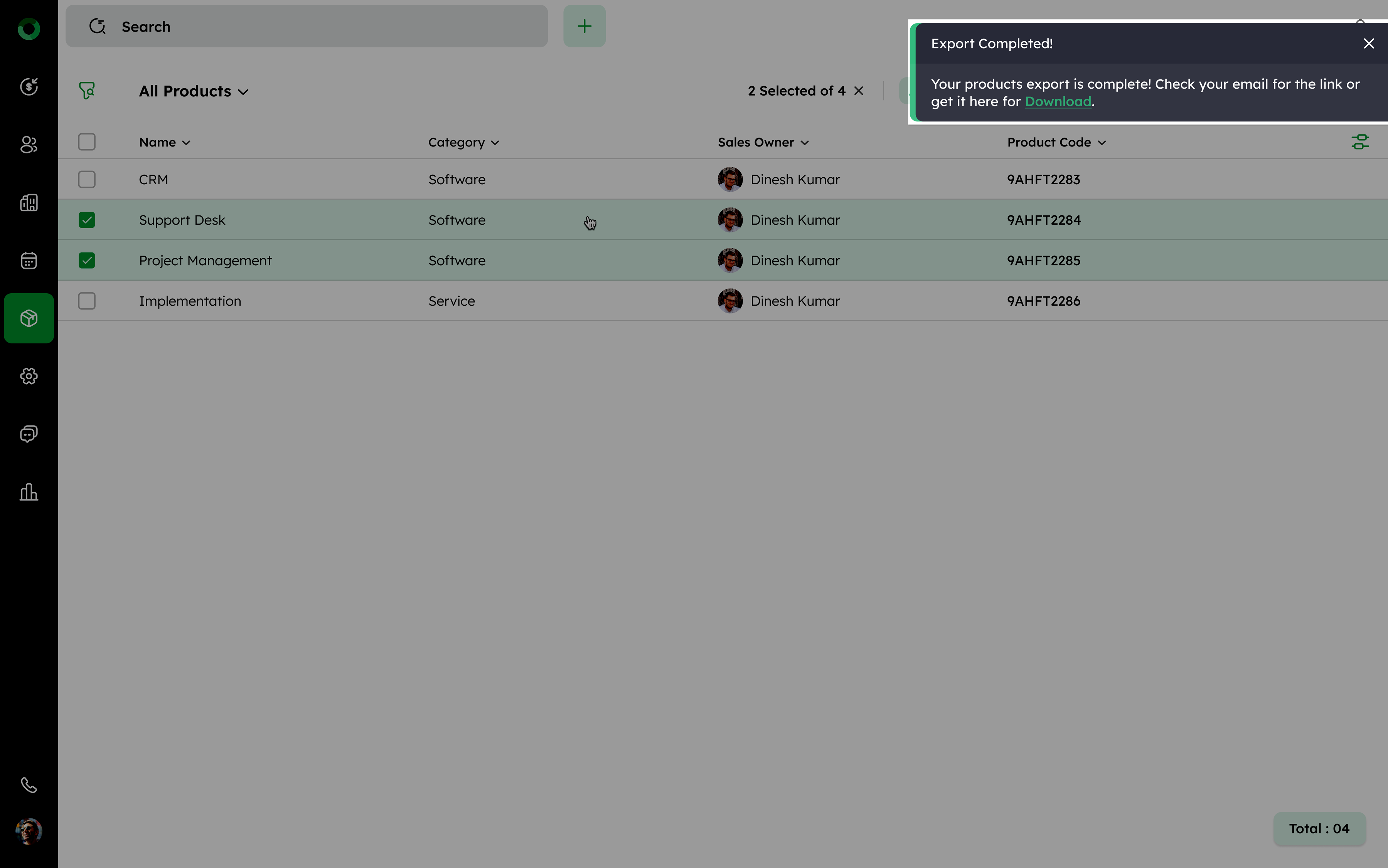
Once the export process is complete, click Download to retrieve and save file to your device.