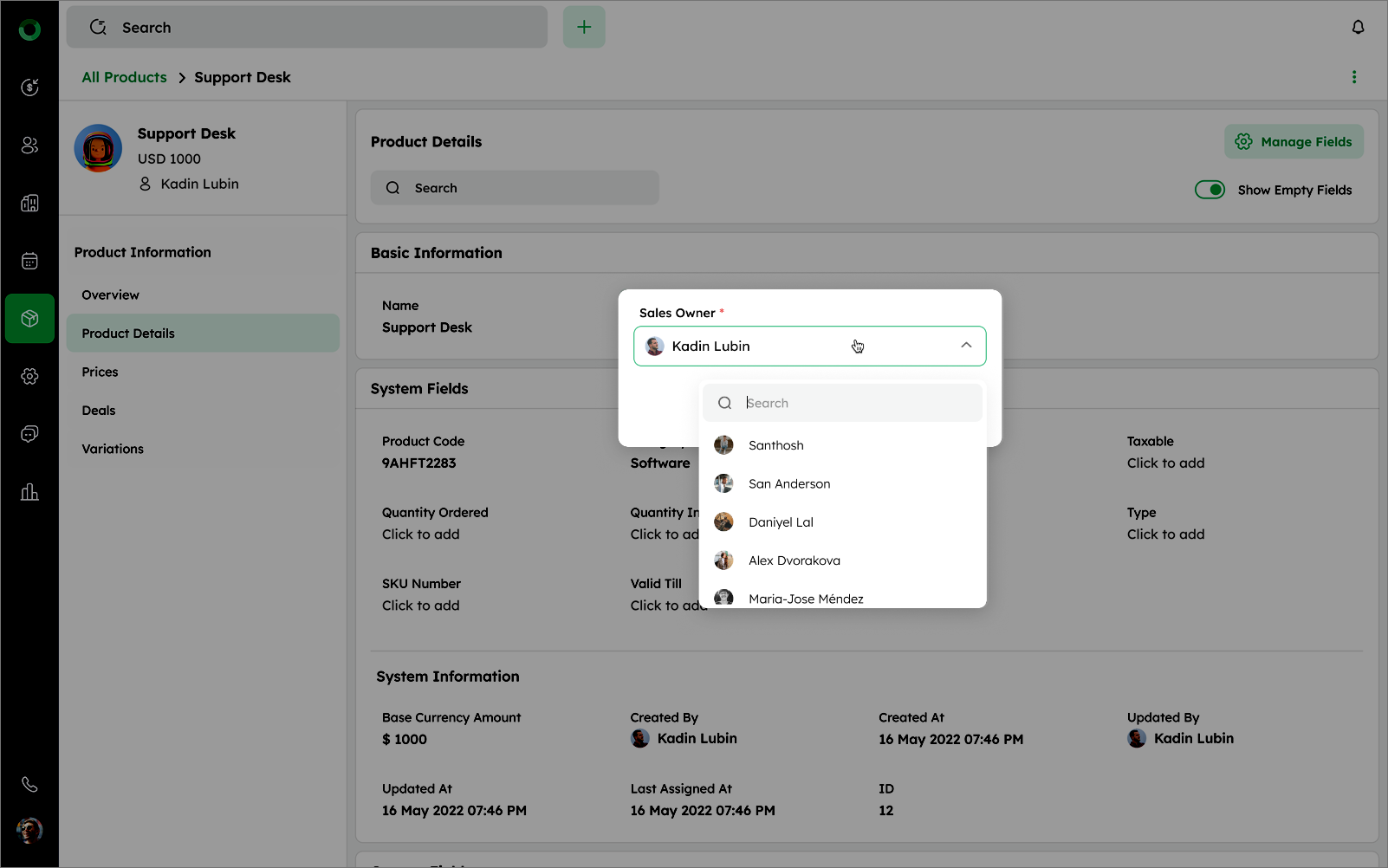
Steps to Update a Product
Products can be updated from multiple places, such as the List View, Bulk Action, Summary Fields, or the Detail Page. This ensures flexibility to revise product details like price, description, and availability to stay accurate and up to date.
Updating Products Via List View
To update a product from the Product List View:
-
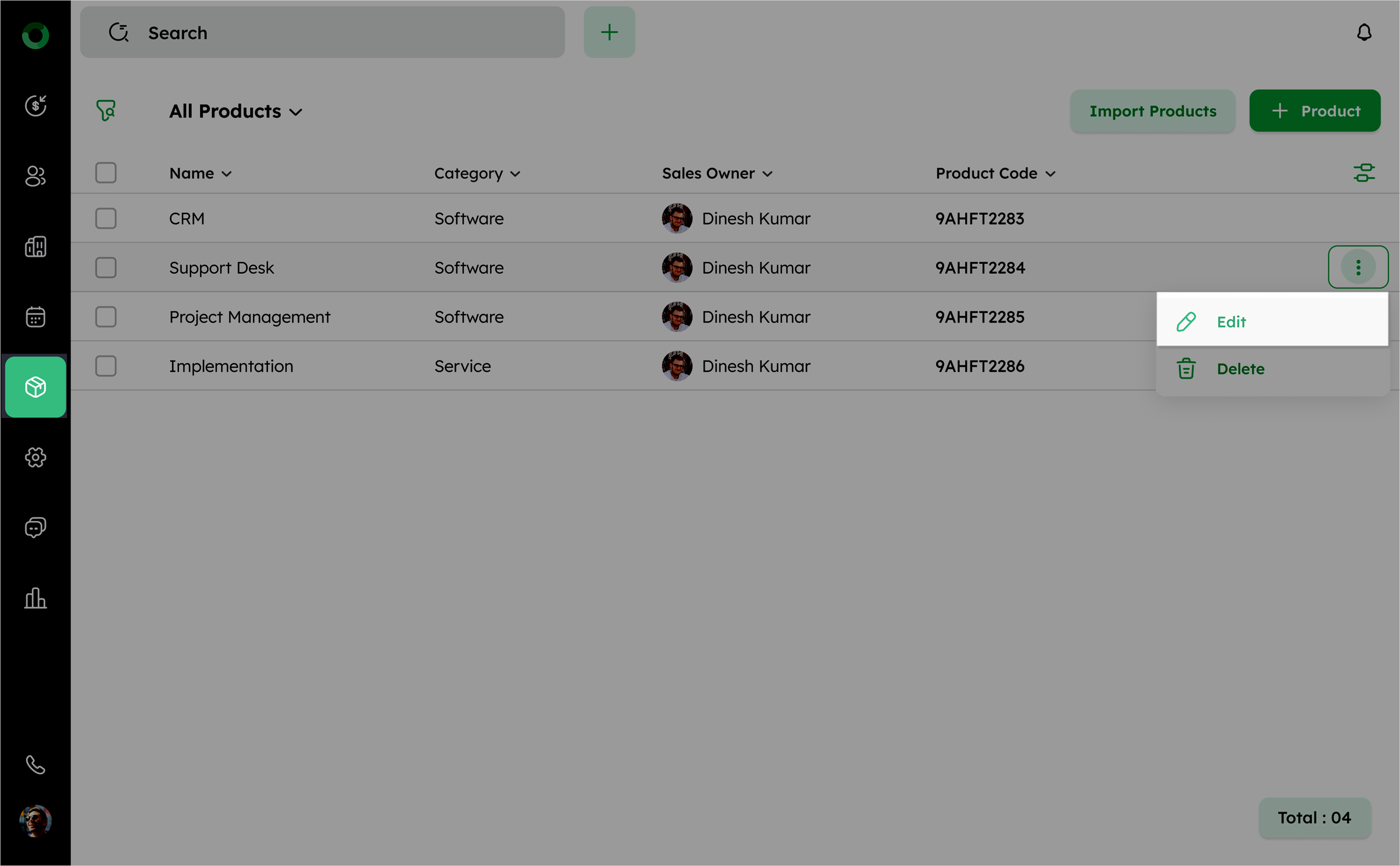
In the Product List View, select the product you wish to update.
-
Click the ellipsis (⋮) menu next to the product.
-
Select Edit option from the ellipsis (⋮) menu to update product.
This will open the Update Product form, where you can make the necessary changes to the product details.
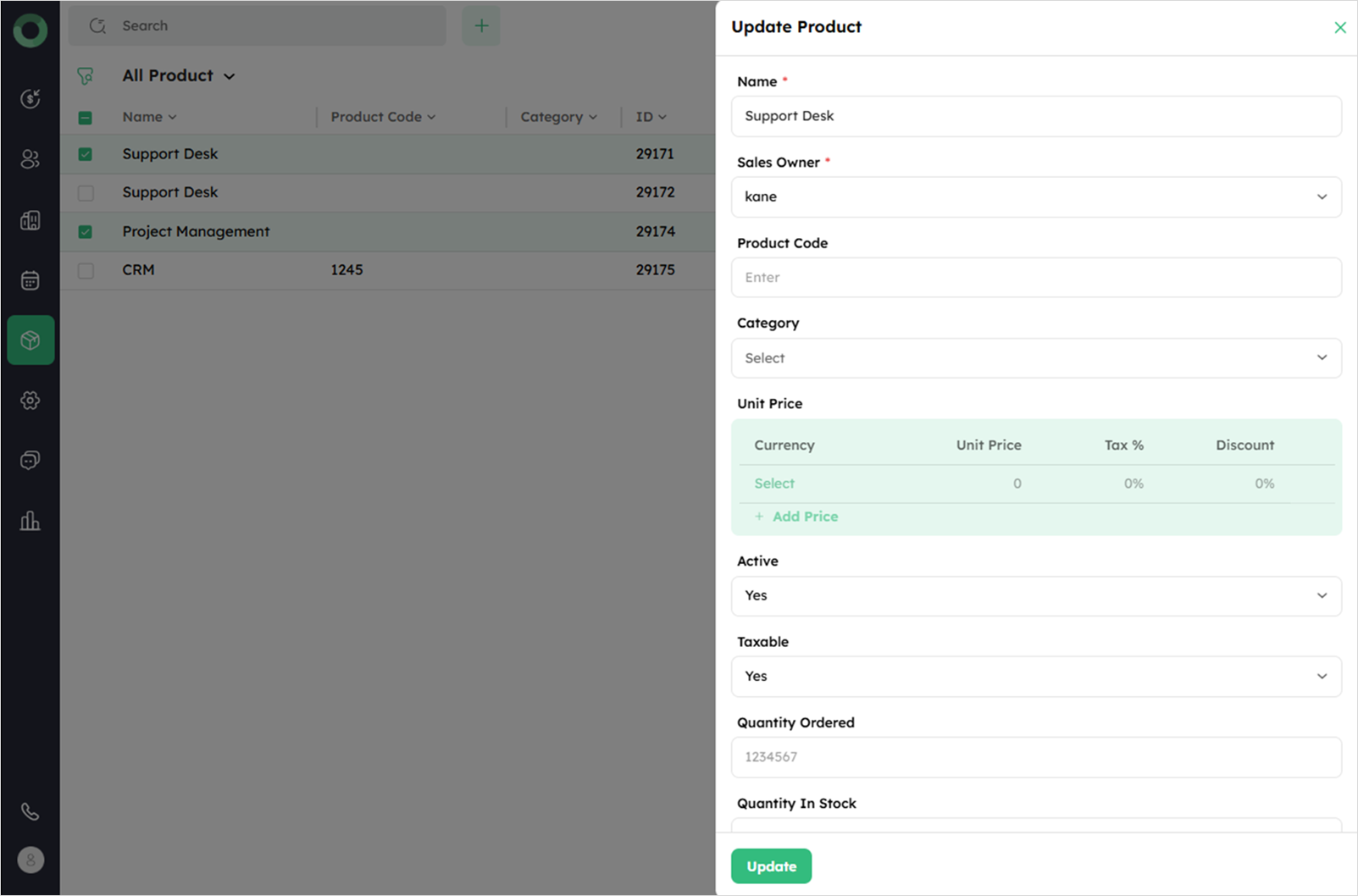
- Click Update to save the modifications.
Bulk Update Fields For Multiple Products
The navigation steps for this process are detailed in the Bulk Action section, which you can refer to [here].
Use Product Detail View to Update
To update a product from the summary fields in the Product Detail Page to follow these steps:
-
Access the Product List View and select the specific product you want to update. This opens the Product Detail page.
-
Click the ellipsis (⋮) icon located in the top-right corner of the Detail Page.
-
Select Edit to open the Product Update drawer.
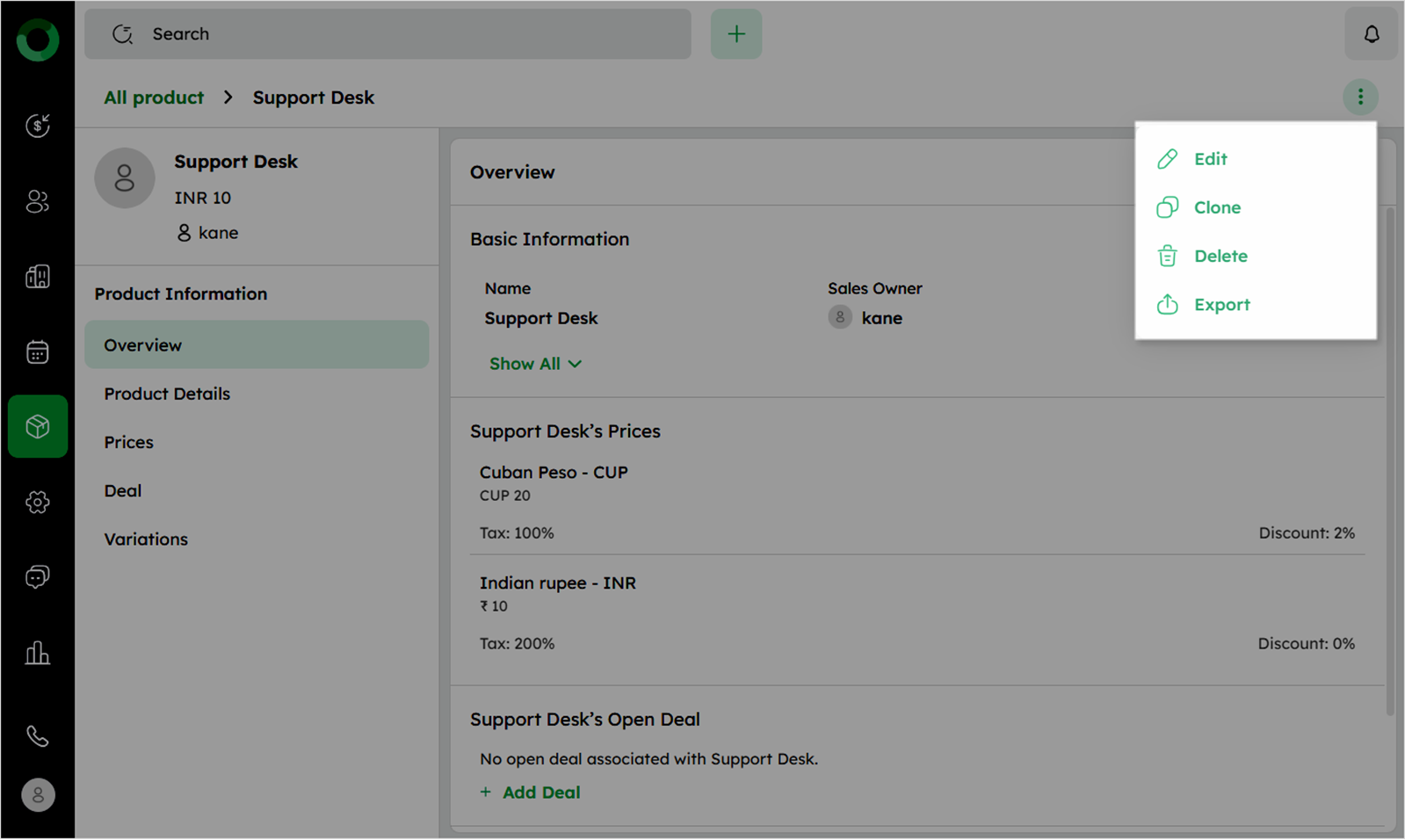
- Make the necessary changes to the product details.
- Click Update to save and apply the changes.
Summary Fields For Quick Updates
Steps to Update a Product from the Summary Fields:
-
Go to the Product Module from the main menu to open the Product List View.
-
Select the specific product you want to update; this opens the product Detail Page.
-
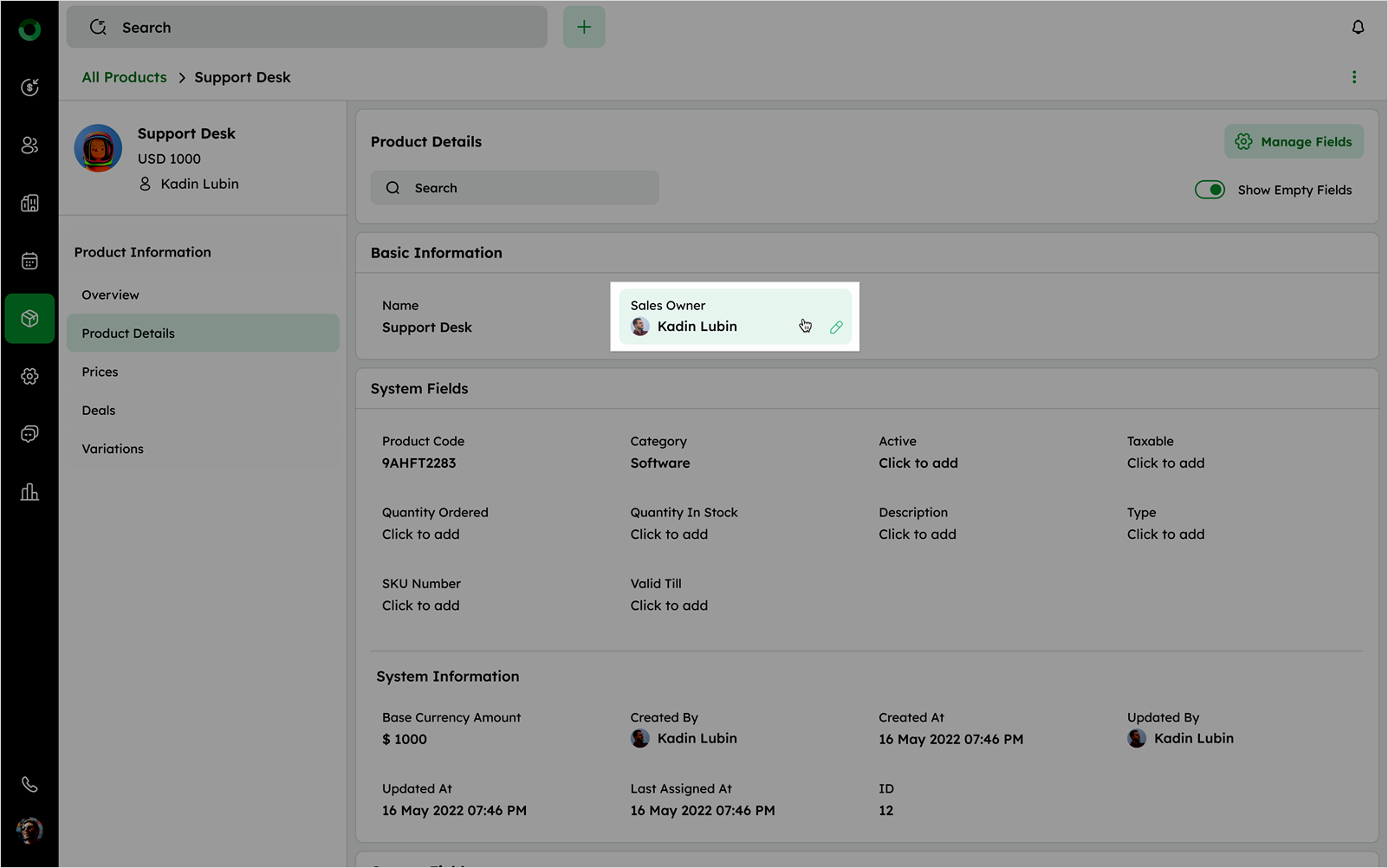
In the Product Information section, hover over a field to reveal the edit icon.
-
Click the edit icon to open the edit drawer.
-
Make the necessary changes, then click Save to apply the updates.