Features Available on Product Detail Page
Summary fields are designed to give you a quick and clear overview of essential information within your records. They consolidate key data points, making it easier to access and review important details at a glance.
Steps to Access and Edit Summary Fields
-
Go to the Product Module.
-
Select any product in the List View to open its Detail Page.
-
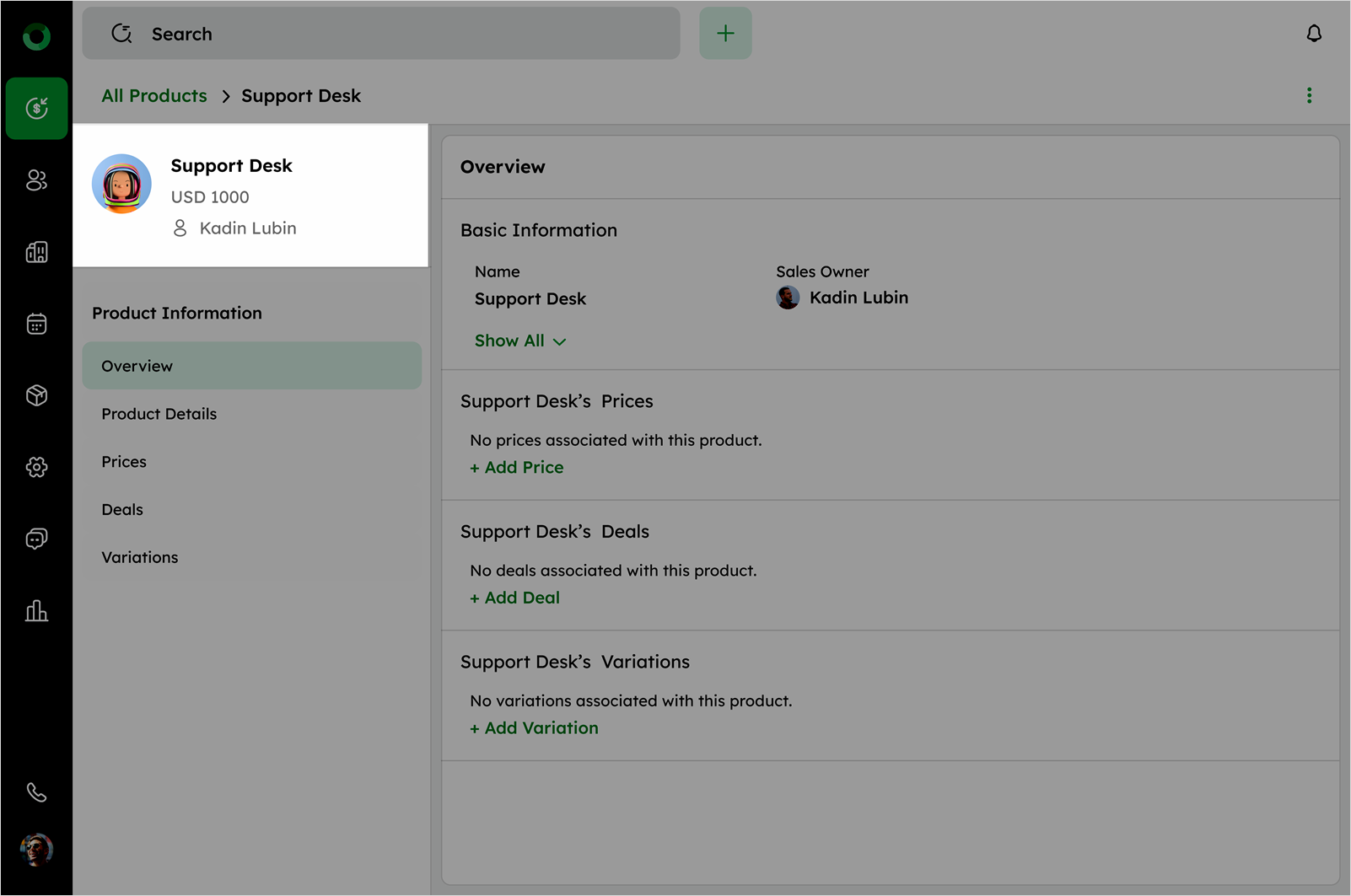
In the profile section, view essential details such as product name, price, and sales owner.
- To edit the profile, click Edit from the ellipsis (⋮) menu to open an edit drawer.
- Update the details in the edit drawer and click Save to apply the changes.
Products without a price will not be displayed in the profile details.
Ellipsis Menu on Detail Page
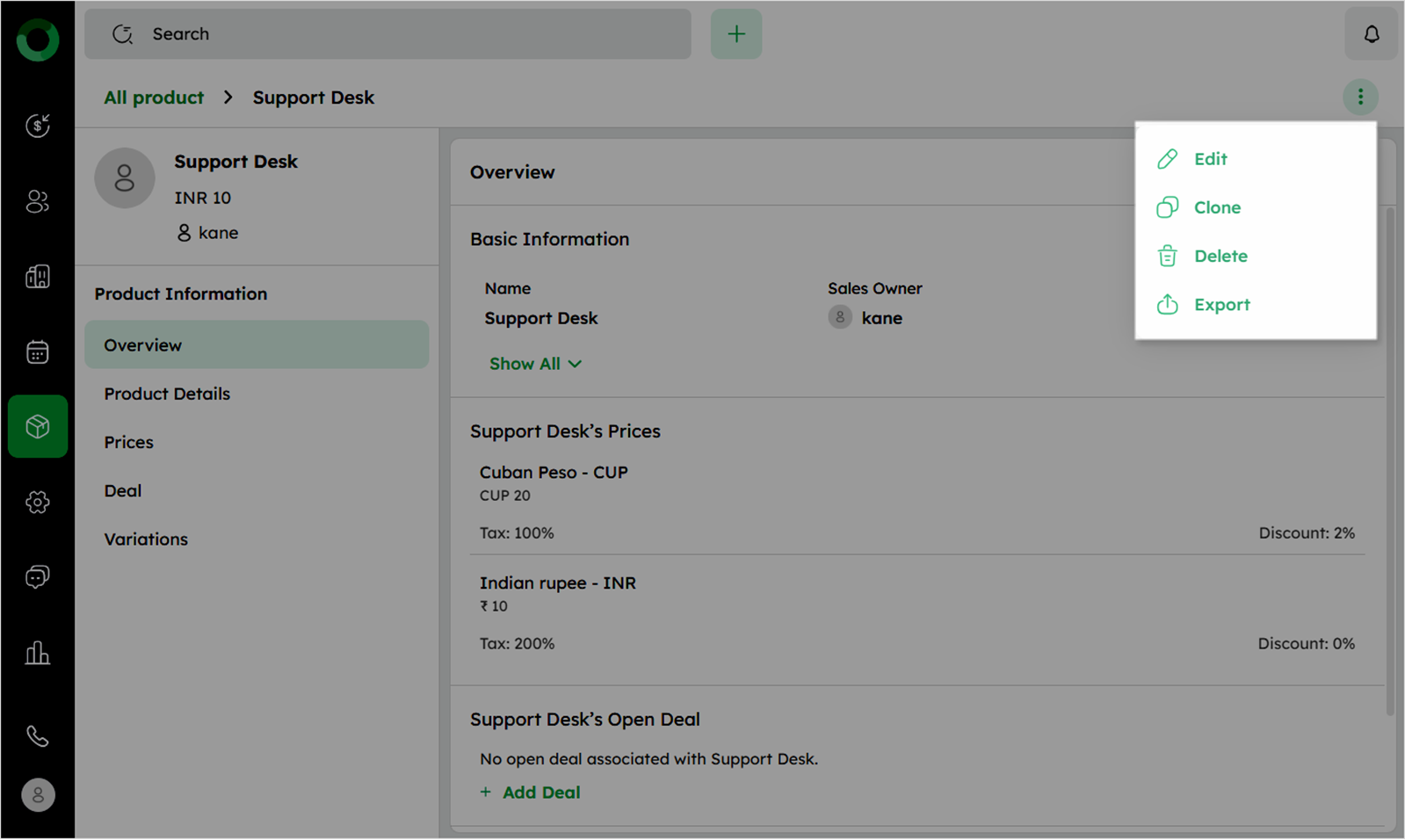
At the Product Detail Page, in the top right corner, the ellipsis (⋮) menu offers several useful options for managing products.
Ellipsis Menu (⋮): The menu presents the following options: Edit, Clone, Delete, and Export.
-
Edit : Opens the Edit Product drawer to update existing details or add new ones.
-
Clone : Creates a duplicate product with the current product's pre-filled details for faster entry.
-
Delete : Moves the product to the Recycle Bin for 90 days, provides an option to restore or permanently delete.
-
Export : Allows exporting product data in formats like XLSX, XLS, or CSV for backup or sharing.
Product Information & Details
The left panel gives quick access to all modules related to the product. It helps you manage every aspect of its detail in one place. Here's a breakdown of each section:
Product Overview
-
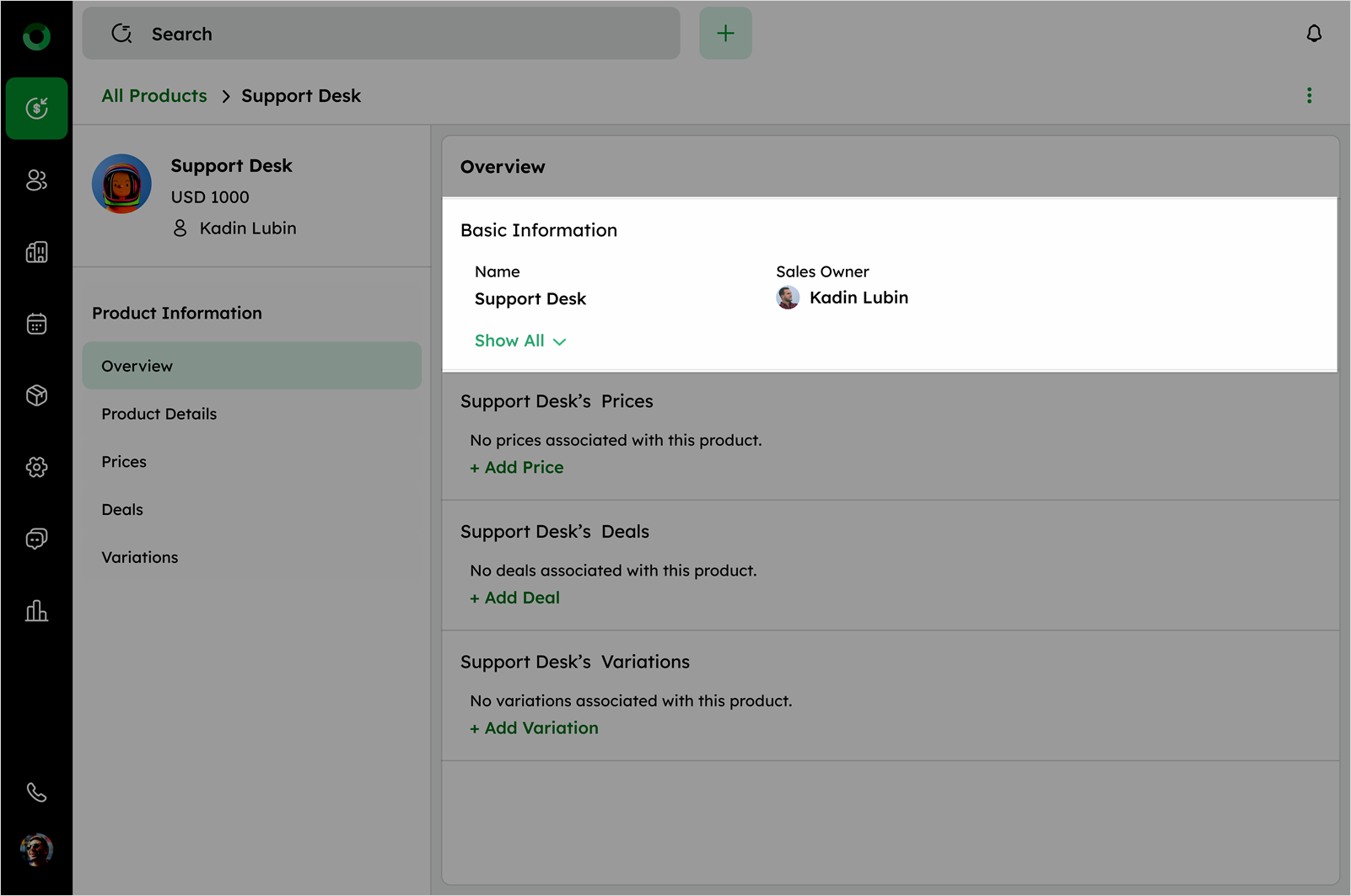
The Overview section, displays product's basic information.
-
Select Show All option to expand and display complete Product Details.
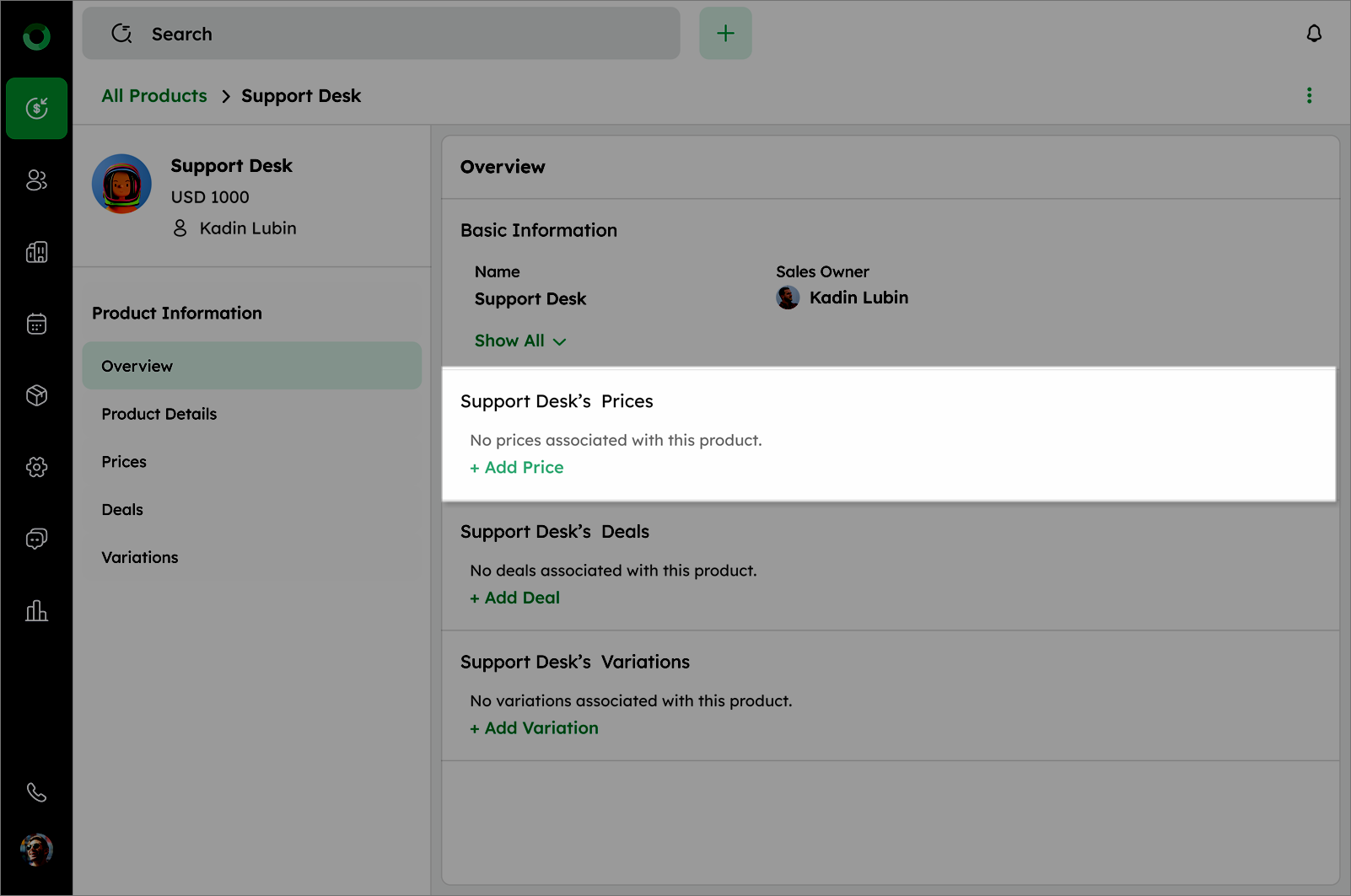
- +Add Price option redirects to the price section to add a price for the product.
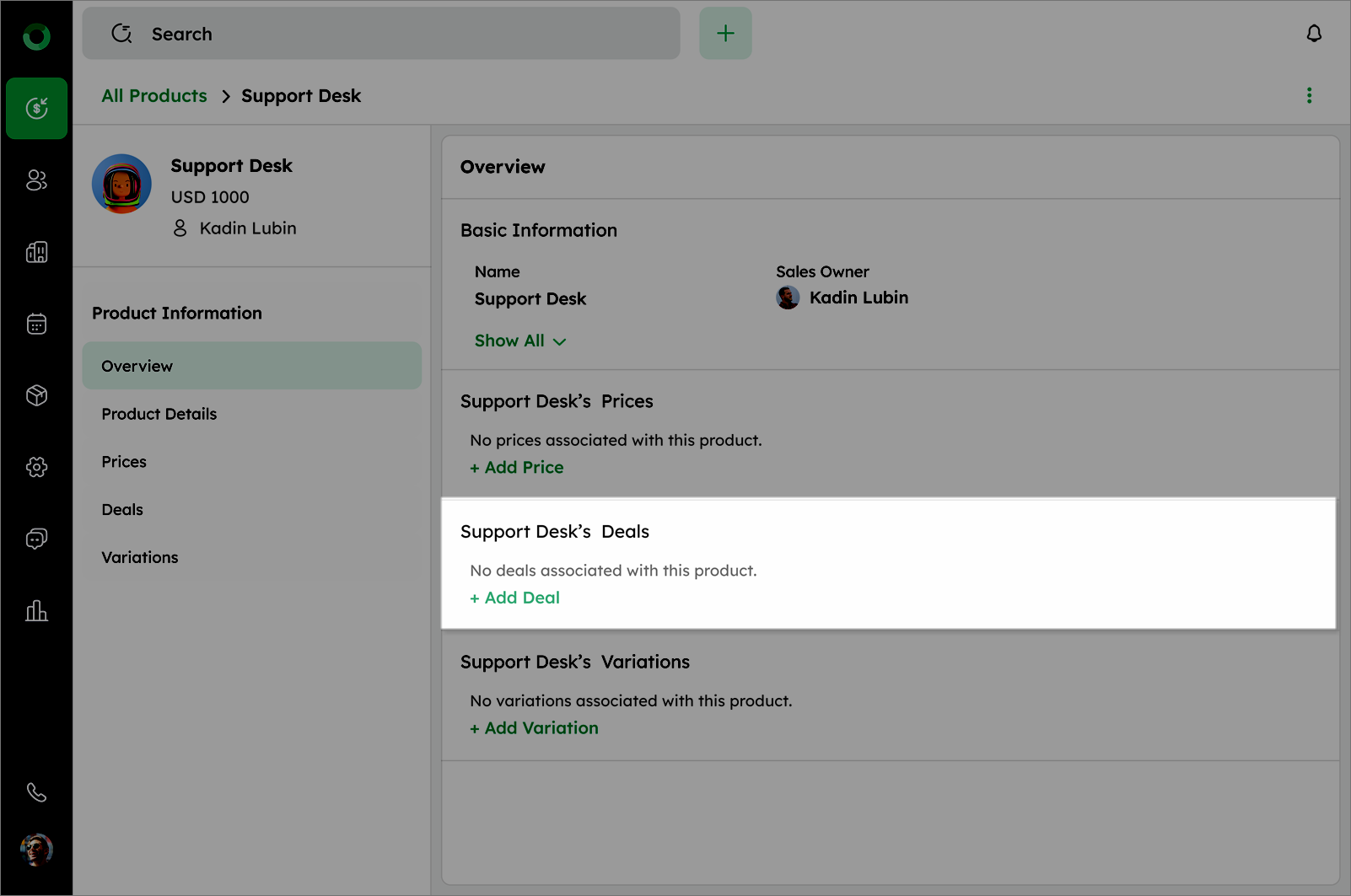
- +Add Deal option opens a deal form to associate a deal with the product (this option is visible only if no deal is linked).
- +Add variation option redirects to the variations section to add different versions of the product (this option is visible only if no variation exists).
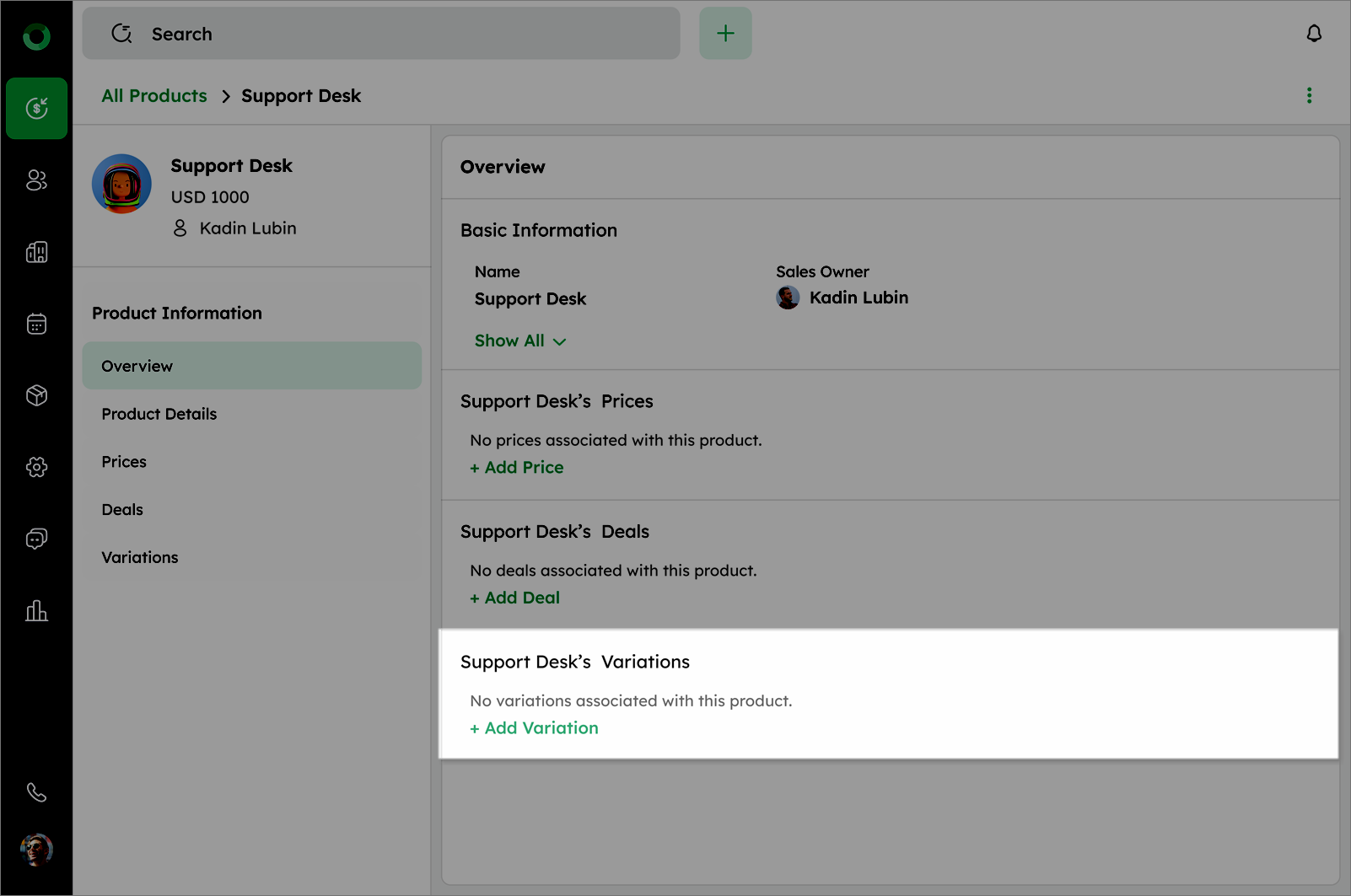
If a price, deal, or variation is already added, the options +Add Price, +Add Deal, and +Add Variation will not be visible.
Product Details & Fields
-
Click on Product Detail from the side menu.
-
Use the search bar at the top left to find fields by name or value.
-
Click Manage Fields at the top-right to access the data fields settings.
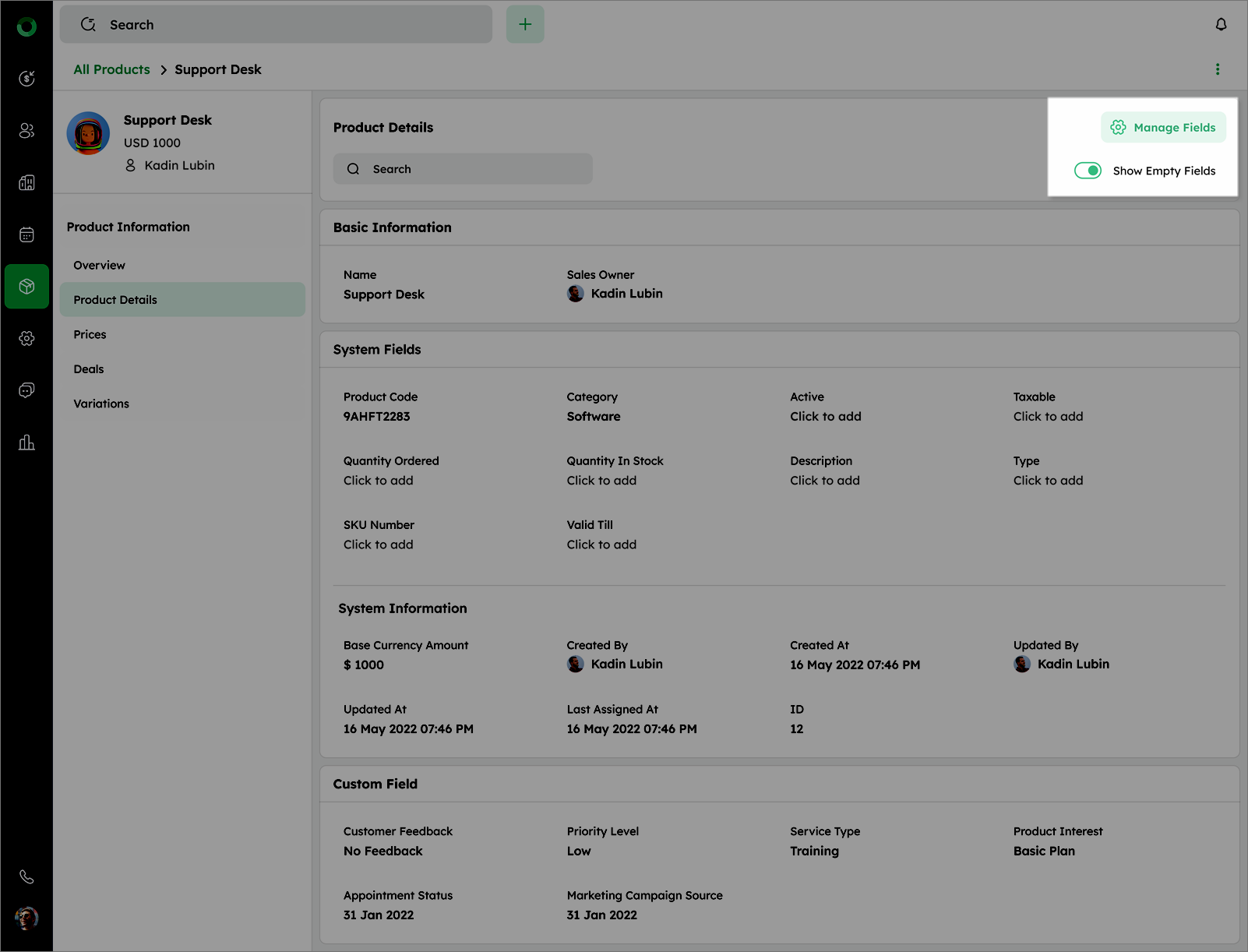
- Use the Show Empty Fields toggle to hide or display fields without values.
Field Types:
-
Basic Information - Displays key product-related fields.
-
System Fields - Contains editable system-defined fields not included in Basic Information.
-
System Information - Shows non-editable fields like base currency amount, updated at, last assigned at, created at and system-generated data.
-
Custom Field - Displays user-created custom fields.
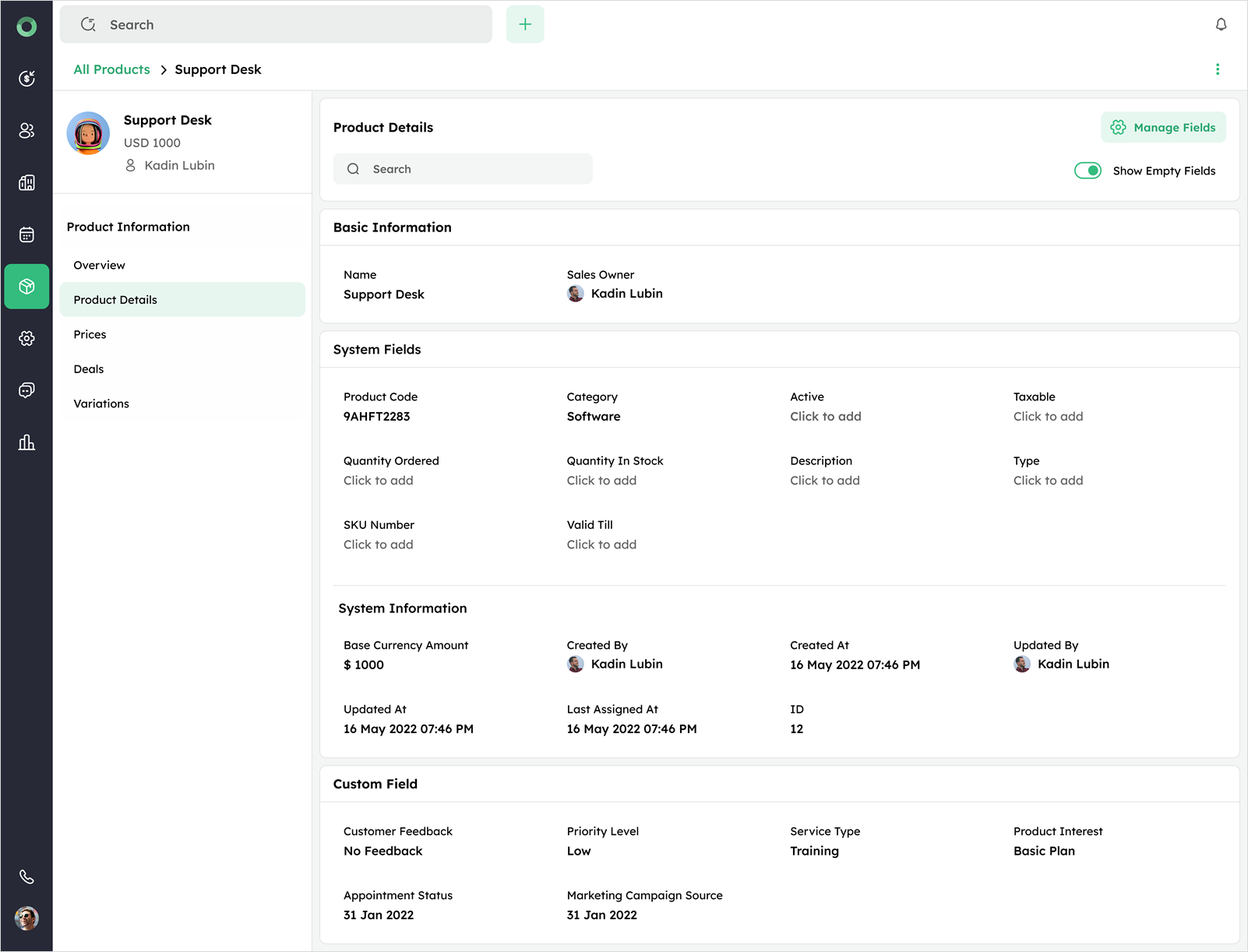
Tip: Hover over any editable field to reveal the inline edit icon and make changes directly.
Product Pricing
-
Click on Price from side menu.
-
View the product's prices listed in different currencies with tax and discount details.
-
Click + Price in top right corner to add new currency.
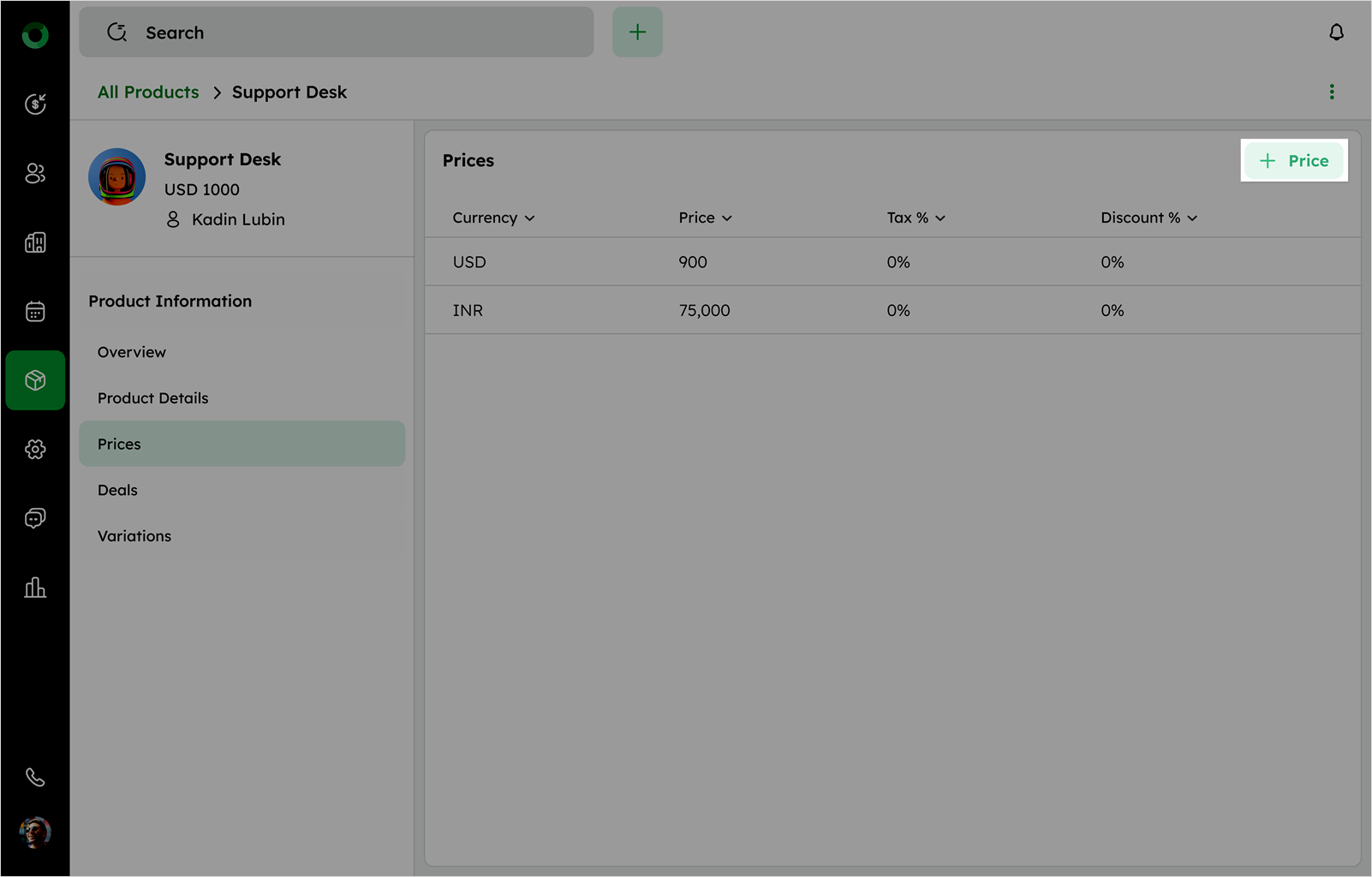
- Hover over a currency tile and click the edit icon to update price, tax and discount.
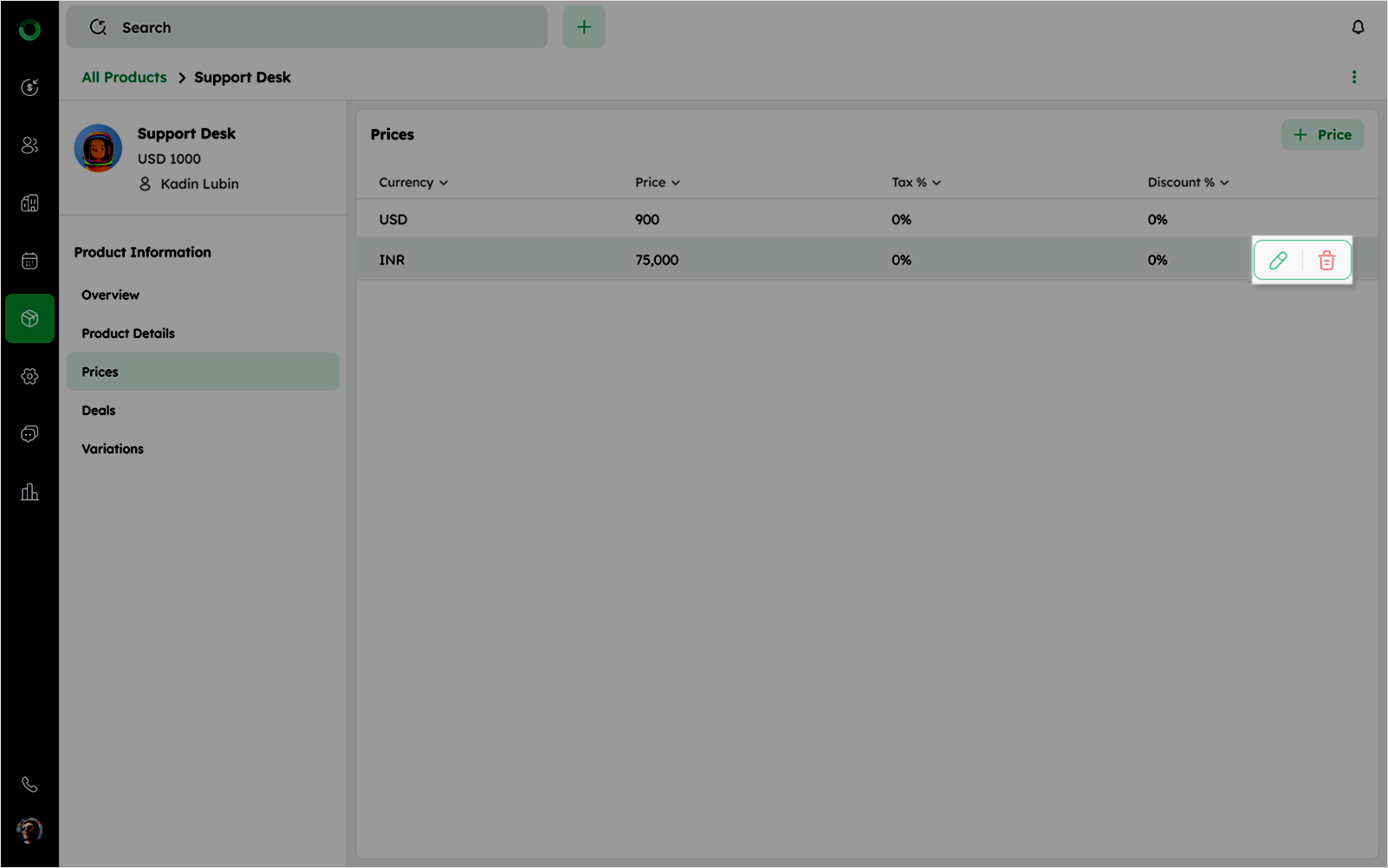
- Hover over a currency tile and click the delete icon to remove the currency.
-
Prices can only be added to saved currencies. If all saved currencies already have price, no new price can be added.
-
To add new currencies for pricing, from left side main navigation bar select Settings > Account Settings > Currency > Add Currency > Select Currency (From dropdown) > Save.
Linked Deals:
- Click Deals from the side menu.
Deals related to the corresponding product are displayed in list view.
- Click + Deal in the top right corner to add a new deal to the product.
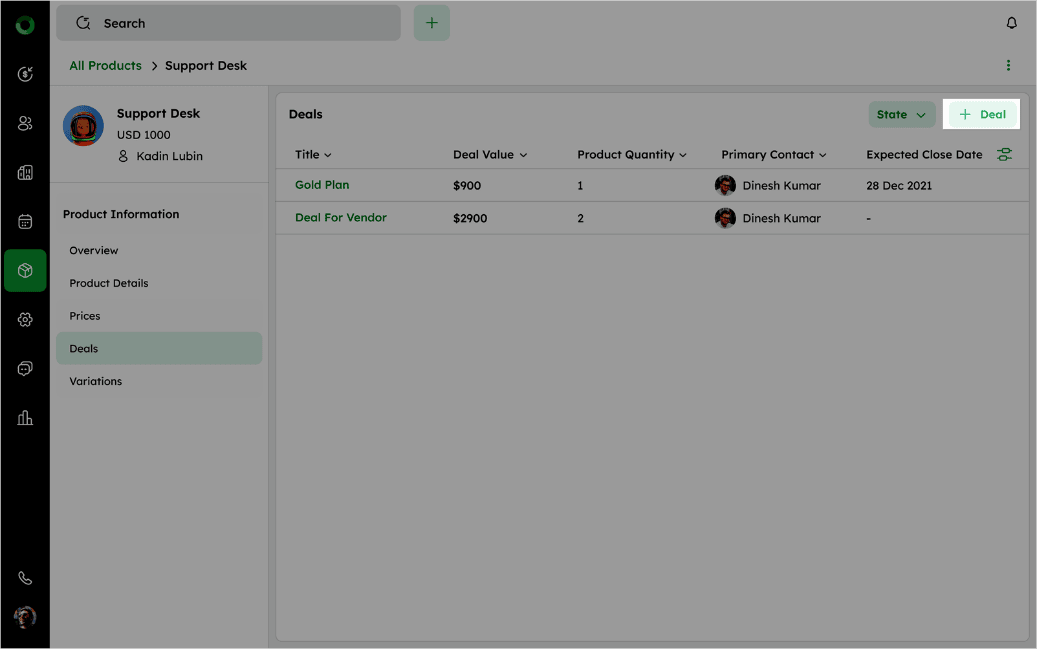
- Click State drop down next to the +Deal button to filter the deals based on Open, Close, or Won status by marking the check box.
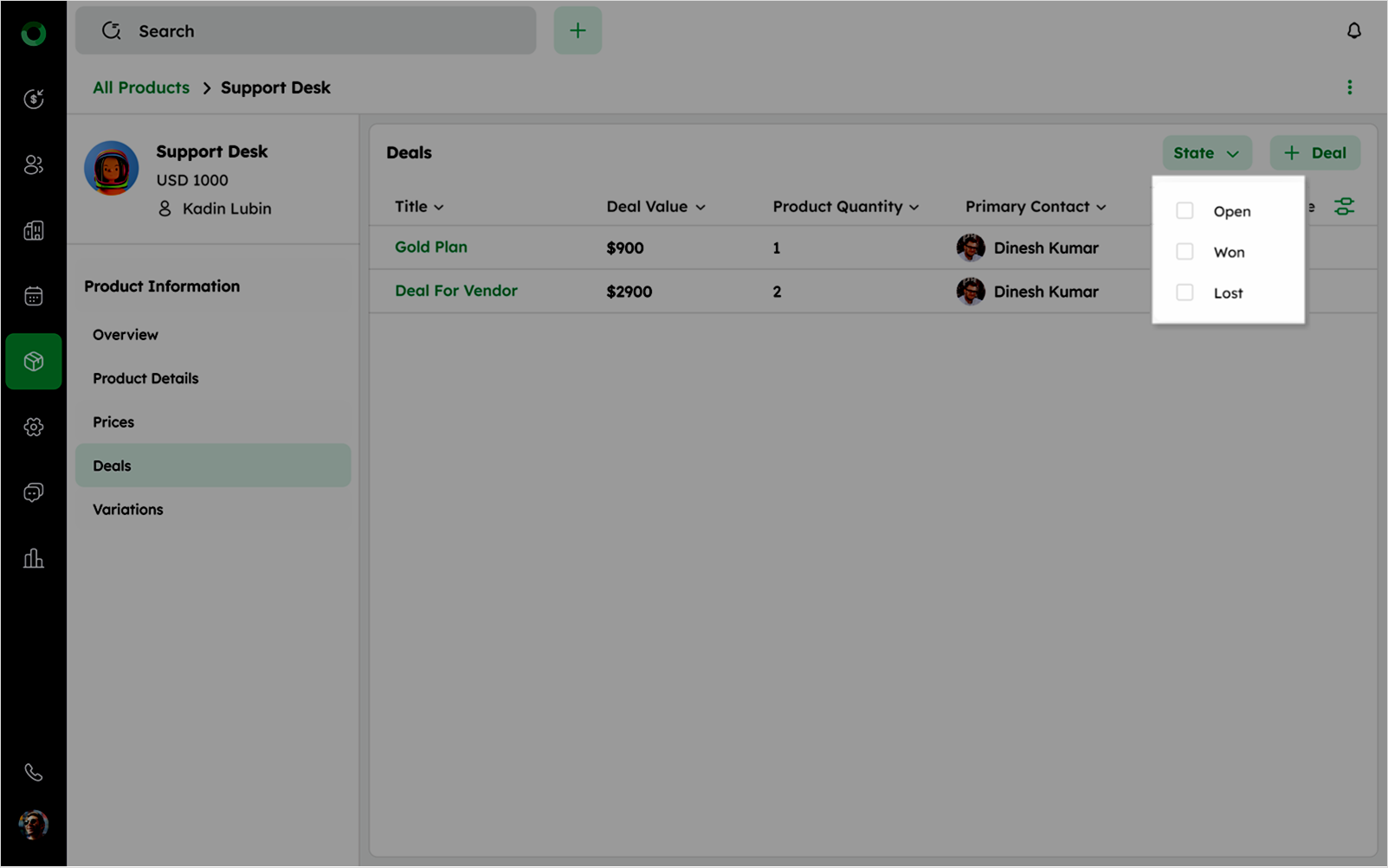
- Click the settings icon in the right corner of the table to add additional columns.
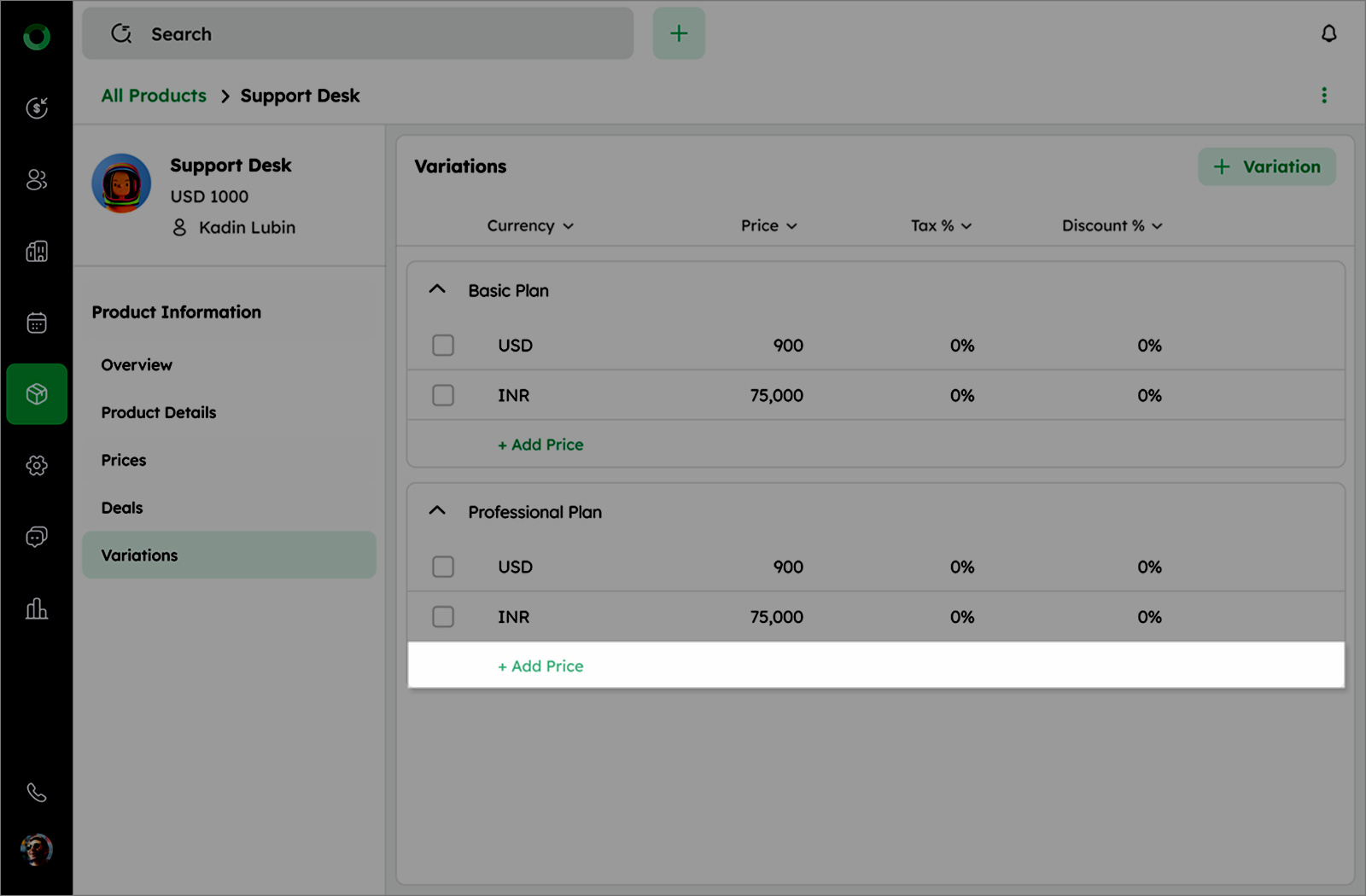
Product Variations
-
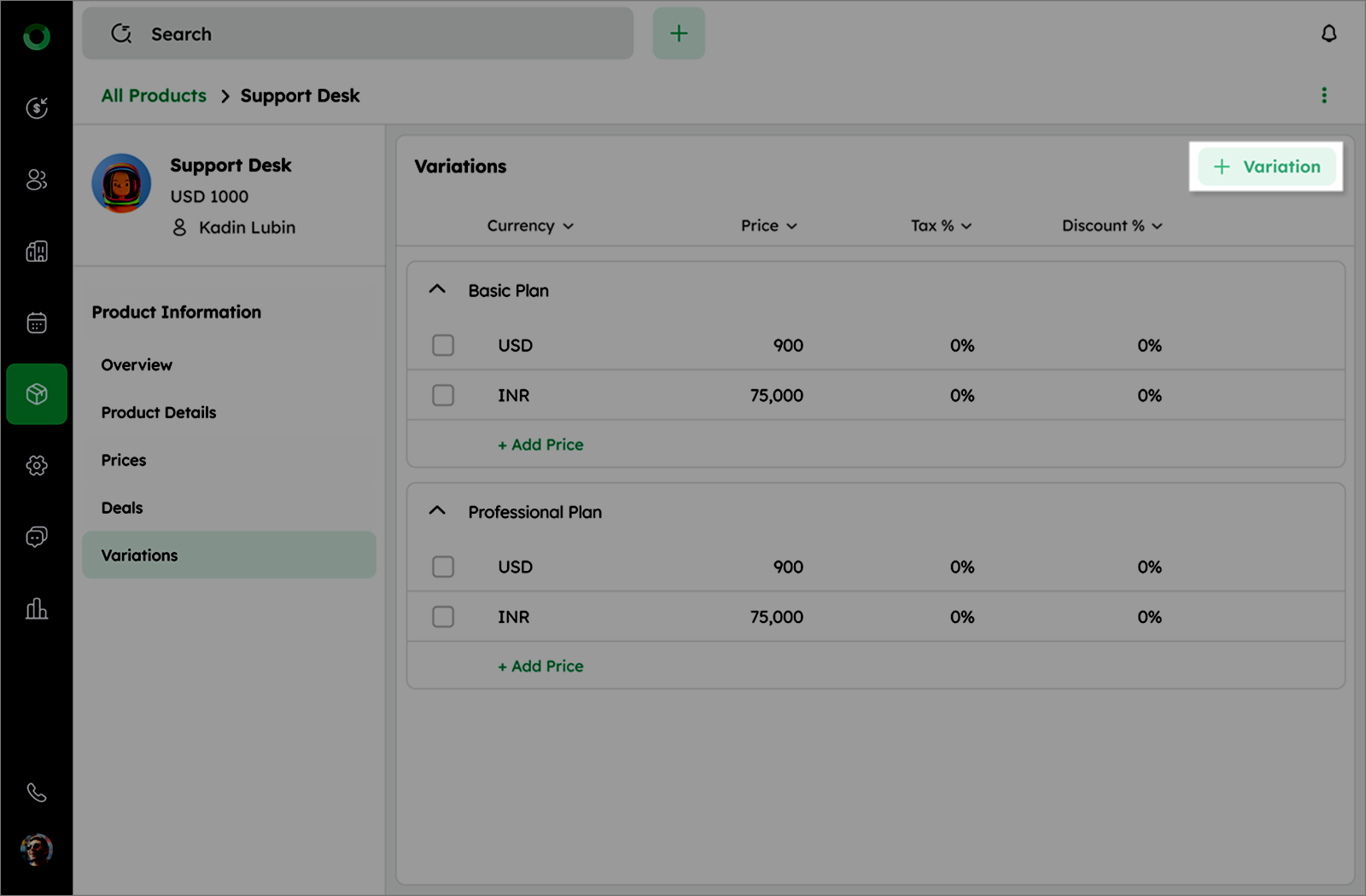
View different versions of the product in a list format.
-
Click + Variation at the top right corner to add a new version for the product.
-
Rename the variation by clicking the name field and updating it.
-
Hover over variation tile and reveal edit icon to update the price, tax, and discount, then click Update to save changes.
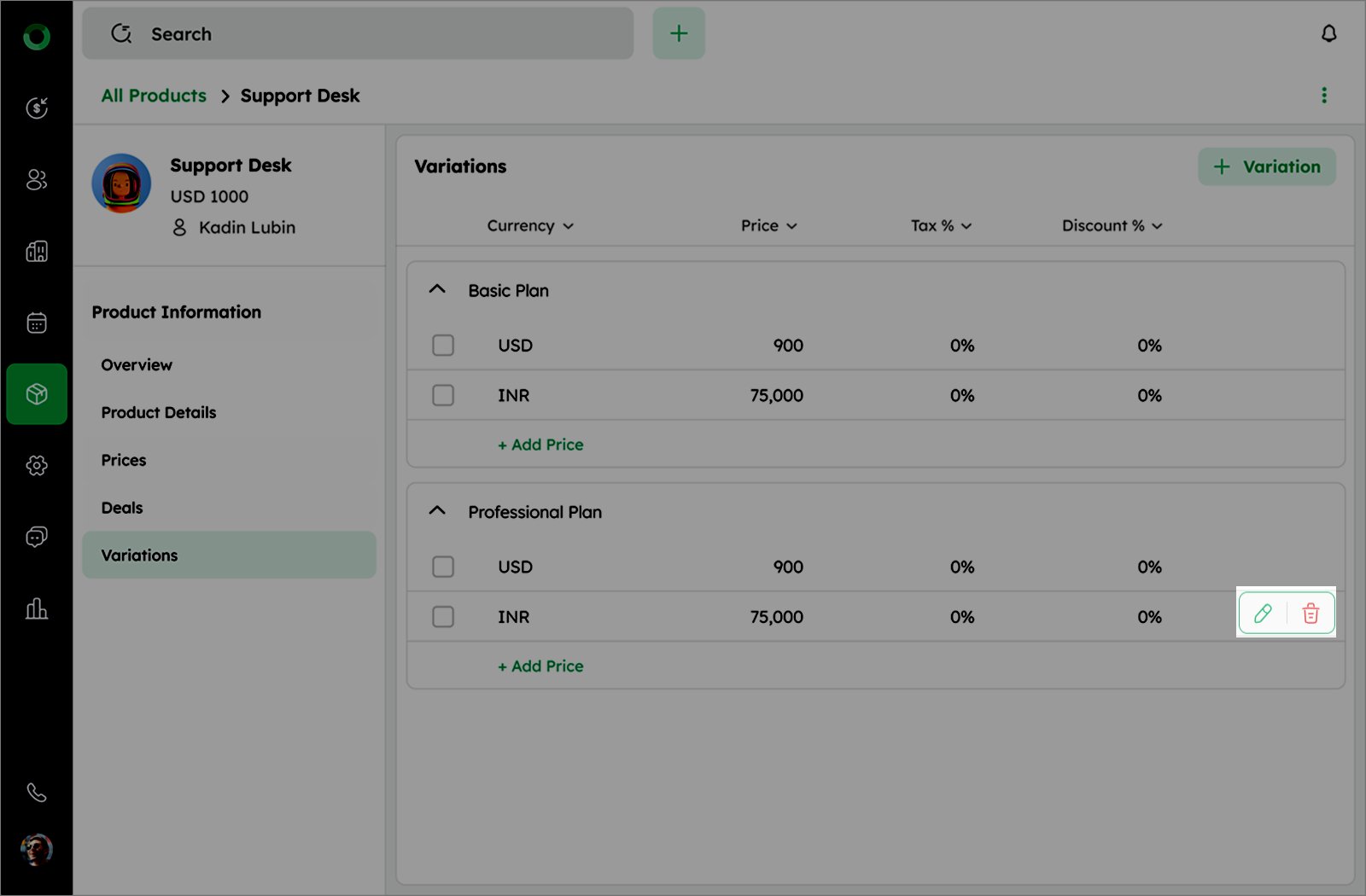
- Click + Add Price to add new currency other than the base currency.