Enabling and Managing the Product Module
The Product Module in Twozo streamlines inventory management by tracking stock levels, preventing shortages, and organizing product details in one place. It links products to deals, boosts sales efficiency, and provides insights into top-selling items for smarter decisions.
Enabling the Product Module in Twozo
By default, the Product Module is disabled. To enable the product module in Twozo:
- Click the settings icon on the main navigation bar to open the Admin Settings.
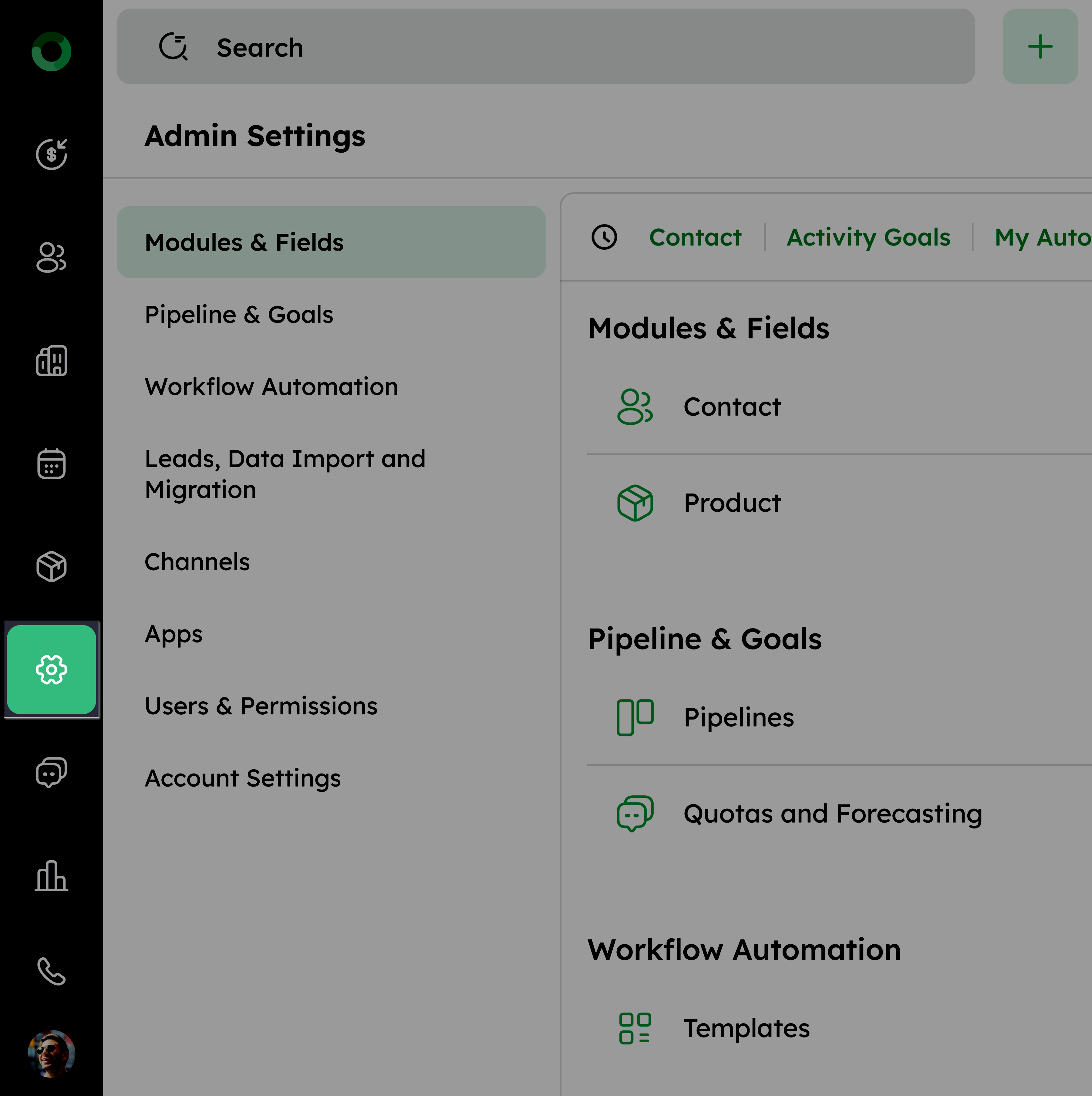
-
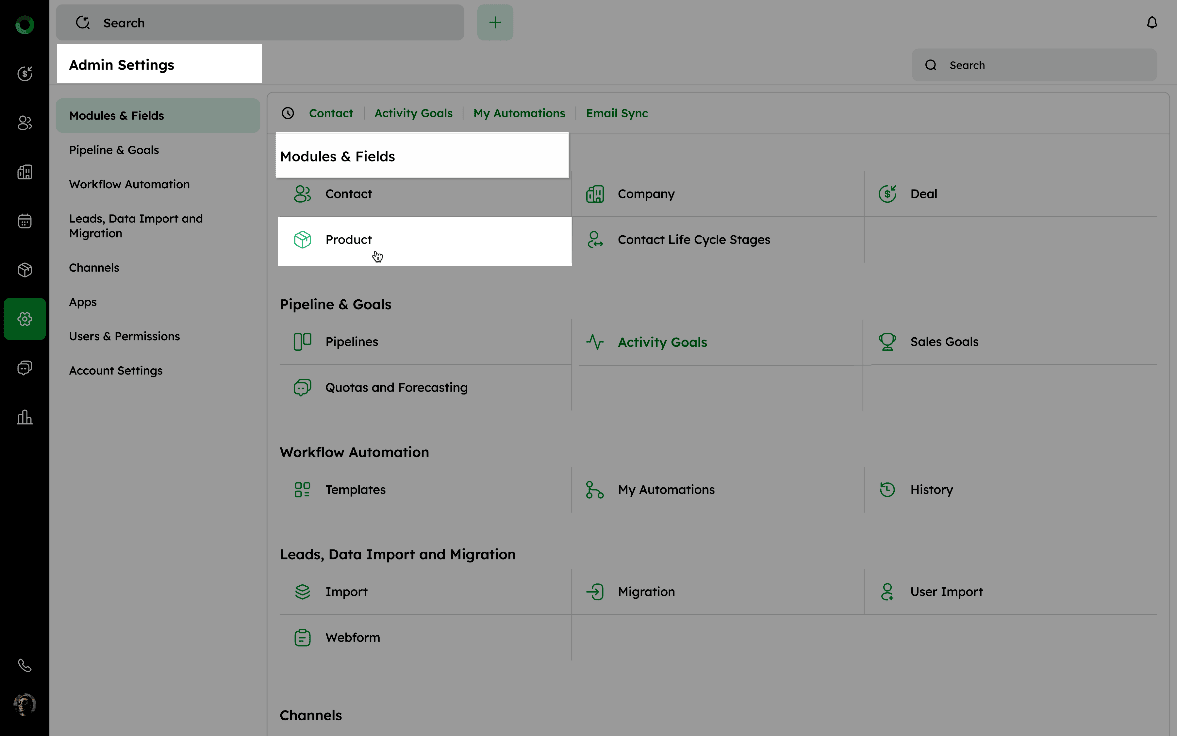
In Admin Settings, navigate to Modules & Fields.
-
Select Product module to open the product Data Fields page.
- Switch the toggle from Off to On to enable the module.
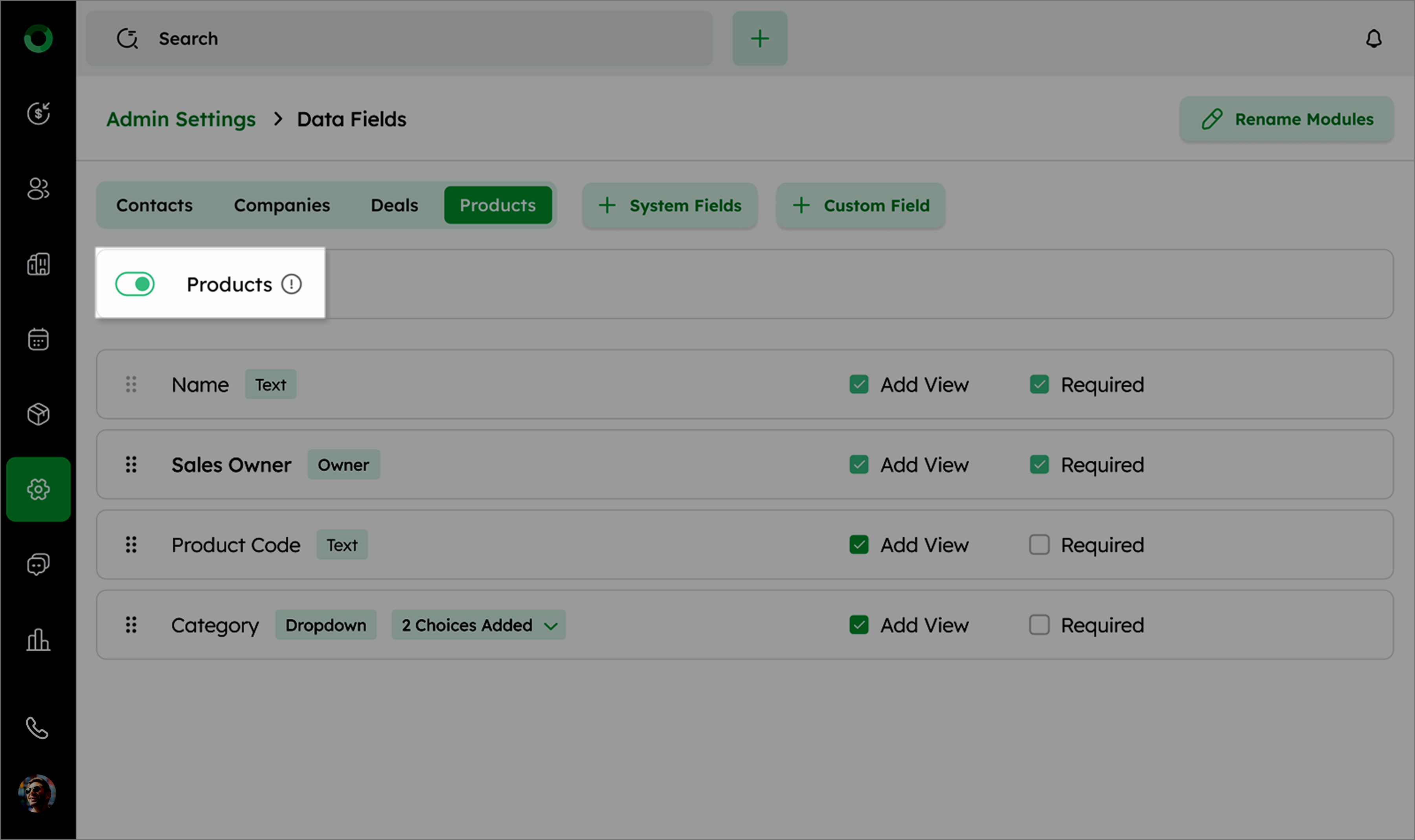
- The Product Module will now appear on the main navigation bar, giving you access to manage products or services.
Understanding the Impact of Disabling the Product Module
When the Product Module is disabled in Twozo, the following changes occur:
-
The Product Module will no longer be visible in the main navigation bar.
-
Any product-related information, including products linked to deals, will be hidden.
-
You cannot add new products or manage existing ones until the module is re-enabled.
-
Existing product data is preserved and will become visible again if the module is re-enabled.
-
The Product Data Fields section in Admin Settings will be hidden, preventing the addition of new product-related fields.
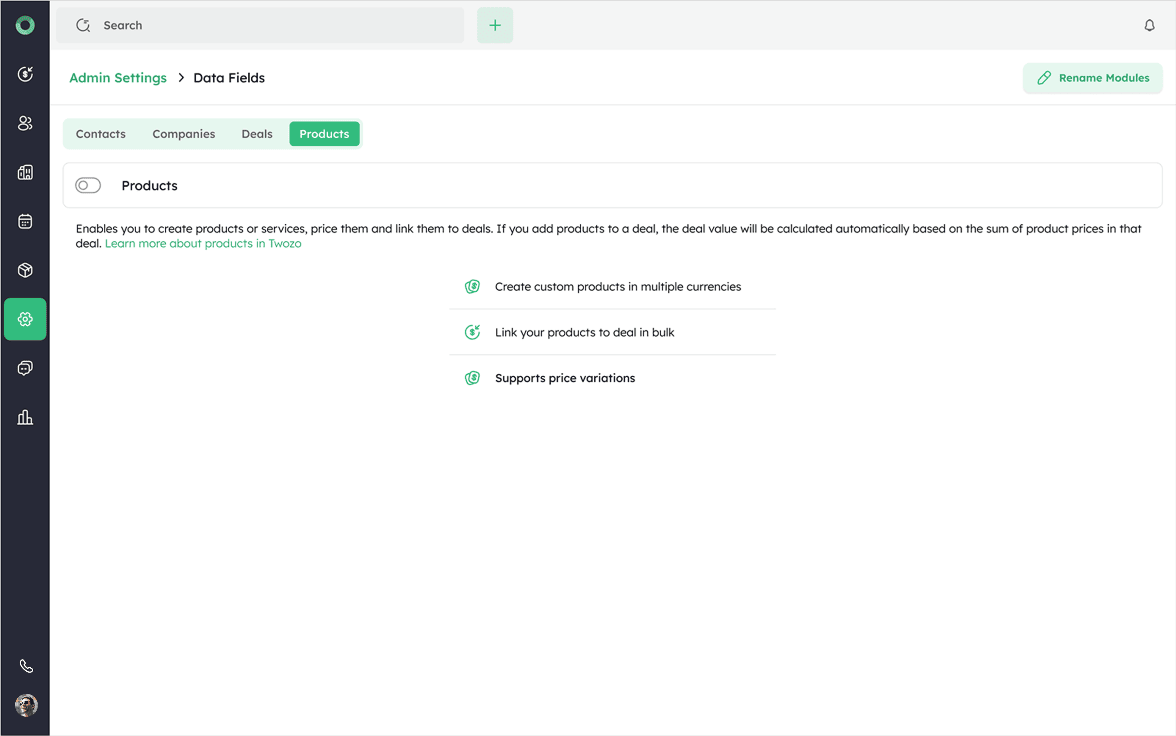
- Access to product-related analytics is restricted, including reports and insights on product performance and sales.
Disabling the Product Module does not delete any data. All information will reappear once the Product Module is enabled again.
