How to Link a Product with a Deal?
The products can be added to a deal from the Product List View or the Deal Detail Page. This ensures deal values remain accurate and product details are properly tracked.
Product List View: Bulk Action
The steps for adding products to a deal through bulk actions have already been detailed [link].
Link a Product via Add Deal Form
To associate products with deals from the Add Deal form, follow these steps:
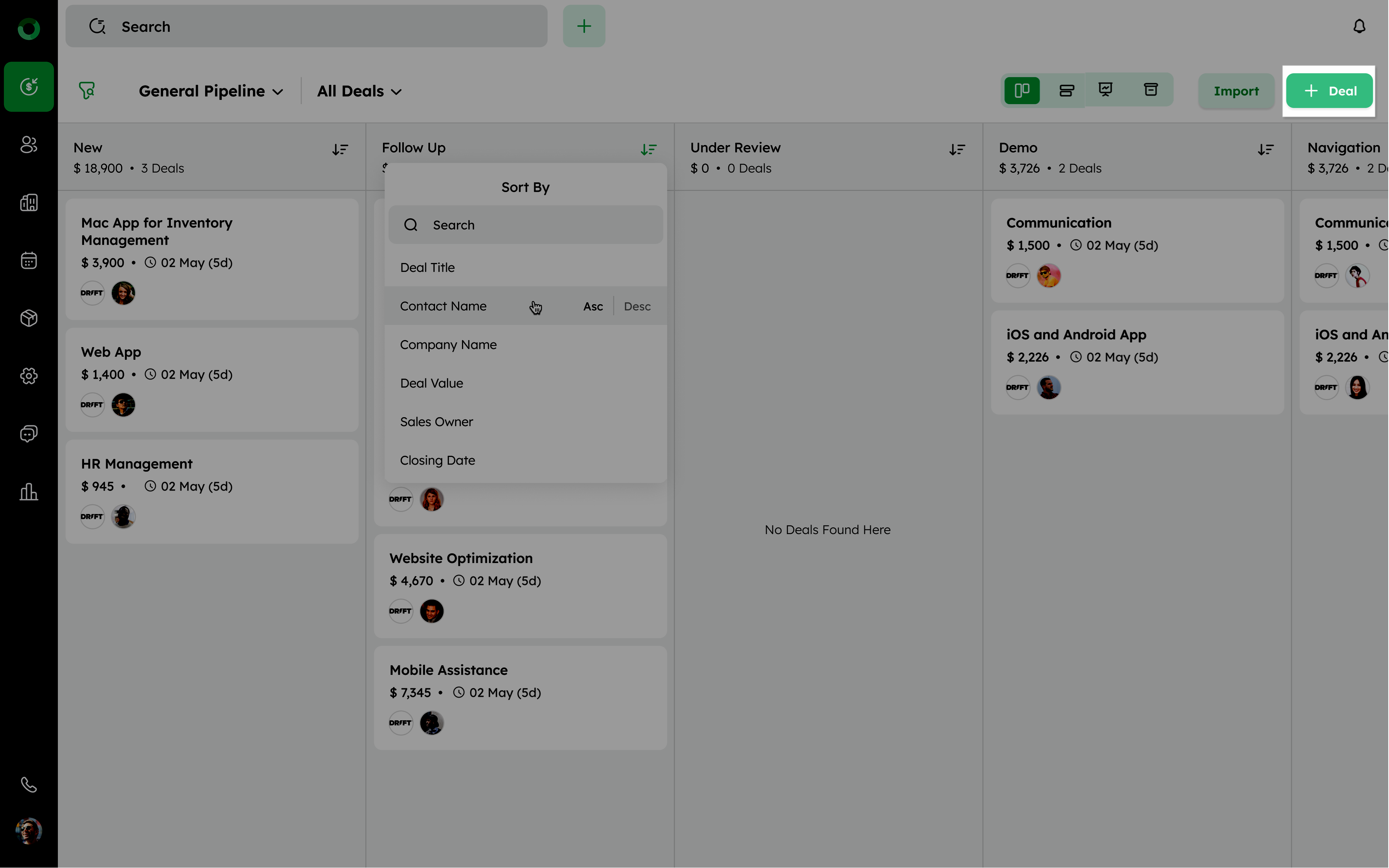
- Navigate to the Deal Module and click +Deal to open the Add Deal drawer.
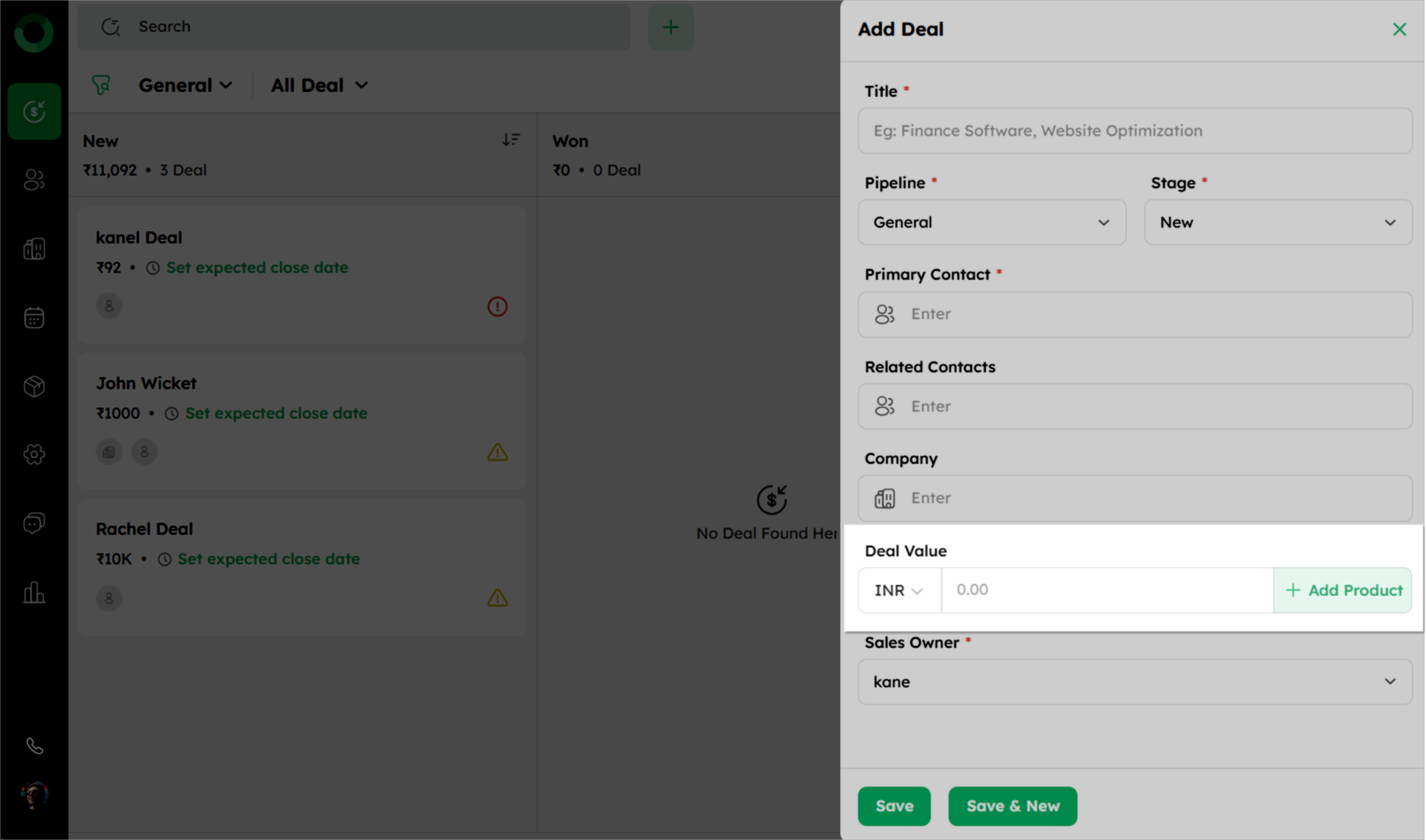
- Locate the Deal Value section in the drawer.
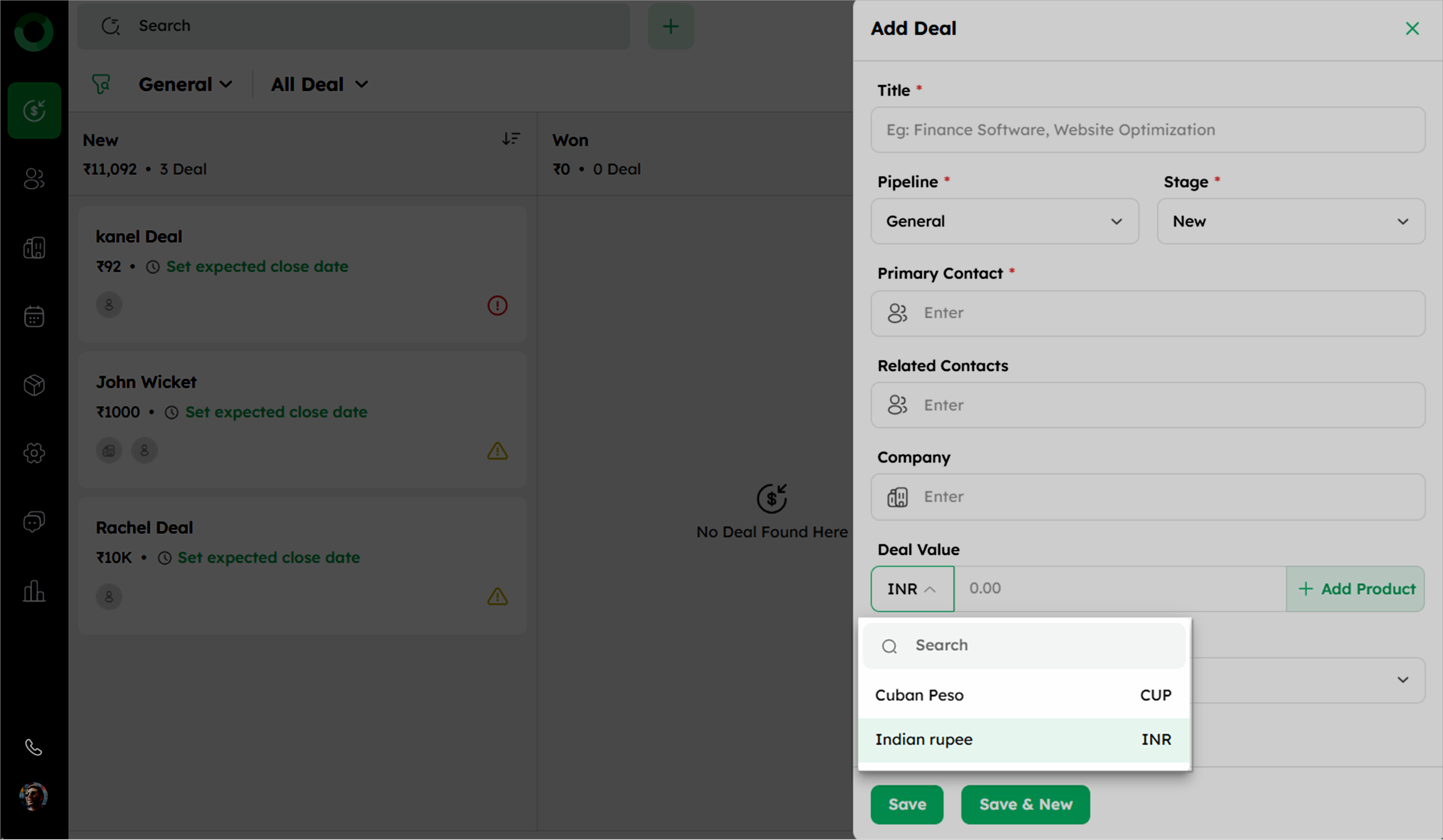
- Select the deal currency from the dropdown in the Deal Value section.
- Click +Add Product to open the product selection drawer.
-
In the product selection drawer, search for the desired product by typing its name in the search bar or browsing through the list. Once you find the product, click the product to select it.
-
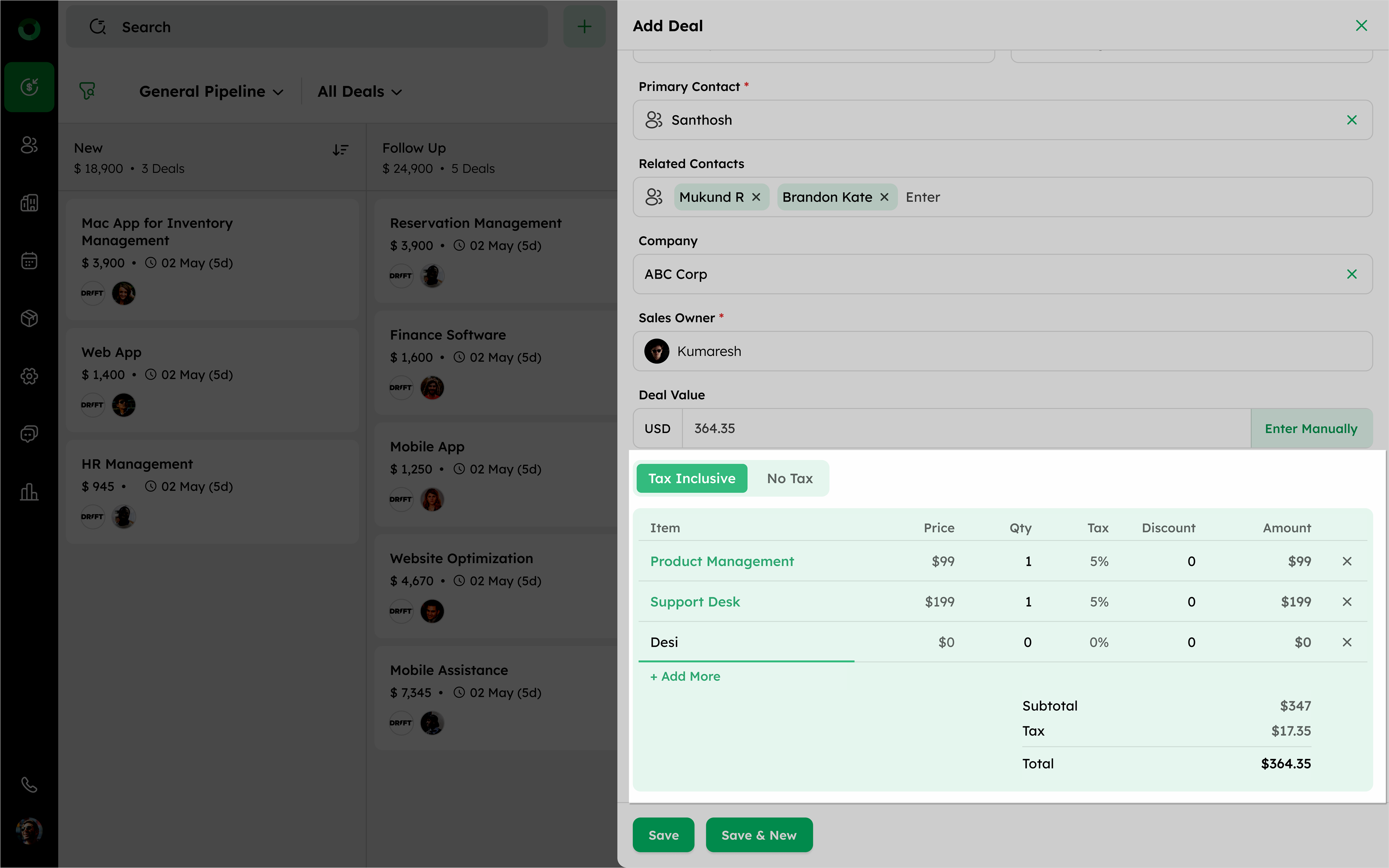
After selecting the desired product, enter or adjust the product details such as Price, Quantity, Tax, Discount, and Amount.
-
Review the Subtotal, Tax, and Total fields for accuracy. Click + Add More to add additional products if needed.
-
After verifying all details, click Save to finalize the deal.
Product Linking From Deal Detail Page
Adding a product from the Deal Detail Page allows you to directly link products with a deal without navigating to other modules. This ensures s all deal-related information accurate and organized.
To add a product from the deal detail page:
-
Go to the Deal Module and open a deal to access its Detail Page.
-
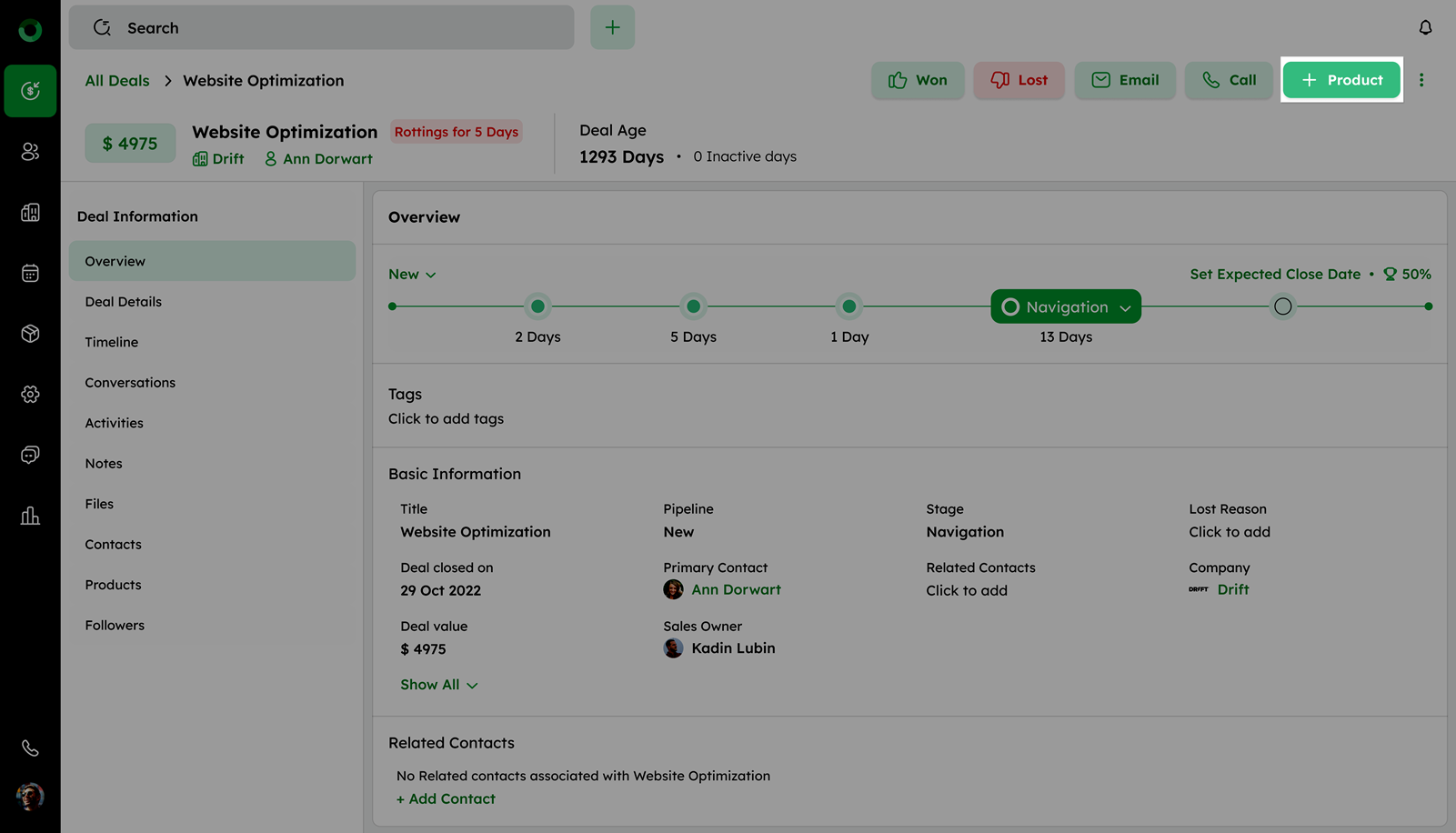
On the Deal Detail Page, click the +Product button in the top-right corner.
This opens the Add Product to Deal drawer.
- In the drawer:
-
Deal Name, Contact Person, and Company fields are auto-filled and non-editable.
-
Select additional details: Currency and Tax Inclusion/No Tax, product price is applied based on the selected currency.
The product table includes Items, Price, Quantity, Tax, Discount, and Amount.
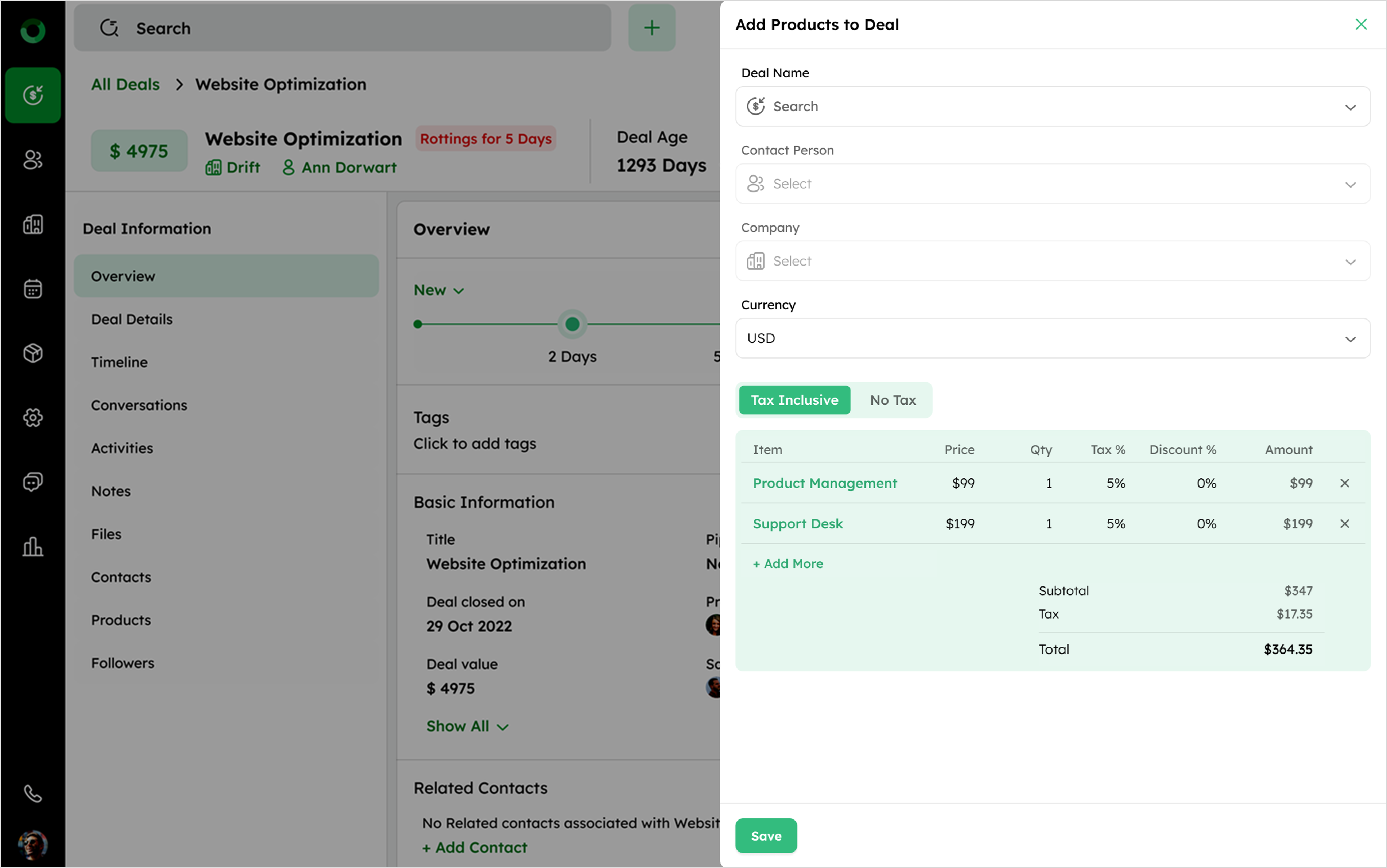
- To add multiple products, click +Add More.
-
Suggested items will auto-fill, and values can be edited as needed.
-
Ensure product prices appear in the selected currency.
- Once all products are added, click Save button to confirm totals and tax.
